If your capture card shows your PS5, Xbox, Switch or Steam Deck just fine in OBS Studio or Streamlabs but no game sound comes through (the card’s meter in the Audio Mixer doesn’t move, or the card isn’t in the mixer at all, and recordings come out silent), the card itself is often fine. OBS just isn’t picking up its sound, or the sound never reaches the card. This guide will walk you through the settings that bring it back and what to check when they don’t.
Also see: Record Internal Audio on Windows 11/10 without Microphone
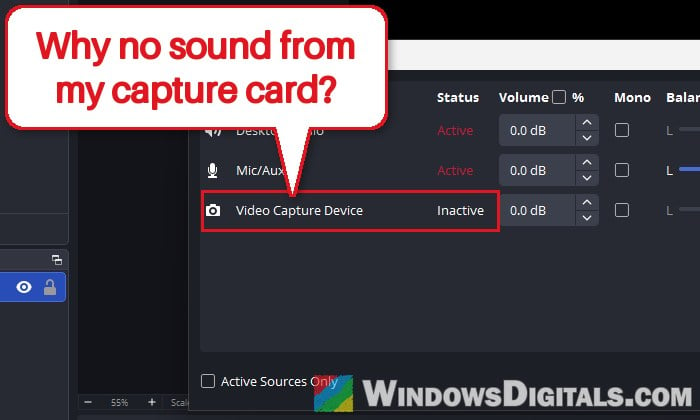
Why is there video but no audio from the capture card?
A capture card shows up in Windows as two separate things: a video device for the picture and an audio device for the sound. OBS and Streamlabs don’t always link the two by themselves. Some common reasons for this are:
- The capture card’s source isn’t using the card’s audio device, so OBS never listens to it.
- The sound is captured, but you can’t hear it because audio monitoring is off.
- Windows has the card’s audio muted, turned off or blocked by the microphone privacy settings.
- The console isn’t sending sound over HDMI, for example because headphones are plugged into the controller or the monitor.
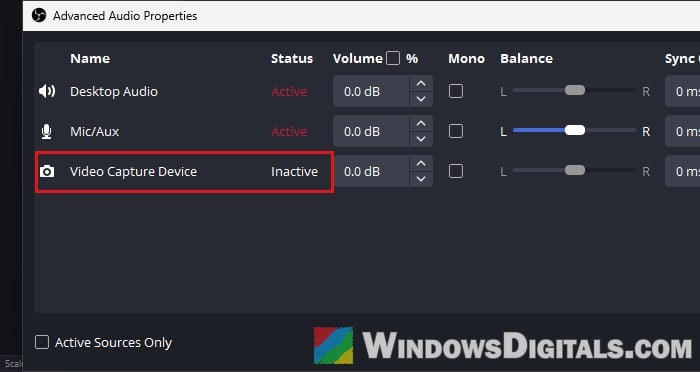
You might also see the card’s source listed as “Inactive” in OBS’s Advanced Audio Properties, a sign that OBS isn’t getting any sound from it.
Make the “Video Capture Device” source use the card’s audio
The capture card’s source has its own setting for which audio device to use. Point it at the card’s audio, and OBS records the sound with the picture. Here’s how to do it:
- In the “Sources” box, right-click your capture card’s source (usually “Video Capture Device“) and select “Properties“.
- Scroll down to the bottom of the properties window.
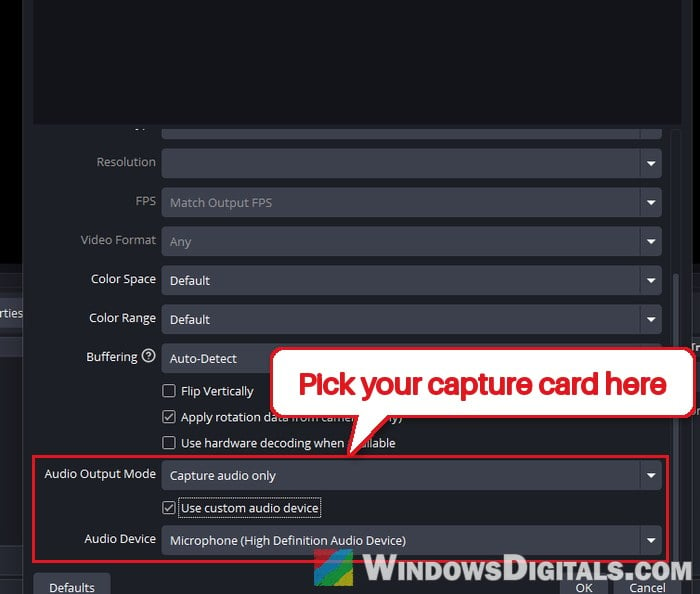
- Make sure “Audio Output Mode” is set to “Capture audio only“.
- Tick “Use custom audio device“.
- In the “Audio Device” list under it, select your capture card (its model name, or something like “HDMI” or “Digital Audio Interface“), not your own microphone.
- Click “OK“.
Play something with sound on your console and watch the Audio Mixer. The card should now have its own channel, with its meter moving.
“Capture audio only” sends the sound to your stream and recording without playing it through your speakers. To hear it yourself, use monitoring (below).
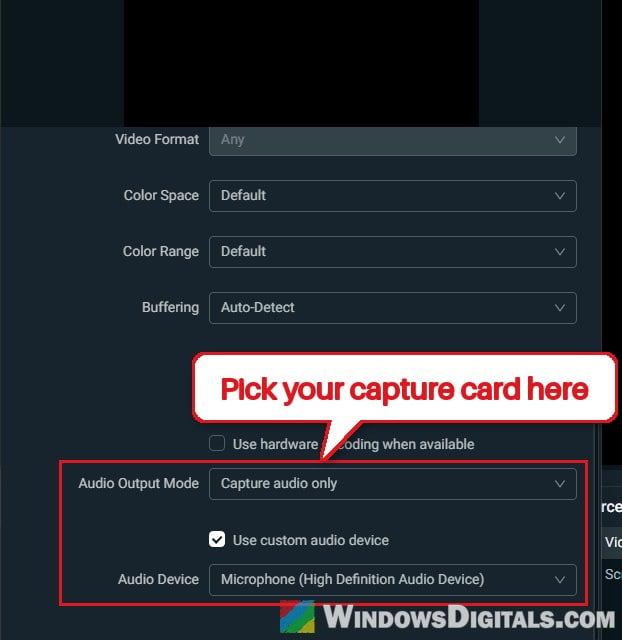
In Streamlabs, the source is called “Video Capture” and its settings have the same options: keep “Audio Output Mode” on “Capture audio only“, tick “Use custom audio device” and pick your card under “Audio Device“.
Might be useful: How to Test Microphone on Windows 11 to See If It’s Working
Add the capture card as an “Audio Input Capture” source
If that doesn’t work, add the card’s sound as a source of its own. This is what brought the sound back for a few people on Reddit. Here’s what to do:
- Click the “+” button under the “Sources” box.
- Select “Audio Input Capture“, then click “Add a new Audio Input Capture” on the right.
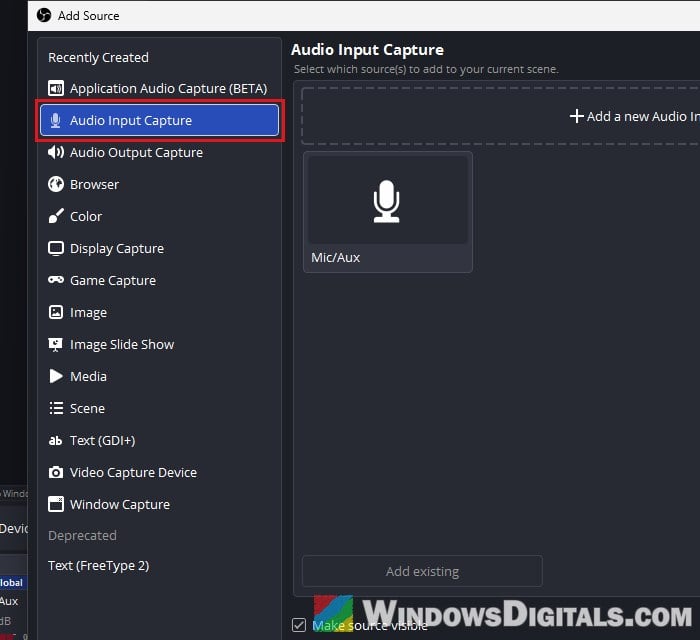
- In the “Device” list, select your capture card and click “OK“.
The new source shows up in the Audio Mixer as its own channel, and its meter should move when the game makes sound. Streamlabs has the same source. You don’t need both this and the custom audio device for the same card, so if you’ve set up both, hide or remove one of them.
Turn on audio monitoring if you just can’t hear it
Sometimes the card’s meter moves, but you can’t hear the game through your PC. OBS doesn’t play a source back to you unless monitoring is on. Here’s how to turn it on:
- Go to Edit > Advanced Audio Properties (there’s also a button for it at the bottom of the Audio Mixer).
- Find your capture card’s source. If it isn’t listed, untick “Active Sources Only” at the bottom.
- Under “Audio Monitoring“, tick “Enable” in that source’s row.
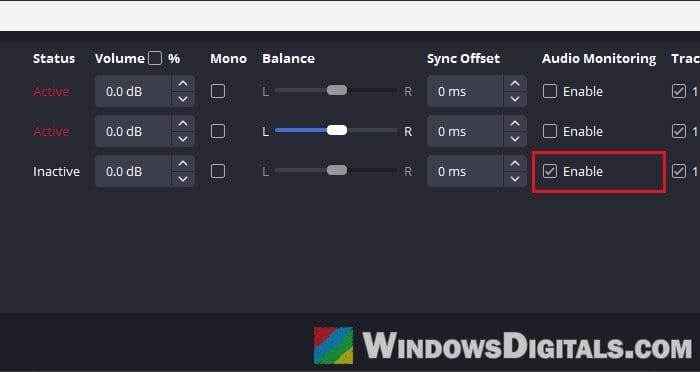
- Click “Close“.
Please note that older versions of OBS have a drop-down list here instead of a checkbox. There, choose “Monitor and Output“.
Play something on the console again, and you should now hear it through your PC.
Check that Windows isn’t muting or blocking the card’s audio
Windows treats the capture card’s sound as an input device, just like a microphone. So it can be muted, turned off or blocked like one, and then OBS gets no sound no matter how you set it up. Here’s how to check:
- Open Settings > System > Sound, and under “Input“, click your capture card.
- Next to “Audio“, the button should say “Don’t allow“. If it says “Allow“, the card is turned off, so click it.
- Check that the “Input volume” isn’t at 0 and that the microphone icon next to it isn’t muted.
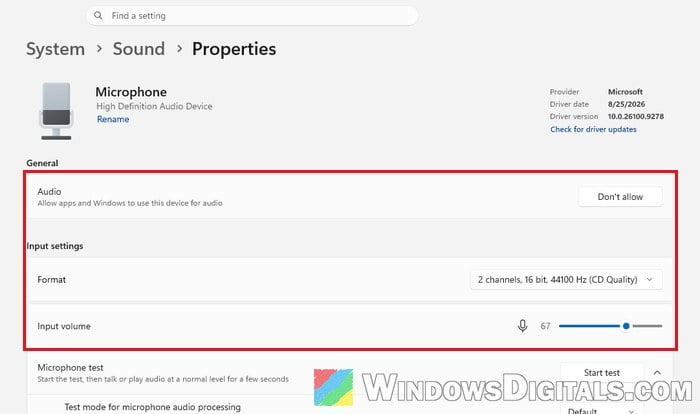
Then check the microphone privacy settings. When “Let desktop apps access your microphone” is off, Windows blocks OBS from every input device, the capture card included. Here’s where to find it:
- Go to Settings > Privacy & security > Microphone.
- Make sure “Microphone access” is on, and turn on “Let desktop apps access your microphone“.
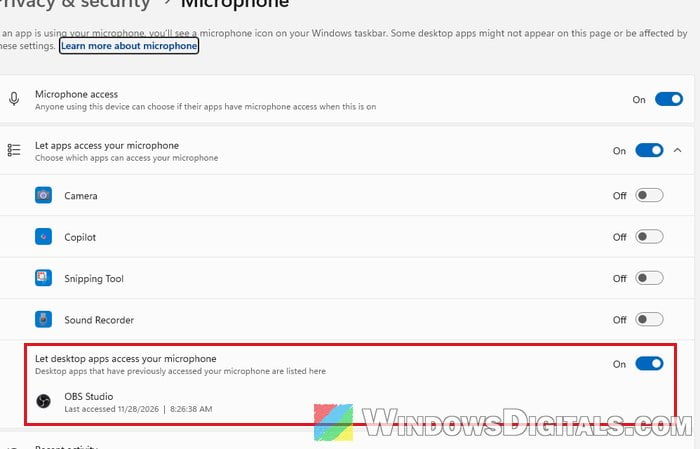
The card can also be muted or disabled in the classic Sound settings. To check there:
- In Settings > System > Sound, scroll down and click “More sound settings“, then go to the “Recording” tab.
- If your capture card isn’t listed, right-click an empty area of the list and make sure “Show Disabled Devices” is ticked. If the card then shows up grayed out, right-click it and select “Enable“.
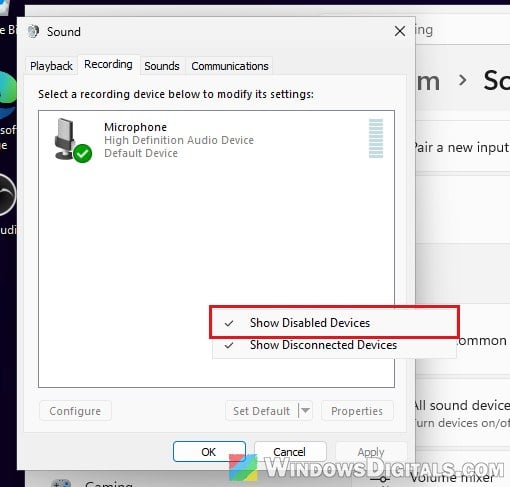
- Select the capture card, click “Properties” and go to the “Levels” tab. Make sure the volume isn’t all the way down and the speaker button next to it isn’t muted.
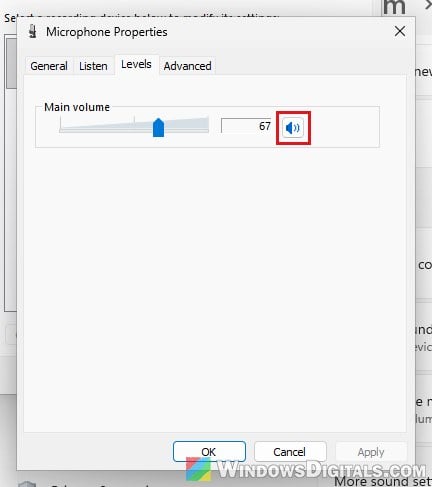
After any of these changes, go back to OBS and check whether the card’s meter in the Audio Mixer now moves.
Linked issue: Microphone Not Working After Windows 11/10 Update
Make sure the console is sending sound to the capture card
The card can only pass on the sound it gets through HDMI, so check the console too.
- PS5: Go to Settings > Sound > Audio Output and check that “Output Device” is set to your HDMI device (the TV or monitor), not a headset.
- Xbox: With a headset connected, the Xbox can stop sending sound over HDMI, so check the console’s audio output settings.
- Headphones plugged into the controller, the Steam Deck or the monitor can take the sound away from HDMI. Unplug them and test again. To hear the game while you record, plug your headphones into the PC instead and use monitoring in OBS.
Test the card outside OBS and check the connection
Test the card in its own software (for example, Elgato’s app for Elgato cards). If there’s no sound there either, the problem is the card, its driver or the connection, not OBS or Streamlabs. In that case:
- Use the USB cable that came with the card, plugged straight into a USB 3.0 port (5Gbps or faster), not a hub.
- Unplug the card’s USB cable for about 10 seconds and plug it back in.
- Install or update the card’s driver or software from the maker’s website, in case Windows is using a generic driver that doesn’t handle its audio properly.
Pro tip: How to Hear Yourself on Mic in Windows 11
If the card still gives no sound in its own software after these checks, it’s likely a hardware fault. If it’s under warranty, contact the maker or the seller for a replacement.