Riot Vanguard is meant to run quietly in the background while you play Valorant or League of Legends, but with this error Valorant suddenly drops you with “Connection Error. VALORANT has encountered a connection error. Please relaunch the client to reconnect. Error Code: VAN 293” (League of Legends shows the same VAN 293 code), again and again, right in the middle of a match. Very often, the cause is something on your PC that changes how it connects to the internet, such as a VPN. This guide will help you find what’s getting in the way and stop the game from kicking you out.
Also see: Vanguard Error VAN 57 in League of Legends
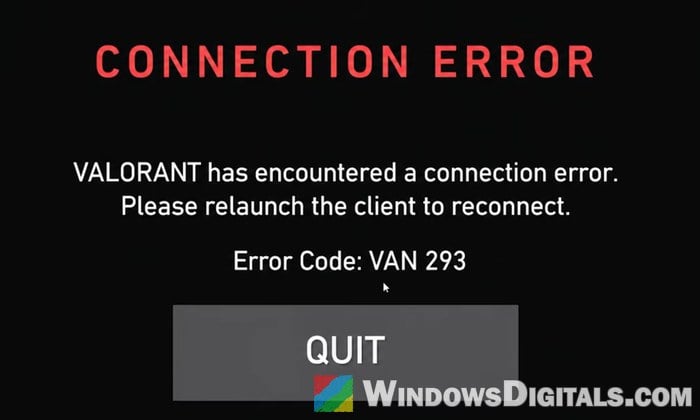
What does VAN 293 mean?
According to Riot, VAN 293 usually means that Vanguard is having trouble starting, staying connected or confirming that it’s ready while the game launches or runs. Valorant shows it as a connection error, and League of Legends players get the same code, sometimes in champ select, which can leave you with a queue penalty.
What makes it annoying is how often it repeats. Some players get kicked every 30 minutes to an hour, others every few minutes, and after a crash the game may refuse to start again until the PC is restarted. Reinstalling the game and Vanguard often doesn’t change anything, since the cause is often something else on the PC.
Before anything else, restart your PC once, so Vanguard starts fresh. If VAN 293 comes back, go through the sections below.
Remove VPNs, Docker, virtual machines and network tools
This is the fix players on Reddit confirm most often for VAN 293, and Riot’s support has also named VPNs and virtual machines as something that gets in Vanguard’s way. Apps that add their own network connections or reroute your traffic can break the link Vanguard keeps with Riot’s servers. The ones players found behind VAN 293 are:
- VPN apps, such as Radmin VPN
- Docker Desktop
- Virtual machine software
- Traffic monitors and limiters such as NetLimiter
Closing the app from the system tray is a quick first test, but the players who fixed it uninstalled the app. A VPN app like Radmin VPN also adds its own network adapter to Windows, which you can see under Control Panel > Network and Internet > Network and Sharing Center > Change adapter settings.
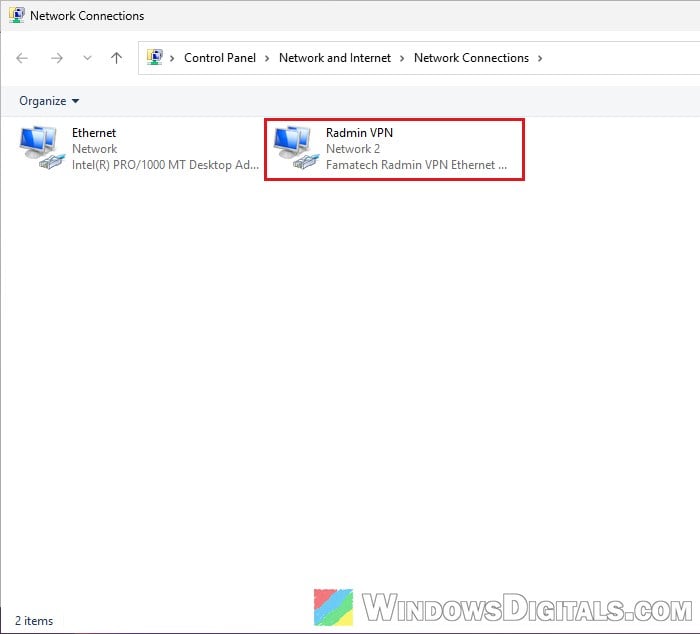
To uninstall the app for a test:
- Open Settings > Apps > Installed apps.
- Search for the app, click the three dots next to it and select “Uninstall“.
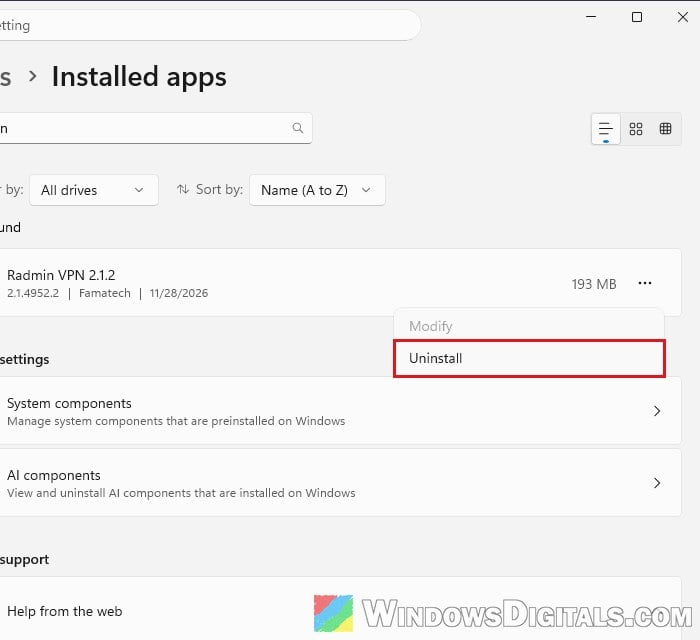
- Follow the uninstaller, then restart your PC.
- Launch the game and play long enough to see whether VAN 293 comes back.
If the error stops, you’ve found the cause. You can reinstall the VPN or network app later, but you’ll probably have to keep it closed, or uninstalled, while you play Riot games.
Also check that Windows itself isn’t using a VPN or a proxy. Riot says both frequently cause connection problems and must be off while you troubleshoot. Here’s how to check:
- Go to Settings > Network & internet > VPN and disconnect or remove any VPN connection listed there.
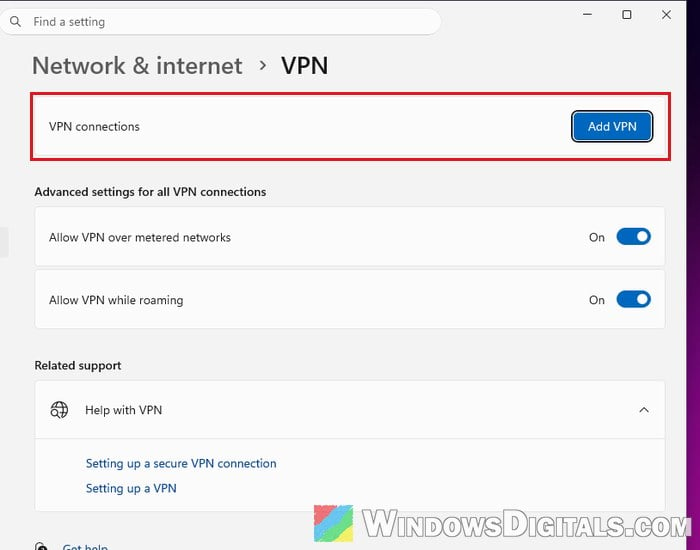
- Go back to Network & internet and open “Proxy“.
- Under “Manual proxy setup“, check that “Use a proxy server” says “Off“.
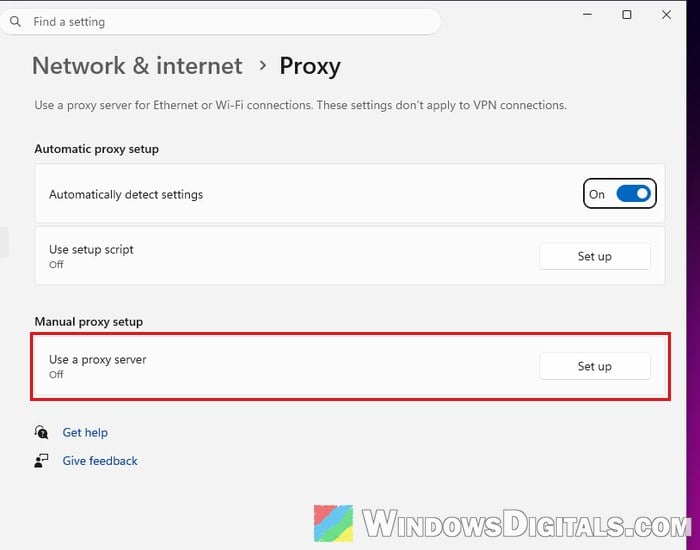
- If it says “On“, click “Set up” next to it, turn the “Use a proxy server” switch off and click “Save“.
Linked issue: Valorant VAN -81 Error and Vanguard Won’t Start
Set the vgc service to “Automatic”
Since VAN 293 can mean Vanguard has trouble starting, it’s worth making sure its Windows service, vgc, starts with Windows. The only exception is the optional Vanguard Pre-Check, which starts Vanguard only when a game opens. If you use it, skip this section.
- Press Win + R, type “services.msc” and press Enter.
- Double-click “vgc“.
- Set “Startup type” to “Automatic“, and click “Start” if the service is “Stopped“.
- Click “Apply“, then “OK“, and restart your PC.
Then launch the game and see whether VAN 293 still kicks you out. For screenshots of these steps, see our VAN 57 guide.
Check your internet connection
Since VAN 293 is a connection error, Riot also points to its general connection checklist. A few of its checks can help if the connection itself is shaky:
- Use a cable instead of Wi-Fi if you can.
- Power cycle your modem and router: turn both off, wait at least 30 seconds, then turn them back on.
- Pause downloads, streaming and cloud sync on the PC and on other devices while you play.
If none of that helps, reset TCP/IP and Winsock, as Riot’s guide suggests:
- Open the Start menu, type “Command Prompt“, right-click it and select “Run as administrator“.
- Type the following commands one by one, and press Enter after each:
netsh int ip reset
netsh winsock reset
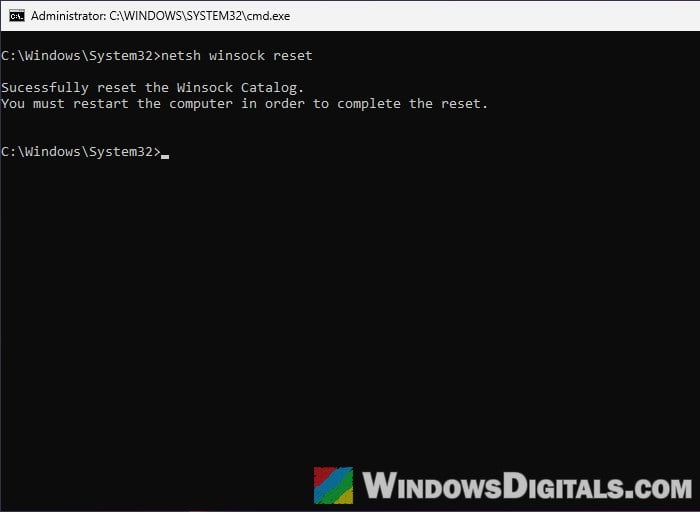
- Restart your PC.
You can also switch to a public DNS server, which Riot suggests for connection problems too:
- Open Control Panel and go to Network and Internet > Network and Sharing Center.
- Click “Change adapter settings“, right-click your network adapter and select “Properties“.
- Select “Internet Protocol Version 4 (TCP/IPv4)” and click “Properties“.
- Select “Use the following DNS server addresses” and enter
8.8.8.8and8.8.4.4.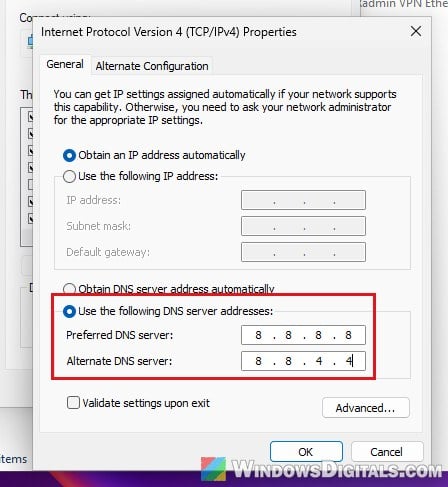
- Click “OK” in both windows.
- Open Command Prompt as administrator again and run:
ipconfig /flushdns
- Restart your PC.
After the restart, play a match or two to see whether the game stays connected.
Reinstall Riot Vanguard
If Vanguard’s install got damaged, reinstalling it cleanly can sort it out. Here’s how to do it:
- Exit the Riot Client from the system tray, then right-click the red “Riot Vanguard” tray icon and select “Exit Vanguard“.
- Open Settings > Apps > Installed apps, find “Riot Vanguard“, click the three dots and select “Uninstall“.
- Restart your PC.
- Open the Riot Client and launch the game. Vanguard reinstalls by itself.
- When it’s done, restart your PC again before you press “Play“.
Then play a match to see whether VAN 293 comes back. A reinstall alone didn’t fix it for several players, so don’t repeat it over and over if the error returns.
Related problem: League of Legends Stuck on “Vanguard session is initializing”
Do a clean boot to find what’s interfering
If you can’t tell which app is causing it, a clean boot helps. It starts Windows with only Microsoft’s services and no startup apps, so you can see whether VAN 293 stops without them. Press Win + R, type “msconfig” and press Enter. On the “Services” tab, check “Hide all Microsoft services“, click “Disable all“, then check “vgc” again so Vanguard can still start. Then turn off the startup apps in Task Manager and restart. The full steps are in the clean boot section of our VAN 57 guide.
If the game stays connected, turn the services and apps back on a few at a time until the error returns. Watch out for anything network-related, like a VPN, Docker, virtual machine software or a traffic tool like NetLimiter.
Reinstall the game or contact Riot
If nothing else works, reinstall the game, as Riot suggests. Then submit a ticket to Riot Player Support with your logs attached (Riot’s support site shows how to collect them with the Riot Repair Tool). Tell them what you’ve already tried, especially which VPN or network apps you removed, since the logs can show support what’s interfering.