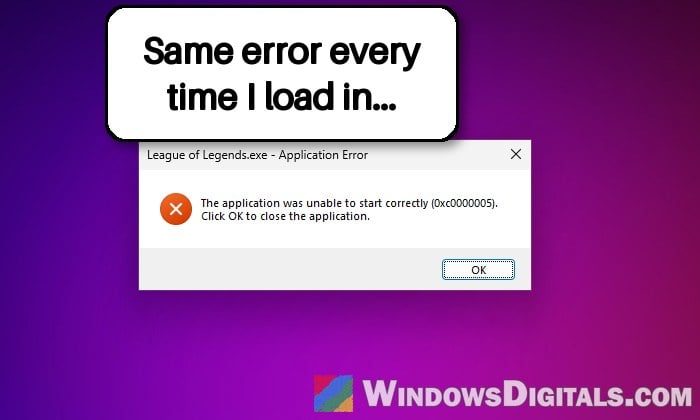
When you finish champ select in League of Legends, you might see a box titled “League of Legends.exe – Application Error” saying “The application was unable to start correctly (0xc0000005). Click OK to close the application.” Reconnecting only brings the same box back, which can cost you a leaver penalty on top of the lost game. The most likely cause is a third-party antivirus such as Norton or Avast blocking the game. This guide will show you how to let League through and what to try if that isn’t enough.
Also see: EpicWebHelper.exe Application Error 0xc0000005 in Valorant
Why does League of Legends show error 0xc0000005?
According to Riot, this error can appear when third-party firewall or security software blocks one of the files the game needs to launch. Players have been running into it since around mid-November 2026.
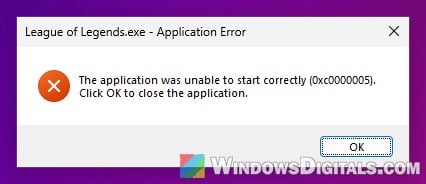
The Riot Client and champ select work fine, and then the game itself fails the moment it tries to start.
The two names that keep coming up in reports are Norton (Norton 360 or Norton AntiVirus) and Avast. Norton’s Security History can show nothing blocked while it’s still the cause, so don’t rule Norton out just because it shows nothing blocked. Reinstalling League with the antivirus still running usually doesn’t help either.
Tip: While you test the fixes below, load into the Practice Tool instead of a real match. If the error is still there, you won’t get another penalty for it.
Related problem: Vanguard Error VAN 57 in League of Legends
Add the Riot folders to your antivirus exclusions
This is the fix that players on Reddit and Microsoft’s forums have confirmed most often. You keep your antivirus running and only tell it to leave Riot’s files alone. Add these two folders:
C:\Riot Games
C:\Program Files\Riot Vanguard
If you installed League on another drive, use that drive’s Riot Games folder instead (for example, D:\Riot Games). Both Norton and Avast warn that you should only exclude things you know are safe, so don’t add anything other than these two folders.
Norton
- Open your Norton app and click Security in the left pane.
- Go to Advanced Security > Computer > Antivirus.
- On the Exclusions tab, click Add.
- Browse to the Riot Games folder, select it and click Save.
- Do the same for the Riot Vanguard folder.
If your Norton looks different, the same tab may be under Security > Scans > Open.
Avast Antivirus
- Open Avast and go to Menu (☰) > Settings.
- Select General > Exceptions, then click Add exception.
- Read the questions Avast shows, then click Next and I understand risks.
- On the File / Folder tab, click the folder icon, pick the Riot Games folder and click OK.

- Click Add, then repeat for the Riot Vanguard folder.
The menu is a little different in Avast One, so look for Exceptions in its settings.
Other antivirus apps
Most other antivirus apps have the same kind of list, usually called “Exclusions” or “Exceptions“, and it’s often in the advanced or threat protection settings. Add the same two folders there.
Once the folders are added, restart your PC, open League and load into the Practice Tool. If you already tried turning your antivirus off and nothing changed, it can still be the cause, since turning it off isn’t always enough.
Riot also names firewalls as a possible cause, so make sure League is allowed through yours, whether it’s Windows’ own firewall or a third-party one.
Might be useful: How to Allow an App Through Firewall in Windows 11
Uninstall the antivirus for a test
Exclusions don’t work for everyone. Some players only got back into the game after removing the antivirus completely, and this is also Riot’s own advice for this error. It’s a quick way to tell if the antivirus is what’s blocking League. Windows Security is there to protect your PC in the meantime, and Riot says League works with it.
- Open Settings and go to Apps > Installed apps.
- Find your antivirus, click the three dots next to it and select Uninstall.
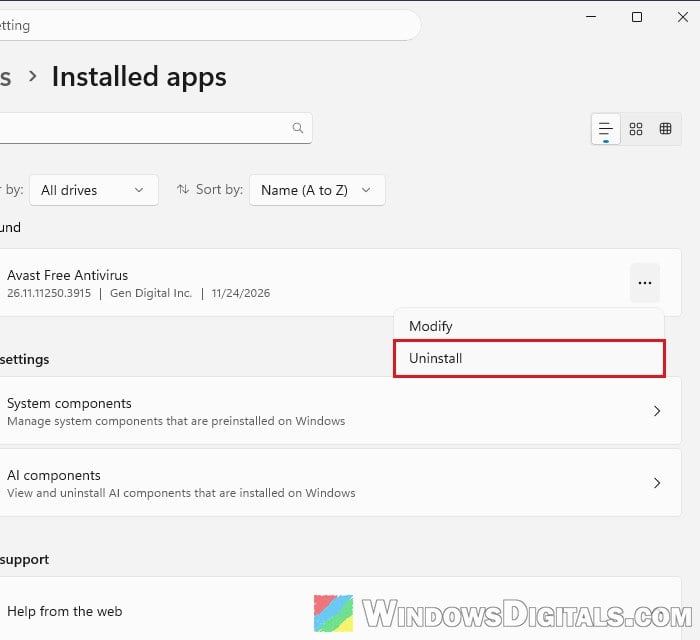
- Follow the uninstaller’s steps and restart your PC.
- Launch League and test it in the Practice Tool.
If the game loads now, the antivirus was the cause. You can stay on Windows Security, or install your antivirus again and add the two folders right away. If the error comes back after that, stay on Windows Security. If League still fails with the antivirus gone, leave it off your PC for now while you try the fixes below.
Make sure League isn’t in compatibility mode
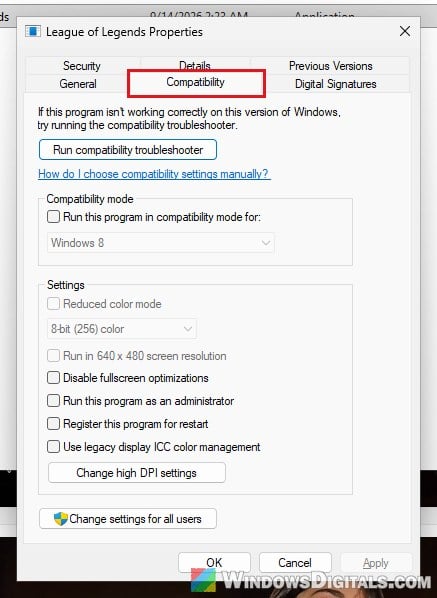
Riot says the game’s files shouldn’t be running in compatibility mode, so it’s worth a quick check.
- In File Explorer, go to
C:\Riot Games\League of Legends\Game. - Right-click League of Legends.exe and select Properties.
- Open the Compatibility tab and make sure every box is unchecked.
- Click OK.
Then load into the Practice Tool again and see if the error is gone.
Set the date and time to automatic
A couple of players cleared this error just by letting Windows set the clock again. It’s a long shot, but it only takes a few seconds:
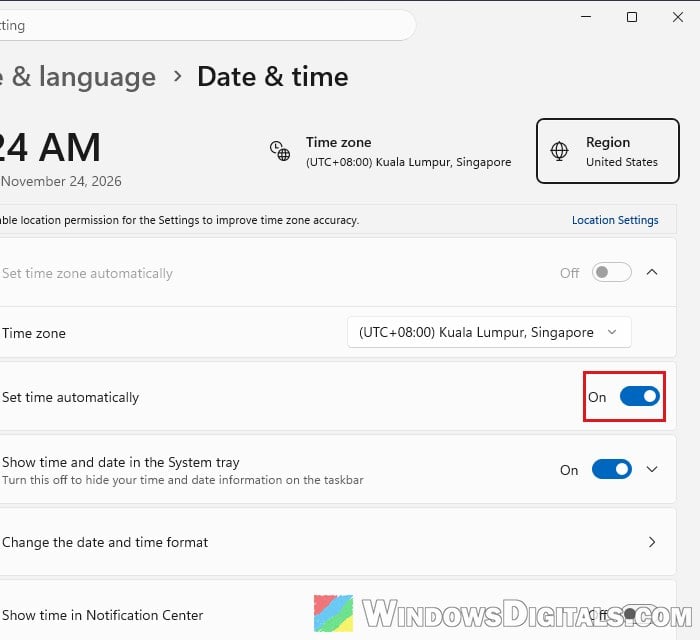
- Open Settings and go to Time & language > Date & time.
- Turn on “Set time automatically“.
Restart the Riot Client and try the Practice Tool once more.
Reinstall League and Vanguard with the antivirus removed
If League still fails, you can try a clean reinstall of League and Vanguard while the antivirus is still uninstalled. Only one report backs this one, so treat it as a last try before contacting Riot.
- Close the Riot Client.
- In Installed apps, uninstall League of Legends and Riot Vanguard.
- Restart your PC.
- Download the game again from
https://www.riotgames.com/and install it. - Open the Riot Client and launch League, so that Vanguard reinstalls itself.
- When the client says you can play, restart your PC before you press Play, since Vanguard’s driver only loads when Windows starts.
If League works, add the two folders to your antivirus’s exclusions when you put it back.
Linked issue: League of Legends Stuck on “Vanguard session is initializing”
Send a ticket to Riot
If none of this works, submit a ticket to Riot’s Player Support and attach your logs, which you can collect with the Riot Repair Tool. Mention which antivirus you use and what you’ve already tried, so they don’t send you back through the same steps.