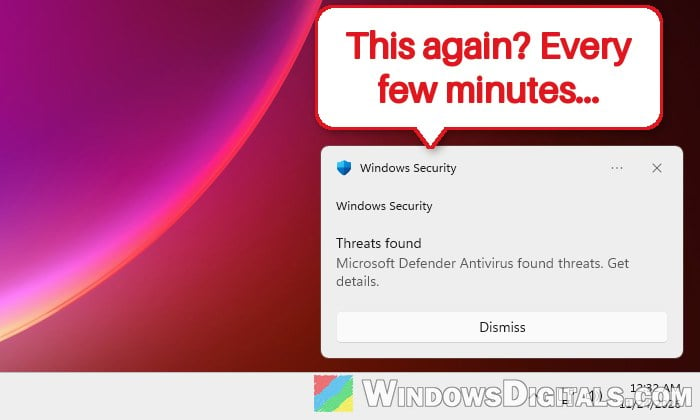
Windows Security pops up now and then to tell you about a threat or a scan, but sometimes its pop-up keeps showing up every few minutes or every time you start your PC, even after you remove the threat or a scan says there’s nothing wrong. It can be a fake alert from a website, a threat that something on your PC keeps bringing back, or a known Microsoft Defender bug. This guide will explain how to tell which one you’re dealing with and how to stop each of them.
Also see: Fake McAfee Virus Pop-Ups Keep Showing Up on Windows 11
First, check where the pop-up really comes from
Not every pop-up that says “virus” or “Windows Security” comes from Windows, so check two things first:
- What the notification names. A real one says Windows Security at the top. If it names a browser anywhere in it (for example “via Microsoft Edge” or “Google Chrome”) and shows a website address, it’s a browser notification from a website, not Windows.
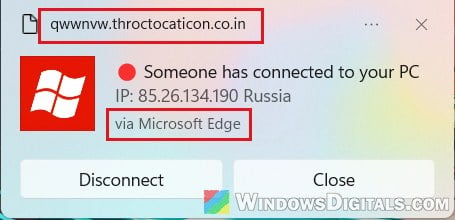
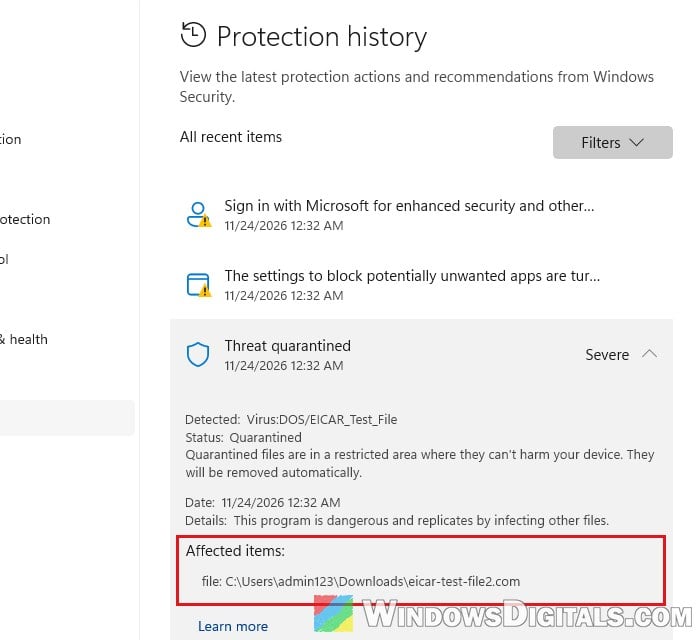
- Whether Windows Security agrees. Open Windows Security from the Start menu, go to Virus & threat protection and click Protection history. A real detection is listed there with the threat’s name, its status and the file it was found in (under Affected items). If the pop-up says you’re infected but Protection history and a scan show nothing, the pop-up is most likely fake.
Related concern: “Windows locked due to unusual activity” Scam
Block the website that sends fake virus alerts
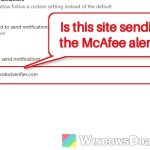
This is the cause people on Reddit run into most often. At some point, you (or someone using the PC) clicked Allow when a website asked to show notifications. The site can now push alerts through your browser that look like they came from Windows Security or an antivirus. DO NOT click the notification, call any number in it or install anything it offers.
The fix is to take away that site’s permission. In Microsoft Edge, follow the steps below:
- Open Edge, click the three dots (Settings and more) at the top right and select Settings.
- Go to Privacy, search, and services > Site permissions > All permissions > Notifications.
- Under Allowed to send notifications, find the website from the notification (its address is in the pop-up), click the three dots next to it and select Block.
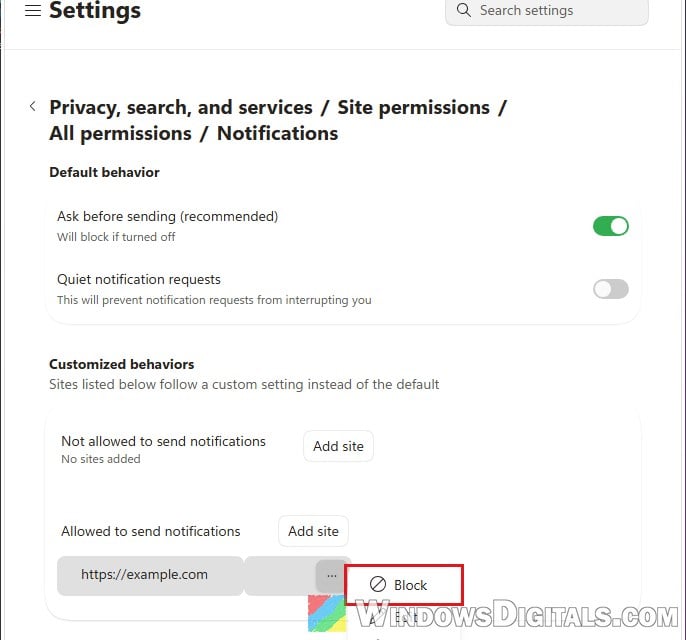
- Do the same for any other site there you don’t know.
In Google Chrome, go to Settings > Privacy and security > Site settings > Notifications and remove or block the site under Allowed to send notifications. The fake alerts should stop right away, and in most cases the PC itself isn’t infected.
Might be useful: Turn Off Google Chrome Notifications on Windows 11/10
Update Defender if it keeps saying virus protection is turned off
If the pop-up says Microsoft Defender Antivirus is turned off or asks you to turn on virus protection, but Windows Security shows everything on with green check marks, it’s a known bug. According to Microsoft, after the Microsoft Defender Antivirus update version 4.18.26070.9 (August 2026), Windows 11 and 10 PCs got this notification while the antivirus was working fine, and it kept showing up with notifications turned off. It usually appeared a few minutes after every restart or sign-in.
Microsoft fixed it in version 4.18.26080.4 (September 17, 2026). If you still get the notification, update Defender by hand:
- Open Windows Security and go to Virus & threat protection.
- Under Virus & threat protection updates, click Protection updates.
- Click Check for updates and wait for it to finish.
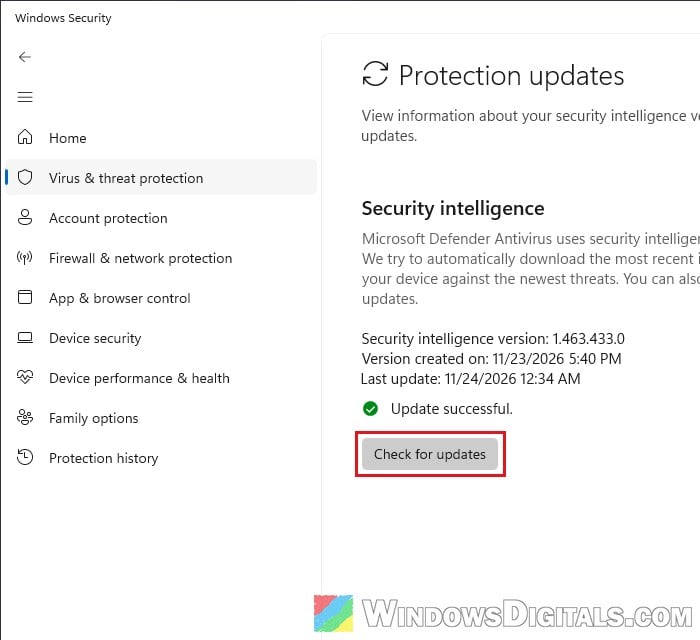
- Also run Windows Update and install what it offers, then restart the PC.
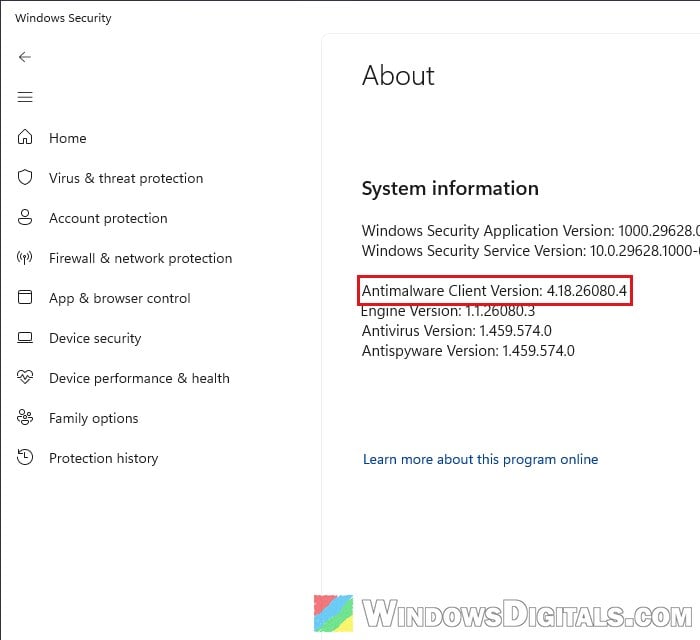
To check which version you have, click the gear icon (Settings) at the bottom left of Windows Security and select About. The Antimalware Client Version should be 4.18.26080.4 or newer.
Turn off the notifications that don’t need anything from you
Some Windows Security pop-ups are just information, like a finished scan or something that was blocked, and you can turn them off. According to Microsoft, you’ll still get a notification whenever a problem needs you to do something. Here’s how to do it:
- Open Windows Security and click Settings (the gear icon at the bottom left).
- Click Manage notifications.
- Under Virus & threat protection notifications, turn off Get informational notifications, or just uncheck the ones you don’t want: Recent activity and scan results, Threats found, but no immediate action is needed and Files or activities are blocked.
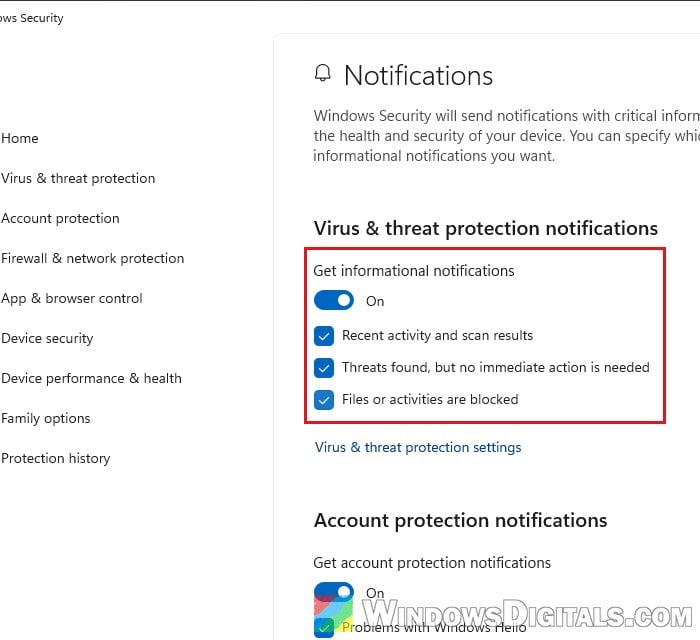
This only hides routine messages. It won’t stop fake browser alerts, the “turned off” bug or a threat that keeps being found again (see the next section).
Please note that on a work or school PC, your administrator may have set some of these, and you won’t be able to change them.
Find out why the same threat keeps coming back
If Windows Security keeps finding the same threat after removing it, something on your PC is most likely putting it back. Here’s how to find out what.
Check the file path in Protection history
Open Protection history, click the detection and look at the path under Affected items. The path usually shows where it comes from:
- A path inside a browser’s Cache folder means a file your browser saved keeps being found. Clear that browser’s cache and browsing data, then let Windows Security remove the threat.
- A path inside a program’s folder points to that program. If you don’t need it or don’t trust it, uninstall it.
- Anywhere else, keep going with the steps below.
Related problem: Can’t Clear Protection History in Windows 11/10 Defender
Run a Microsoft Defender Offline scan
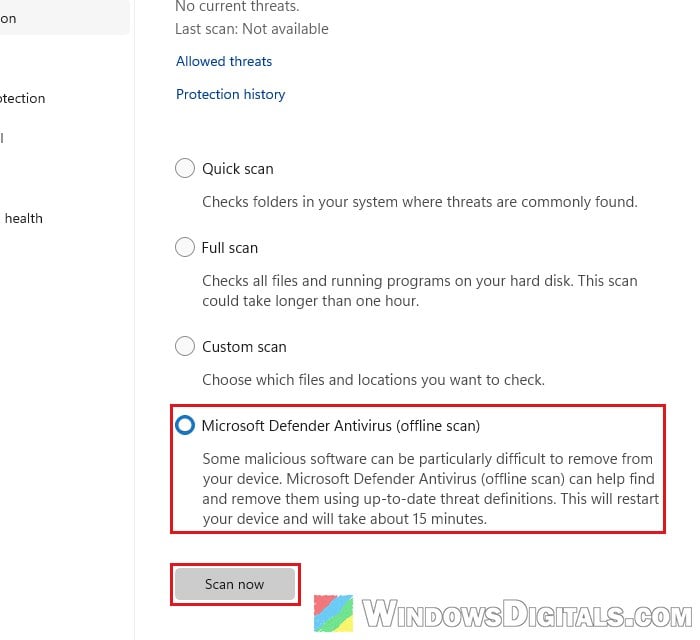
Some malware is hard to remove, and an offline scan can help find it. It restarts your PC, scans it and restarts again, which takes about 15 minutes, so save your work first. Here’s how:
- In Windows Security, go to Virus & threat protection and click Scan options.
- Select Microsoft Defender Antivirus (offline scan) and click Scan now.
- When the PC is back, the results show up in Protection history.
Get a second opinion from another scanner
Defender sometimes removes the file it detects but misses the program that keeps creating it. A second scanner, such as the free version of Malwarebytes, can often find it. Get it only from its official website, run a full scan and remove what it finds.
Look for a scheduled task that brings it back
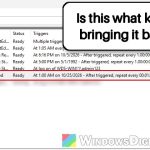
Some of these infections add a scheduled task that brings the file back. To check:
- Press Win + R, type
taskschd.mscand press Enter to open Task Scheduler. - Click Task Scheduler Library and go through the tasks one by one, looking at the Actions tab of each.
- Look for tasks that run mshta.exe or powershell.exe with a web address, under a name you don’t recognize.
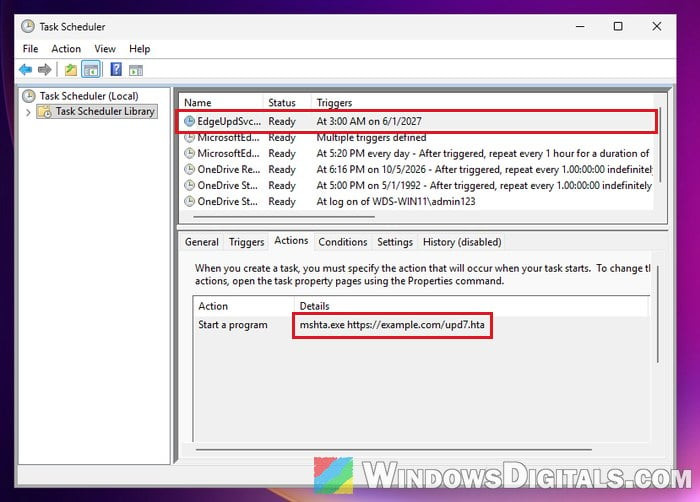
- Right-click a task like that and select Delete, then run another full scan.
If you’re not sure whether a task is safe, look up its name first, or get someone who knows to help you.
Linked issue: Trojan:PowerShell/Boxter Keeps Coming Back in Windows Security
Reset or reinstall Windows if nothing works
If the threat still comes back, or Windows Security exclusions you never added keep returning after you remove them, the safest move is to start over. Copy only your personal files (documents, photos) to a USB drive, then reset or reinstall Windows. Also change the passwords of your important accounts from another device.