When you try to add an IMAP email account to the new Outlook for Windows, you might see it fail with “INVALIDCREDENTIALS INTERACTIONREQUIRED“, even though the password is correct and the same account works fine in webmail, classic Outlook or your phone. It happens most often with mail from your own domain or a web hosting company. This guide will explain why the new Outlook rejects the account and what you can do to get it added.
Also see: Microsoft 365 Outlook 1001 Error “Something went wrong”
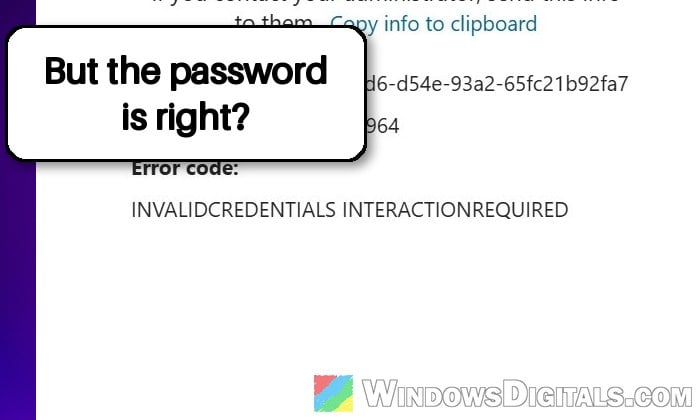
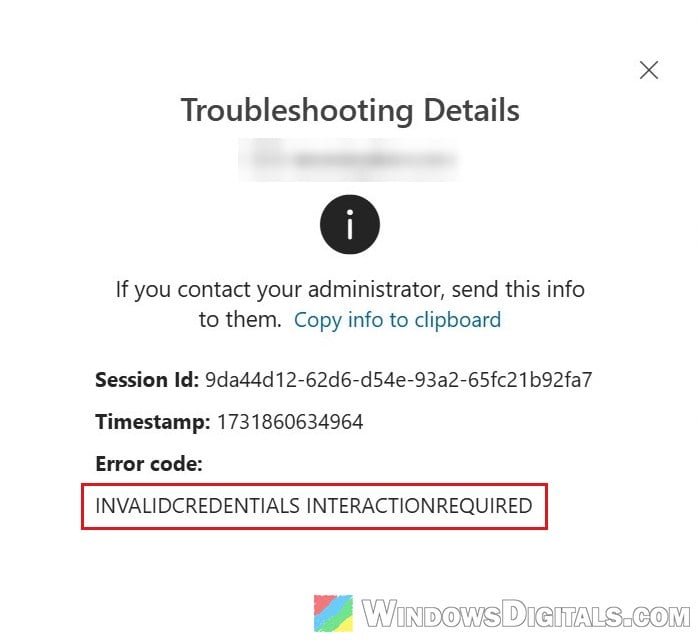
The code shows under Error code in the “Troubleshooting Details” window, or as a line like {"SessionId":"","Timestamp":,"Error":"INVALIDCREDENTIALS INTERACTIONREQUIRED"}. You may also see INVALIDCREDENTIALS TEMPORARILYUNAVAILABLE instead. It’s the same failure, and the same fixes apply.
Why does the new Outlook say “INVALIDCREDENTIALS” when the password is right?
The new Outlook doesn’t connect to your mail server straight from your PC like classic Outlook does. It syncs non-Microsoft accounts through the Microsoft Cloud, which keeps a copy of your mail, contacts and events in Microsoft’s data centers. So it’s Microsoft’s servers that sign in to your mailbox, and when they can’t, adding the account fails with INVALIDCREDENTIALS. This is also why resetting or reinstalling the app on your PC usually changes nothing.
The common reasons are:
- Your provider needs an app password, usually because two-step verification is on for the account.
- You recently changed the mailbox’s password, and an old copy of the account may still be held in Microsoft’s cloud.
- You moved your email to a new host, and Microsoft’s cloud still holds the old IMAP server for your address.
- Your mail server accepts nothing but a plain username and password, with no app password or modern sign-in, which the new Outlook can’t work with.
It’s a pretty common problem on Microsoft’s forums and Reddit, and in many reports only one mailbox fails while others on the same domain add without any trouble.
Check the password and use an app password if needed
First, sign in to your provider’s webmail with the same address and password, just to rule out a typo or a changed password.
If your account has two-step verification, Microsoft says an app password might be needed to add IMAP accounts to the new Outlook. In some cases the new Outlook even says so: “You may need to use an app password. Try again or use a different account.” Here’s what to do:
- Sign in to your email provider’s website and open your account’s security settings.
- Look for an option like “App passwords” and create one for Outlook.
- Go back to the new Outlook and add the account again.
- When it asks for your password, paste the app password instead of your normal one.
If the account adds without the error this time, you’re done. If your provider doesn’t use app passwords at all, move on to the next fix.
Remove the account from all devices and add it again
If an old copy of the account is left in Microsoft’s cloud, removing the account “from all devices” also clears that server-side copy, after which the account can be added fresh. This is only possible while the account still shows up in the new Outlook’s settings.
Be warned: Removing an account from all devices deletes its Microsoft Cloud data across your Outlook apps. Anything that only exists there (for example calendar events, contacts, tasks, notes or drafts that don’t sync back to your email provider) may be gone for good and won’t come back when you add the account again. The email account itself isn’t deleted, only removed from Outlook. If that account holds calendar events or contacts you can’t lose, try the manual setup in the next section first.
To do so, follow the steps below:
- In the new Outlook, open the View tab and select View settings.
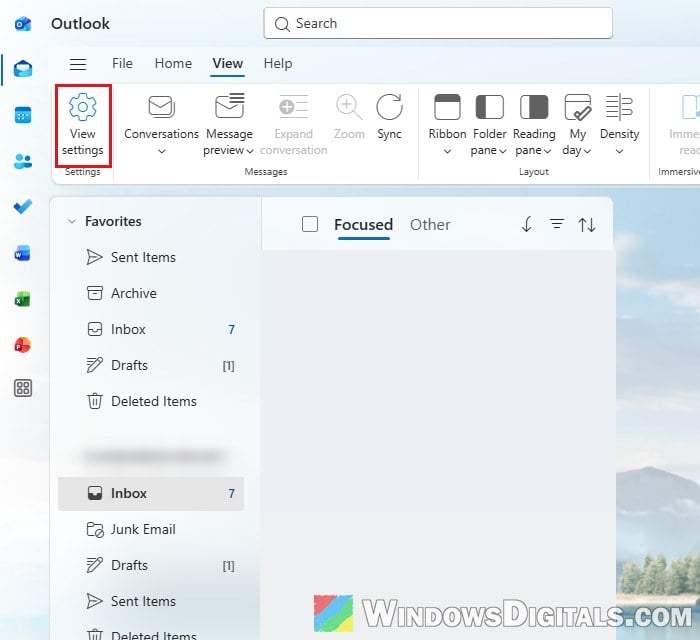
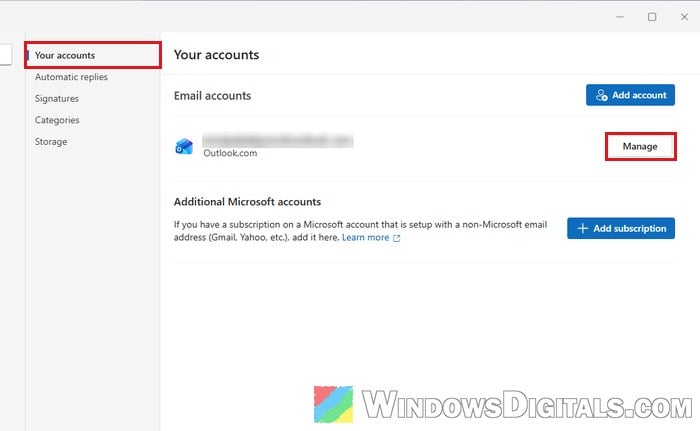
- Go to Accounts > Your accounts.
- Under Email accounts, select Manage next to the account that’s failing.
- Scroll down to “Remove account from Outlook” and select Remove.
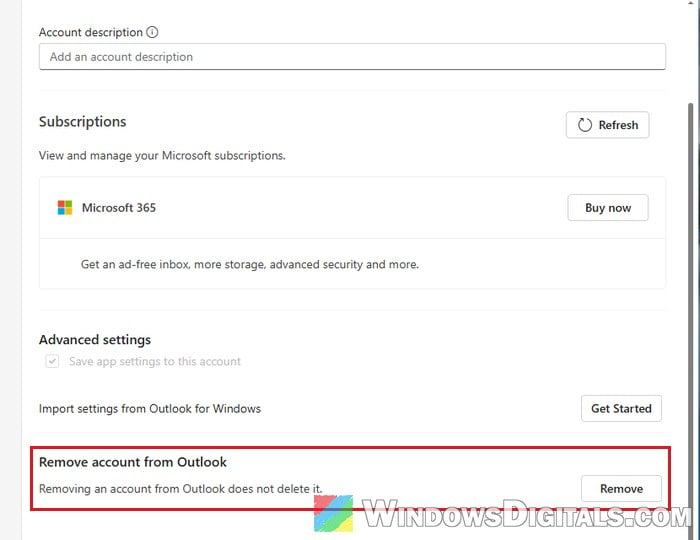
- When asked how to remove it, choose “Remove from all devices“.
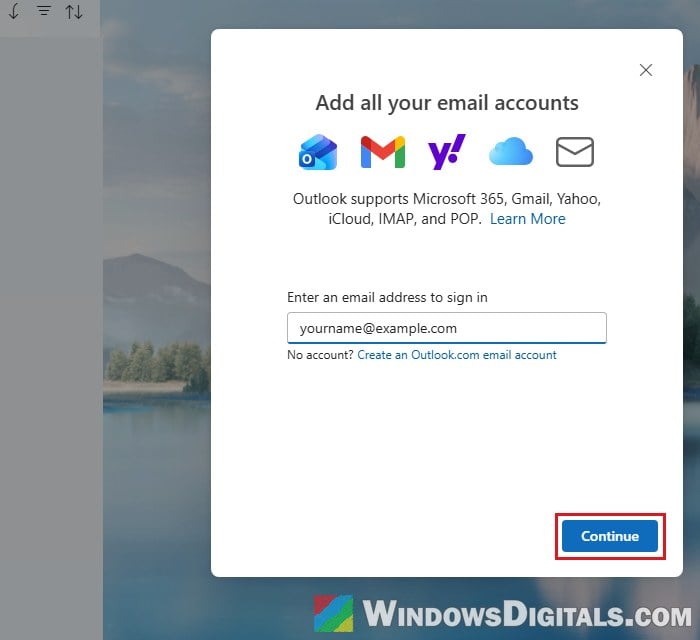
- Back on Your accounts, select Add account, type your email address and select Continue.
- Enter your password (or app password) when asked.
If the account adds without the error this time, you’re done. If it doesn’t even show up under Your accounts anymore, skip to the next fix.
Add the account with manual IMAP settings
Letting the new Outlook detect the settings doesn’t always work for mail from a hosting company or your own domain. Typing the IMAP and SMTP settings yourself has fixed this error for several mailboxes.
You’ll need your provider’s IMAP and SMTP server names, ports and security type, usually listed on its help pages. Once you have them, here’s what to do:
- In the new Outlook, go to View > View settings > Accounts > Your accounts and select Add account.
- In the “Add all your email accounts” window, type your email address and select Continue.
- On “Select your email provider“, choose IMAP. Outlook shows this list when it doesn’t recognize your domain. If it skips the list and picks a provider by itself, look for a “Select provider” button on the next screen, which takes you back to the list.
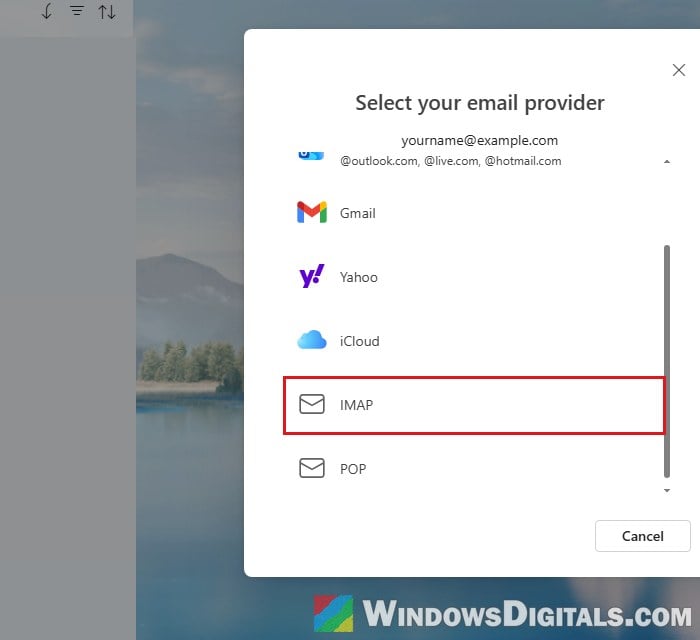
- Enter your password (or app password). If you don’t see the server fields, turn on “Show more“.
- Turn off “Use recommended settings“, type your provider’s “IMAP Incoming server” and its Port, and choose the “Secure connection type“.
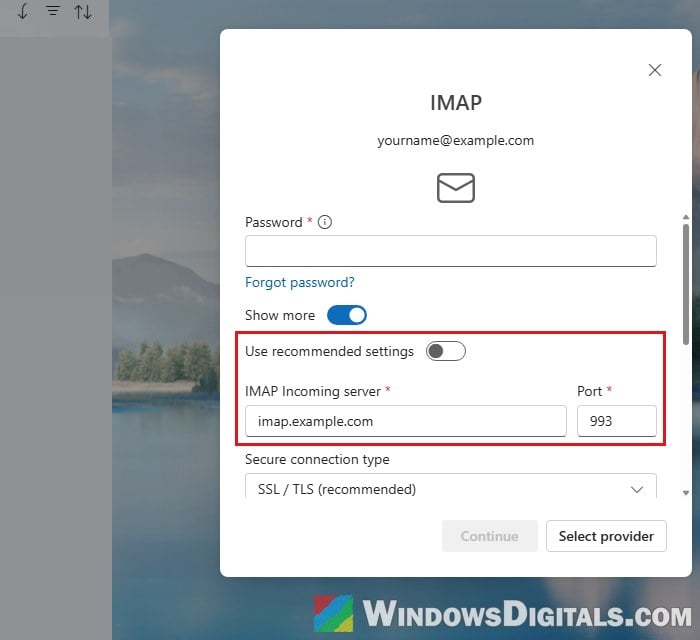
- Scroll down to “SMTP Configuration” and fill in the “SMTP username” (your full email address), the “SMTP password” if it’s different from the one above, and the “SMTP Outgoing server” with its Port.
- Select Continue and see if the account is added without the error this time.
The old server is stuck after moving to a new email host
This has been a common cause, especially since mid-2026. After moving a mailbox to a new hosting company (same address, new IMAP server), the new Outlook keeps putting the old server back in the settings and fails with INVALIDCREDENTIALS. Microsoft’s cloud holds on to the old server for that address, so nothing you do on your PC (reset, reinstall, manual setup) gets past it.
What you can do:
- Try removing the account from all devices first (see above), if it’s still listed.
- Contact Microsoft Support and explain that the new Outlook keeps using your old IMAP server after a host move. Give them both the old and the new server names. The results vary: some cases get escalated, while in others support says it can’t reset it.
- Sometimes it clears up by itself after a few weeks, though for some people it took about three months.
Meanwhile, the account will still work in classic Outlook (next section) or another mail app such as Thunderbird.
Might be useful: How to Get Thunderbird to Start with Windows 11
Use classic Outlook for that account for now
Microsoft’s own advice is to keep that account in classic Outlook, which connects to your mail server directly and works with the same password in nearly every report. It’s also the only option if your mail server accepts nothing but a plain username and password. The new Outlook needs an app password or a modern browser sign-in, which such a server doesn’t offer, and Microsoft has said it has no plans to add modern sign-in for generic IMAP accounts.
Pro tip: Classic Outlook Keeps Switching Back to the New Outlook
If you have classic Outlook, add the account there for now (the guide above shows how to stay on it if Outlook keeps switching you back). Webmail works too while you wait.