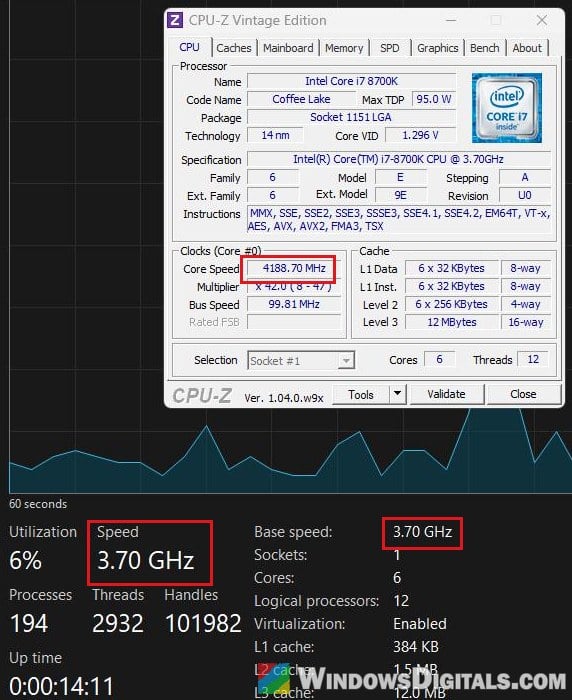
Many Windows 11 users have run into a strange problem after the KB5132057 preview update where Task Manager shows the CPU speed stuck at the base speed (2.30 GHz, 3.70 GHz or whatever your processor’s base clock is) even under full load, while tools like HWiNFO or CPU-Z show the processor boosting normally. This guide will help you confirm that it’s only a display bug and show you what you can do about it.
Also see: Laptop CPU (Processor) Stuck at 0.40 GHz, Why?
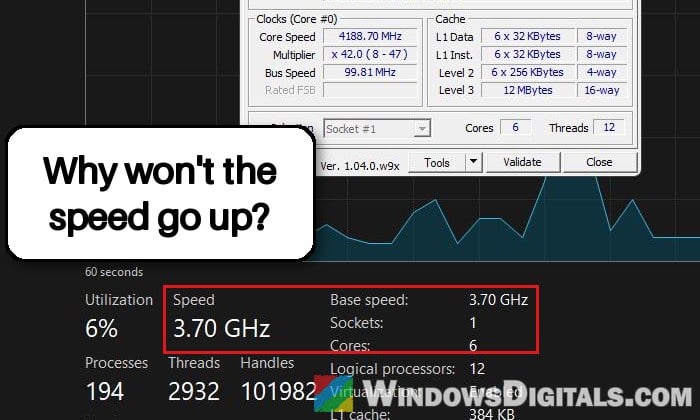
Why is the CPU speed in Task Manager stuck at base speed?
In almost every case reported so far, it’s a bug in how Task Manager shows the speed, not a problem with your CPU. It seems to have started with KB5132057, the optional preview update Microsoft released on November 19, 2026 for Windows 11 26H2 and 25H2 (OS Builds 26300.10075 and 26200.10075). Windows Insiders in the Release Preview channel got the same update about a week earlier as build 26300.10066, and the problem showed up there too.
After the update, the “Speed” value on the Performance > CPU page of Task Manager freezes at or near the processor’s “Base speed” and no longer moves with the load. It happens on both Intel and AMD processors, on desktops and laptops alike. Meanwhile, other monitoring tools show the real clock going up to the usual boost speeds, and games and benchmarks run as fast as before.
At the time of writing, Microsoft hasn’t listed this as a known issue on the update’s support page or on the Windows release health dashboard, so there’s no official fix yet. That said, it’s been reported a lot on Reddit and Microsoft’s own forums, and removing the update has brought the correct reading back for some people.
Linked issue: Windows 11 Shows Only One Processor Core, Why?
How to check if your CPU is really boosting
Before you change anything, make sure it’s really just Task Manager. The quickest way is to compare its number with another tool while the CPU is busy.
Here’s what you should do:
- Open a monitoring app such as HWiNFO or CPU-Z (you can just Google them and download them from their official websites).
- Start something heavy, like a game or a benchmark, so the CPU has a reason to boost.
- Press Ctrl + Shift + Esc to open Task Manager, then go to Performance > CPU and look at “Speed“.
- Compare it with the clock speed shown in the monitoring app.
If the app shows the clock climbing well above the base speed while Task Manager stays flat, your CPU is fine and you’re looking at the display bug.
Check without installing anything
Windows keeps its own performance counter for the processor, and you can read it in PowerShell. Open PowerShell from the Start menu and run the following command:
Get-Counter '\Processor Information(_Total)\% Processor Performance' -Continuous
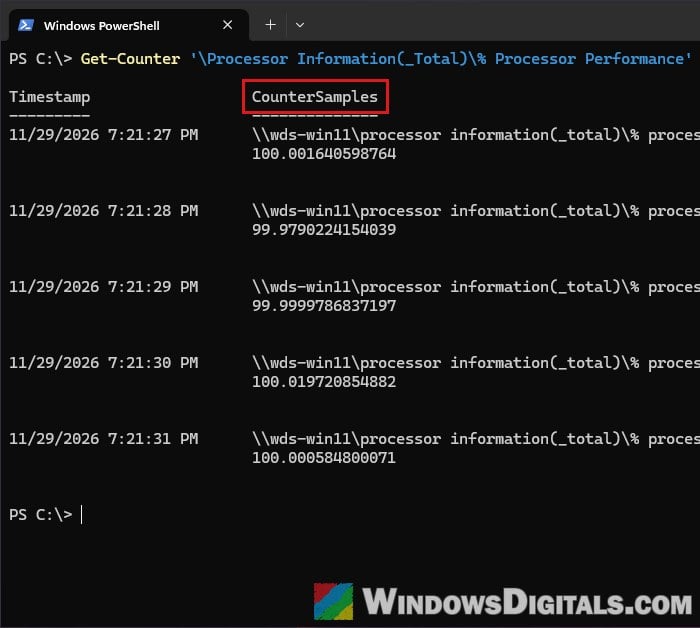
The value updates every second. On a CPU that boosts, it should climb above 100 under load. If it does and Task Manager’s number doesn’t move, the processor is running past its base speed and only Task Manager is wrong. Press Ctrl + C to stop it.
Make sure it’s not real throttling
The bug only affects the number Task Manager shows. If your PC actually feels slow, and HWiNFO or CPU-Z also show the clock stuck low, then your CPU is really being held back and this isn’t the same problem.
In that case, start by checking the power mode, since a power-saving mode can cap the processor:
- Open Settings and go to System > Power & battery (just Power on most desktops).
- Click “Power Mode” to expand it.
- Open the dropdown next to “Plugged in” and choose “Balanced” or “Best Performance” instead of “Best Power Efficiency“.
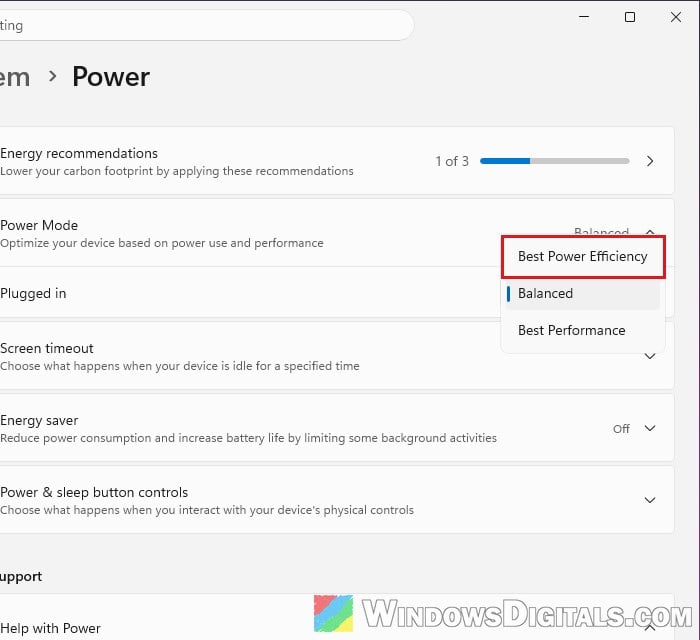
If that doesn’t help, the cause is more likely heat, the charger or the BIOS (see Laptop CPU (Processor) Stuck at 0.40 GHz, Why?).
Pro tip: How to Disable CPU Throttling (Settings) in Windows 11
Uninstall KB5132057 to get the correct reading back
Since nothing is actually wrong with the CPU, you don’t have to do anything. But if you rely on Task Manager to keep an eye on your clocks, removing the update is the only thing that has brought the correct reading back so far.
KB5132057 is an optional non-security preview, so uninstalling it doesn’t leave you without security fixes. You will, however, lose its other changes, such as the redesigned Windows Search.
To uninstall it, follow the steps below:
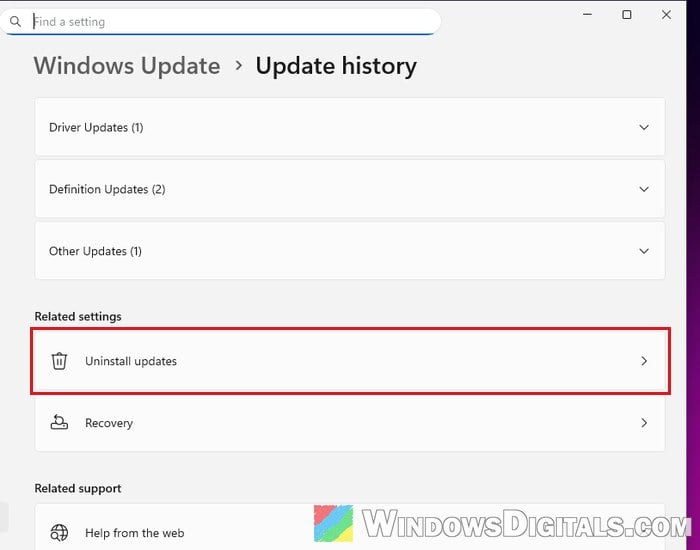
- Press Win + I to open Settings, then go to Windows Update > Update history.
- Scroll down and click “Uninstall updates“.
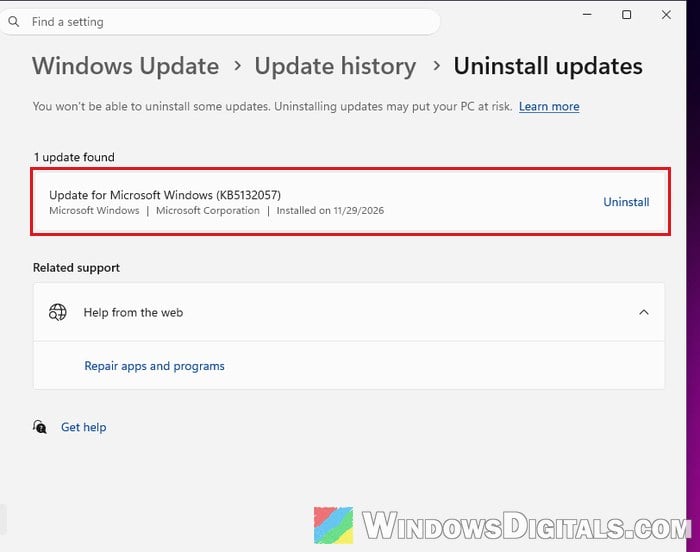
- Find “Update for Microsoft Windows (KB5132057)” in the list and click “Uninstall” next to it.
- In the “Uninstall this update” box, click “Uninstall” again to confirm.
- Restart your PC if Windows asks you to.
Then put some load on the CPU again and check whether the “Speed” value in Task Manager moves with it. If Windows offers KB5132057 again under “Optional updates“, skip it. Keep in mind that the next monthly update will include the same changes, so the wrong reading may come back unless Microsoft fixes it by then.
Related guide: How to Roll Back Windows 11/10 Update to Previous Version
Leave it until Microsoft fixes it
If the wrong number doesn’t bother you, it’s perfectly fine to keep the update and use another tool for clock readings in the meantime. Since performance isn’t affected, there’s no rush.
What you shouldn’t do is spend hours trying to fix it from your end. BIOS updates, new chipset drivers, resetting the power plans, clearing Task Manager’s settings and restarting the PC have all been tried, and none of them changed the reading for the people who tried them. A System Restore point from a couple of days earlier didn’t help either when the update itself stayed installed.
Microsoft also says there won’t be an optional preview update in the second half of December 2026, with normal servicing resuming in January 2027, so the fix might take a while. If you want to help it along, open Feedback Hub from the Start menu and report the problem there, with your Windows build number.