The Temp folder in Windows is only supposed to hold files that apps and Windows need for a short while, which are then cleaned up. On some PCs, though, the Temp or SystemTemp folder keeps growing back by tens of gigabytes after you empty it, until Windows warns about low disk space on the C: drive again. This guide will explain why it keeps happening, how to clear these folders safely, and how to find what keeps filling them.
Also see: How to Clean C: Drive in Windows 11
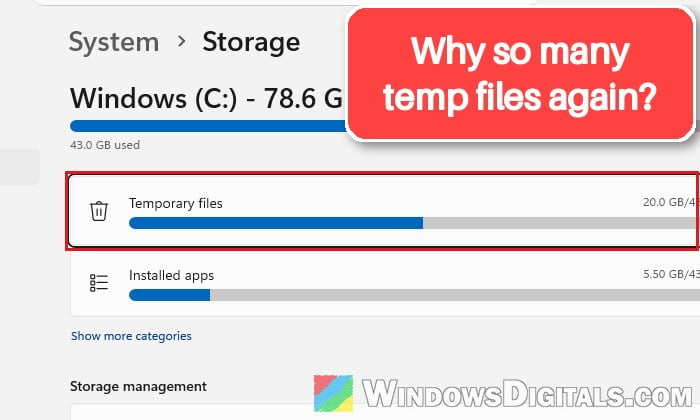
Why does the Temp folder keep filling up?
Windows has more than one Temp folder, and it helps to know which is which before deleting anything:
%temp%(C:\Users\<your name>\AppData\Local\Temp) is used by the apps you run.C:\Windows\Tempis the system-wide one.C:\Windows\SystemTempis where Windows 11 has processes running as SYSTEM (services, Windows Update, installers) put their temporary files. According to Microsoft, this folder is locked down so only SYSTEM and administrators can use it.
When one of these keeps growing, something is creating files there and not cleaning up after itself. Here are some of the things that have been behind it:
- Microsoft Store app packages. Microsoft says the Temp folder can quickly fill up with Store app (.appx) files, often right after you’ve used Cleanup recommendations or Disk Cleanup.
- A Windows update or installer that failed and left its files behind, which usually shows up in SystemTemp.
- Microsoft Defender scanning zip files. It has to unpack an archive somewhere to scan it, and in one case more than 100 GB of those copies were left in the Temp folder.
- Apps with big caches or working files, such as Adobe apps, NVIDIA’s display container or 7-Zip when you drag large files out of an archive.
Clearing the folders gets the space back for now, and finding what fills them is what stops it.
Clear the temporary files from Storage settings first
The safest way to empty the Temp folders is to let Windows do it. Settings sometimes shows much less than the Temp folders actually hold, though, so you may still need the manual cleanup below.
- Open Settings and go to System > Storage.
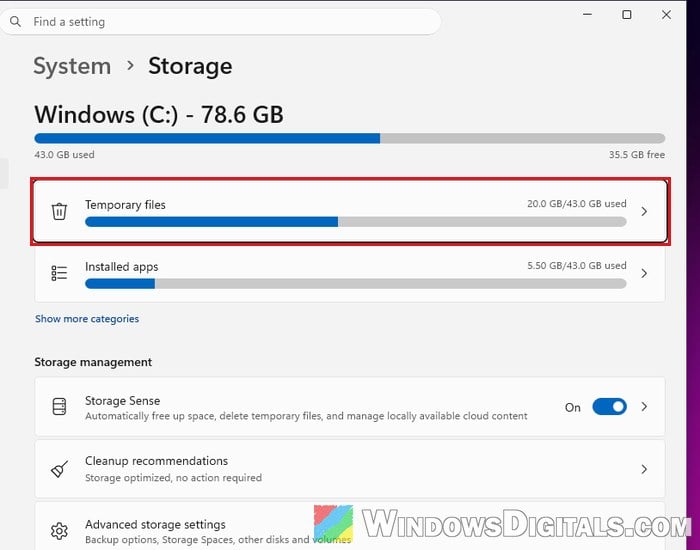
- Click Temporary files, tick Temporary files in the list (plus anything else you don’t need), and click Remove files.
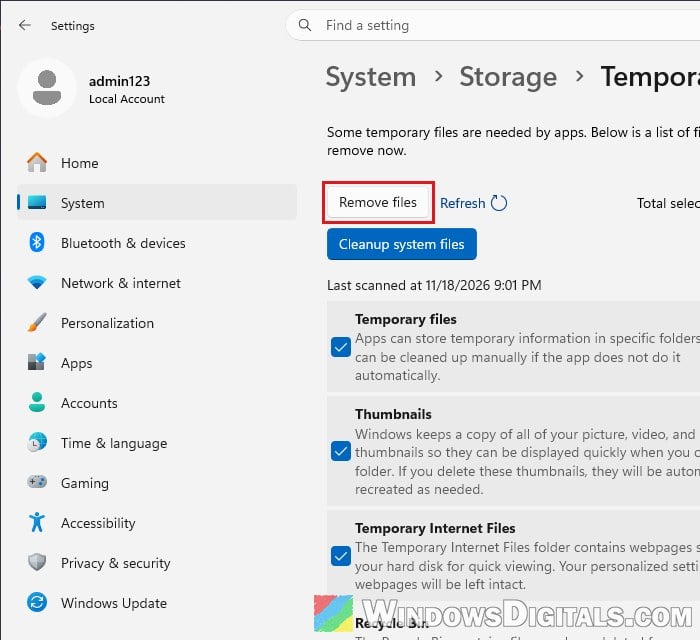
- Restart your PC, then repeat the steps above. Files that were locked by running apps before the restart can usually be removed the second time.
You can also use the old Disk Cleanup tool: search for “disk cleanup” in the Start menu, pick the C: drive and click “Clean up system files” to include the system’s own temporary files.
Microsoft’s fix when the Temp folder fills with Store files
If you look inside the Temp folder and it’s mostly .appx files, this is the exact case Microsoft describes. Its fix is to run the troubleshooters, reset the Store’s cache and restart:
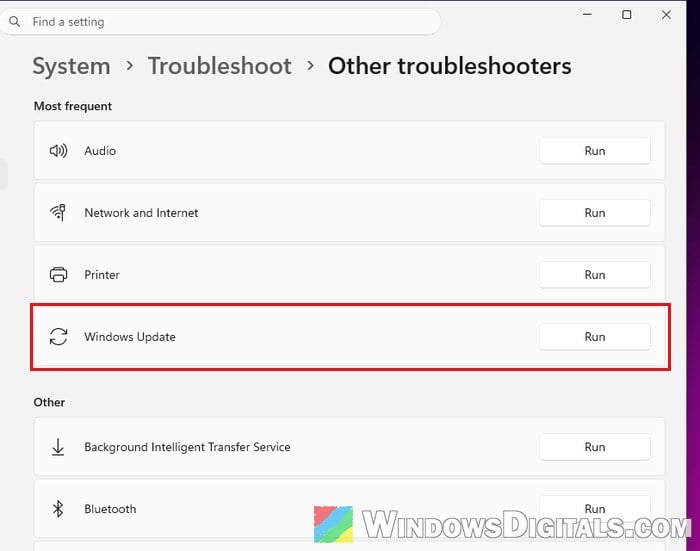
- Go to Settings > System > Troubleshoot > Other troubleshooters.
- Click Run next to Windows Update. Microsoft also names a Windows Store Apps troubleshooter, so run it too if it’s in your list (it isn’t on the latest Windows 11 builds).
- Press Win + R, type
wsreset.exeand press Enter.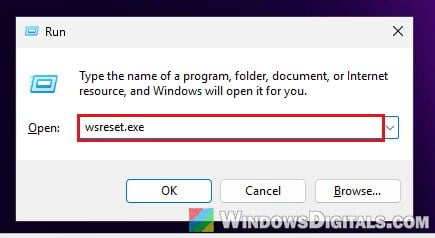
- Restart your PC.
Linked issue: Windows Update Troubleshooter Not Working Windows 10/11
Empty the Temp folders by hand (contents only)
When Settings doesn’t free up the space, delete the files yourself. Everything in these folders is temporary by design, and Windows and your apps recreate what they need. Before you start, finish any pending Windows update and restart, so no update or install is still using its files.
Be warned: Delete what’s inside the Temp folders, never the folders themselves. Deleting the whole AppData\Local\Temp folder can stop games (and possibly other apps) from launching until a new Temp folder is made.
- Press Win + R, type
%temp%and press Enter.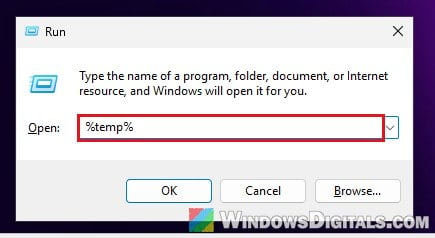
- Press Ctrl + A to select everything, then press Shift + Delete and click Yes to delete it for good. If you click the Delete button instead, empty the Recycle Bin afterward, or the space won’t come back.
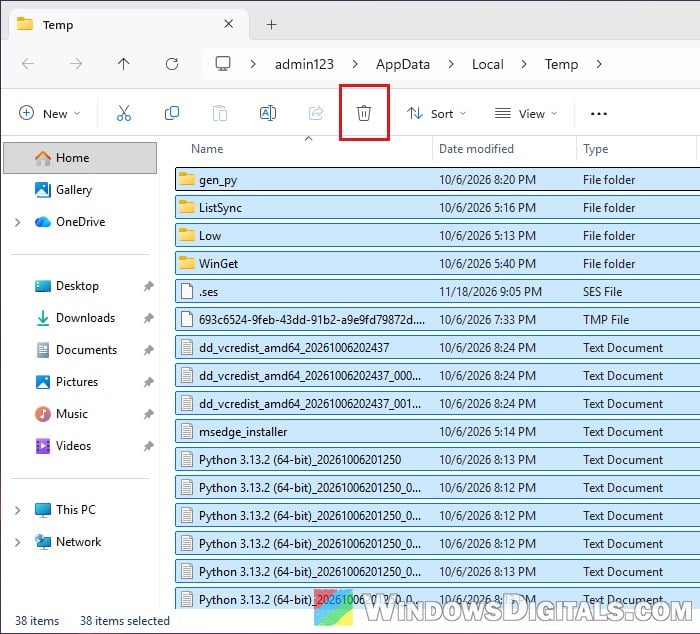
- If Windows says a file is open in another program, tick “Do this for all current items” and click Skip. Those files are in use, and you can delete them after a restart.
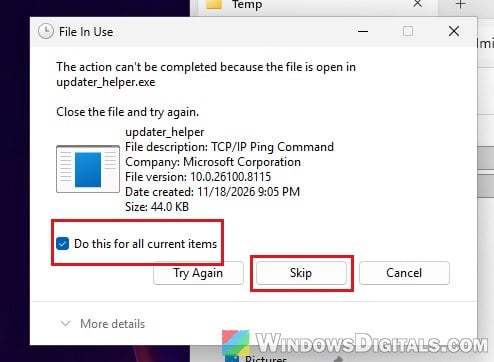
- Do the same in
C:\Windows\TempandC:\Windows\SystemTemp(paste the path into File Explorer’s address bar). When Windows says you don’t currently have permission to access the folder, click Continue (you need an administrator account). This gives your account lasting access to that folder.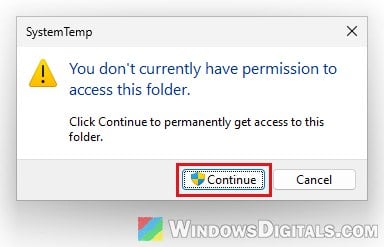
If some big files still refuse to go, boot into Safe Mode, where far fewer programs run, and delete them there.
Pro tip: How to Force Delete a File in Use by Another Program on Windows 11/10
Find out what keeps writing to the Temp folder
If the space disappears again within hours or days, you need to find the program that keeps creating these files.
Start with the files themselves. Sort the Temp folder by Date modified and look at the names of the newest files and folders, which often give the program away.
To see which program is writing right now, use Resource Monitor:
- Press Win + R, type
resmonand press Enter. - Go to the Disk tab and expand Disk Activity. The File column shows which file is being written, so look for paths in the Temp folders and the Image (process name) next to them. Many writes show up under System, so the file names matter as much as the process.
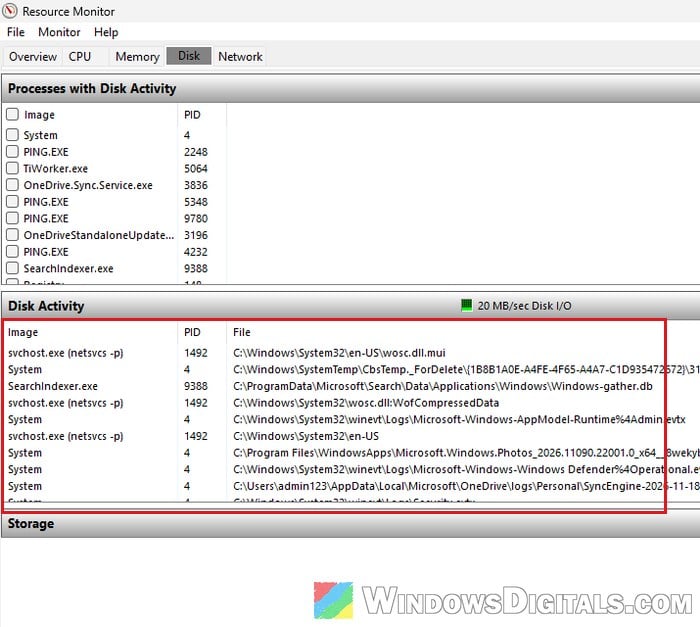
You can also open Task Manager (Ctrl + Shift + Esc) and sort the Processes tab by Disk to see what’s busy writing.
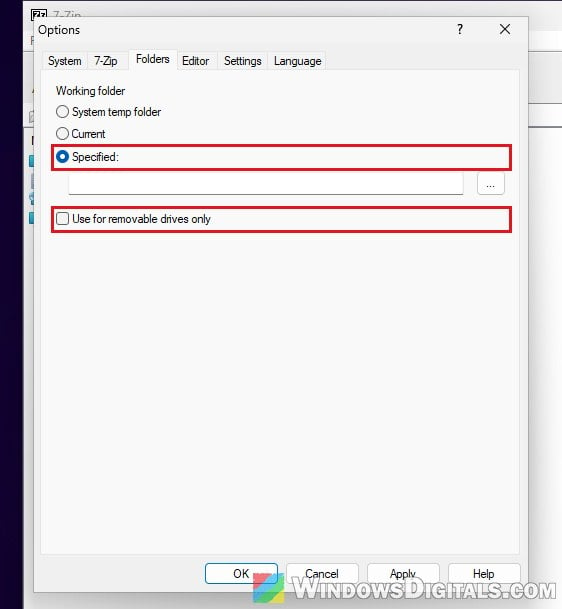
Once you know the culprit, update it, change where it keeps its cache or working files, or uninstall it. For example, if it’s 7-Zip, you can move its working folder off the C: drive:
- Open 7-Zip File Manager and go to Tools > Options.
- On the Folders tab, under Working folder, choose Specified and pick a folder on another drive. Untick “Use for removable drives only“, or 7-Zip only uses that folder for removable drives.
Might be useful: Antimalware Service Executable High Disk or CPU Usage
Turn on Storage Sense so it cleans up by itself
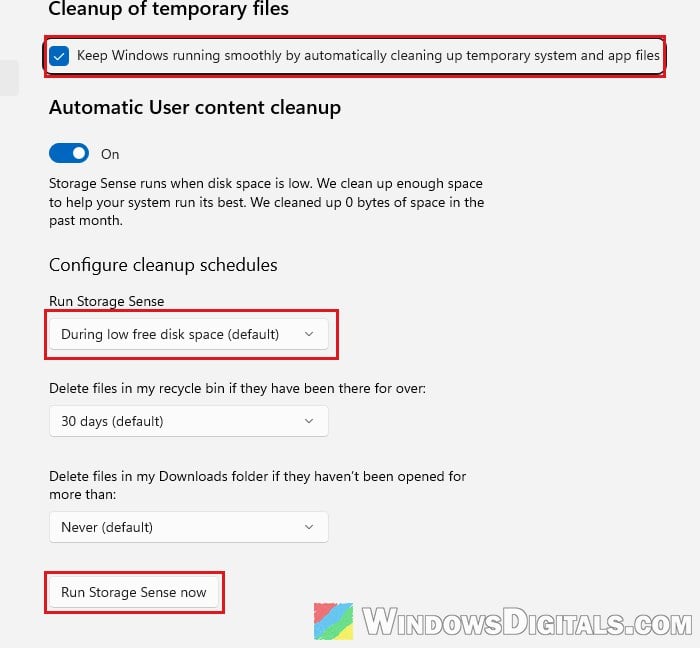
Microsoft says that with its default settings, Storage Sense removes temporary files when your PC gets low on disk space, and it only looks after the system drive (C:). You can also have it run on a schedule, so the Temp folders are cleared regularly instead of only when the drive is almost full.
- Go to Settings > System > Storage > Storage Sense.
- Under Cleanup of temporary files, tick “Keep Windows running smoothly by automatically cleaning up temporary system and app files“, and turn on “Automatic User content cleanup“.
- Under Configure cleanup schedules, change Run Storage Sense from “During low free disk space (default)” to Every day or Every week.
- Click “Run Storage Sense now” to run it right away.
Scan your PC for malware
None of the cases above turned out to be malware, but Microsoft does list it as one possible reason for disappearing disk space, so it’s worth ruling out with a full scan.
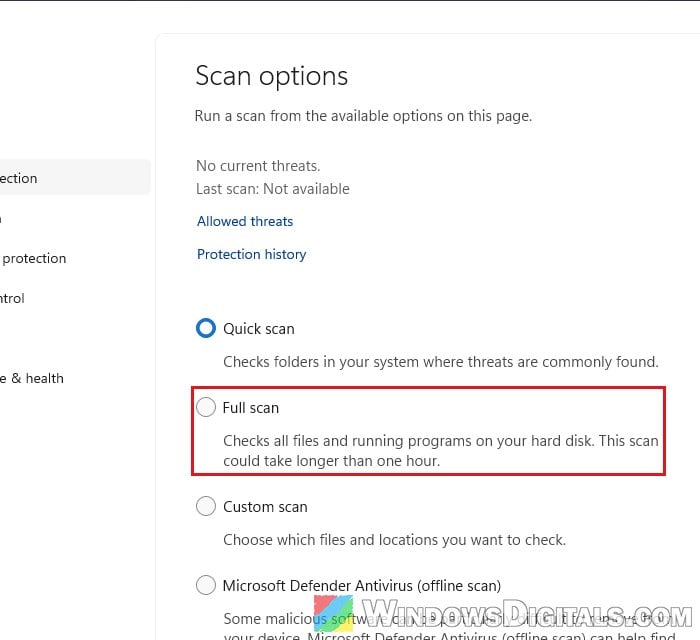
- Open Windows Security and go to Virus & threat protection.
- Click Scan options, select Full scan and click Scan now.