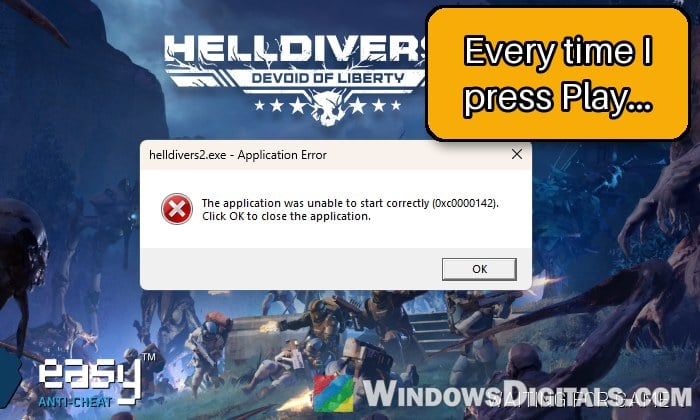
There is a common issue with Helldivers 2 on PC where, ever since Arrowhead swapped the game’s anti-cheat from GameGuard to Easy Anti-Cheat, pressing Play only brings up a “helldivers2.exe – Application Error” box saying “The application was unable to start correctly (0xc0000142). Click OK to close the application.” Most of the time it’s the old anti-cheat still getting in the way, and the error can come back days after you’ve fixed it once. This guide will show you how to clear it out and get the game starting again.
Also see: Battlefield 6 Crashes After a Minute, EAAntiCheatService Terminated Error
Why does Helldivers 2 show error 0xc0000142?
Arrowhead moved Helldivers 2 from nProtect GameGuard to Easy Anti-Cheat (EAC) on October 20, 2026, with the Devoid of Liberty update (7.2.0). Error 0xc0000142 means a DLL the game needs failed to load as it started, so the game closes before it gets past the Easy Anti-Cheat splash.
The usual causes are:
- GameGuard leftovers. The update didn’t fully remove the old anti-cheat, and its files or driver can clash with Easy Anti-Cheat when the game starts.
- A driver still in memory after a normal shutdown (more on that in the next section).
- Leftover mod files in the game folder, including ReShade or OptiScaler files.
- Damaged game files or settings, which a reinstall doesn’t always clean up.
It also happens to players who never used mods, so check the other causes even if your game is unmodded.
Restart your PC (don’t shut it down)
Yes, this sounds a little silly, but restarting is Arrowhead’s own first fix for this error, and it’s the one that has worked for the most players on Reddit. The catch is that it has to be a real Restart, not Shut down and then turn the PC back on. With Fast Startup on, a shutdown doesn’t fully unload drivers, so a stuck anti-cheat driver can still be there when you power on again.
- Close Steam and Helldivers 2.
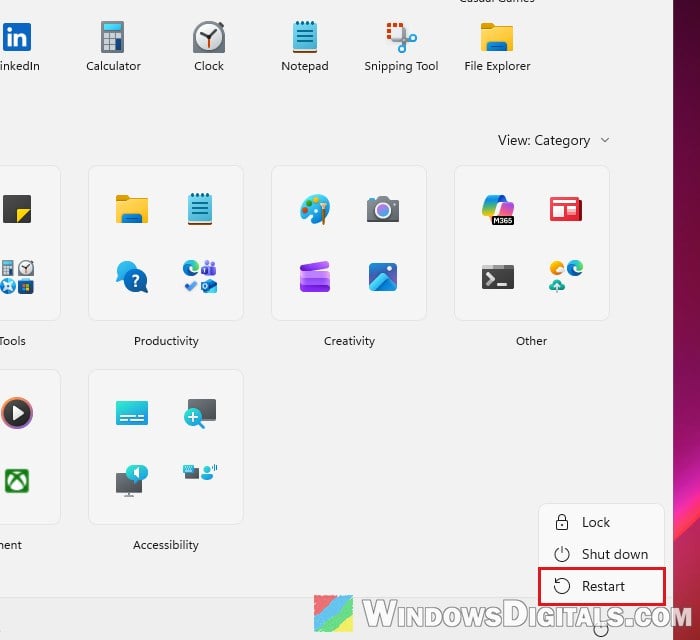
- Open the Start menu, click the Power button and select Restart.
- Once Windows is back, open Steam and launch the game.
If the error comes back on a later day, it’s most likely the GameGuard leftovers below.
Remove GameGuard’s leftovers
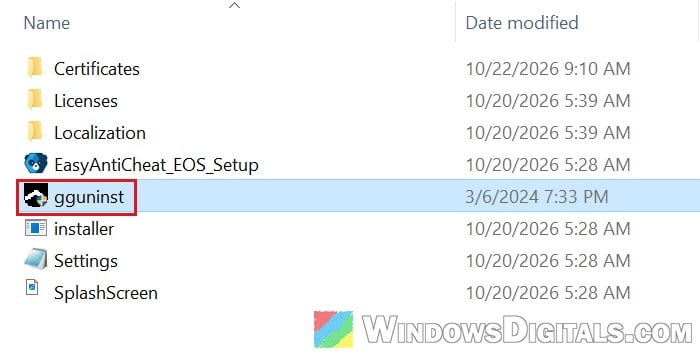
The game’s EasyAntiCheat folder still has GameGuard’s own uninstaller, gguninst.exe, and if a restart alone didn’t do it, running it is the next thing to try. Some installs also still have a GameGuard folder inside the game’s bin folder, which should go too. Here’s how to do it:
- Open Steam, right-click Helldivers 2 in your Library and select Manage > Browse local files. This opens the game folder, usually
...\steamapps\common\Helldivers 2. - Open the EasyAntiCheat folder and double-click gguninst.exe. Click Yes when User Account Control asks, and let it finish.
- Go back to the game folder and open the bin folder. If there’s a GameGuard folder in it, delete it.
- Restart your PC, again with Restart, not Shut down.
If there’s no GameGuard folder, running gguninst.exe and restarting is enough. If the game still won’t start, move on.
Remove any leftover mods and ReShade files
If you’ve ever used mods, check this one too. Arrowhead has warned that uninstalling mods or a mod manager can leave pieces of them in the game folder, and those can keep the game from starting. ReShade and OptiScaler are the ones it names.
- If you used a mod manager such as Vortex, use its purge option to take every mod out of the game folder.
- In the game’s bin folder, remove DLL files that aren’t the game’s own, such as dxgi.dll, d3d11.dll, dinput8.dll or reshade64.dll.
- In the data folder, mods often leave files whose names contain .patch_. Delete those.
The next fix brings back clean copies of anything the mods replaced.
Delete the bin and data folders, then verify the game files
When the steps above don’t do it, clearing out the game’s own files is the next step. Deleting the bin and data folders and letting Steam download them again gives you clean copies of both, with nothing old or extra left in them.
- Open the game folder again (in Steam, right-click Helldivers 2 and select Manage > Browse local files) and delete the bin and data folders.
- In Steam, right-click Helldivers 2 and select Properties.
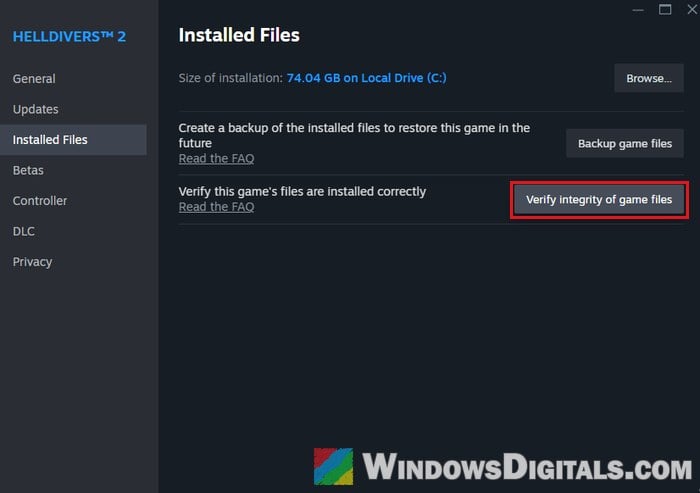
- Go to Installed Files and click Verify integrity of game files. Steam will download what’s missing, which can be a large download, so let it reach 100%.
- Restart your PC and try the game again.
Clear the game’s settings and shader cache
If Easy Anti-Cheat now gets past its splash screen but the game crashes or shows a black screen right after, the game itself is crashing, and its saved settings or shader cache are the usual suspects. These live in your AppData folder, not the game folder, so a reinstall leaves them behind. Deleting them resets the game’s settings, so you may need to set them again.
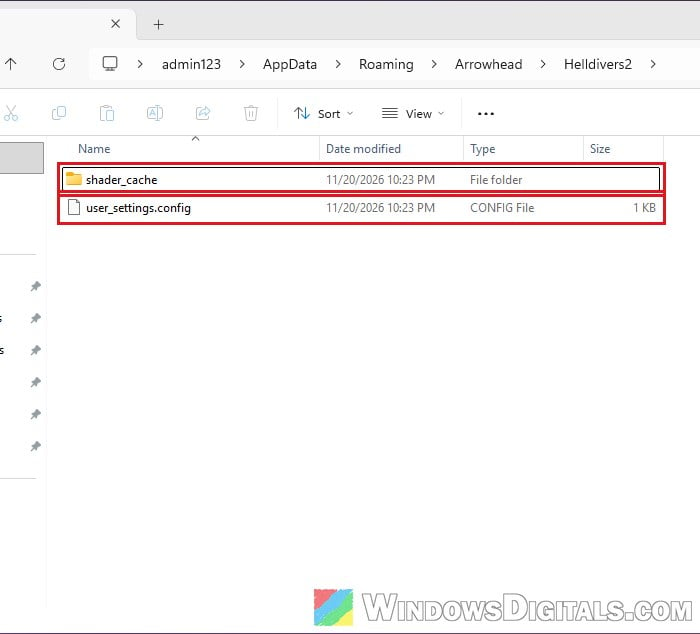
- Press Win + R, type
%appdata%\Arrowhead\Helldivers2and press Enter. - Delete the shader_cache folder and the user_settings.config file.
- Launch the game again.
If that doesn’t do it, delete the whole Helldivers2 folder there instead.
Pro tip: How to Clean Up AppData Folder in Windows 11
Repair Easy Anti-Cheat
When Easy Anti-Cheat’s own service is damaged, repairing it can help. Helldivers 2 keeps its setup tool, EasyAntiCheat_EOS_Setup.exe, in the EasyAntiCheat folder of the game folder. Here’s how to run the repair:
- Search for Command Prompt in the Start menu, right-click it and select Run as administrator.
- Go to the game’s EasyAntiCheat folder. With the default Steam library on drive C:, the command is:
cd /d "C:\Program Files (x86)\Steam\steamapps\common\Helldivers 2\EasyAntiCheat"
If the game is in another Steam library, use that folder’s path instead (the one Browse local files opens, plus
\EasyAntiCheat), and keep the/dso the command can switch drives. - Run the repair:
EasyAntiCheat_EOS_Setup.exe repair
- Restart your PC and launch the game.
Repair Windows files and Visual C++
Since 0xc0000142 means a DLL failed to load, damaged Windows files or Visual C++ runtimes can cause it as well, so repairing both is worth a try.
- Open Command Prompt as administrator.
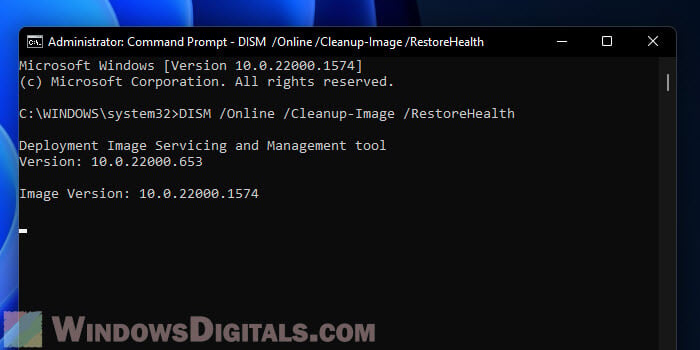
- Run DISM first, and wait for it to finish (it can take a while and seem stuck):
DISM /Online /Cleanup-Image /RestoreHealth
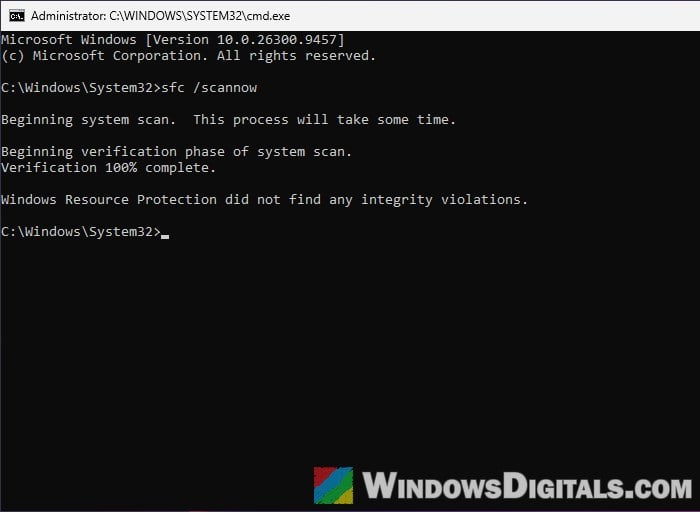
- Then run System File Checker:
sfc /scannow
- Restart your PC.
Related concern: Can I cancel “SFC /scannow” while it’s running?
For the runtimes, download the latest Visual C++ Redistributable for x64 and x86 from Microsoft, install both (or pick Repair if they’re already installed), and restart.
Linked issue: Microsoft Visual C++ Runtime Library Error Windows 10/11
Reinstall the game cleanly or contact Arrowhead
If nothing above works, do a full clean reinstall. Uninstall Helldivers 2 in Steam, then delete the leftover Helldivers 2 folder in steamapps\common and the Arrowhead folder in %appdata%, restart your PC and install the game again. It doesn’t always work, but it’s the last thing on the game’s side to try.
If the game still won’t start, and especially if it offers to save a crash dump, send that to Arrowhead’s player support at https://arrowhead.zendesk.com/. If it keeps coming back no matter what you do, the real fix will have to come from Arrowhead.