New emails in an Outlook.com or Hotmail account are supposed to land in your Inbox, but sometimes every new message (or just the ones from certain senders) goes straight to Deleted Items, often when you’re sure you never set up a rule for it. Since the mail is moved in the mailbox itself, it shows up the same way in Outlook on the web, in the new Outlook app and on your phone. This guide will explain what keeps moving your mail there and how to stop it.
Also see: Outlook Email Shows Up in Search but Not in the Inbox
Why do new emails go straight to Deleted Items?
Something on your account, or an app connected to it, is telling Outlook.com to move the mail. These are the usual causes:
- An inbox rule that deletes messages or moves them to Deleted Items. It can be one you made long ago and forgot, or one someone else added.
- A Sweep rule, which is kept apart from your inbox rules.
- An ignored conversation. Ignoring a conversation sends every new reply in it straight to Deleted Items.
- Another app or your phone, such as a blocked contact on your phone that matches the sender (or your own address).
- Hidden rules that you can’t see in Settings at all, usually left behind by someone who got into the account.
Blocking a sender isn’t one of them: blocked senders go to Junk Email, not Deleted Items.
Related problem: Outlook.com Junk Folder Flooded With “Unverified” Emails
Get the missing emails back first
Before going after the cause, move what’s already in Deleted Items back to your Inbox. Here’s how to do it on a computer:
- Sign in to Outlook.com in your browser and open the Deleted Items folder.
- Select the emails that should be in your Inbox (tick their checkboxes), then click Restore on the Home tab.
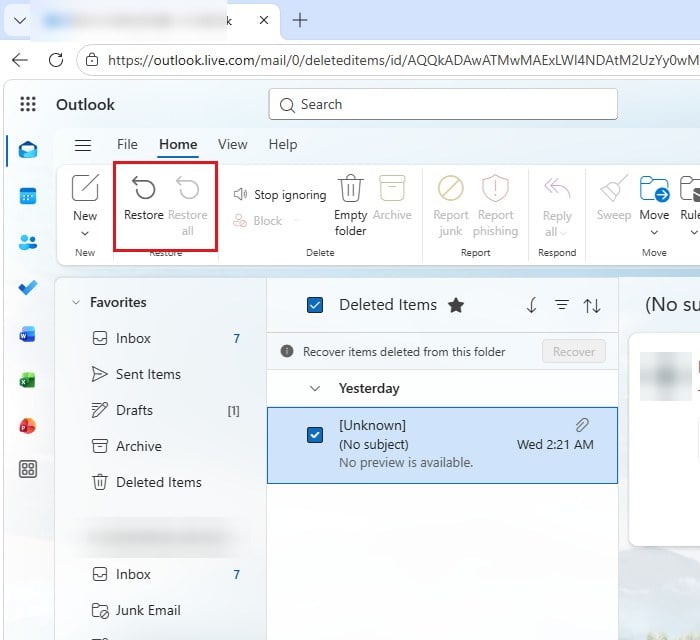
- If an email has already been removed from Deleted Items, click Recover in the “Recover items deleted from this folder” bar above the message list.
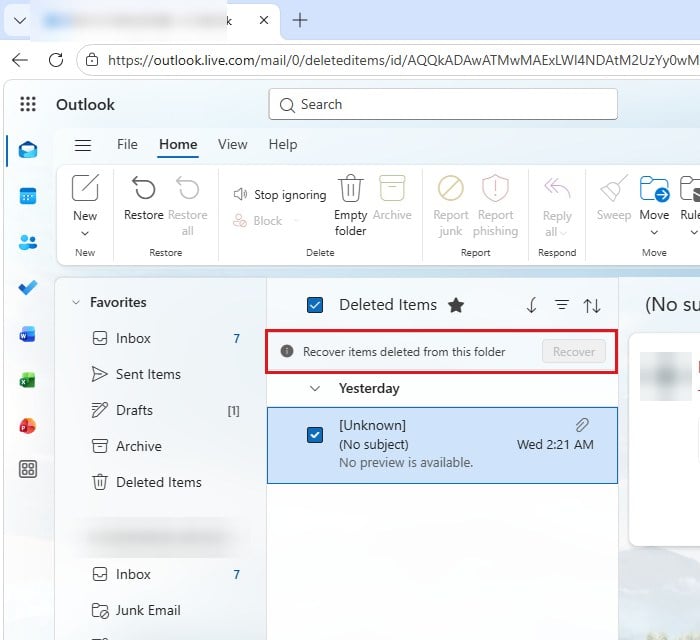
- Select the email you want back and click Restore.
Emails removed from Deleted Items can only be recovered for 30 days, and only on a computer, not in the Outlook mobile app or a mobile browser.
Pro tip: Checkboxes Missing in Outlook? How to Select Multiple Emails Again
Check your inbox rules
Start with your inbox rules. Rules run the moment an email arrives, so a forgotten one makes new mail look like it’s going there by itself. You need a computer for this. Here’s how to check:
- In Outlook.com, click the Settings (gear) icon at the top right.
- Go to Mail > Rules.
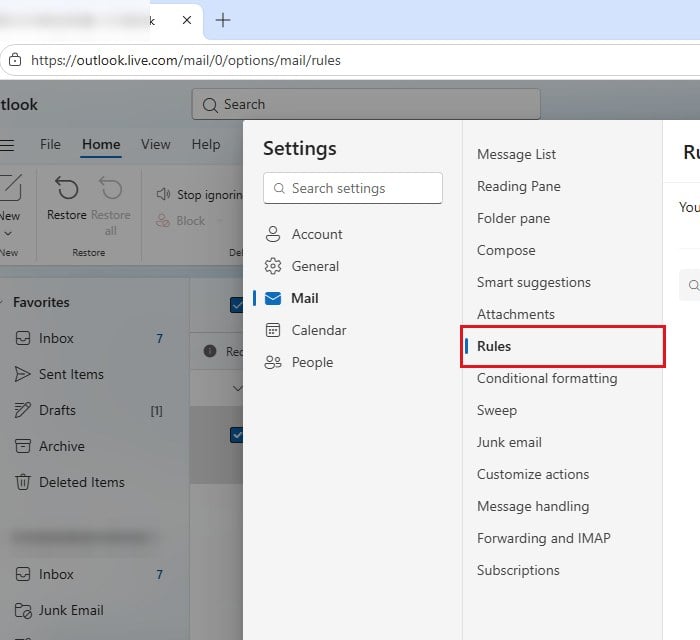
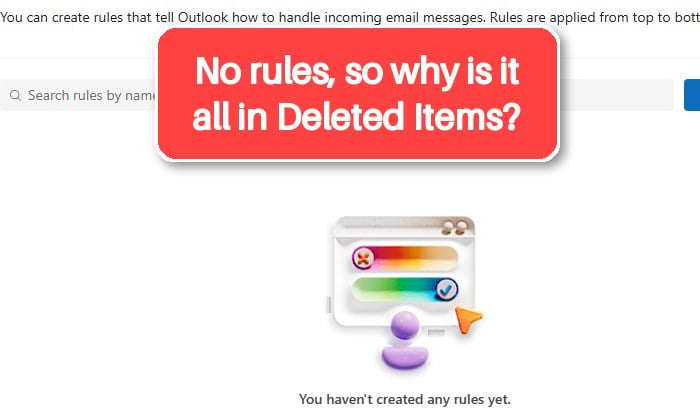
- Look for any rule that deletes messages, moves them to Deleted Items or forwards them somewhere. If the page just says “You haven’t created any rules yet“, move on to Sweep below.
- To turn a rule off for now, click the toggle next to it. To get rid of it, click More actions (…) next to the rule and choose Delete rule.
Then send yourself an email from another account and see if it lands in the Inbox this time.
If you also use classic Outlook, note that some rules made there can’t be run or edited in Outlook.com, so check File > Manage Rules & Alerts in classic Outlook too.
Remove any Sweep rules
Sweep lets you clean up mail from a sender automatically: delete everything they send, keep only their latest email, or delete their emails after 10 days. Since it’s kept apart from your inbox rules, an empty rules list doesn’t mean there’s no Sweep rule. Here’s where to look:
- In Outlook.com, open Settings (gear) > Mail > Sweep. This page lists every Sweep rule on the account.
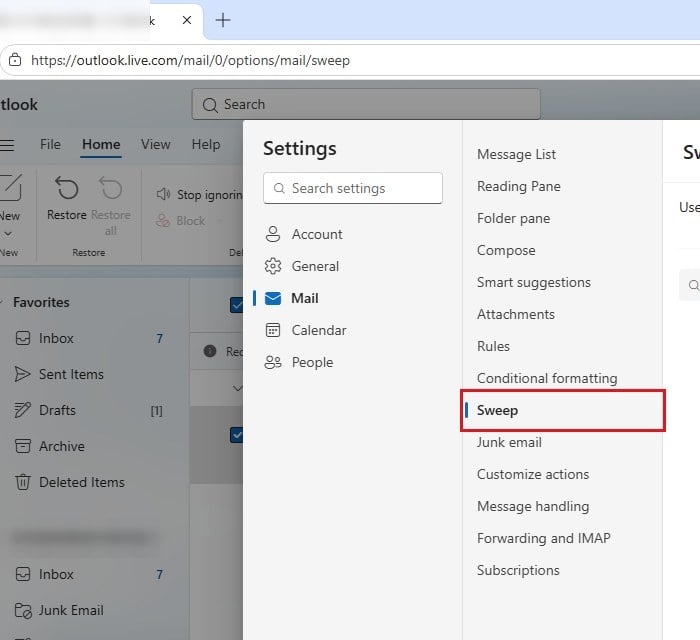
- Delete any Sweep rule for the senders whose emails keep disappearing.
Sweep rules only run once a day, so give it a day before you decide whether the problem is gone.
Stop ignoring the conversation
If only the replies in one email conversation vanish, it was probably set to Ignore, which deletes every new reply in it as it arrives. Here’s how to undo it:
- Open Deleted Items and select one of the messages from the conversation.
- On the Home tab, click Stop ignoring in the Delete group.
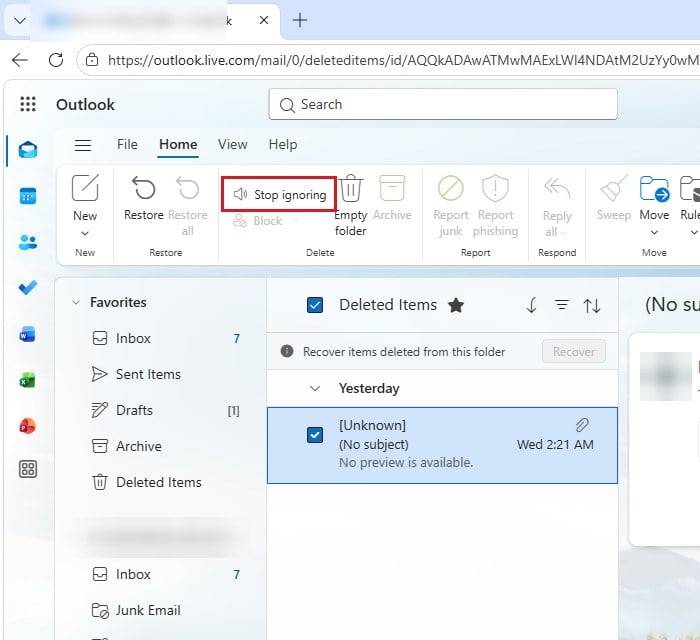
In classic Outlook, select the message in Deleted Items, go to the Home tab and click Ignore in the Delete group (it’s highlighted when the conversation is being ignored), then choose Stop Ignoring Conversation.
Wait for the next reply in that conversation and see if it lands in your Inbox.
Sign out completely and sign back in
Yes, this sounds too simple, but when nothing in the settings explains it, signing out of Outlook.com completely and back in can be enough to fix it. Click your profile picture at the top right and choose Sign out, close the browser, then sign in again and watch where the next new email goes.
Check your phone and other mail apps
An app on your phone or another computer that’s signed in to the account can move mail too.
- Close Outlook and every other mail app on all your computers, phones and tablets, keep only Outlook.com open in a browser, and send yourself a test email from another account. If it stays in the Inbox, open the apps again one at a time to find the one that moves it.
- Check the block list on your phone. If only emails from one person (or the ones you send to yourself) go to Deleted Items, see if that address is blocked in your phone’s contacts or its mail app. This is a different list from the one in Outlook.com’s settings, so it’s easy to overlook.
Make sure no one else is in your account
If you never made the rule that moves your mail, or the problem started suddenly with all of your email, check that no one else has access to your account. Someone who gets into an account can leave rules behind that delete new mail.
- Check your recent sign-ins at
https://account.live.com/Activity. It lists the sign-ins of the last 30 days, with the device or app used. - Change your password and turn on two-step verification for your Microsoft account.
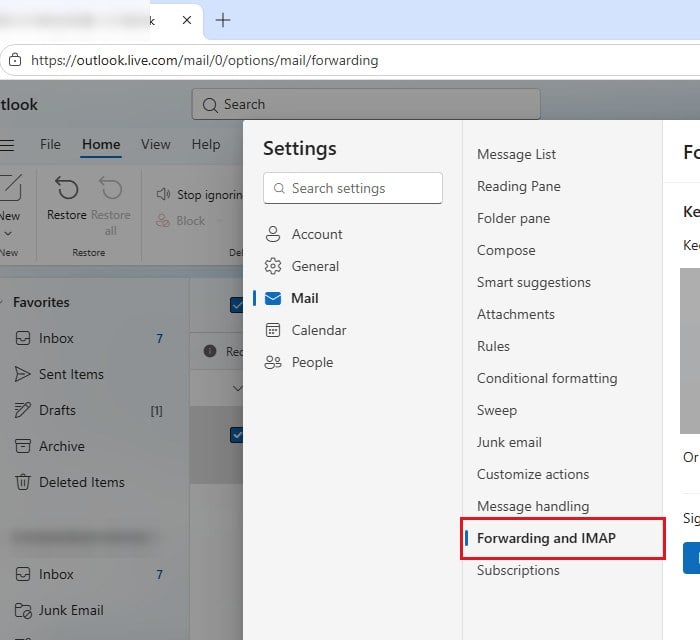
- In Outlook.com, open Settings > Mail > Forwarding and IMAP and make sure your mail isn’t being forwarded to an address you don’t know (the page may ask you to sign in and verify your account first).
Clear hidden rules
Some rules don’t show up in Outlook.com’s settings at all.
If you have classic Outlook with this account added, you can start it with a switch that deletes every rule on the account, which should clear hidden ones too. Be warned that this takes the rules you want to keep too, so note them down first. Here’s how to do it:
- Close Outlook.
- Press Win + R to open the Run dialog box.
- Type the following and press Enter:
outlook.exe /cleanrules
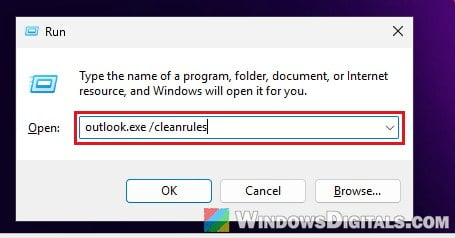
- Once Outlook has opened, check whether new mail stays in your Inbox.
It fixed this same problem on a work (Exchange) mailbox where every new email went to Deleted Items and no rule showed up, but it hasn’t been confirmed on an Outlook.com account yet.
If you don’t have classic Outlook, or the problem is still there, ask Microsoft to look at your account. In Outlook.com, open Help, describe the problem, and ask to contact support if the suggestions don’t fix it. Microsoft’s support can find and remove rules you can’t see on your side.