Most websites open in Edge or Chrome without any trouble, but now and then a page refuses to load with “uses an unsupported protocol” and the error code ERR_SSL_VERSION_OR_CIPHER_MISMATCH, sometimes on one site and sometimes on almost every site you open. Edge shows it under “The connection for this site is not secure”, Chrome under “This site can’t provide a secure connection”. This guide will help you figure out whether the problem is on your PC or on the website, and what you can do in each case.
Also see: Fixing Website’s Security Certificate Error on Windows 11/10
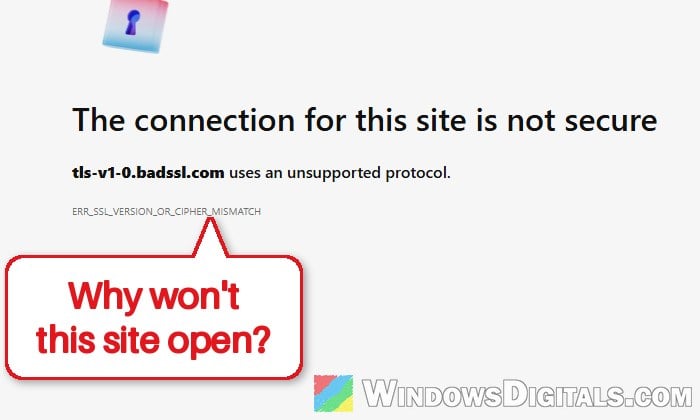
What does “ERR_SSL_VERSION_OR_CIPHER_MISMATCH” mean?
Before a secure (HTTPS) page loads, your browser and the website have to agree on a version of TLS, the encryption that protects the connection, and on a cipher, the way the data gets scrambled. This error means they couldn’t find one they both accept, so the browser stops instead of loading the page.
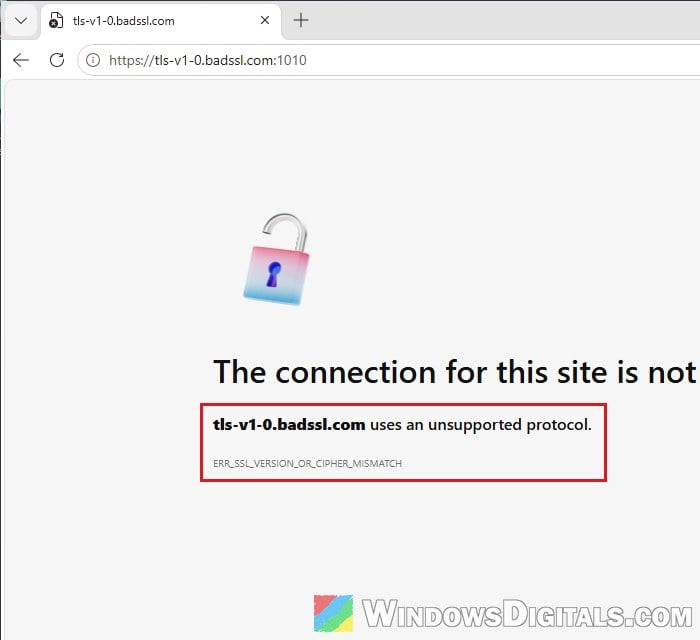
The usual reasons are:
- The website only uses old TLS versions or old ciphers. Edge has had TLS 1.0 and 1.1 turned off since 2020, and Chrome, which runs on the same code, doesn’t accept them either. Old device setup pages (server management pages, for example) and some company sites that were never updated still use them.
- Something between your PC and the website is getting in the way. Antivirus software that scans HTTPS traffic, a proxy, a VPN, a school or work network, or a filter set up by your internet provider can all break the secure connection.
- The website or the route to it has a problem. When Discord had a regional problem, people on some internet providers saw this exact error in every browser and in the app, while people elsewhere were fine.
Please note that there’s no setting in Edge or Chrome that brings TLS 1.0 or 1.1 back. Microsoft’s last policy for them stopped accepting TLS 1.0 and 1.1 in Edge 91 and was removed in Edge 98, so if the site only speaks those old versions, the real fix is on the website’s side.
Related problem: Chrome: “Err_Connection_Reset” in Windows 11/10
First, check if it’s the website or your PC
Before changing anything, it helps to know whether the problem is on your side or the website’s. Another browser on the same PC may not tell you much, since it usually goes through the same network, proxy and antivirus. Try these instead:
- Open a few other HTTPS websites. If only one site shows the error, the problem is most likely that site.
- Turn off Wi-Fi on your phone and open the same site over mobile data. If it opens there, something on your PC or your home network is the problem.
- If the site fails on your phone’s mobile data too, and on other people’s devices, it’s the website. Wait a while and try again, or contact whoever runs the site, since only they can update its server.
Several people on Reddit found the site failed on their usual connection but opened fine over mobile data.
Linked issue: DNS_PROBE_FINISHED_NXDOMAIN Error in Chrome (Fix)
Update Edge or Chrome and Windows
Updating the browser is one of the first things Google suggests for connection errors like this, and it’s quick and safe.
- In Edge, type
edge://settings/helpin the address bar and press Enter. In Chrome, usechrome://settings/helpinstead.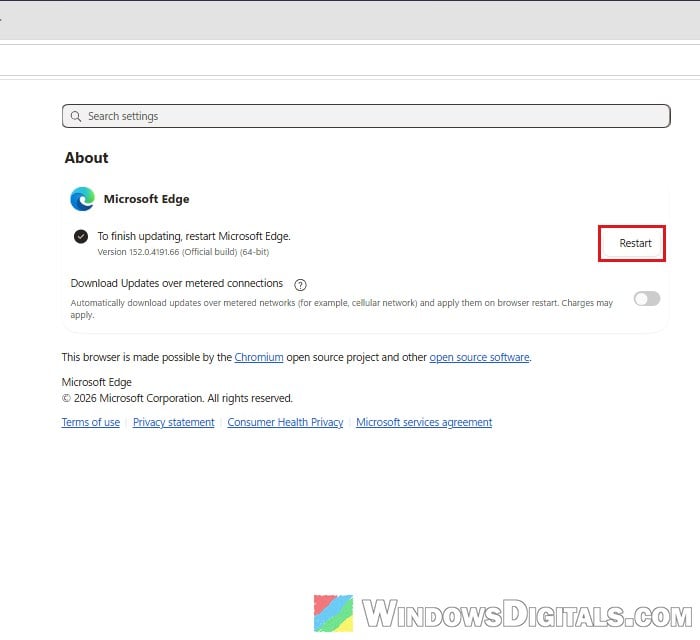
- If it finds an update, let it install, then click Restart.
- Then open Settings > Windows Update and click Check for updates. Install what it finds and restart your PC.
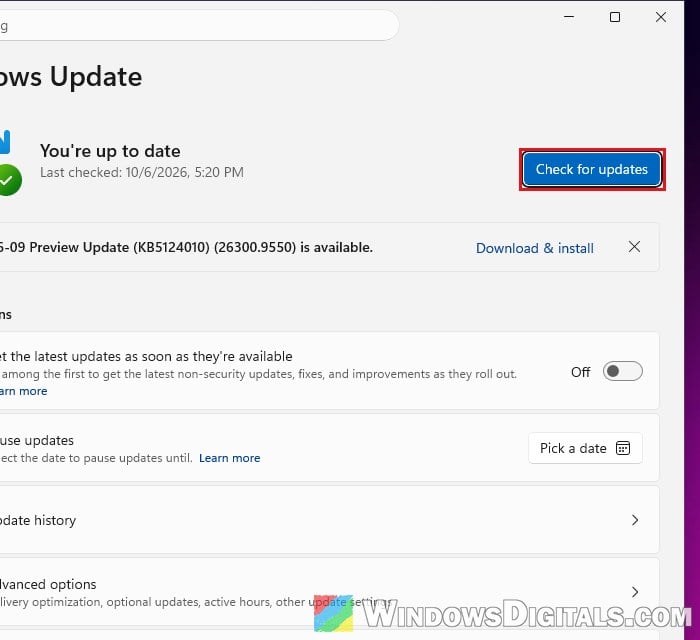
Open the same website again and see if the error is gone.
Turn off HTTPS scanning in your antivirus
Some antivirus and internet security apps scan your encrypted (HTTPS) traffic, and that scanning can break the secure connection to some websites.
The feature has different names depending on the app. Look in your antivirus settings for something called HTTPS scanning, encrypted traffic scanning, SSL/TLS filtering or web shield, and turn off only that part for a moment. Then reload the website.
If the site opens, that scanning was the cause. Turn it back on when you’re done with that site, or leave just HTTPS scanning off and keep the rest of your antivirus on.
Turn off any proxy or VPN
A proxy or VPN sends your traffic through another server first, and a badly set up one can also break secure connections. Here’s how to check:
- Open Settings > Network & internet > Proxy.
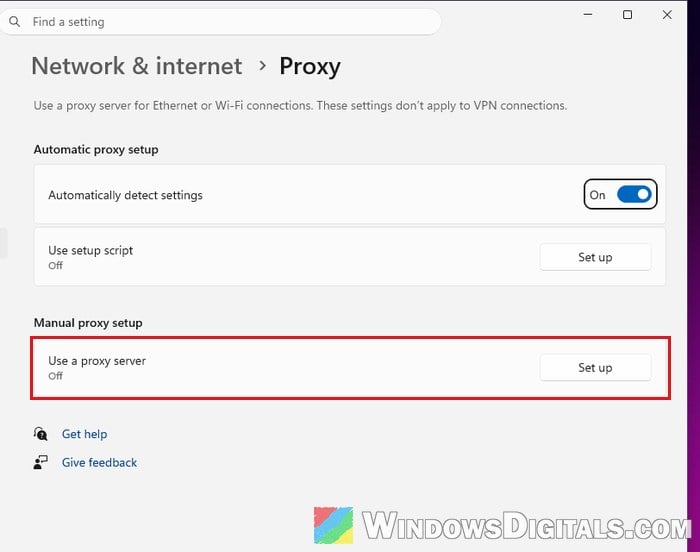
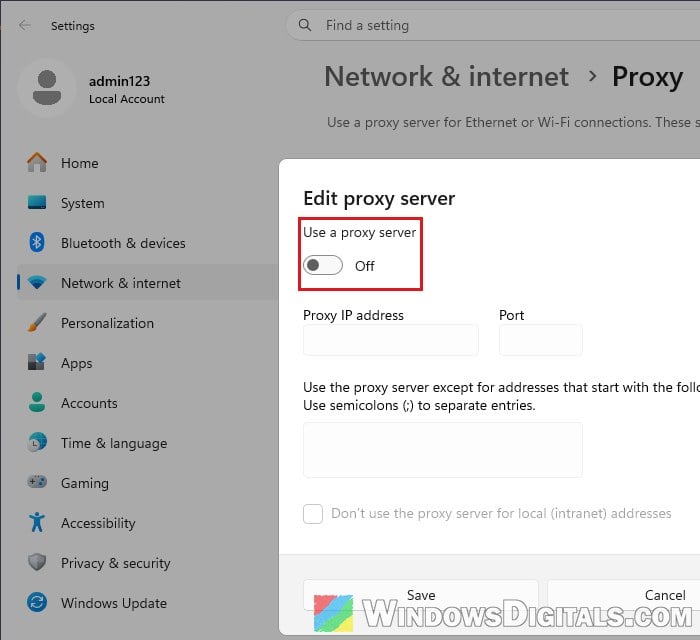
- Under Manual proxy setup, click Set up next to Use a proxy server, turn it Off if you don’t need it, and click Save.
- If you use a VPN app, disconnect it, then try the website again.
Might be useful: How to Disable Proxy Settings in Windows 11/10 Permanently
Check your router, internet provider or school filters
If the website only fails on one network, the network itself may be blocking or inspecting it. Some internet providers have parental controls or a “security” filter that shows a secure connection error instead of a clear “blocked” page, and a provider can put a PC in a filter group without you knowing. Check your router’s settings or your provider’s app for these filters, or ask your provider.
On a school or work laptop, the network or the laptop may be set up to monitor web traffic, and that can break these sites. You can’t change that yourself, so ask the school’s or company’s IT people to look at it.
Open an old device’s page in Internet Explorer mode
If the error comes up on the setup page of an old device or server that you own and trust, and there’s no firmware update for it, Edge’s Internet Explorer mode may still open it. IE mode uses the older Internet Explorer engine and Windows’ own TLS settings instead of Edge’s, so it can reach pages that normal tabs refuse. It’s only a workaround for that one page, though.
- Type
edge://settings/defaultBrowserin Edge’s address bar and press Enter. - Under Internet Explorer compatibility, set “Allow sites to be reloaded in Internet Explorer mode (IE mode)” to Allow, then click Restart.
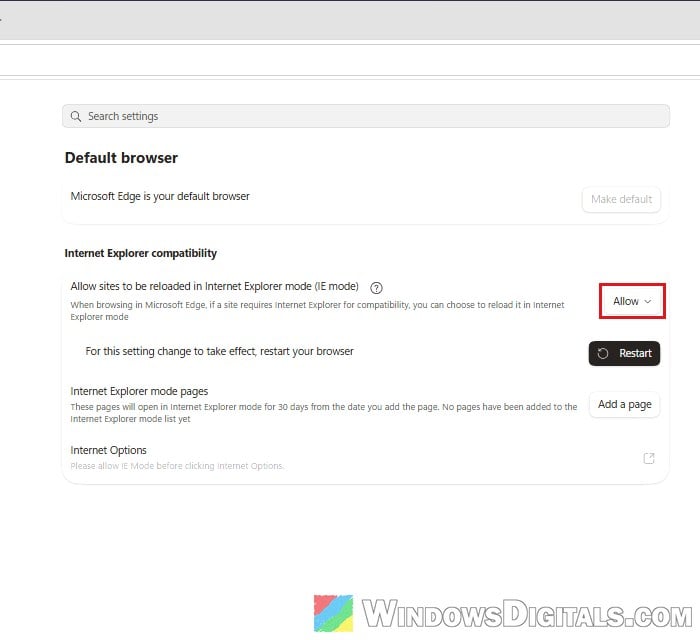
- Next to Internet Explorer mode pages, click Add a page, type the page’s address and click Add. Edge keeps it in the list for 30 days.
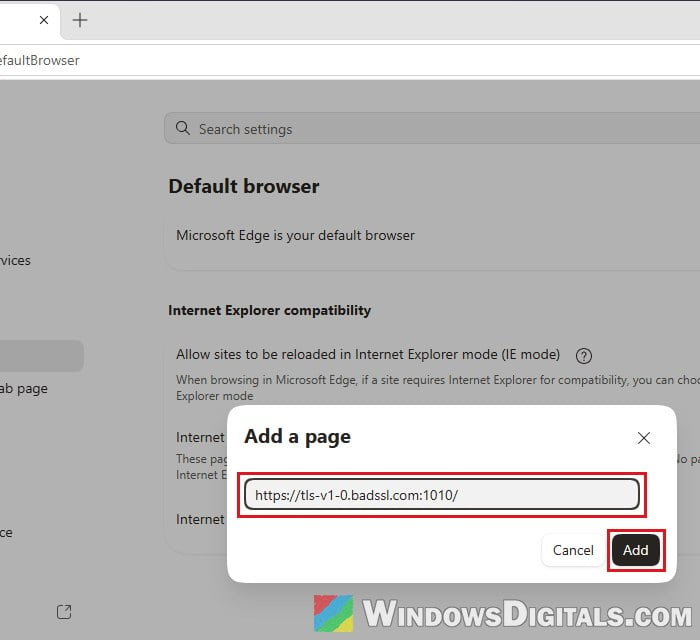
- Open the page again. If it loads, Edge shows a bar saying “You’re in Internet Explorer mode“. Click Open in Microsoft Edge on that bar when you’re done.
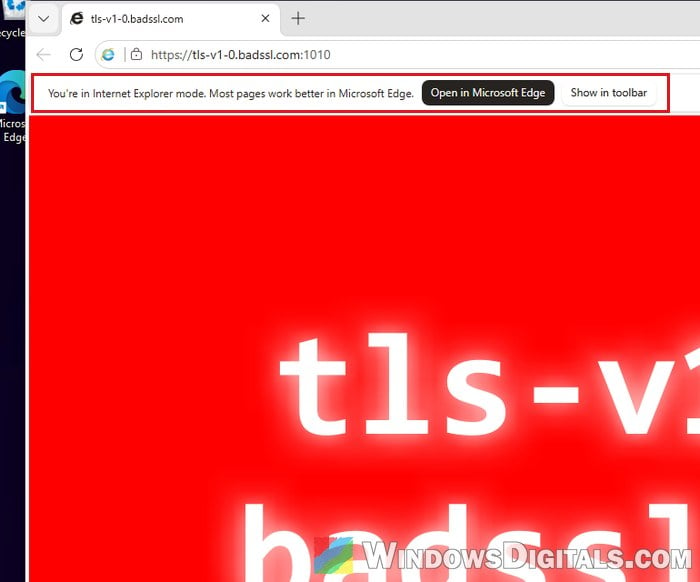
- If IE mode shows “Can’t reach this page” instead, the device most likely only speaks TLS 1.0, which is off in Windows’ own settings too. Click Internet Options on the same Edge settings page (or press Win + R and type
inetcpl.cpl). In the Internet Properties window, go to the Advanced tab and tick “Use TLS 1.0” under Security.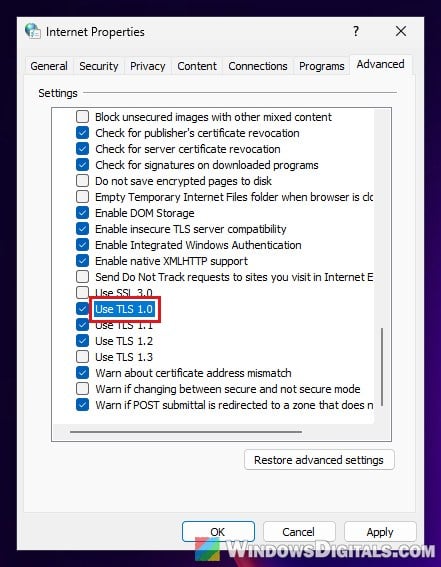
- Click OK, close Edge completely and open the page again.
Only do this for a device you know is yours, and untick “Use TLS 1.0” once you’re done. Old TLS versions are off because they aren’t safe anymore, and Microsoft only recommends turning them back on as a last resort. You may also see “Use TLS 1.0” suggested as a general fix for this error, but it doesn’t change what Edge or Chrome accept in a normal tab: a normal Edge tab still shows the same error with it ticked.