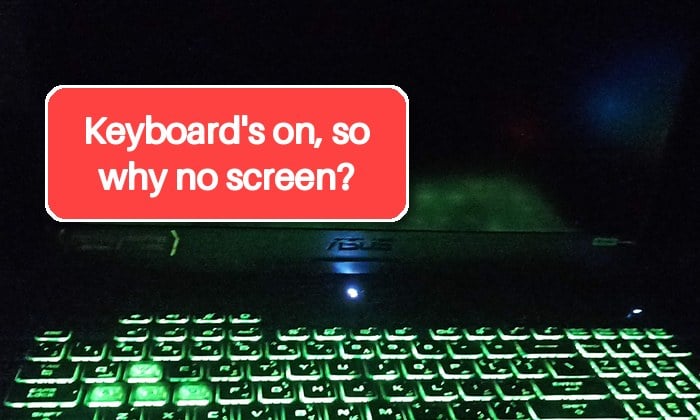
Say you press the power button on your ASUS TUF Gaming A15 and the power light comes on and the keyboard backlight lights up (red or breathing red on many), but there’s no ASUS logo, no BIOS and no picture at all, not even on a monitor plugged into the HDMI port. It often happens right after a repaste or a RAM or SSD upgrade, or seemingly out of nowhere, like after the laptop sat on the sign-in screen for a while. This guide will walk you through what to check, from simply waiting it out to recovering the BIOS, and how to tell when it’s a repair job.
Also see: Battery Light Blinking Orange on Lenovo, Dell or Asus Laptop
Give it 10 to 15 minutes on the charger first
Before you start taking things apart, know that a blank screen with the power light on isn’t always a fault. According to ASUS, after a BIOS update, a disconnected battery, a memory change or an EC reset, the laptop has to run a full memory training on the next boot. During that time the screen stays black while the power light is on, and it can take about 5 to 10 minutes depending on how much RAM you have.
That’s why this so often happens right after a repaste or an upgrade. Opening the laptop means disconnecting the battery, and the next start-up looks dead while the memory is being trained. The lit keyboard only means the laptop is getting power. On its own, it doesn’t mean anything is broken.
Here’s what you should do:
- Plug in the original ASUS charger.
- Press the power button once and let go. Don’t hold it down and don’t force the laptop off.
- Leave it alone for at least 10 to 15 minutes.
Some owners only got a picture back after 20 minutes to an hour or two, so give it a good while before moving on. If the ASUS logo shows up, let Windows load and you’re done.
Suggested read: Laptop Only Works When Plugged In (Why & How to Fix it)
Unplug everything and try an external monitor
Something plugged into the laptop can stop it from starting properly, so ASUS suggests removing all external devices first: mice, keyboards, external drives, printers, memory cards, discs and card-reader cards, external monitors included. Then start the laptop again with only the charger connected.
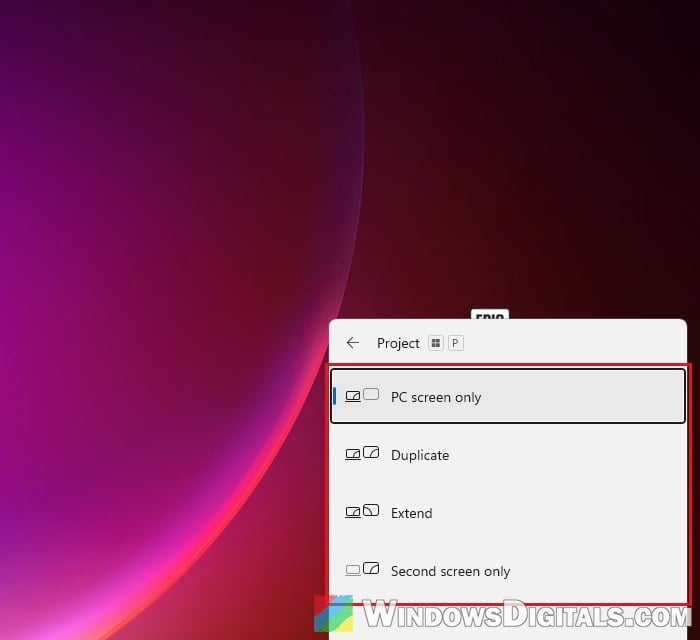
If it still shows nothing and you haven’t tried it yet, connect one external monitor. If a picture shows up there, the laptop is actually booting and the problem is with the built-in screen or its display settings. ASUS gives two shortcuts for this case:
- Press Win + P to switch between display modes.
- Press Win + Ctrl + Shift + B to restore the display settings.
If the external monitor works, download and install the latest display driver for your exact model from ASUS’s support site.
Linked issue: Laptop Stuck on Black Screen After Sleep (Windows 11/10)
Do an EC reset (hard reset)
If the embedded controller (EC) gets stuck, the laptop can light up but never start to boot. An EC reset (ASUS also calls it a hard reset) clears that, and it’s the step ASUS lists for “no display, but the power indicator is on”.
- Remove all external devices.
- Turn the laptop off if it’s on.
- Connect the charger.
- Press and hold the power button for 40 seconds.
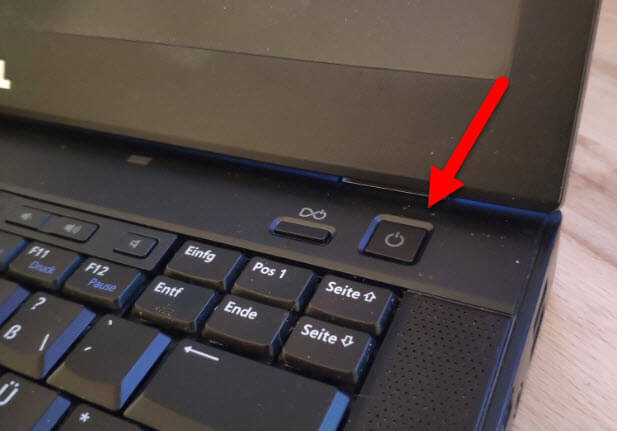
- Some ASUS models use a 20-second design instead. On those, the power light starts flashing quickly after about 15 seconds for 3 to 5 seconds. Let go once the flashing stops.
- Turn the laptop on with a single press.
Keep in mind that an EC reset also triggers memory training, so give it the same 10 to 15 minutes before you decide it didn’t work.
Might be useful: BIOS Keeps Resetting & Fans at Max Speed on Boot
Reseat the RAM or try one stick at a time
A memory stick that isn’t fully seated, or one that has gone bad, can stop the laptop before it ever shows the logo. ASUS’s advice is to remove any memory you added before the problem started, or put the laptop back to its original memory.
If your laptop is still under warranty, contact ASUS before you open it. Otherwise, if your model has removable RAM, here’s how to check it:
- Shut the laptop down and unplug the charger.
- Remove the bottom cover.
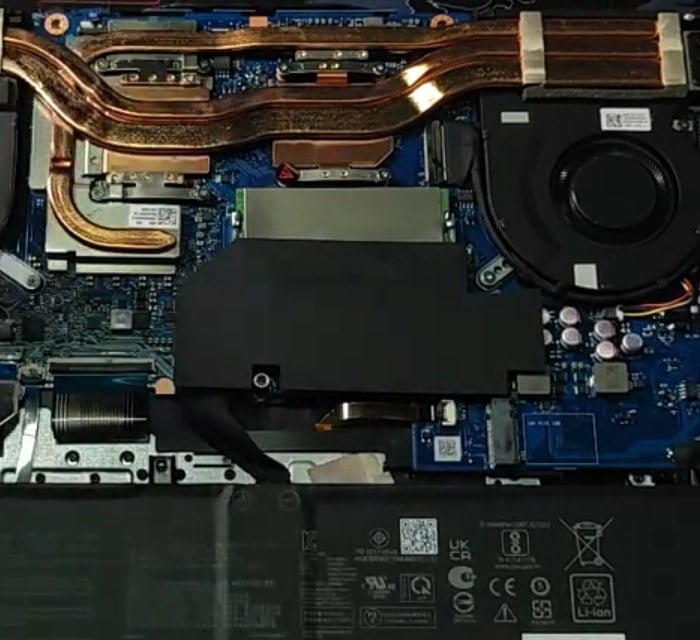
- Disconnect the battery connector before touching anything else.
- Take out the RAM and reseat it until it’s locked in place.
- If you have two sticks, try one stick at a time, or the original stick if you upgraded.
- Reconnect the battery, close the cover, plug in the charger and turn it on.
Since the battery was disconnected, the first start will run memory training again. Wait at least 10 minutes before trying anything else.
Related problem: Windows 11 PC Won’t Boot Past the BIOS, Why?
Recover the BIOS with ASUS EZ Flash
If the laptop was shut down in the middle of a BIOS update, it can stay on a black screen with the power light on. ASUS has a BIOS recovery mode for this that loads the BIOS from a USB drive. You’ll need another computer and a USB drive formatted as FAT32.
Be warned: An interrupted BIOS flash can leave the laptop worse off than before. Keep the charger connected the whole time (ASUS also asks for at least 20% battery), and if you’re not sure what you’re doing, it’s better to let ASUS or a repair shop do it.
- On the other computer, go to ASUS’s support site, find your exact model (for example FA507NVR) and download the latest BIOS under the BIOS category for the ASUS EZ Flash Utility.
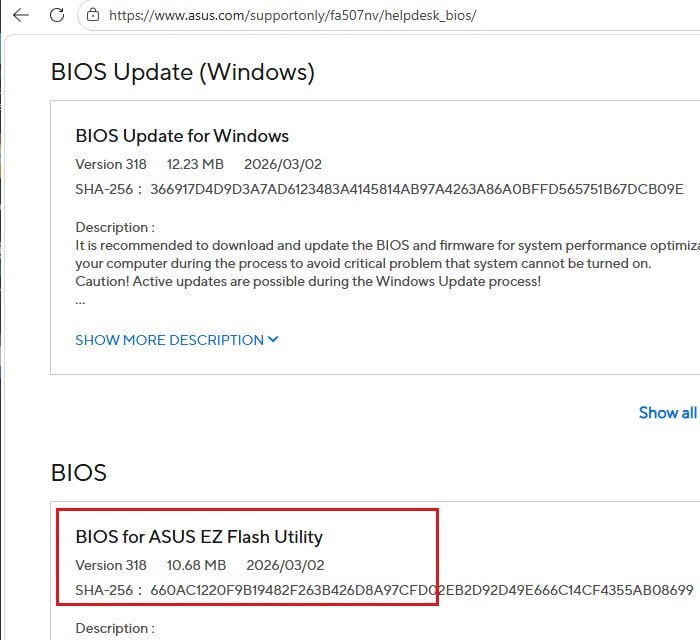
- Right-click the downloaded file, choose “Extract All“, then “Extract“.
- Rename the extracted file so it ends in
.binand keeps the model name. ASUS’s own example isX1505ZAAS.309becomingX1505ZA.bin. - Copy the .bin file to the root of the USB drive (not inside a folder).
- Plug the USB drive into the TUF A15 and keep the charger connected.
- Turn the laptop on and repeatedly press Ctrl + R. If that doesn’t work on your model, try Ctrl + Home or Ctrl + Fn +
Left Arrowinstead. - The laptop should restart into the ASUS Firmware Update (ASUS EZ Flash) screen. Select the .bin file and click “Yes” to start.
- Don’t turn the laptop off or unplug it while the update runs.
ASUS also gives a shorter way: hold the power button for 15 seconds until the power light goes off, plug in the USB drive with the BIOS file, keep the charger connected and turn the laptop on. The update should then run by itself.
If none of the key combinations do anything on yours, move on to the next section.
When it’s most likely a motherboard problem
If you’ve waited out the memory training, done the EC reset, tried the RAM and the BIOS recovery, and the TUF A15 still shows nothing on any screen, the bad news is that it’s most likely a hardware fault, usually on the motherboard. TUF owners on Reddit with the same symptoms who sent theirs in have reported a motherboard repair or replacement, some of them under warranty.
If your laptop is still under warranty, contact ASUS and send it in for repair. Out of warranty, get a quote from ASUS or a repair shop you trust.
Before you send it anywhere, you can take the SSD out and read it in another PC to back up your files.