A laptop’s USB ports normally pick up a mouse, keyboard or flash drive the moment you plug it in, so it’s a shock when every USB port suddenly stops working at once, sometimes still giving power but detecting nothing. Often it’s something the ports share, like a USB controller or the laptop’s power protection, getting stuck rather than the ports themselves. This guide will help you bring them back on Windows 11 or 10, starting with the fix that works most often, and tell you when it’s really a hardware problem.
Also see: Keyboard or Mouse Not Working After Windows 11/10 Update
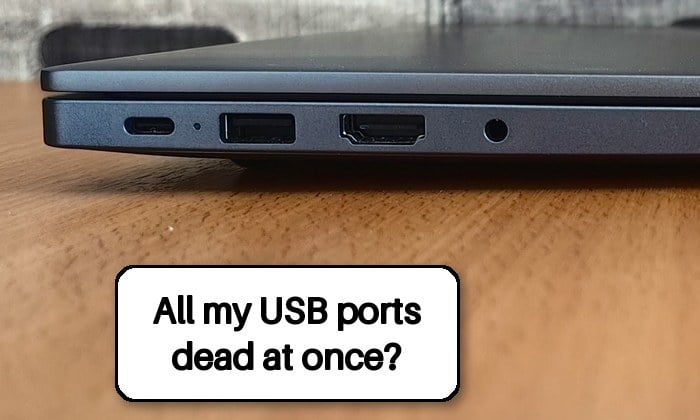
Why do all the USB ports stop at the same time?
The most common causes are:
- A power spike or overload from a device, a dock or a power cut, leaving the USB or charging controller stuck in a safety state.
- A stuck or disabled USB controller in Windows, often after hibernation, an update or a change in Device Manager.
- USB power saving that turns the ports off and doesn’t wake them.
- Hardware damage, like a shorted port or a failed controller.
Do a power drain (hard reset) first
Even when a laptop is off, some leftover charge stays in its circuits (Dell calls it “flea power”). A normal restart often won’t clear a controller stuck after a power spike, but draining all the power usually does. This is the fix that has worked for most people on Reddit with every port suddenly dead. Here’s how to do it:
- Shut down the laptop completely (not restart, sleep or hibernate).
- Unplug the charger and every USB device, hub and dock.
- Press and hold the power button for about 15 to 30 seconds.
- Release it, plug the charger back in and turn the laptop on.
- Plug in one USB device at a time.
On a Surface, hold the power button until it restarts and shows the Windows logo (about 20 seconds). Some laptops only reset fully with the battery disconnected or through a reset pinhole (check your manual); if yours is under warranty, let the manufacturer open it.
If Windows shows “Power surge on the USB port”
This means a USB device drew more power than its port can supply, so the port was shut down.
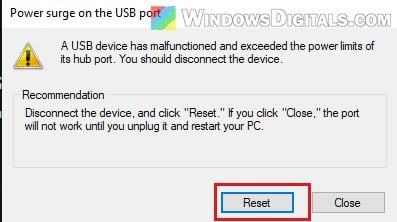
Unplug every USB device, click Reset on the message if it’s still there, and restart. Then plug the devices back one at a time to find the one that sets it off, and try another cable. If it keeps coming with nothing plugged in, a port or the board may be damaged, especially if the ports are dead in the BIOS too.
Check if the ports work before Windows starts
USB ports work in the BIOS (UEFI) too, before Windows loads, so testing there shows whether Windows is the problem. Restart and press the BIOS key as the laptop starts (F2 on Dell; your laptop’s manual lists its key). On a Surface, turn it off, hold Volume Up, press and release the power button, and keep holding until UEFI appears. See if a USB keyboard or mouse works there, or if a USB flash drive shows up in the boot device list.
If it works, the problem is in Windows. If not, skip to the BIOS and hardware sections.
Reinstall the USB controllers in Device Manager
When the ports work in the BIOS but not in Windows, the USB controllers are probably stuck or disabled. Removing them makes Windows reinstall them, and Dell says it’s safe. Use the touchpad and built-in keyboard for this. If the touchpad stops too, hold the power button to turn the laptop off, then turn it back on. Here’s what to do:
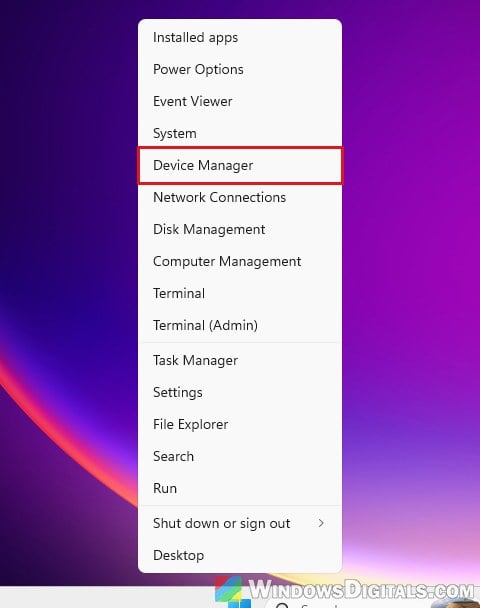
- Right-click the Start button and select Device Manager.
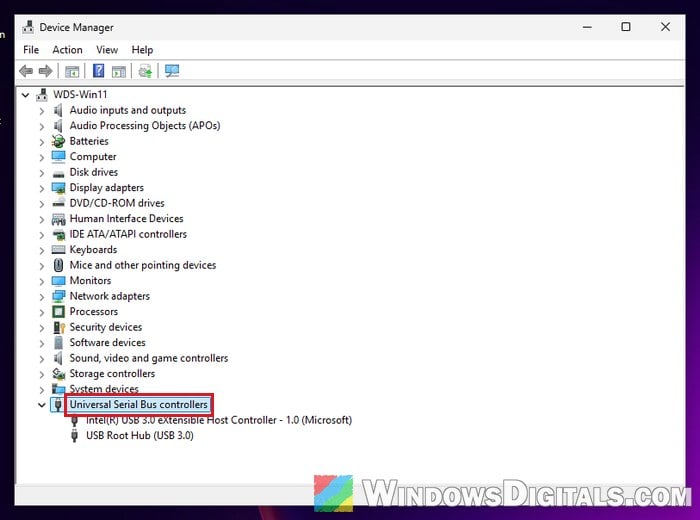
- Expand Universal Serial Bus controllers. A yellow exclamation mark means an error, and a small down arrow means the entry is disabled (right-click it and select Enable device).
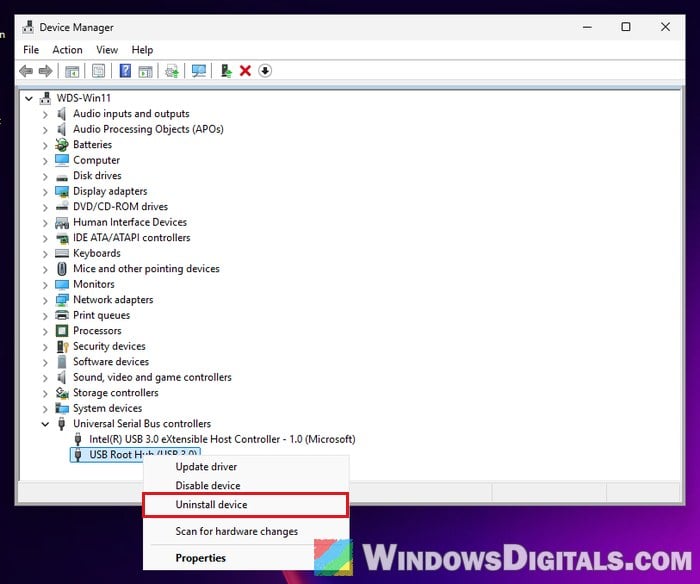
- Right-click a USB Root Hub, select Uninstall device and confirm. Do the same for every USB Root Hub and host controller (like USB xHCI Compliant Host Controller). If asked to restart, finish them all first.
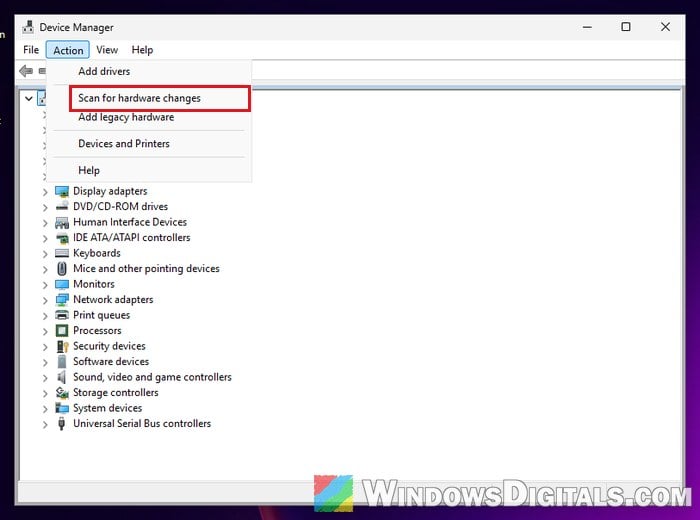
- Restart the laptop. Or, to bring them back now, click your computer’s name at the top of the list, then Action > Scan for hardware changes.
If a USB device still isn’t picked up, shut down and wait a few minutes before starting again. If the entries won’t uninstall, try it in Safe Mode.
Linked issue: Unknown USB Device (Set Address Failed) in Windows 11
What if you disabled a USB controller yourself?
Turn it back on with the touchpad: right-click the entry with the down arrow and select Enable device. If you can’t control the PC at all (a desktop with a USB mouse and keyboard), turn it on and hold the power button to switch it off as soon as the spinning dots appear. After two or three times, Windows opens Automatic Repair, where Advanced options > Troubleshoot > Advanced options > System Restore takes you back to a restore point from before the change.
Stop Windows from turning off the USB ports to save power
Windows can switch USB hubs off to save battery and sometimes fails to wake them, especially after sleep. To keep them on:
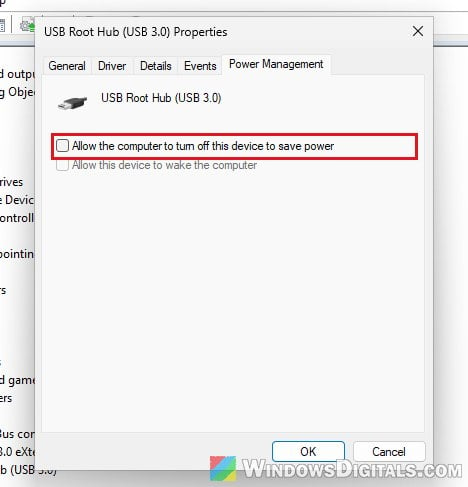
- In Device Manager, right-click each USB Root Hub and select Properties.
- On the Power Management tab, uncheck “Allow the computer to turn off this device to save power” and click OK.
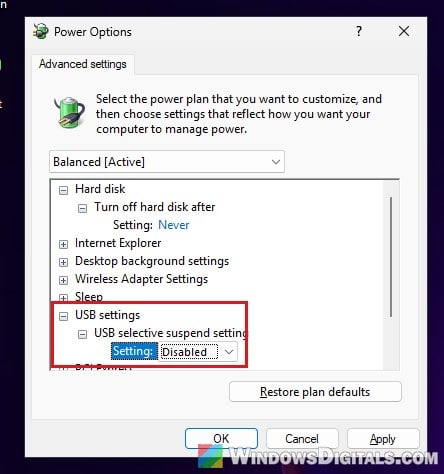
- Press Win + R, type “control powercfg.cpl,,3” and press Enter to open your power plan’s advanced settings.
- Expand USB settings > USB selective suspend setting, set On battery and Plugged in (or the single Setting) to Disabled, then click Apply and OK.
- Restart and try your USB devices again.
This may use slightly more battery. If you don’t see USB settings in the list, skip that part.
Update the chipset and USB drivers
Outdated chipset or USB drivers, or a bad update, can break the ports too.
- Go to Settings > Windows Update and click Check for updates.
- On your laptop maker’s support site, install the latest chipset and USB drivers for your model (on Dell, SupportAssist > Home > Update software does it).
Pro tip: How to Install or Update Driver in Windows 11
Reset or update the BIOS
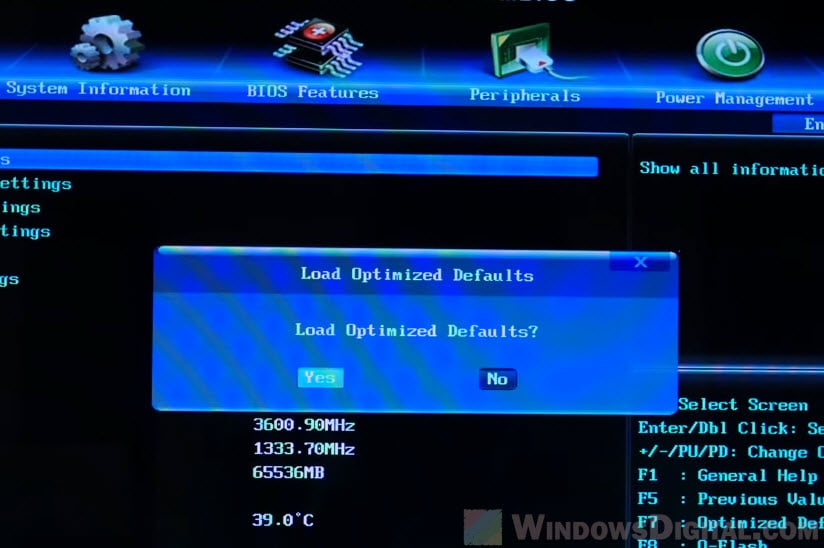
A wrong BIOS setting can switch the ports off before Windows sees them. Restart into the BIOS (F2 on Dell), load the defaults (F9 or Load Defaults; other brands call it something else), then save and exit. While you’re there, check that USB isn’t turned off (on Dell, Enable USB Ports under Integrated Devices or USB Configuration). If you’re not sure what you’re doing, get someone to help you.
If that doesn’t help, check your laptop maker’s support page for a BIOS update, which has fixed dead ports for some people. Be warned: a BIOS update cut off halfway can leave the laptop unable to start, so keep it plugged in the whole time, and leave it to a repair shop if you’ve never done one.
Maybe a hardware problem
If the ports are dead in the BIOS too, even after the power drain and BIOS reset, it’s most likely a hardware problem: a shorted port or a damaged USB controller. Check each port for bent pins, and clean out dust with short bursts of compressed air.
Might be useful: How to Fix a Loose USB Port on Any Device
If your laptop is under warranty, contact the manufacturer. Some laptops have their USB ports on a small separate board that can be replaced on its own. In the meantime, you can still use a Bluetooth mouse and keyboard.