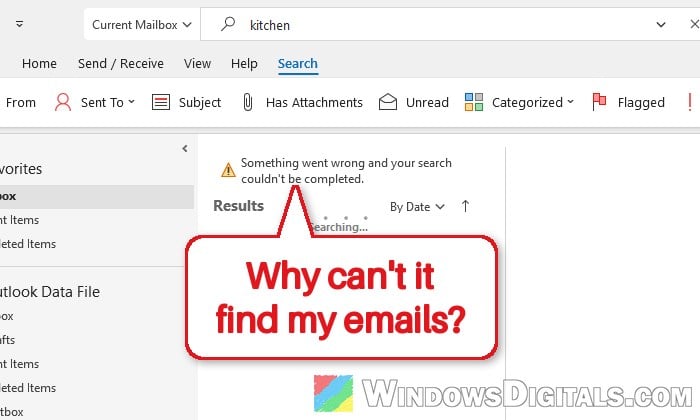
Classic Outlook’s Search box is supposed to find any email in your POP or IMAP mailbox, but sometimes it comes back with nothing at all, only a handful of results, or misses your newest emails even though they’re sitting right there in the folder. Or you might see “Something went wrong and your search couldn’t be completed” instead. This guide will help you find what’s wrong and get Outlook search working again, plus a workaround for when it won’t.
Also see: Outlook Email Shows Up in Search but Not in the Inbox
Why does Outlook search stop finding emails?
When you search in classic Outlook, it doesn’t read through your mailbox there and then. For mail kept in a file on your PC, it asks the Windows Search service, which keeps an index of those files. According to Microsoft, this mostly affects POP accounts (mail in a .pst file), IMAP accounts (a local .ost copy) and Exchange accounts searched offline. Microsoft 365 and connected Exchange accounts mostly search on the server, which is why a work mailbox can search fine on the same PC.
So when the index is half built, stalled, or leaves Outlook out, search only finds what the index has. Microsoft also notes that upgrading to Windows 11 deletes the search index and rebuilds it afterward, and search returns little or nothing until that’s done. People started running into it again after installing Windows 11 25H2.
Pro tip: Windows 11 Search Indexer High CPU and Disk Usage
Check if Outlook is still indexing
First, see whether Outlook simply hasn’t finished indexing. A large mailbox can take hours, or even a day or two.
- In classic Outlook, click inside the Search box at the top.
- On the Search tab that appears, click Search Tools, then Indexing Status. With the simplified ribbon, Search Tools is under the three dots at the end of the tab.
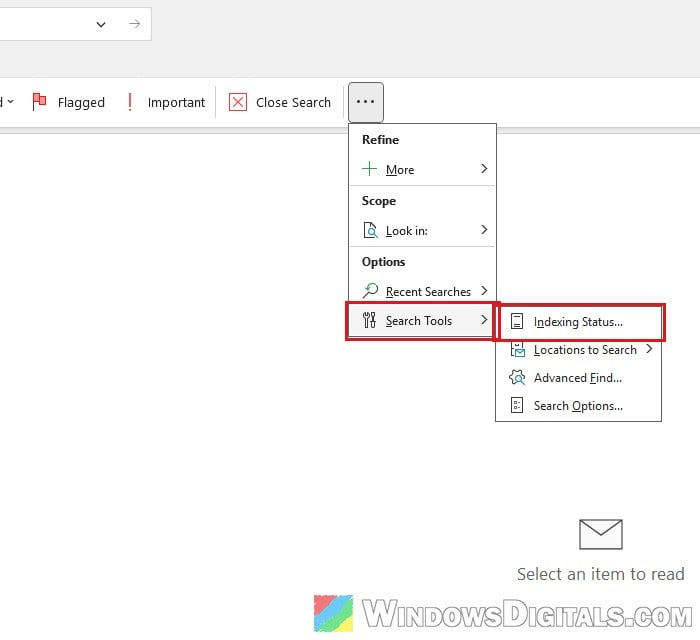
- If it says “Outlook has finished indexing all of your items“, indexing isn’t the holdup. If it shows items left, wait about five minutes and check again.
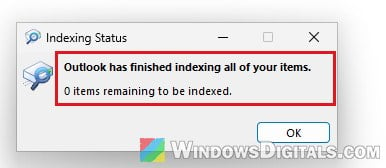
- While you’re in Search Tools, open Locations to Search and make sure every data file is ticked.
If the number goes down, keep the PC awake until it reaches zero. If it doesn’t move, the index is stuck, so work through the fixes below.
Don’t run Outlook as administrator
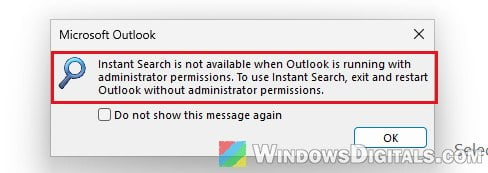
If Outlook was opened as administrator, Instant Search doesn’t work at all. Clicking the Search box then shows “Instant Search is not available when Outlook is running with administrator permissions“. Close Outlook and open it normally from the Start menu.
Make sure Outlook is included in Windows indexing
Windows only indexes the places listed in Indexing Options. If “Microsoft Outlook” isn’t one of them, your emails never get indexed at all.
- Close Outlook.
- Open Control Panel, type Indexing Options in its search box and open it.
- Look for Microsoft Outlook under Included Locations.
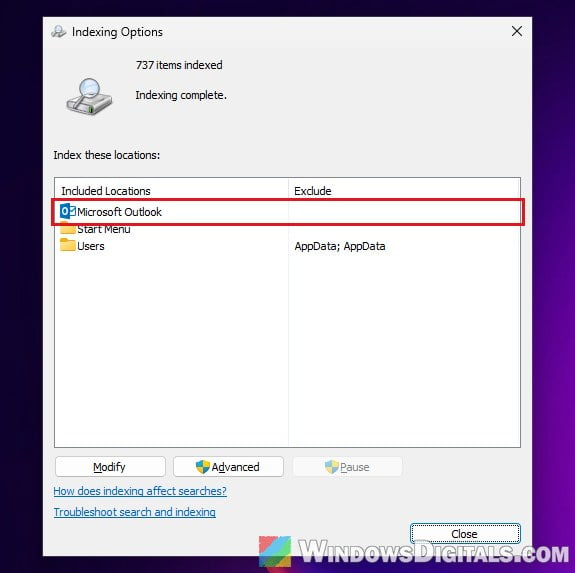
- If it’s not there, click Modify, tick Microsoft Outlook, and click OK.
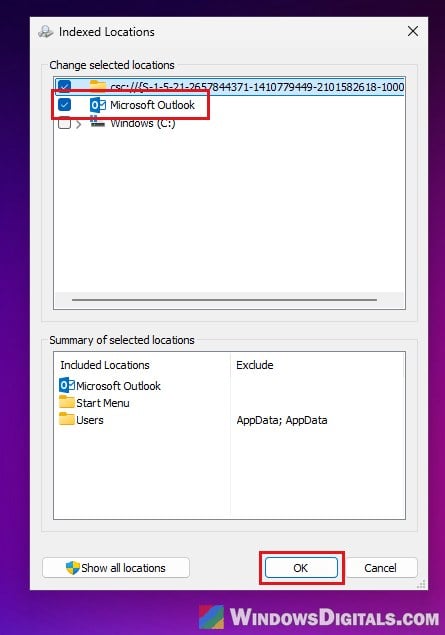
If you see two “Microsoft Outlook” entries in that list, skip to the section on that below.
Check that the Windows Search service is running
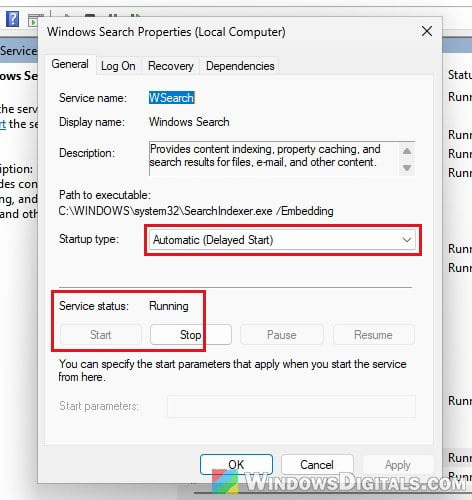
Everything above depends on the Windows Search service. If it’s stopped, Outlook search fails, often with “Something went wrong and your search couldn’t be completed.”
- Press Win + R, type
services.mscand press Enter. - Double-click Windows Search.
- Set Startup type to Automatic (Delayed Start) and click Apply. Click Start if the service isn’t running, then click OK.
Related guide: Services.msc “Startup Type” Greyed Out in Windows 11 or 10
Rebuild the search index
It’s the fix reported most often on Reddit and Microsoft’s forums when Outlook search stopped working after the Windows 11 25H2 update, though it doesn’t help everyone. A rebuild throws the old index away and starts from zero, clearing out whatever got stuck.
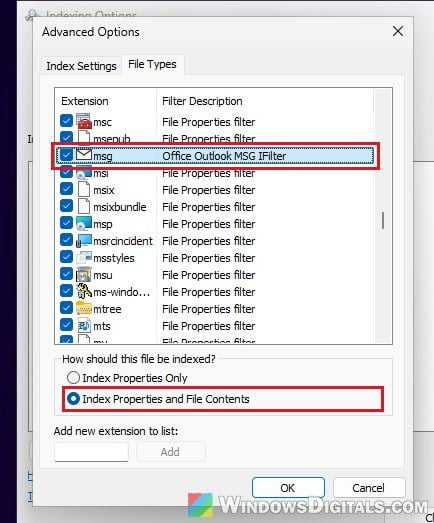
- Open Indexing Options again and click Advanced.
- Open the File Types tab and select msg. Microsoft lists it as a setting to check: it should be set to “Index Properties and File Contents“, with “Office Outlook MSG IFilter” as its filter description.
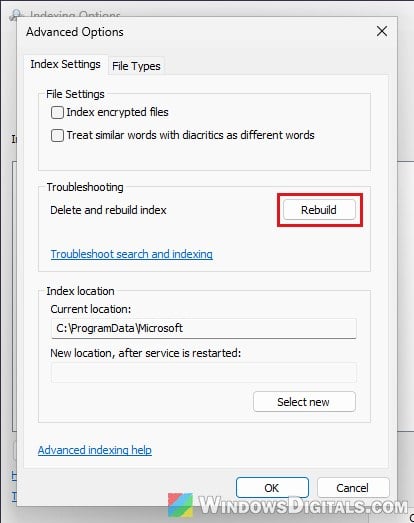
- Go back to the Index Settings tab. Under Troubleshooting, click Rebuild, then OK to confirm.
- Open Outlook and leave it open while Windows rebuilds the index, checking Indexing Status now and then.
If search still misses emails once the rebuild is done, open Outlook in safe mode once, then normally, and let it finish indexing:
- Press Win + R, type
outlook.exe /safeand press Enter.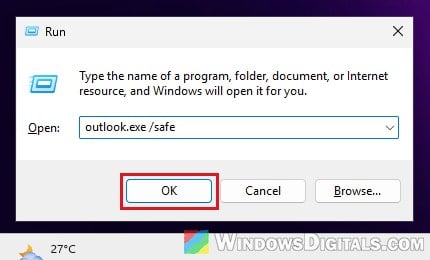
- Close Outlook, then open it normally.
- While it catches up, Outlook may say some results might be missing. That’s normal. When Indexing Status reaches zero, restart the PC and search again.
Linked issue: Classic Outlook Folders Not Syncing and Missing Emails
Two “Microsoft Outlook” entries in Indexing Options?
If Indexing Options says indexing is complete with plenty of items, yet Outlook still finds nothing, check the Modify list for a second “Microsoft Outlook” entry. That can come from an extra Outlook mail profile: Windows indexes one, while Outlook searches the other, empty one.
- Close Outlook.
- Open Control Panel, type Mail in its search box, open Mail (Microsoft Outlook) and click Show Profiles.
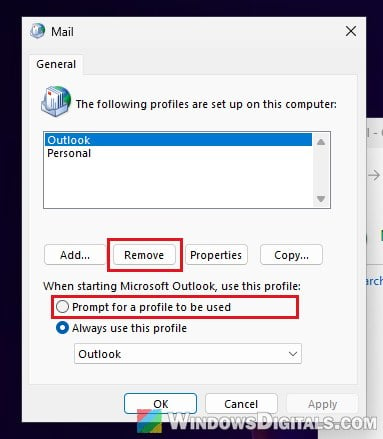
- Remove the profile you don’t use, keep the one you do, and set it as the default. Removing a profile doesn’t delete your
.pstfile. - In Indexing Options > Modify, untick both “Microsoft Outlook” entries and click OK. Open Modify again, tick the one that’s left, and click OK.
- Rebuild the index as shown above, with Outlook open.
If you only have one profile, you can still test whether it’s the problem. Click Add to make a new profile, add your email account to it, select “Prompt for a profile to be used“, and open Outlook with the new profile. If search works there, your old profile is the problem.
Check for a missing Windows Search registry key
In one reported case on Windows 11 25H2, Indexing Options showed only a few hundred items while the mailbox held tens of GB of email. Adding a Windows Search registry key that was missing took the index to hundreds of thousands of items, and search worked again. Microsoft doesn’t document it, and the key is also missing on plenty of PCs where search works fine (our Windows 11 test PC included), so a missing key alone proves nothing. Only try this when you see that exact symptom.
Changing the registry incorrectly can cause serious problems, so create a system restore point first. If you’re not comfortable with this, skip ahead to repairing Office.
- Open Command Prompt as administrator.
- Type the following command and press Enter:
reg query "HKLM\SOFTWARE\Microsoft\Windows\CurrentVersion\Search"
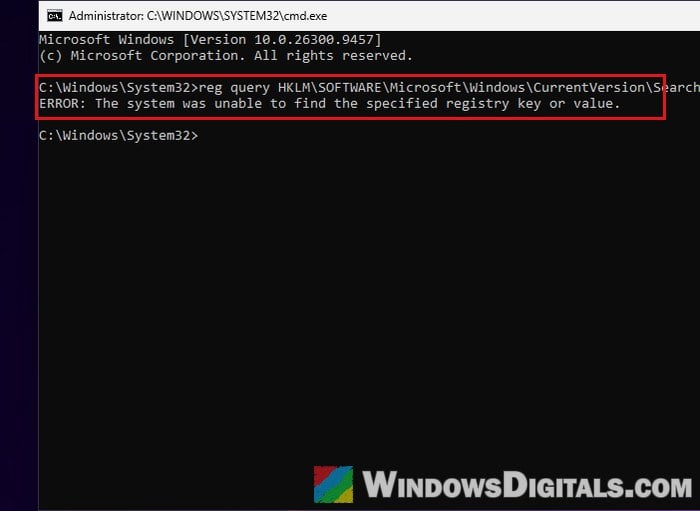
- If it shows “ERROR: The system was unable to find the specified registry key or value.“, run these commands one by one, pressing Enter after each:
reg add "HKLM\SOFTWARE\Microsoft\Windows\CurrentVersion\Search" /v "SetupCompletedSuccessfully" /t REG_DWORD /d 1 /f
net stop WSearch
net start WSearch
- Open Outlook, then rebuild the index from Indexing Options > Advanced > Rebuild.
If the item count in Indexing Options now climbs far past what it showed before, the key was the problem. If nothing changes, you can delete the SetupCompletedSuccessfully value again.
Repair Office
A damaged Office install can also break Outlook’s link to the indexer, though a repair rarely fixed this on its own.
- Go to Settings > Apps > Installed apps.
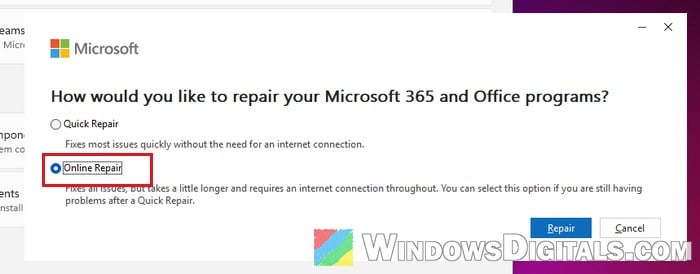
- Click the three dots next to your Microsoft 365 or Office entry, select Modify, and click Yes if Windows asks.
- Choose Online Repair and click Repair.
Suggested read: Windows 10/11 Start Menu Search Can’t Find Anything
Use Outlook’s built-in search instead
If nothing gets the index working, you can tell Outlook to stop using Windows Search and use its own built-in search. Microsoft gives this as a temporary workaround. Search will be slower, especially in a big .pst file, but it doesn’t depend on the index. Make a restore point first.
- Press Win + R, type
regeditand press Enter. - Copy and paste the following path into the address bar and press Enter:
HKEY_LOCAL_MACHINE\SOFTWARE\Policies\Microsoft\Windows
- Right-click Windows, select New > Key, and name it Windows Search (skip this if it’s already there).
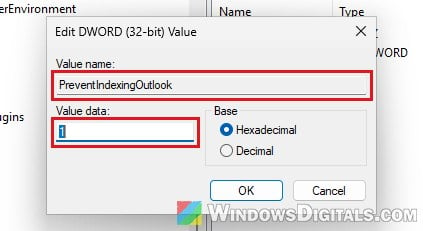
- Right-click Windows Search, select New > DWORD (32-bit) Value, and name it PreventIndexingOutlook.
- Double-click it, set Value data to 1 and click OK.
- Close Registry Editor and restart Outlook.
Outlook now shows “Search performance will be impacted because a group policy has turned off the Windows Search service.” That’s expected: it means Outlook is using its own search.
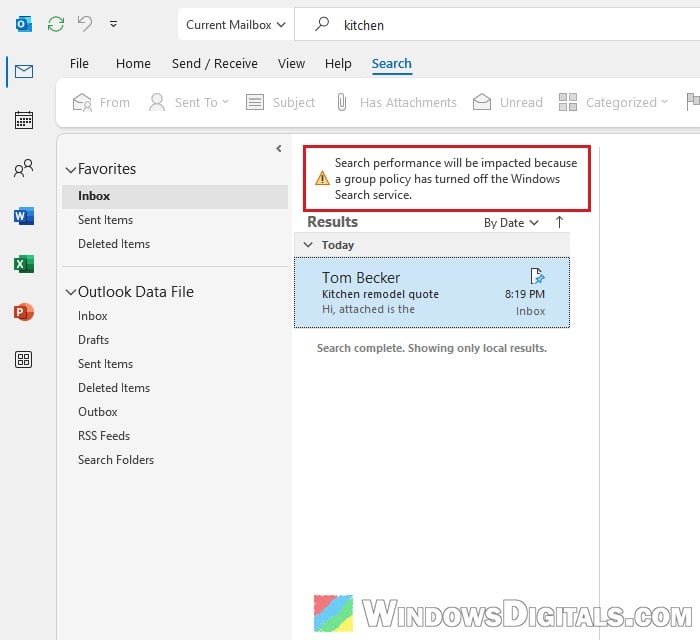
To go back to indexed search later, set PreventIndexingOutlook to 0 and restart Outlook.