A common issue with Outlook since around November 9, 2026 is that unread emails in the mail list suddenly show in a much heavier, extra bold font (the sender’s name, the subject and the time), in both Outlook on the web and the new Outlook for Windows. It isn’t your browser or a setting you changed, and there’s currently no switch to put the old look back. This guide will show you what changed and the settings that make the mail list easier to read again.
Also see: Outlook Text Suddenly Tiny When Writing a New Email or Reply
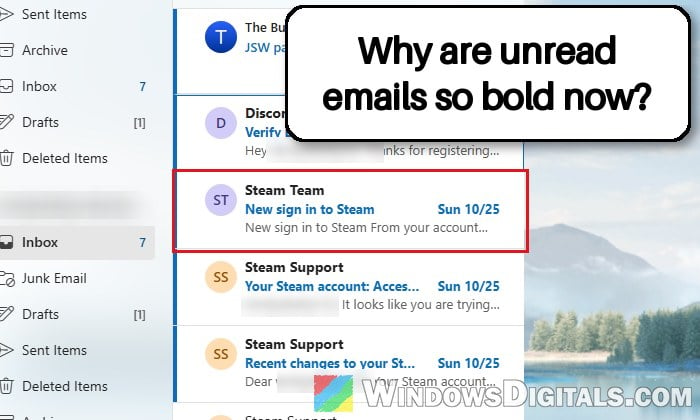
Why are unread emails suddenly so bold in Outlook?
Outlook has always shown unread emails in bold, so the bold itself isn’t new. What changed is how heavy it is. People who checked the page with the browser’s developer tools found that unread emails now use a font weight of 700 (full bold), while before it was about 600 (semibold). Read emails stay at the normal 400, so the gap between the two is now much bigger, and it looks even harsher in dark mode.
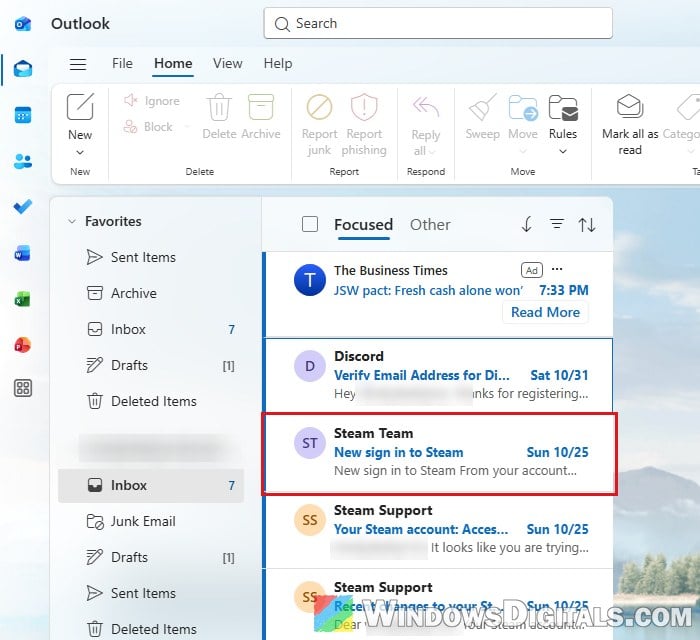
A few other things people noticed at the same time:
- Parts of an unread email are shown in blue, usually the subject line, and for some people the sender’s name too.
- From around November 16, some noticed that unread emails seem to use a different-looking font than read ones.
- The reading pane changed a little too, with a bigger subject line and a margin on the left.
It’s the same in every browser (Edge and Firefox alike) and in the new Outlook app, because it comes from Microsoft’s side. The change is widely discussed on Reddit and Microsoft’s own forums. Microsoft hasn’t announced it, but it has confirmed there’s no setting to change how bold unread emails look. So for now, the options below are about making it easier to live with.
Related problem: Checkboxes Missing in Outlook? How to Select Multiple Emails Again
Turn on the classic Outlook style
Outlook on the web and the new Outlook have an optional classic Outlook style that makes the app look more like the old classic Outlook for Windows. It changes how the whole app looks, and for some people it also tones down the extra bold subject lines in the mail list. It doesn’t work for everyone, and it doesn’t make the text any smaller, but it takes a few seconds to try and you can turn it off again just as easily.
Here’s how to turn it on:
- In the new Outlook or Outlook on the web, click the Settings (gear) icon at the top right.
- Go to General > Appearance.
- Under Classic Outlook, check “Enable classic Outlook style“.
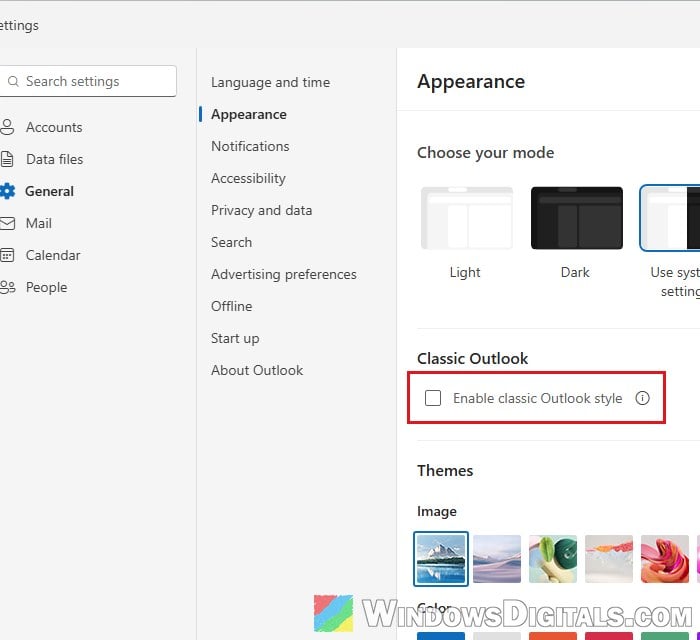
- Click Save at the bottom of the Settings window.
Go back to your inbox and see if the unread emails look any lighter. If they don’t, or you don’t like the rest of the new look, uncheck the same option to go back.
Change the text size and spacing of the mail list
Since there’s no setting for the bold, the next best thing is to change the size and spacing of the mail list so that it’s easier on your eyes. A larger size gives each email more room, so the heavy text feels less cramped.
Here’s how to do it in the new Outlook:
- Go to the View tab and click View settings.
- It opens on Mail > Message List. If it doesn’t, select those two on the left.
- Under Text size and spacing, choose Small, Medium or Large.
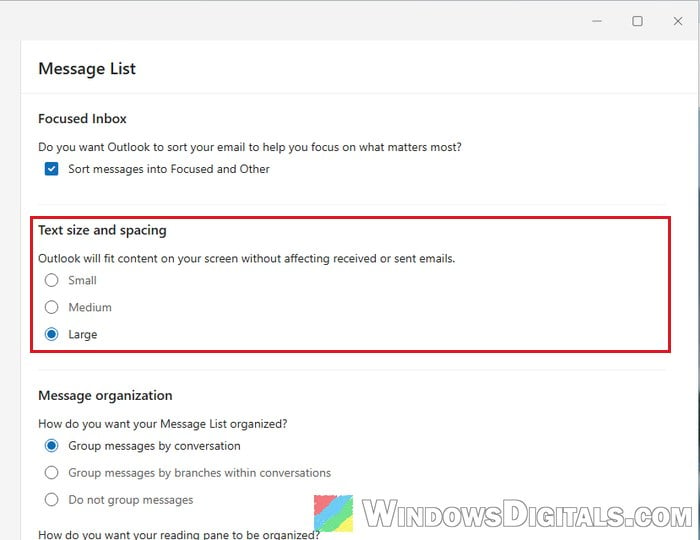
- Click Save.
Large is the default and gives each row the most room, so if yours was set to Small or Medium, switching it to Large is the first thing to try. The View tab also has a Density button you can try if you’d like to fine-tune it further. In Outlook on the web, open Settings (gear) > Mail and look for the same Text size and spacing section.
Filter the list to unread emails
If you mainly rely on the bold to spot which emails you haven’t dealt with yet, you can let Outlook show only those instead. Click the Filter icon (the three lines) above the mail list and choose Unread. Outlook then lists only your unread emails, so you don’t have to scan a long list of heavy and light rows to find them.
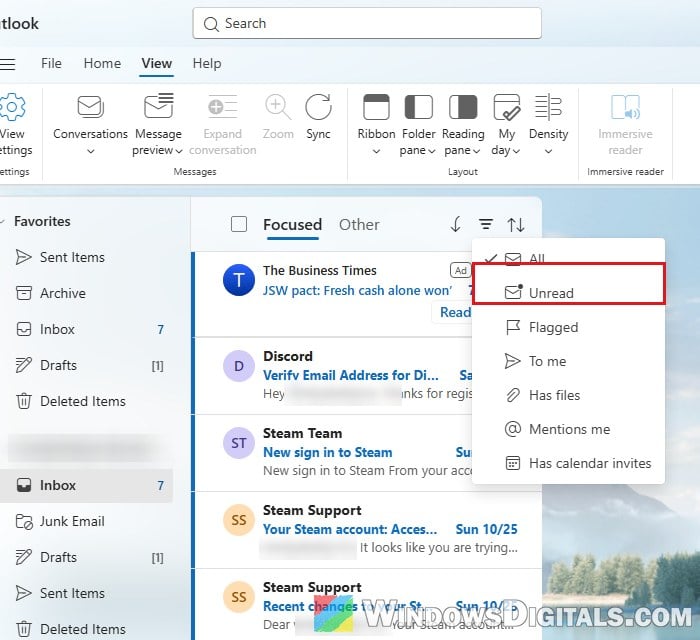
Click the Filter icon and choose All when you want to see every email.
Linked issue: Outlook Email Shows Up in Search but Not in the Inbox
Set the bold back with a browser extension (Outlook on the web only)
If you use Outlook in a browser, a small user style can set the unread bold back to the old semibold weight. It uses a browser extension called Stylus, which lets you apply your own styles to a website. Please note that this isn’t something Microsoft offers, and it relies on Outlook’s internal names, which Microsoft can change with any update, so it may stop working at some point. It also doesn’t work in the new Outlook app.
Here’s how to set it up:
- Install the Stylus extension from your browser’s official extension store (the Chrome Web Store or Firefox Add-ons).
- Open Outlook on the web and use Stylus to write a new style for that site:
outlook.live.comfor personal accounts, oroutlook.office.comfor work and school accounts. - Paste the following into the style:
.K3Sti { --firstLineUnreadFontWeight: 600; --messageListMinorTextNextFontSize: 12px; } .VGxzk { font-weight: 600; } - Save the style and reload Outlook.
Unread emails should now show in the lighter semibold again. If it stops working or something looks off after an Outlook update, just turn off or delete the style in Stylus.
Send feedback to Microsoft
Since there’s no setting for it, the best you can do is tell Microsoft it’s a problem. Here’s how to do it:
- In the new Outlook or Outlook on the web, go to the Help tab and click Feedback.
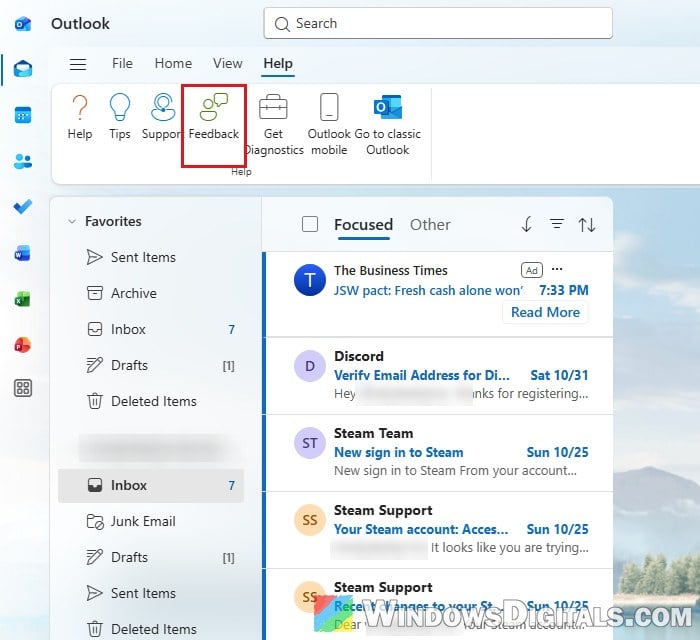
- In the Feedback pane that opens on the right, choose Report a problem (or Make a suggestion).
- Describe what changed (unread emails in the mail list are now much bolder and harder to read), allow Microsoft to contact you if you’re fine with that, and send it.
You can also post or vote for the same idea on Microsoft’s feedback portal at https://feedbackportal.microsoft.com/ under Outlook.
If unread emails look too bold in classic Outlook
It’s not clear whether classic Outlook changed too: one person says it looks bolder, but others don’t see a difference. Classic Outlook is also getting a visual refresh of its icons, spacing and alignment in November 2026, so it may look a bit different either way. Unlike the new Outlook, classic Outlook does let you change how bold unread emails look, through a built-in conditional formatting rule called Unread messages.
Might be useful: Classic Outlook Keeps Switching Back to the New Outlook
Here’s how to change it:
- In classic Outlook, go to the View tab, click Current View and select View Settings (with the full ribbon, View Settings sits right on the View tab).
- In the Advanced View Settings window, click Conditional Formatting.
- Select the Unread messages rule and click Font.
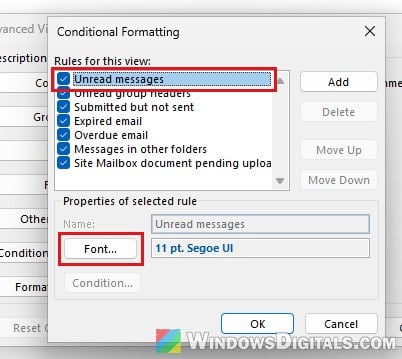
- Under Font style, choose Semibold for a lighter bold, or Regular to match the weight of read emails, then click OK on each window.
Unchecking the Unread messages rule in the Conditional Formatting window removes its formatting altogether, so unread emails look exactly like read ones. In that case, you’ll have to rely on the unread count next to the folder to find them.