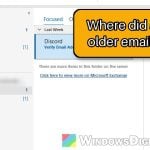
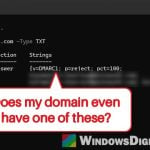
Say you open Outlook.com and the Junk Email folder has dozens of new messages from random addresses, many of them tagged “Unverified“, and a few even look like they were sent from your own email address, with your own profile picture next to them. This guide will explain what “Unverified” means, how to make sure your account is safe, and what you can do to keep the junk under control.
Also see: 550 5.7.23 or 5.7.1 Bounce When Emailing Outlook.com or Hotmail
What does “Unverified” mean in Outlook?
When Outlook can’t confirm who really sent a message through the usual email authentication checks (SPF, DKIM and DMARC), it shows a question mark in place of the sender’s picture. When the message also looks suspicious but not clearly malicious, the sender is marked as unverified, according to Microsoft. Not every message that fails these checks is harmful, but be careful with them, especially from senders you don’t know.
The emails “from yourself” work the same way. The From line of an email can be faked (spoofed) to show any address, including yours. Outlook marks them as unverified because they claim to come from your address but didn’t come from Microsoft’s own servers. Your profile picture only shows up because the From address matches yours, not because someone has your account.
Several people on Reddit have noticed this flood starting in the past couple of months, and there’s no word from Microsoft on why.
Spoofing is also why the usual advice doesn’t help much here:
- Blocking the sender does almost nothing, because each message comes from a new random address. And you can’t block your own address anyway.
- Rules don’t run by themselves on mail that goes straight to Junk. The junk filter acts first, and rules only run automatically on mail that reaches your Inbox.
First, make sure your account wasn’t hacked
Spam that shows your own address is usually just spoofed, but it only takes a minute to rule out a hacked account:
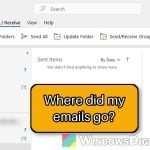
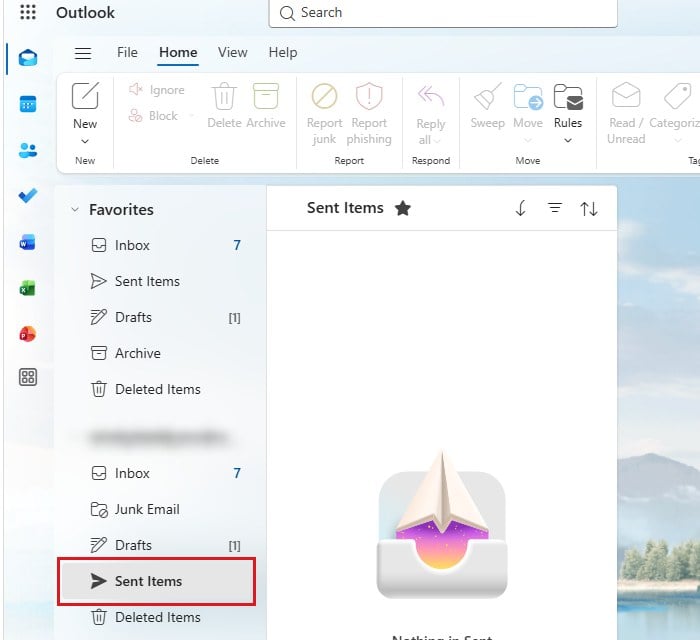
- Open the Sent Items folder in Outlook.com. If the junk messages aren’t in there, they weren’t sent from your account.
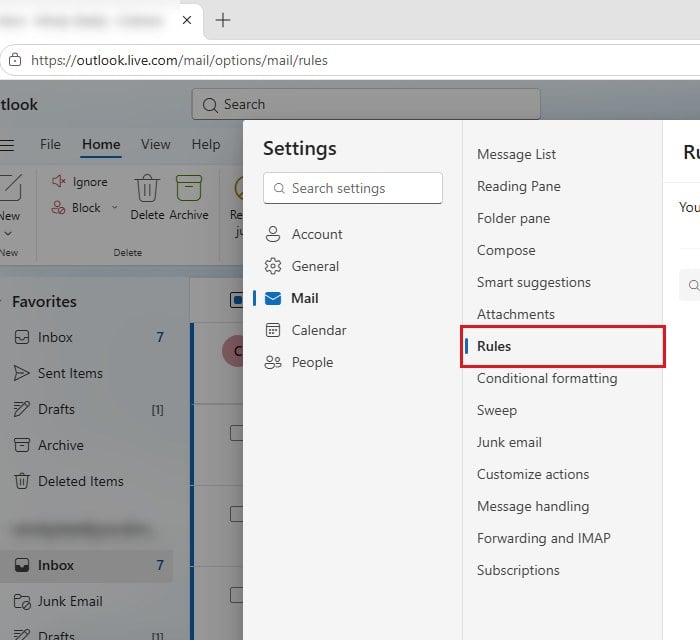
- Select the Settings (gear) icon at the top right, then go to Mail > Rules. Delete any rule you didn’t create yourself, as hackers often add rules that forward or delete your mail.
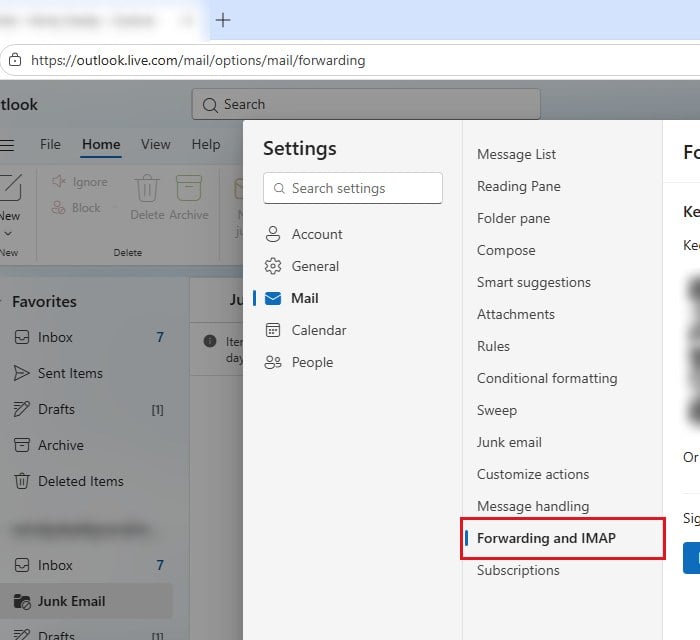
- Go to Mail > Forwarding and IMAP and make sure your mail isn’t being forwarded to an address you don’t recognize. Outlook may ask you to verify your account before it shows the forwarding settings.
- Go to
account.microsoft.com/securityand select View my sign-in activity. If you see anything you don’t recognize, change your password to a strong, unique one and turn on two-step verification.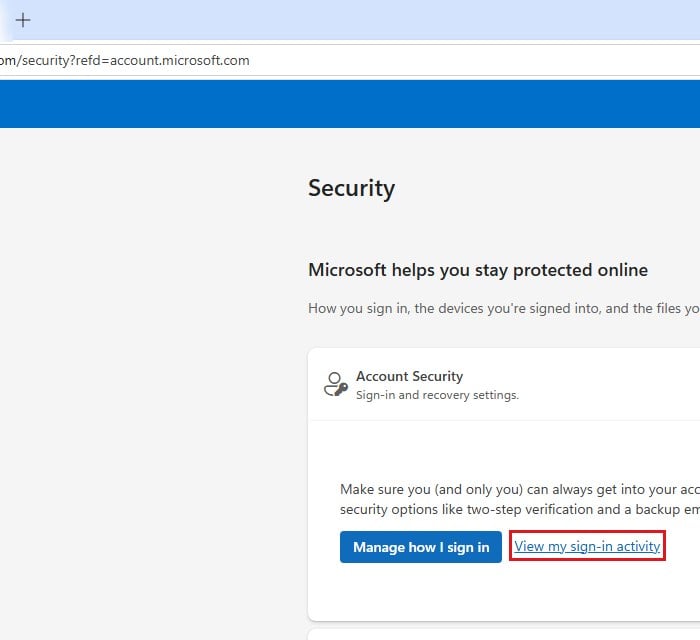
If the Sent Items folder is clean and there are no strange rules, forwarding or sign-ins, the emails are only pretending to come from you.
Related concern: Installed ScreenConnect From a Scam Email? How to Uninstall It
Report and delete junk emails without opening them
Don’t reply to these emails, click their links or open their attachments. And don’t use the unsubscribe link on emails from senders you’ve never dealt with, since that can tell them your address is real and active.
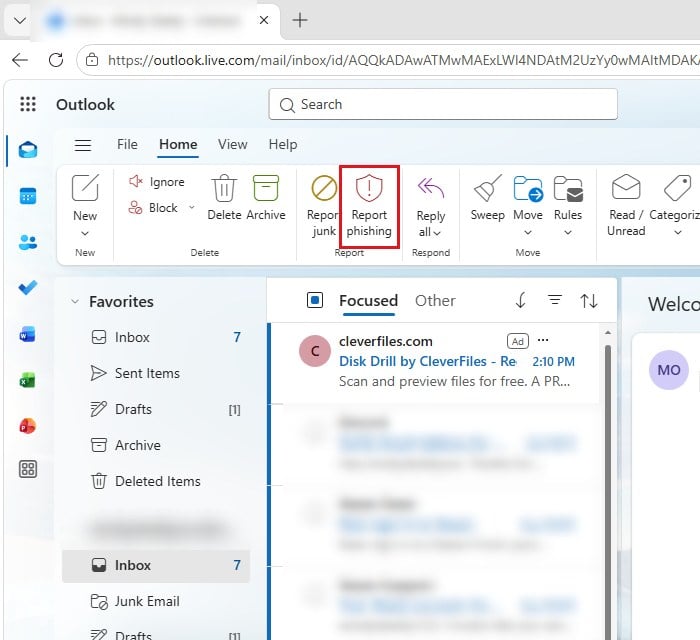
To report a message, select it (or several) in the message list, then select Report phishing in the Report group of the Home tab, next to Report junk. On the simplified ribbon, it’s under Report > Report phishing. Reporting doesn’t block the sender, but it tells Microsoft about it.
For the ones that appear to come from your own address, just delete them. If you’d rather clear the whole folder, take a quick look for real emails first, since good mail sometimes lands in Junk too. Then click the three dots next to Junk Email in the folder list and select Empty (greyed out in the picture only because that folder is empty).
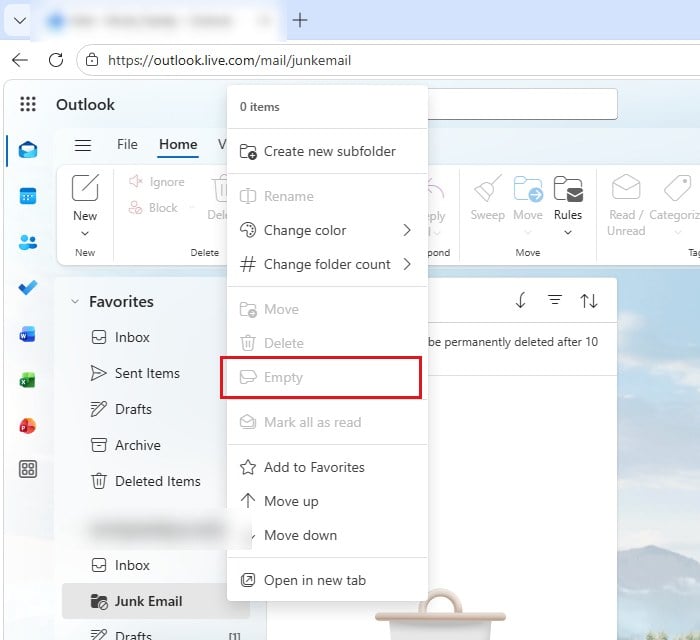
Outlook.com deletes everything in the Junk Email folder by itself after 10 days, as the note at the top of the folder says.
Move junk with a “Received-SPF: None” rule
Every email carries hidden header lines, and a lot of this junk has the line “Received-SPF: None“, which means the domain it claims to come from has no SPF record, something real senders usually set up. A rule that looks for that line can catch much of this junk when it reaches your Inbox, and it may clear what’s already in Junk too (see the note below).
Here’s how to set it up:
- Select the Settings (gear) icon, then go to Mail > Rules and select Add rule.
- Give the rule a name, such as “No SPF junk“.
- Under Add a condition, choose Message header includes, then type “Received-SPF: None” in the box next to it and press Enter.
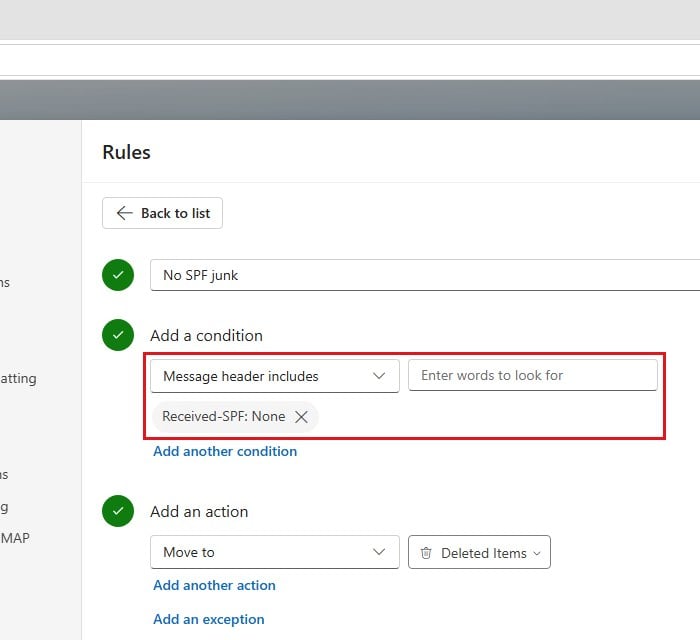
- Under Add an action, choose Move to, then pick a folder, such as Deleted Items or a folder you create for it.
- Select Add an exception, choose Before and pick a date, for example October 1, 2026, so the rule leaves your older emails alone. The date box shows today’s date at first, so change it, or the rule will skip everything already in your mailbox.
- Check Run rule now to apply it to mail you already have, then select Save.
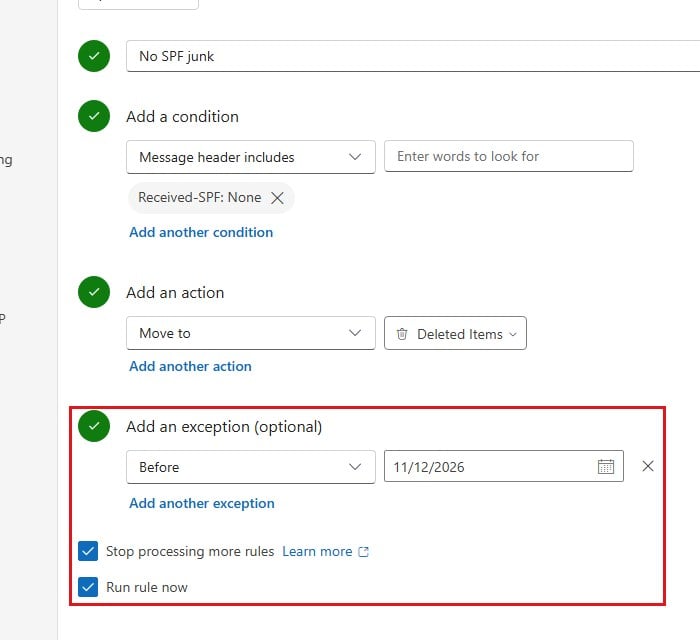
Note: Some real senders lack an SPF record too, so moving the messages is safer than deleting them. Outlook.com doesn’t say which folders Run rule now goes through, so check your Junk folder afterwards. If it’s still full, this rule only helps with the junk that slips into your Inbox.
Block a domain when the junk keeps coming from it
Sometimes a flood comes from one domain, with only the part before the “@” changing. Then blocking the domain helps:
- Select Settings > Mail > Junk email.
- Under Senders, open the Blocked senders and domains tab and select Add blocked sender.
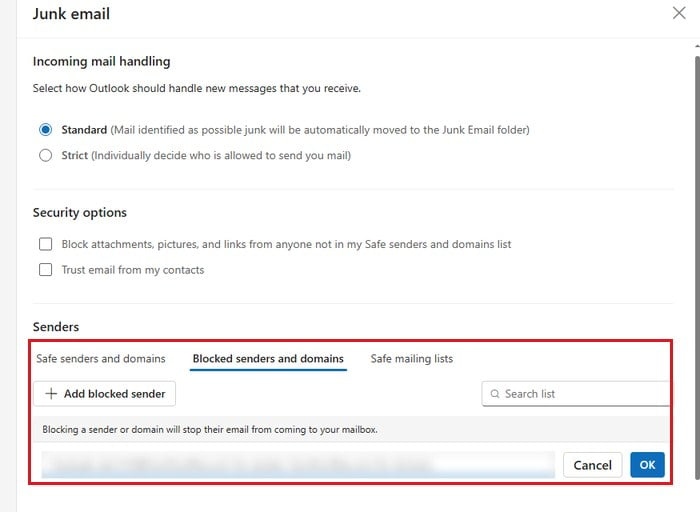
- Type the domain (the part after the “@”), select OK, then Save.
Despite what the note on that tab says, Microsoft’s own help page says blocked mail still goes to Junk, so this mostly keeps that domain out of your Inbox. Personal Outlook.com accounts can’t block wildcards or subdomains, so spam that rotates through subdomains slips past.
Only let your safe senders into the Inbox
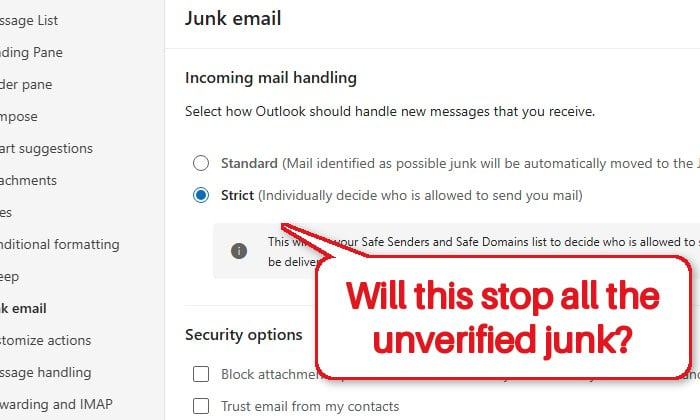
The strictest option is to tell Outlook.com to trust only the people and companies on your safe senders list. Everything else goes to Junk. It won’t make the Junk folder any smaller, but it keeps your Inbox clean. Here’s how to turn it on:
- Select Settings > Mail > Junk email.
- Under Incoming mail handling, select Strict. Outlook then uses your Safe senders and domains list to decide who can reach your Inbox, and delivers everything else to Junk Email.
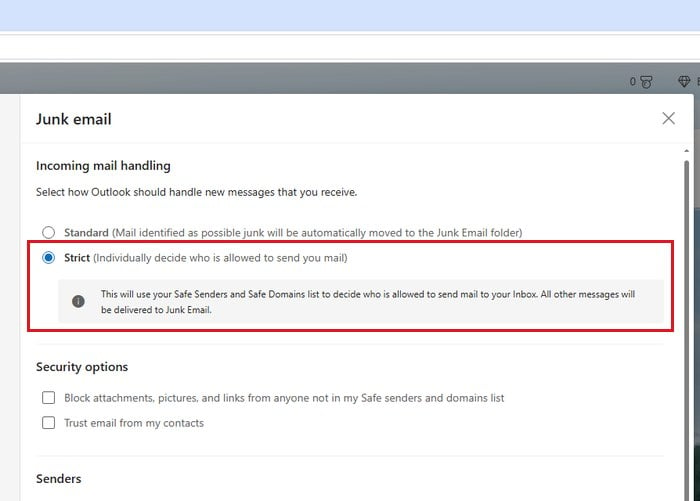
- Under Senders, on the Safe senders and domains tab, select Add safe sender, enter an address or a whole domain (such as your bank’s), and select OK.
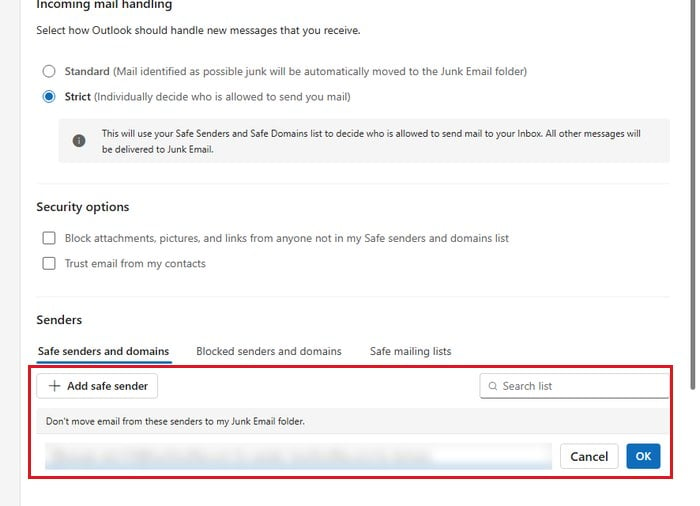
- Select Save.
The catch is that emails from anyone new, like a shop’s first order confirmation, will land in Junk until you add them, so you’ll still need to glance at the Junk folder now and then.
Linked issue: Outlook Email Shows Up in Search but Not in the Inbox
Is there a way to stop it completely?
Not really on a personal Outlook.com account, as Microsoft’s filters decide what reaches the Junk folder. Since Junk empties itself every 10 days, you can leave it be if you’re not expecting anything important there.
It can also help to give out your main address less. Use a second address for sign-ups, newsletters and shopping, and keep your main one for people you actually know.