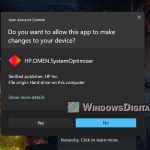
There is a strange problem on PCs with AMD processors, mostly laptops, where a Command Prompt-style window showing the path to amdafdapp.exe opens by itself every time Windows starts, and comes right back when you close it or end it in Task Manager. This guide will explain what this file is, why it keeps opening, and how to make the window stop for good.
Also see: What is this random AMDAutoUpdate.exe window?
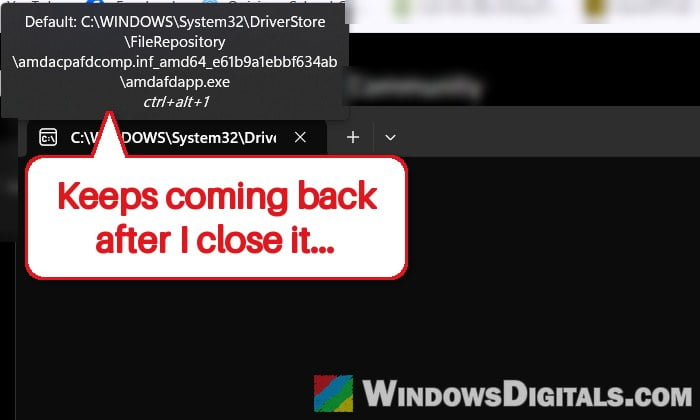
Why does the amdafdapp.exe window keep popping up?
The window usually shows a long path like this one:
C:\WINDOWS\System32\DriverStore\FileRepository\amdacpafdcomp.inf_amd64_e61b9a1ebbf634ab\amdafdapp.exe
The file is part of an AMD driver, not something you installed by yourself. Its own description says “AMD AFD User Application“, and it lives in the folder of a driver package called amdacpafdcomp.inf (the “AMD AFD Device Component”). That package belongs to AMD’s audio driver for its Audio Co-Processor (ACP), and it comes bundled with AMD Software: Adrenalin Edition, so it usually gets installed along with it or with an AMD driver update.
The same package adds a service called AMD ACP AFD User Service, set to start automatically with Windows, which works with amdafdapp.exe in the background. After some AMD driver updates, this component starts opening a console window at every startup. Since it’s tied to that service, closing the window or ending it in Task Manager only works for a moment, and it’s back after every restart.
The problem has been showing up since late 2025, mostly right after people install AMD Software or update their AMD drivers, often on brand new laptops.
Pro tip: How to Disable Startup Services on Windows 11 or 10
Turn off the “AMD ACP AFD User Service”
The quickest way to stop the window is to keep the service that launches it from starting with Windows. This is the fix that has worked for most people on Reddit, and it doesn’t delete or change any driver file, so you can turn it back on any time. To do this, we’ll use System Configuration (msconfig):
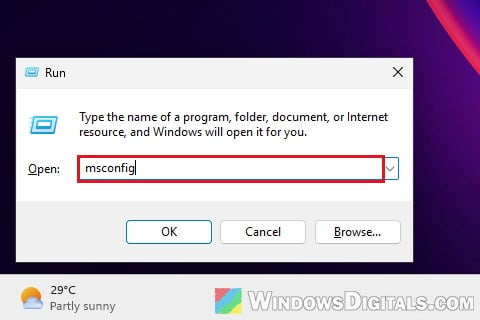
- Press Win + R to open the Run dialog box.
- Type “msconfig” and press Enter.
- In the System Configuration window, go to the “Services” tab.
- Tick “Hide all Microsoft services” at the bottom so that only third-party services are left in the list. This makes the AMD services much easier to find.
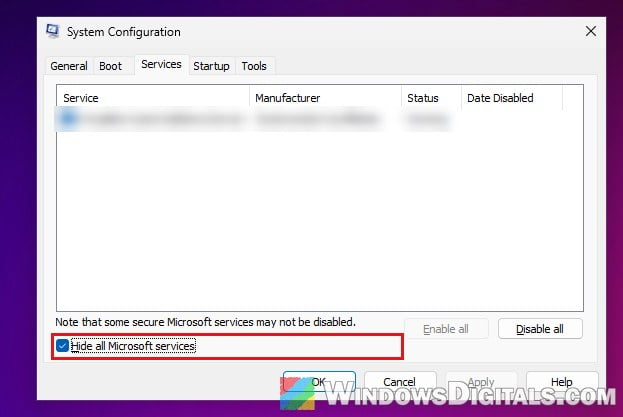
- Look for “AMD ACP AFD User Service” in the list and uncheck the box next to it.
- Click “Apply“, then “OK“.
- Restart your computer.
After the restart, the amdafdapp.exe window should no longer pop up. If you ever want the service back (for example, after AMD releases a driver that fixes the problem), open msconfig again and tick the box.
Will turning off this service break anything?
AMD hasn’t said exactly what this component does. All we know is that it’s part of its audio driver, and the service’s own description only says it communicates with the AMD ACP AFD app and driver. The people who turned the service off reported that the window was gone, and they didn’t mention any loss of sound or other features.
If you do notice something off with your audio afterward, just tick the service again in msconfig and restart, then try the driver fixes below instead.
Might be useful: How to Disable Startup Programs in Windows 11
Reinstall the AMD driver, or use your laptop maker’s driver
Some people tried a clean reinstall first: they uninstalled AMD Software, ran AMD’s Cleanup Utility, restarted and installed a fresh driver. Be aware that this alone often doesn’t stop the window. In some cases the same component got installed again and the window came straight back, even with only the minimum options selected during the install. Removing the AMD Software app by itself didn’t stop it either.
So if you do reinstall your AMD drivers and the window comes back, just turn off the AMD ACP AFD User Service again.
If you’re on a laptop, there’s one more thing worth trying. AMD’s own driver package is a general one, while laptop makers often tune their drivers for each model. If the window showed up right after you installed AMD’s package from AMD’s website, the drivers from your laptop maker’s support page (HP, Lenovo, ASUS, MSI and so on) may not have this problem. This isn’t confirmed to work for everyone, though, so keep the msconfig fix above as your backup.
Related problem: AMD Software Warning: Graphics Driver Replaced?
Is amdafdapp.exe a virus?
In almost all cases, no. A random console window that keeps opening by itself can look scary, but the path tells you a lot. The C:\Windows\System32\DriverStore\FileRepository folder is where Windows keeps the files of every driver installed on your PC, and a window that starts right after an AMD driver install or update is just what you’d expect from a driver component, not from malware.
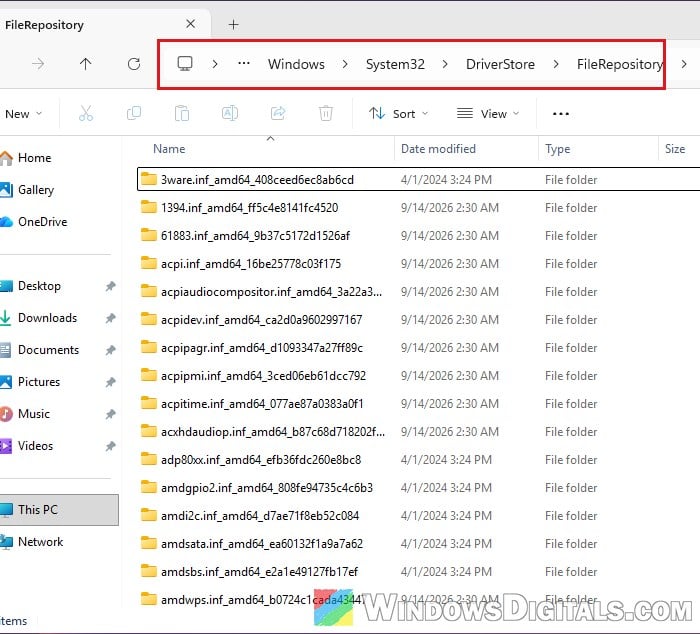
If you want to be sure, you can check that the file is signed:
- Open File Explorer and go to the folder shown in the window’s path (
C:\Windows\System32\DriverStore\FileRepository\, then the folder whose name starts with amdacpafdcomp.inf_amd64). - Right-click amdafdapp.exe and select “Properties“.
- Go to the “Digital Signatures” tab. The real file is signed by Advanced Micro Devices, with a second signature from Microsoft Windows Hardware Compatibility Publisher.
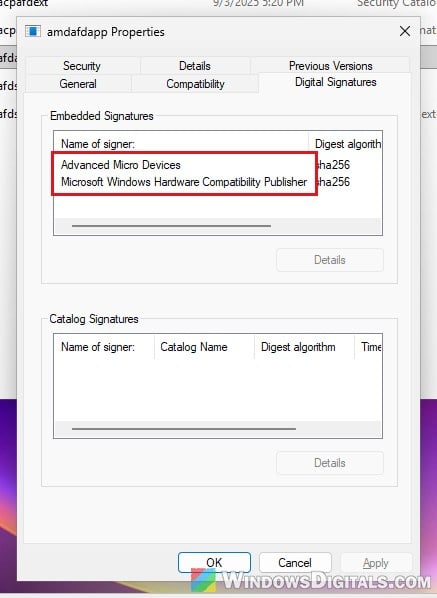
If the file sits somewhere else, or it has no valid signature at all, run a full scan with Windows Security or your antivirus to be safe.
Please don’t delete amdafdapp.exe or anything else in the FileRepository folder by hand, even if you manage to take ownership of it. These files belong to drivers that are still installed, so removing one is likely to break that driver rather than fix it. Turning off the service as shown above stops the window without touching any driver files.