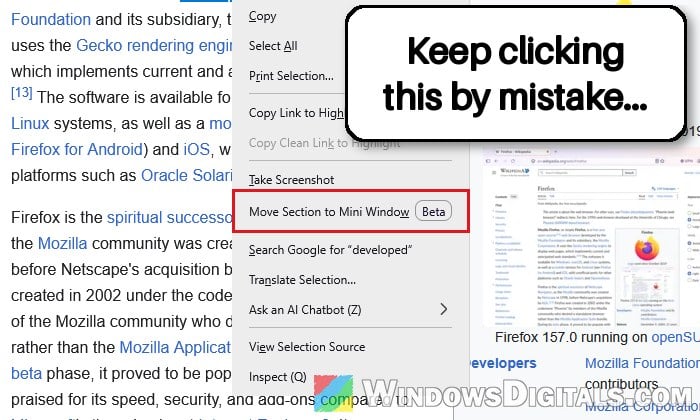
If you’ve been clicking “Move Section to Mini Window” by accident ever since Firefox updated to version 160, usually when you meant to search for some selected text, that’s the new Mini Window feature getting in the way. It added its own entries to the right-click menus, and while there’s no option for it in Settings, there is a hidden switch that removes them. This guide will show you how to turn Mini Window off, and how to get back a tab that’s already stuck in one.
Also see: How to Get the Old Firefox Look Back After the Nova Redesign
What is Mini Window in Firefox?
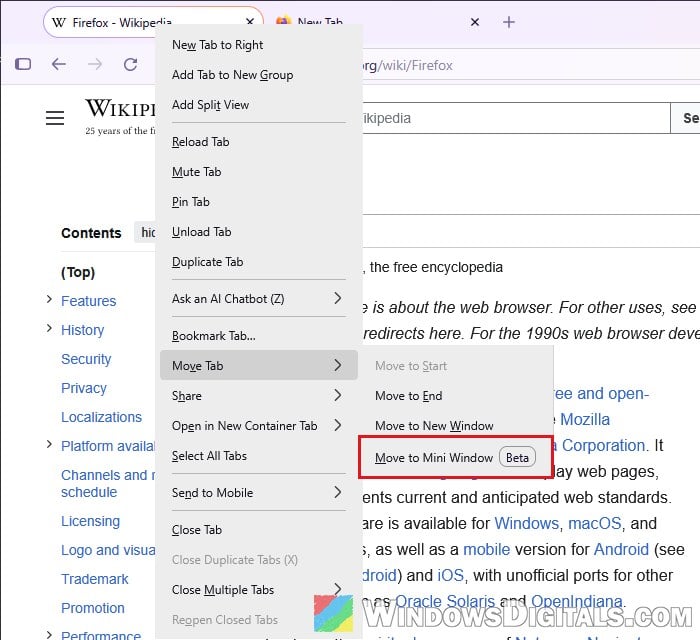
Mini Window came with Firefox 160, released on November 10, 2026. It moves a whole tab, or just a part of a page you select, into a small window that stays on top of your other windows, a bit like Picture-in-Picture but for any web page. It’s turned on for everyone by default, and Mozilla still labels it as an early version, so both of its menu entries carry a small “Beta” badge.
You’ll find it in two places:
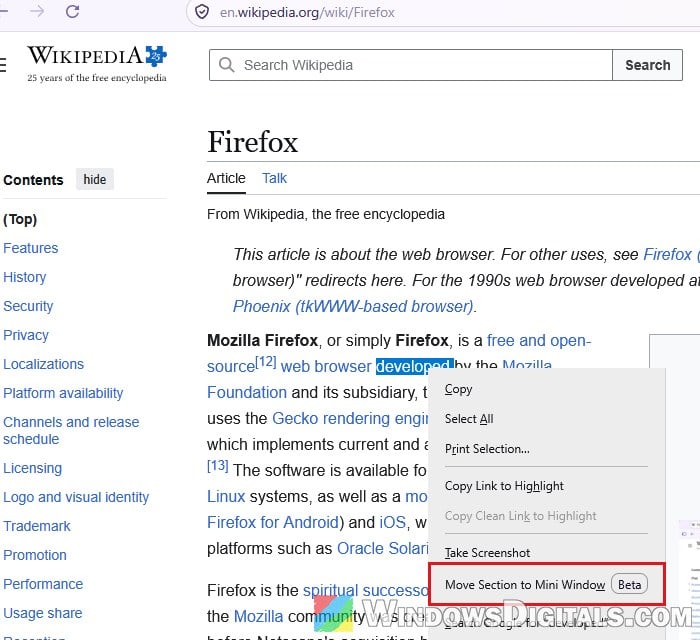
- Right-click on a web page (or on text you’ve selected) and you’ll see “Move Section to Mini Window“. Firefox then dims the page and asks you to drag or click to select the part you want to keep visible.
- Right-click a tab and go to Move Tab > Move to Mini Window to pop out the whole tab. If it’s the only tab in the window, Move Tab is greyed out.
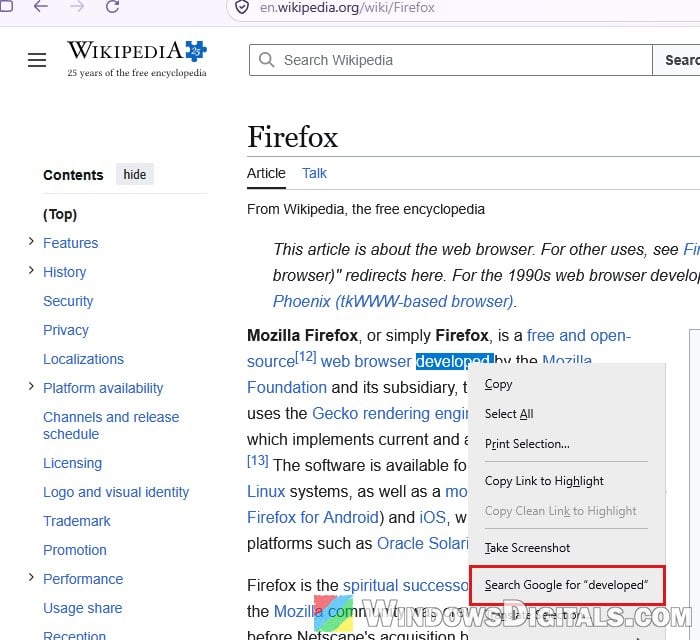
The page entry is the annoying one. It sits right above “Search Google for…” in the menu you get when you right-click selected text, so every item below it moved down by one. If you’re used to selecting a word, right-clicking and hitting the search entry without looking, you’ll probably land on the Mini Window entry instead, and the page goes dim. Just click Cancel at the bottom of the message to get out of it.
There’s no switch for any of this in Firefox’s Settings. Search Settings for “mini window” and you get no results, so the only way to turn it off is through about:config.
Please note that a Mini Window moves the tab rather than copying it. The tab disappears from your main Firefox window until you send it back, so don’t panic when it’s gone from the tab bar.
Pro tip: How to Reopen Closed Window or Tab in Mozilla Firefox
Turn off Mini Window in about:config
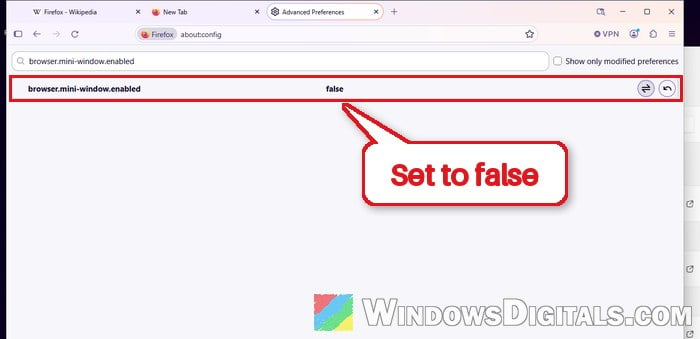
Mini Window is controlled by a hidden preference called browser.mini-window.enabled. Mozilla switched its default from false to true for Firefox 160, which is what turned the feature on. Firefox checks this preference every time you open a right-click menu, so setting it back to false removes both entries.
Before you start, if any tab is sitting in a Mini Window right now, send it back first (see the next section). When I switched the feature off with a Mini Window still open, the window stayed on screen, but its “Put tab back” button no longer did anything, and once I closed it, the page couldn’t be reopened with Ctrl + Shift + T.
To switch Mini Window off, follow the steps below:
- Type
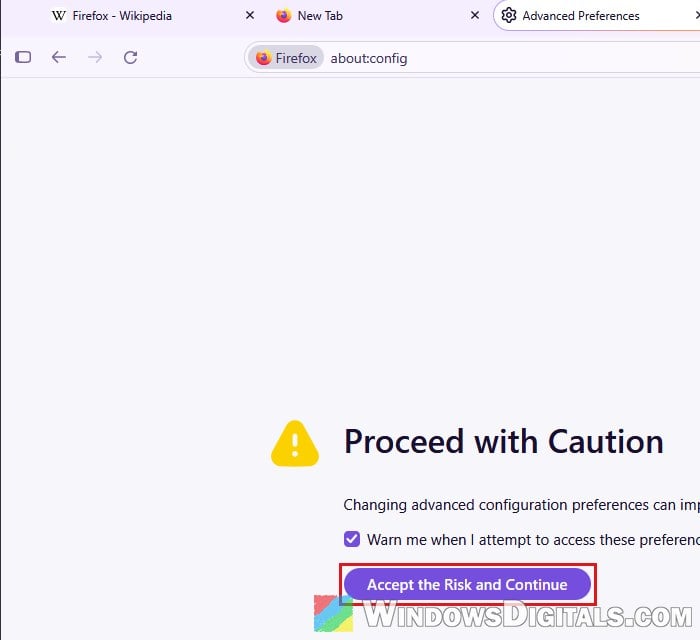
about:configin the Firefox address bar and press Enter. - Click “Accept the Risk and Continue” on the warning page.
- In the “Search preference name” box, type “browser.mini-window.enabled“.
- Click the Toggle button (the two arrows on the right) so the value changes from true to false.
Now select a word on any web page and right-click it again. The “Move Section to Mini Window” entry should be gone, and “Search Google for…” is back right under “Take Screenshot”. The Move Tab menu won’t show “Move to Mini Window” anymore either. Both entries disappear right away, with no need to restart Firefox.
If you ever want the feature back, search for the same preference and click the Reset button (the curved arrow), or toggle it back to true. Don’t change other preferences on this page unless you know what they do, since some of them can break things in Firefox.
Keep in mind that this is a hidden preference, not a real setting. Mini Window is still in beta, so Mozilla could rename or remove this switch in a later version. If the entries come back after an update, check the preference in about:config again.
Might be useful: How to Cycle Through Tabs in Chrome, Firefox or Edge
How to get a tab back from a Mini Window
If you sent a tab to a Mini Window by accident, bring it back before you close anything. Closing your main Firefox window closes any Mini Windows that are still open, and closing the Mini Window itself closes the tab with it.
The Mini Window’s toolbar is hidden most of the time, so all you see is the page itself. Here’s how to send it back:
- Move your mouse onto the top edge of the Mini Window and leave it there for a moment. A small toolbar with the address bar appears.
- Click the Put tab back button (the square with an arrow, right next to the X).
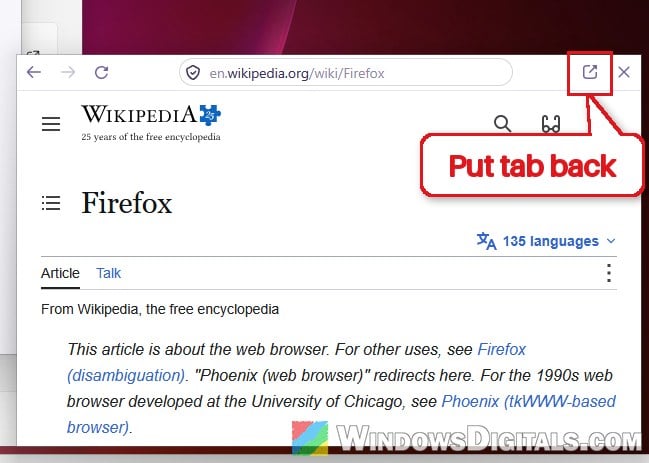
The Mini Window closes and the page goes back to a normal tab in your main Firefox window. If you already closed the Mini Window by mistake (with the feature still on), press Ctrl + Shift + T in your main Firefox window. That reopens the page as a normal tab.