A common question from people who already pay for Microsoft 365 Personal or Family is how to install it on a new laptop or a second PC without buying it again, especially when the new computer came with a trial or doesn’t seem to know about the earlier purchase. This guide will walk you through installing and activating it, and explain what to do about the device limit or a plan in someone else’s name.
Also see: How to Transfer Windows 11/10 License to Another Computer
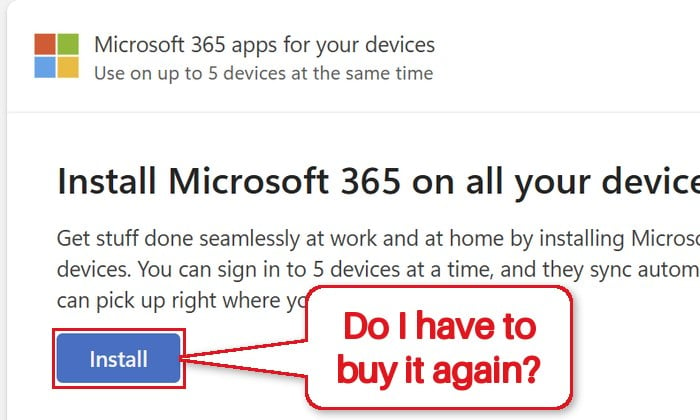
Do you need to buy Microsoft 365 again for a new computer?
No. A Microsoft 365 subscription is tied to the Microsoft account it’s on, not to the PC. According to Microsoft, you can install it on all your devices and be signed in on up to five of them at the same time. There’s no product key to enter and nothing to “transfer”.
With Microsoft 365 Family, the owner can also share the plan with up to five other people, each with their own Microsoft account and their own five devices.
Please note that a one-time purchase like Office 2024, Office 2021 or Office Home & Student works differently (last section below).
How to install Microsoft 365 on the new computer
You need an administrator account on the new PC to run the installer. On the website, sign in with the Microsoft account the subscription is on, which isn’t always the one you use for Windows.
- On the new computer, open your browser and go to
https://account.microsoft.com/. - Select Sign in and use the Microsoft account you bought or redeemed Microsoft 365 with.
- Select Subscriptions in the left pane.
- Select Install Microsoft 365 (on some plans, it’s an Install button next to the subscription).
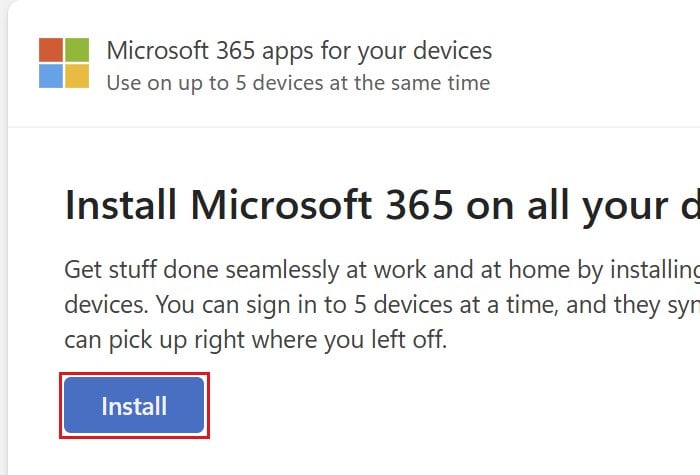
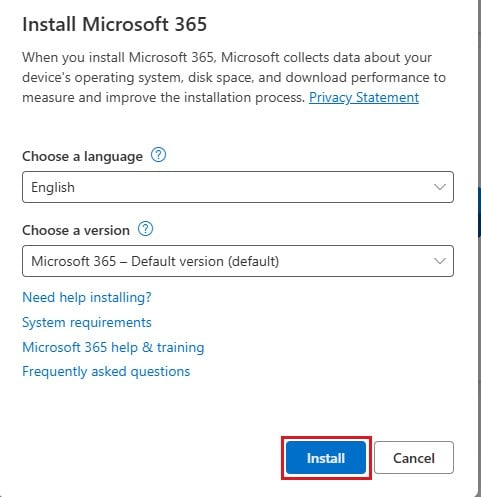
- In the Install Microsoft 365 window, leave the language and version as they are unless you need something else (the 64-bit version is the default), then select Install.
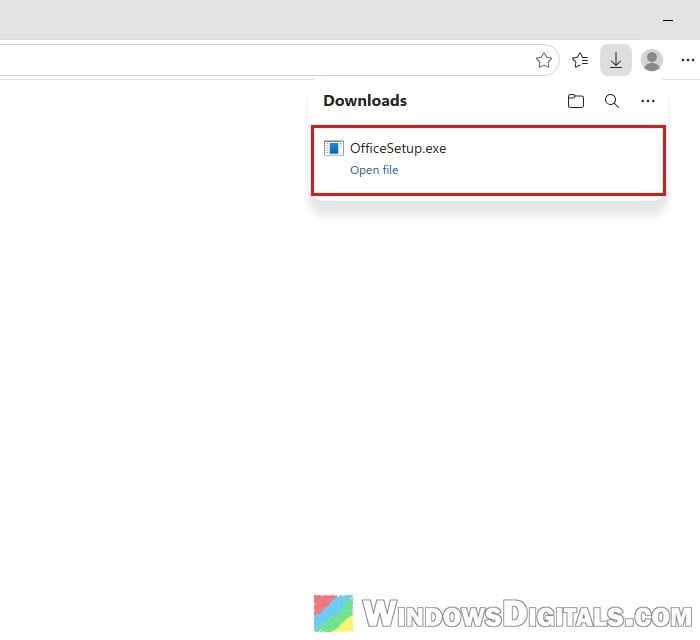
- Open the downloaded OfficeSetup.exe. When Windows asks “Do you want to allow this app to make changes to your device?“, select Yes.
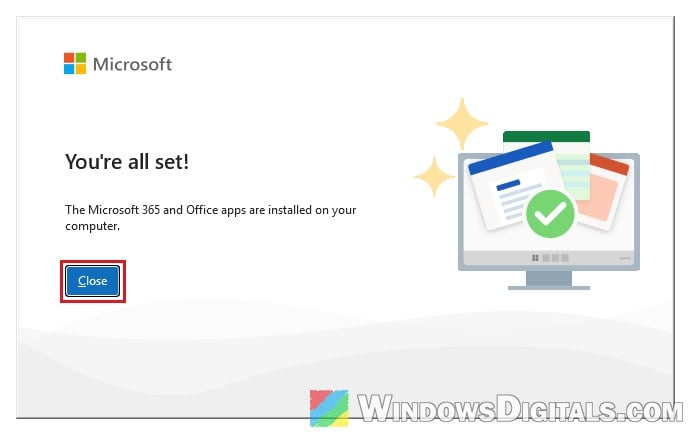
- Wait for the download and installation to finish. When you see “You’re all set!” and “The Microsoft 365 and Office apps are installed on your computer“, select Close.
You can also start from https://m365.cloud.microsoft/apps: sign in, select Install apps, then Install.
Related problem: Office Install Error Code 0-2031 (17002) on Windows 11 or 10
Activate it by signing in to Word
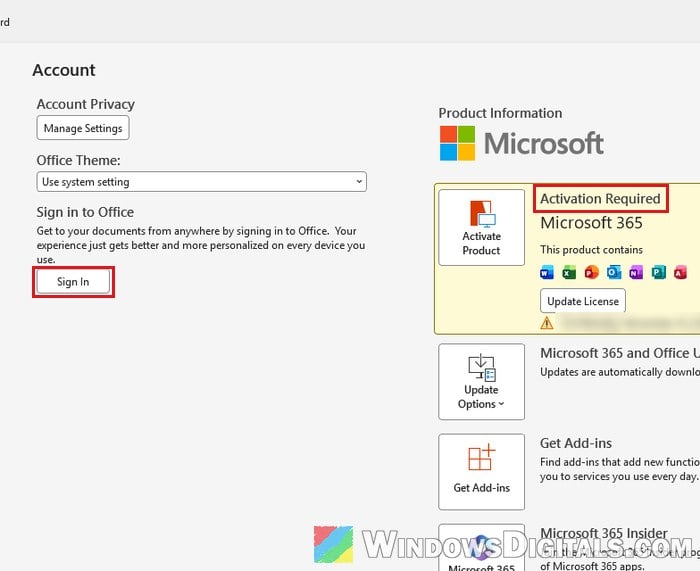
The apps aren’t activated until you sign in with the account that has the subscription. Here’s how to do it in Word:
- Click Start, type “Word” and open it.
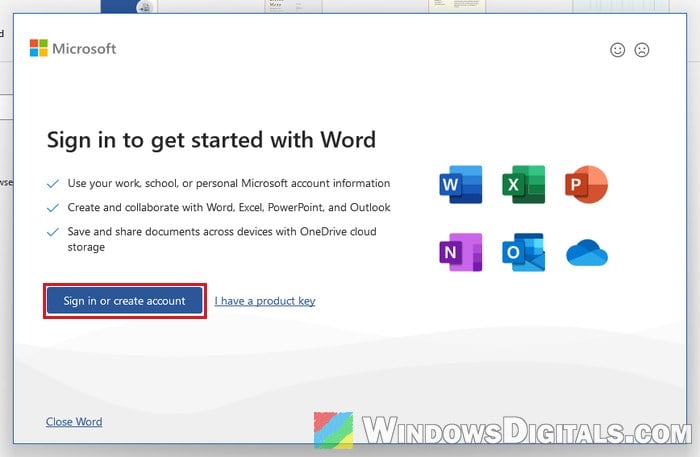
- When Word shows “Sign in to get started with Word“, select Sign in or create account and use the same Microsoft account that has the subscription.
- Accept the license agreement if you’re asked to.
If Word opens but says “Activation Required“, or it’s signed in with another account (a work account or the one you use for Windows, for example), go to File > Account. If you’re not signed in, select Sign In there. If it’s the wrong account, select Sign out, close Word, open it again and sign in with the account that has Microsoft 365.
Might be useful: Outlook Not Showing Older Emails on a New Computer
If the new laptop came with Office or a Microsoft 365 trial
Some new laptops come with Office already on them, and some come with a Microsoft 365 trial. If you already have a subscription, don’t start the trial. Sign in with the account that has your subscription instead. There’s at least one report on Reddit of a trial replacing a plan someone was already paying for, so it’s not worth the risk.
If you’d rather install your own Microsoft 365 instead of the preinstalled Office, uninstall that Office first (Settings > Apps > Installed apps), then install Microsoft 365 from your account as shown above.
Linked issue: “This Product Cannot Be Installed on the Selected Update Channel” When Installing Microsoft 365
What if you’re already signed in on five devices?
When you sign in on a sixth device, Microsoft 365 signs you out of one of the other devices automatically to stay within the limit. A device that has been signed out can still open and print files, but you can’t create or edit anything until you sign back in.
If you want to pick which computer gets signed out (the old laptop, for example), do it yourself:
- On the old computer, open Word, Excel or any other Office app.
- Go to File > Account (in Outlook, it’s Office Account).
- Select Sign out, then close all Office apps.
If the old computer is gone or no longer works, Microsoft also lets you sign it out from another device. Go to https://account.microsoft.com/services/office/install, find the old computer under Devices, and select Sign out of Microsoft 365 or Office. It can take up to 72 hours for that computer to notice.
The subscription doesn’t show up in your account
If you sign in and there’s no Microsoft 365 under Subscriptions, the most likely reason is that it’s on another Microsoft account, the one used to buy it or redeem its key (an old Hotmail address, for example). Sign out and try your other accounts first.
If it’s a Family plan that someone else pays for, you can’t install it from your own account until the owner shares it with you. The owner does this:
- Go to
https://account.microsoft.com/services/office/sharingand sign in. - Select Share (or Start sharing).
- Choose Email invite, type your email address and select Invite. Or choose Create link, select Copy link and send you the link.
You then open the email from Microsoft, select Get started, then Join now. After that, Install Microsoft 365 on all your devices shows up on your own account. The invite expires after 48 hours. If the only option you see on a Family plan is to leave it, the plan was shared with you, and only its owner can share it further.
If you have a product key card that was never redeemed, go to https://microsoft365.com/setup first, sign in and enter the key (only once), then install as shown above.
What about Office 2021, 2024 or Home & Student (one-time purchase)?
A one-time Office purchase is licensed for one computer only. Microsoft lets you move it to another computer you own when you buy a new one or the old one fails, but not run it on both.
If it’s linked to your Microsoft account, install it from Subscriptions, under the products you’ve purchased, without entering the key again. Then uninstall Office from the old computer if you still have it.
Related concern: Office 2021 Says Unlicensed or Expired After End of Support
If activation then fails because the license is still in use, you may need to activate it by phone or through Microsoft’s activation help, as explained in How to Activate Microsoft Office 2021 or 2019 by Phone. Office 2016 is no longer supported, so if that’s what you have, consider a newer version.