This is a problem where a list of email addresses you’ve typed before drops down under every login box in Firefox and covers your password manager’s own pop-up, even though every autofill option in Firefox’s settings is already turned off and no passwords are saved in Firefox. For some people, it started right after a Firefox update. This guide will explain where that list comes from and how to get rid of it.
Also see: How to Clear Cookies in Windows 11
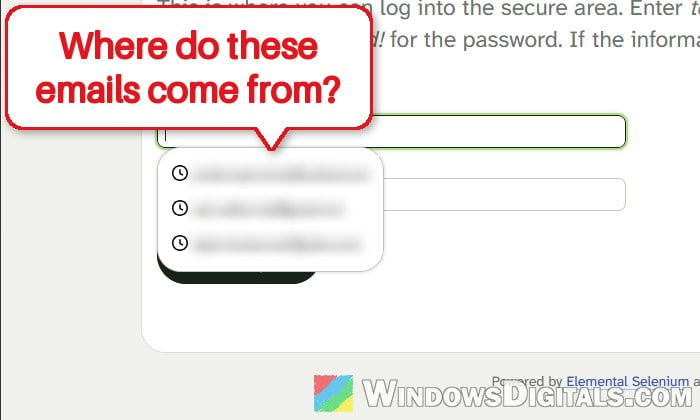
Why does Firefox keep showing your email addresses?
The list comes from Firefox’s form history, not its password manager or autofill. Firefox remembers what you type into boxes on web pages, email addresses included, and offers those entries again the next time you click or type in a similar box. Form history entries have a small clock icon next to them.
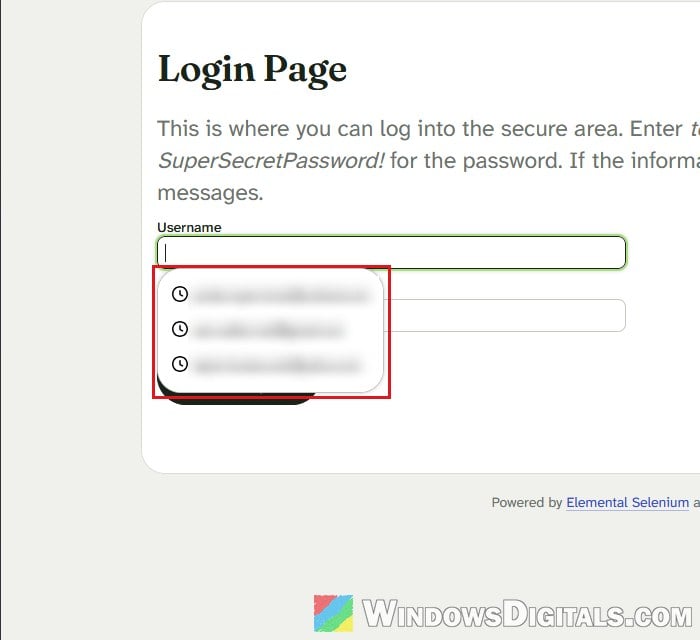
Form history has its own setting, separate from autofill. That’s why turning off everything under Passwords and autofill changes nothing here. Mozilla said the same about a report just like this one: the drop-down very likely comes from form history, not autofill.
It seems to show up when Firefox’s own password saving is turned off, for example because you use another password manager. Firefox then saves the emails you sign in with as form history, the same way it does for any other box on a web page. When we tested it, Firefox saved nothing while “Ask to save passwords” was on, and started listing every email we typed as soon as it was off.
The fix is simple, and it’s the one that has worked for people who ran into this on Reddit after recent updates: turn form history off, then delete what Firefox already saved.
Turn off “Remember search and form history”
This stops Firefox from saving what you type into web forms, so no new emails get added to the list and it stops popping up over login boxes. Here’s how to do it:
- Type
about:preferences#privacyin Firefox’s address bar and press Enter. You can also open the menu (the three lines at the top right), select Settings and then Privacy and security. - Scroll down to the History section.
- Select Customize history, then click Choose what you want Firefox to remember below it.
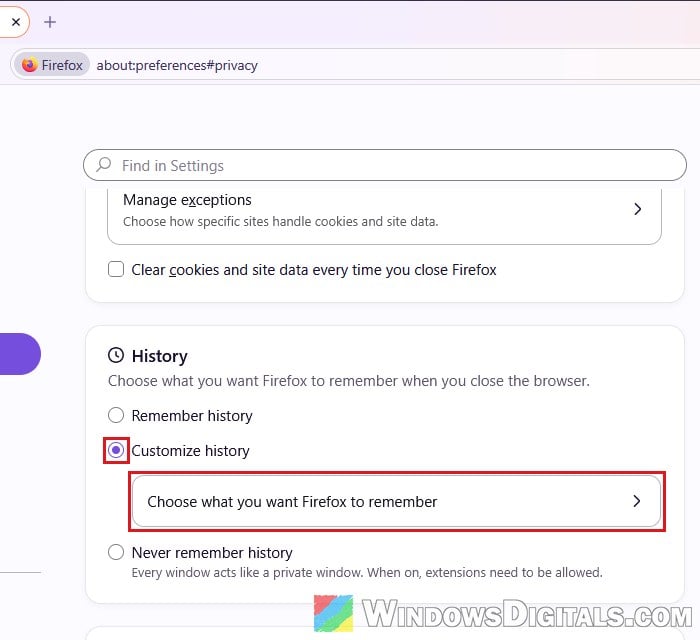
- Uncheck “Remember search and form history“.
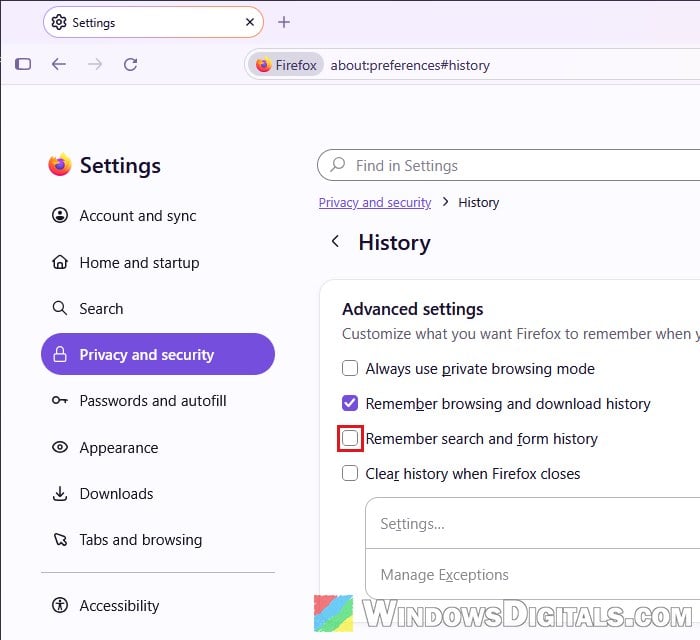
Firefox saves the change right away, so there’s no button to click. Open a login page again and click the email box to see if the list still shows up. If it does, the entries are already saved, so carry on to the next section.
What else does this turn off?
Well, for most people, not much. Firefox also stops saving your searches from the search bar, and the recent searches that show up when you click the address bar before typing anything go away. Your browsing history stays, and searching itself works the same as before.
Suggested read: Chrome or Firefox keeps opening new tabs on its own, virus?
Delete the email addresses Firefox already saved
Turning off form history doesn’t delete the entries Firefox has already saved. You can remove them one by one, or all at once.
To remove a single entry, click the box so the list shows up, press the Down arrow key until the email address you want to remove is highlighted, then press Shift + Delete. Repeat it for each one.
To remove all of them at once, follow the steps below:
- Press Ctrl + Shift + Delete in Firefox to open the “Clear browsing data and cookies” window.
- In the When drop-down, select Everything.
- Make sure “Saved form info” is checked. Untick the other boxes if you don’t want to lose your browsing history, cookies or cached files.
- Click Clear.
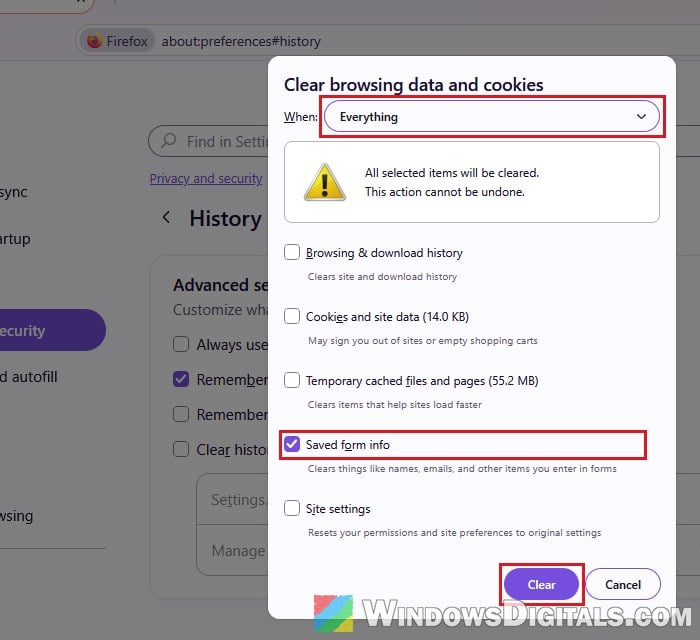
After that, click a login box again. The list of email addresses should be gone.
Might be useful: Clear Cache (Memory, Browsers, Temp Files) in Windows 11/10
Check Firefox’s autofill settings too
If the list also offers your saved passwords, that part comes from Firefox’s own password manager, not form history. It has its own options:
- Go to Firefox’s Settings again and select Passwords and autofill on the left.
- Untick “Save and autofill usernames and passwords” if you don’t want Firefox to fill in logins, or “Ask to save passwords” if you use another password manager.
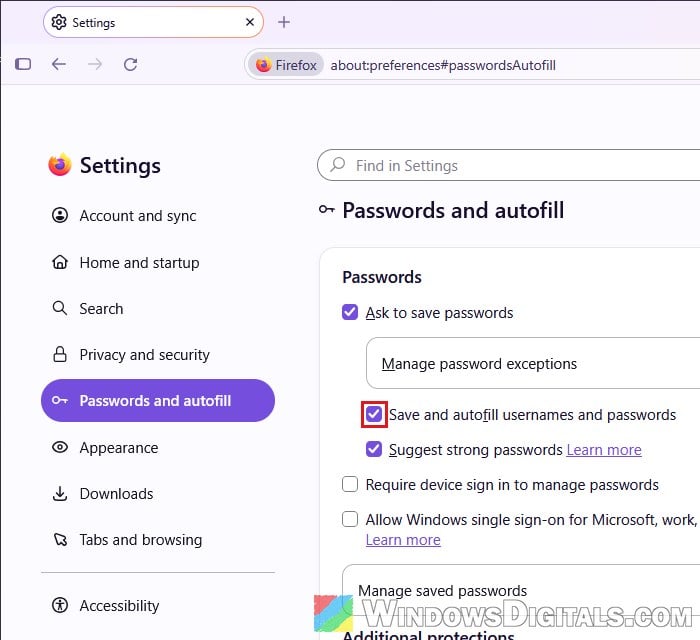
- Further down, untick “Save and autofill payment info” too if you don’t want card details offered.
Please note that if you turn off “Ask to save passwords”, keep “Remember search and form history” off as well. Otherwise Firefox starts saving the emails you type into login boxes as form history, which is what made the list show up in our test.
If something still suggests passwords after all this, it may be your password manager’s own extension rather than Firefox, so check that extension’s settings as well.
Make sure Firefox is up to date
Firefox 154 had a bug where saved logins didn’t show up in login boxes, and in some cases your typed history showed up instead. Mozilla rolled out a fix and asked people to restart Firefox to get it. It’s worth making sure you’re on the latest version in case something similar comes back:
- Open the menu (three lines) and select Help and Report > About Firefox.
- Let Firefox download any update it finds, then click Restart to update Firefox.
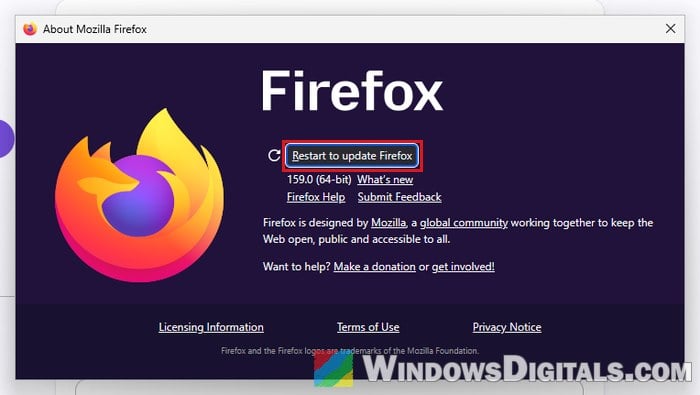
Once Firefox restarts, click a login box again and see if the list of email addresses is gone.