Clicking Shut down in Windows 11 or 10 should turn off everything, including the fans and the lights inside the case. On some PCs, though, the monitor goes black and the keyboard and mouse turn off, but the fans keep spinning and the RGB lights stay on, and nothing happens until you hold the power button. This guide will show you what keeps the PC from fully powering off and how to fix it.
Also see: Windows 11 Won’t Shut Down (How to Fix)
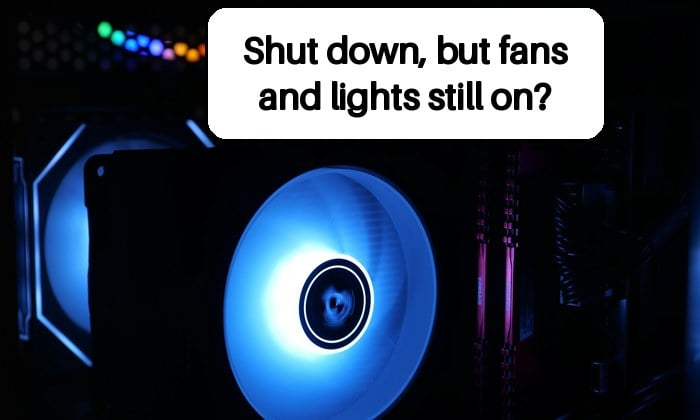
Why does the PC stay on after Windows shuts down?
When the screen goes black but the fans keep going, Windows has usually already finished shutting down. It’s the motherboard that never cuts the power, and waiting longer won’t change that.
It’s a fairly common problem on Reddit and PC forums, especially with new builds and after a motherboard swap. The usual reasons are:
- Fast Startup: by default, Shut down in Windows 11 and 10 isn’t a full shutdown but a mix of shutdown and hibernation that saves the Windows kernel to the drive.
- A connected device feeding power back into the motherboard, such as a powered USB hub or a SATA-powered fan hub.
- The motherboard’s power settings, especially ErP in the BIOS, or a BIOS bug on a newer board.
- Less often, an app running in the background, or a power supply or motherboard that’s starting to fail.
It often doesn’t happen every time (one shutdown in four or five, or only after gaming for a while), so test each fix below with a few shutdowns, not just one.
Pro tip: Sleep vs. Hibernate vs. Hybrid Sleep vs. Shutdown in Windows
Do a full shutdown first to test
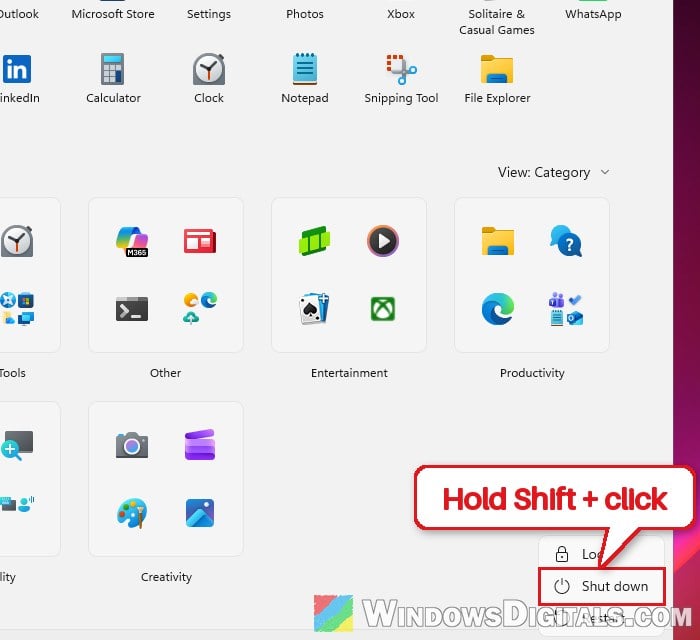
First, see whether a real full shutdown turns the PC off properly. If it does, the problem is most likely Fast Startup. The quickest way is from the Start menu:
- Click the Start button, then click the Power button.
- Hold down Shift and click Shut down.
You can also do it with a command. Save your work first, since it closes open apps without asking:
- Press Win + R to open the Run dialog box.
- Type the following command and press Enter:
shutdown /s /f /t 0
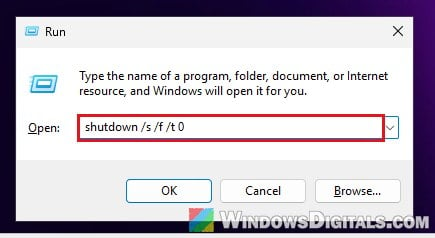
A Restart also does a full shutdown, so if restarting works fine while Shut down doesn’t, that’s another hint pointing at Fast Startup. If the fans still stay on after a full shutdown, skip to the devices and BIOS sections.
Linked issue: Windows PC Turns On By Itself After Shutdown
Turn off Fast Startup
Fast Startup speeds up booting by saving part of Windows to the drive at shutdown, much like hibernation. On some PCs, that half-hibernated state seems to be what keeps the board from powering off. Turning it off is the fix suggested most often for this problem, and the main cost is a slightly slower boot. Here’s how to do it:
- Open Control Panel and go to Hardware and Sound > Power Options. You can also just search for “Power Options” in the Start menu.
- On the left, click “Choose what the power buttons do“.
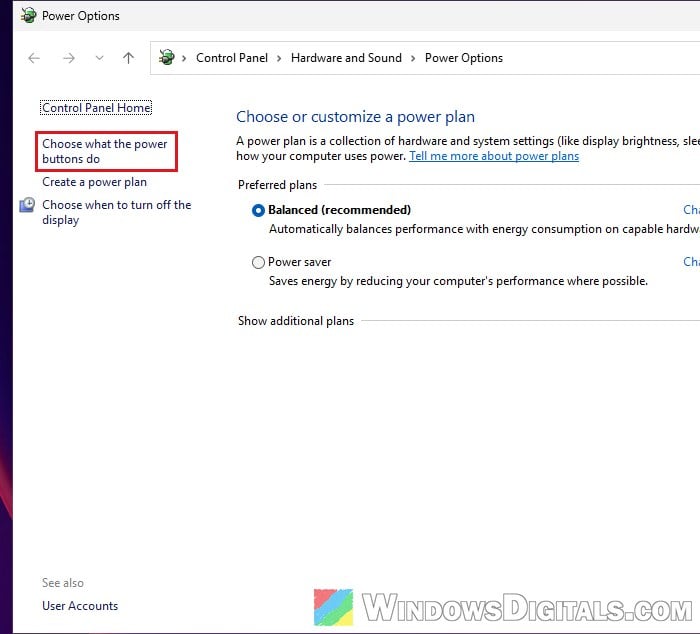
- Click “Change settings that are currently unavailable” at the top.
- Under Shutdown settings, uncheck “Turn on fast startup (recommended)“.
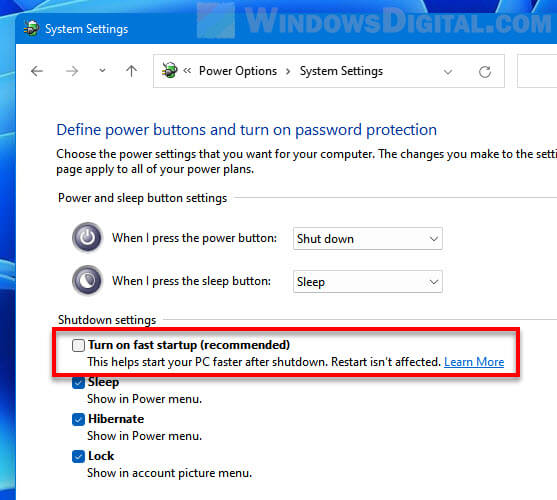
- Click Save changes.
Now shut down a few times and see if the fans and lights go off with the screen. If there’s no “Turn on fast startup” checkbox at all, hibernation is probably already off, so skip to the USB devices section.
Turn off hibernation completely
Turning off hibernation also takes Fast Startup with it, since Fast Startup needs it.
- Search for “Command Prompt” in the Start menu, right-click it and select Run as administrator.
- Type the following command and press Enter:
powercfg -h off
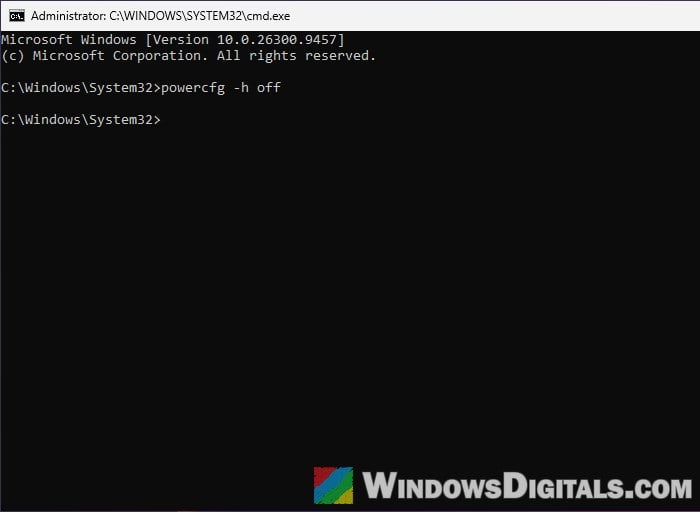
If you ever want hibernation back, run powercfg -h on the same way.
Might be useful: How to Add Hibernate Option in Windows 11
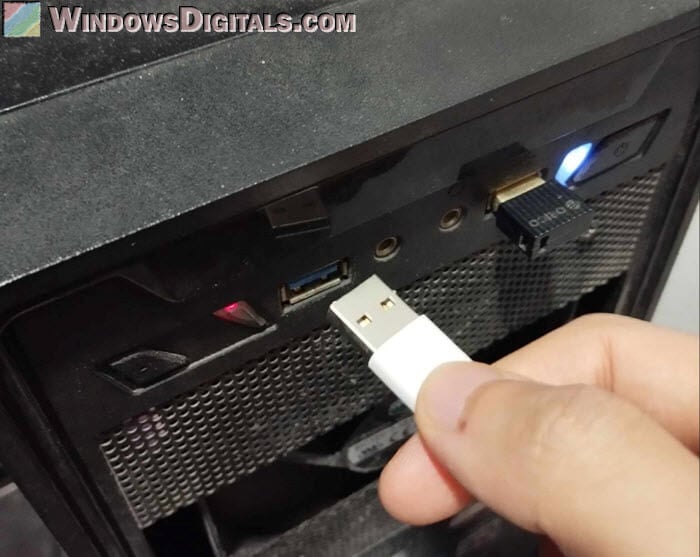
Unplug USB devices and hubs
Devices with their own power, like powered USB hubs, external drives with a power adapter, Stream Decks, VR headsets and sim racing wheels, can feed a little power back into the motherboard and keep it from shutting off completely. Here’s what you can do:
- Next time the PC gets stuck with the fans running, unplug your USB devices one at a time and watch the PC. If it turns off the moment you pull one, that’s the culprit, so unplug it before shutting down from now on.
- If nothing happens, unplug the monitor cables too. It’s rare, but they can feed power back as well.
- A SATA-powered fan hub plugged into the CPU_FAN header can put the board into a fail-safe state at shutdown, where the fans ramp up and the PC never turns off. Move it off that header, then reset the BIOS as shown further below, since the board can keep that state until it’s fully reset.
Check the ErP setting in the BIOS
ErP (or ErP Ready) is a motherboard setting named after Europe’s energy rules. When it’s on, the board keeps standby power to a minimum while the PC is off, USB ports included, and wake features like Wake-on-LAN may stop working.
Turning ErP on is often suggested for this problem, but it doesn’t help everyone, and on at least one Gigabyte board the fans stayed on only while ErP was enabled. So treat it as a switch to test: if it’s off, turn it on, and if it’s already on, try turning it off. On an ASUS motherboard, it goes like this:
- Turn on or restart the PC and immediately press Delete or F2 to open the BIOS, then switch to Advanced Mode.
- Go to the Advanced tab and select APM Configuration.
- Set ErP Ready to Enable(S4+S5) or Enable(S5), or to Disabled if it was already on.
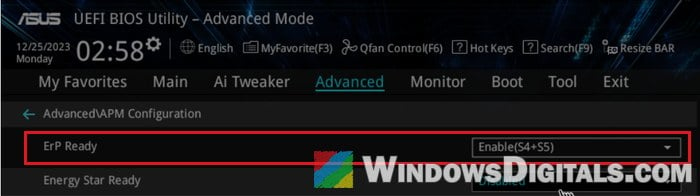
- Press F10 and click OK to save and restart.
Other brands place and word it differently, so check your motherboard’s manual if you can’t find it.
Reset the BIOS with the power cord unplugged
After a hardware change, or a lot of BIOS changes while troubleshooting, a full reset can clear out conflicting settings and the board’s stuck power state. Unplug the PC’s power cord, clear the CMOS, and leave the PC unplugged for about 20 minutes before turning it back on. This resets every BIOS setting, so set ErP again afterward if you changed it. For the ways to do it, see: How to Clear CMOS without Removing Battery or Jumper Cap.
Update the BIOS and chipset drivers
Newer motherboards often ship with power-state bugs that later BIOS versions fix. On a new build especially, check your motherboard maker’s support page for a newer BIOS and the latest chipset drivers.
Be warned: A BIOS update can be risky. If something goes wrong halfway, it can brick your motherboard, so follow the maker’s instructions exactly, and if you’re not sure what you’re doing, get someone to help you instead.
What if the PC still won’t turn off?
A background app can be behind it too (in one case it stopped once Razer Synapse 4 was uninstalled), so note what was running each time. As a workaround, restarting into the BIOS and pressing the power button there turns the PC off for some people.
If the fans and lights stay on even when you shut the PC down from inside the BIOS, Windows isn’t involved at all. That points to the motherboard or the power supply, which usually needs a spare part or a technician to test. If your PC or its parts are still under warranty, contact the seller or the manufacturer before replacing anything yourself.