There is a quite common issue with Logitech G HUB where the app opens to a dark window that says “Loading localizations” and never gets past it, most often right after you wake your PC from sleep. Your mouse or keyboard may also stop using its lighting, DPI and button settings until G HUB finally loads. This guide will help you get G HUB past that screen and working again.
Also see: How to Turn Off Mouse Acceleration in Windows 10, Razer Synapse or Logitech G Hub
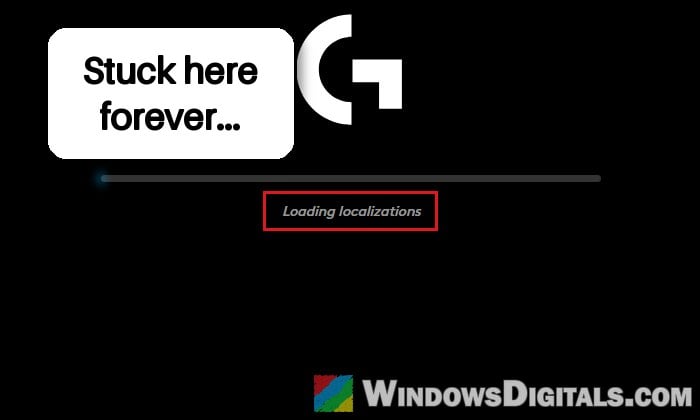
Why does G HUB get stuck on “Loading localizations”?
G HUB’s window needs two things running in the background before it can load: the LGHUB Agent process and the LGHUBUpdaterService. When one of them hangs, the window sits on “Loading localizations” with an empty progress bar, and closing and reopening it doesn’t help, because the stuck parts are still running behind it.
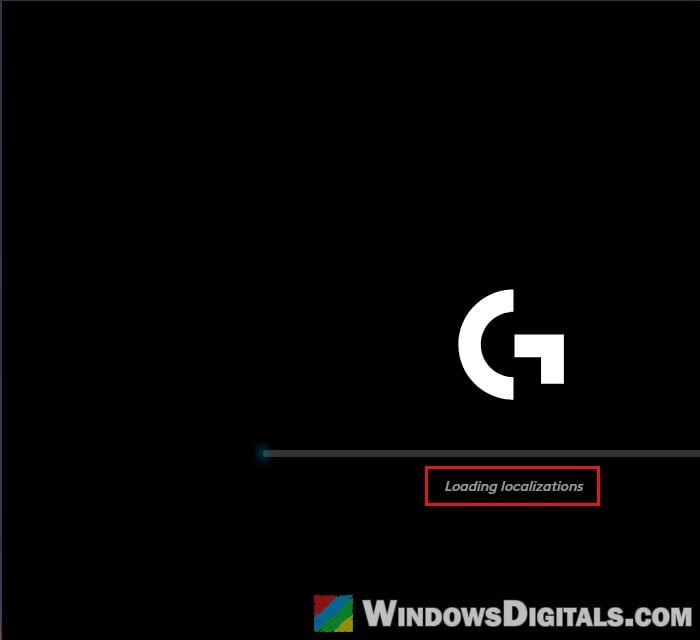
Logitech hasn’t said exactly what makes them hang. It most often shows up after the PC wakes from sleep, though some people get it at every startup. Many users on Reddit and Steam say it has happened more often with G HUB’s recent versions. In most cases, it can be cleared without losing your settings, so start with the first fix below.
End G HUB’s processes and restart its service
This is Logitech’s own fix for G HUB getting stuck while loading, and it’s the one that works for most people, especially when the problem comes after sleep. You close G HUB, end the parts of it that are still running, and restart the LGHUBUpdaterService so everything loads fresh.
- Right-click the G HUB icon in the system tray and select “Close G HUB“. If you don’t see the icon, click the small arrow next to the clock first.
- Press Ctrl + Shift + Esc to open Task Manager. Typing “lghub” in its search box at the top shows only G HUB’s processes.
- On the “Processes” tab, right-click “LGHUB Agent” and select “End task“.
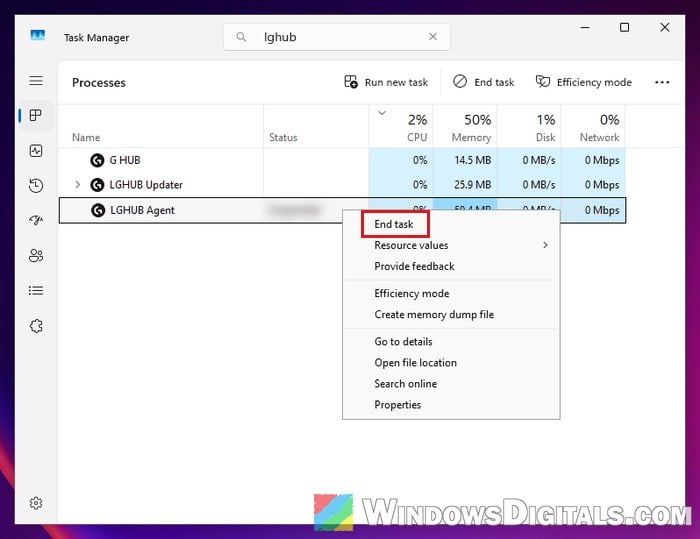
- Then end “G HUB” the same way (it may show as “LGHUB” instead). Leave “LGHUB Updater” running.
- Go to the “Services” tab, right-click “LGHUBUpdaterService” and select “Restart“.
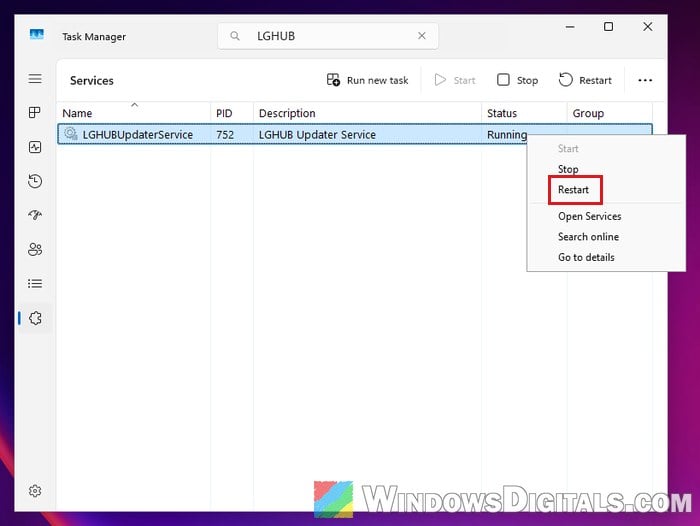
- Wait 10 to 15 seconds until its status shows “Running“.
- Search for “G HUB” in the Start menu and open it.
G HUB should now load past the “Loading localizations” screen and apply your settings again. If it’s still stuck, restart your PC fully and try opening it again.
Suggested read: Logitech Mouse Double Clicking on Single Click (Fix)
Update G HUB to the latest version
If the problem keeps coming back after sleep, make sure you’re on the newest G HUB. Logitech’s latest version, 2026.7.1011216 (November 5, 2026), fixes an issue where the connection between G HUB’s backend and its service could be blocked, and another where closing G HUB from the system tray didn’t always quit the agent process. Logitech doesn’t say these fix the “Loading localizations” hang by name, but both are about the agent and the service, the same parts that get stuck.
Since G HUB can’t update itself while it won’t load, get the installer yourself:
- Go to Logitech’s G HUB download page at
https://support.logi.com/hc/articles/360025298133. - Click “Download Now” to get the latest installer.
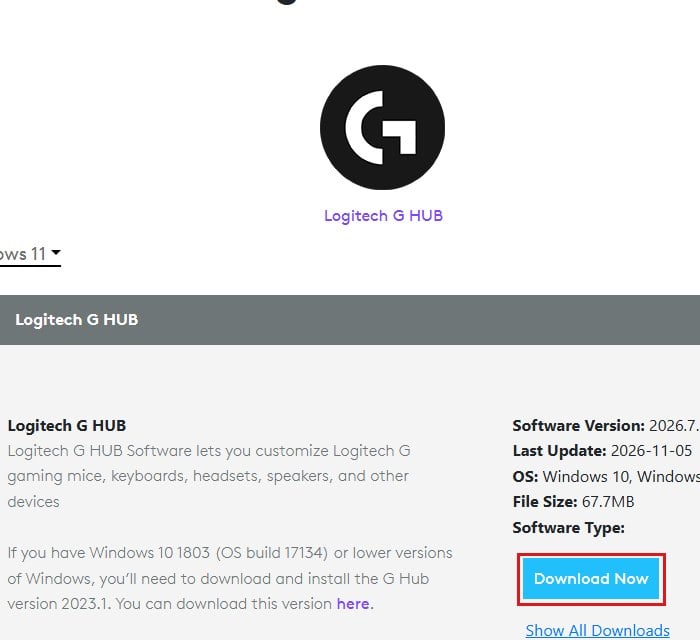
- Run the installer and follow the prompts. If it says G HUB is already installed, use “Reinstall G HUB” as in the next section.
Reinstall G HUB and keep your settings
If G HUB never gets past the screen, not even after a restart, the installation itself might be broken. G HUB’s installer can uninstall and reinstall it in one go, and it offers to carry your current settings over to the new install. You can start it right from Windows.
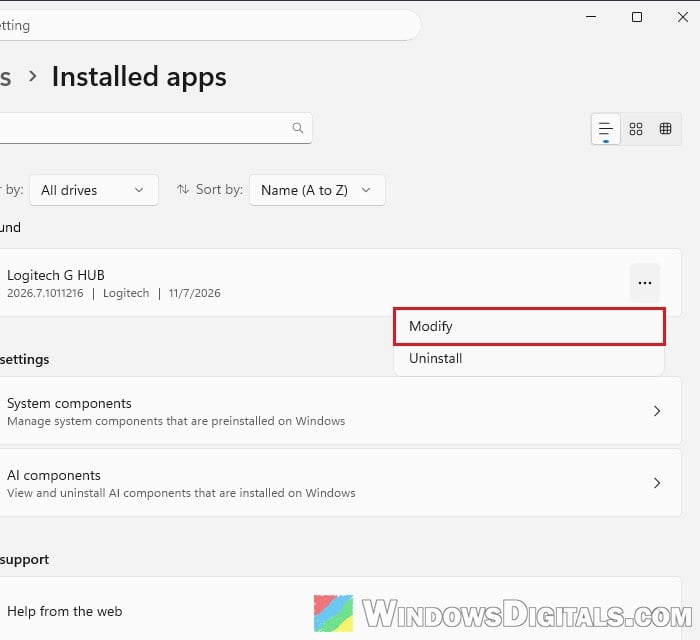
- Open Settings and go to Apps > Installed apps.
- Search for “G HUB“, click the three dots next to Logitech G HUB and select “Modify“. Click “Yes” if Windows asks for permission.
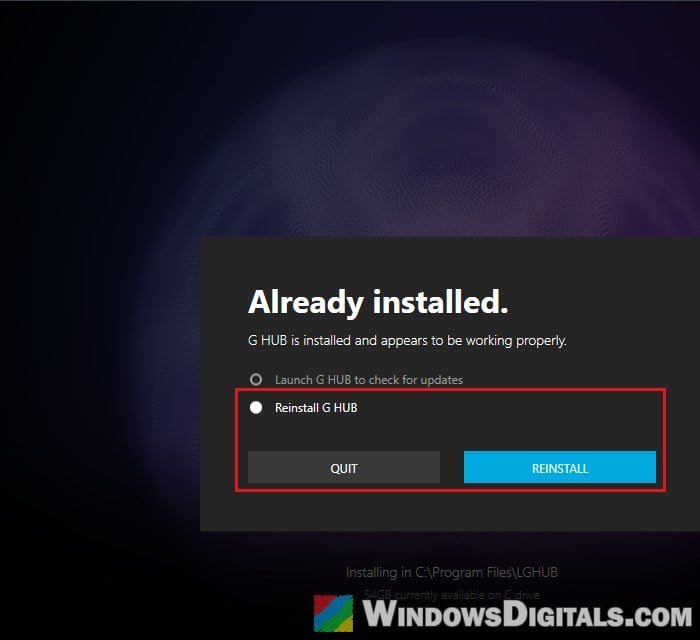
- In the G HUB installer, select “Reinstall G HUB” and click “Reinstall“.
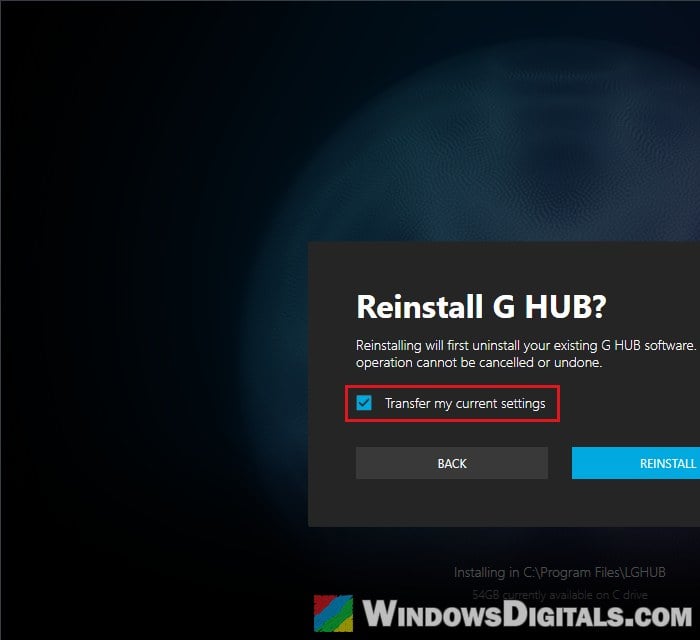
- Make sure “Transfer my current settings” is ticked, then click “Reinstall” again.
- Wait for it to finish, then open G HUB.
Delete G HUB’s data folders and install it clean
When a normal reinstall doesn’t help, Logitech’s next step is a clean one: delete the folders where G HUB keeps its data, then install it again. Something left in those folders may be why a normal reinstall changes nothing.
Please note that this resets G HUB, so your profiles, lighting effects and macros will be gone and you’ll have to set them up again. If you want a backup, copy the folders somewhere else before deleting them.
- Close G HUB from the system tray, then end “G HUB” and “LGHUB Agent” in Task Manager the same way as in the first fix, and this time end “LGHUB Updater” too.
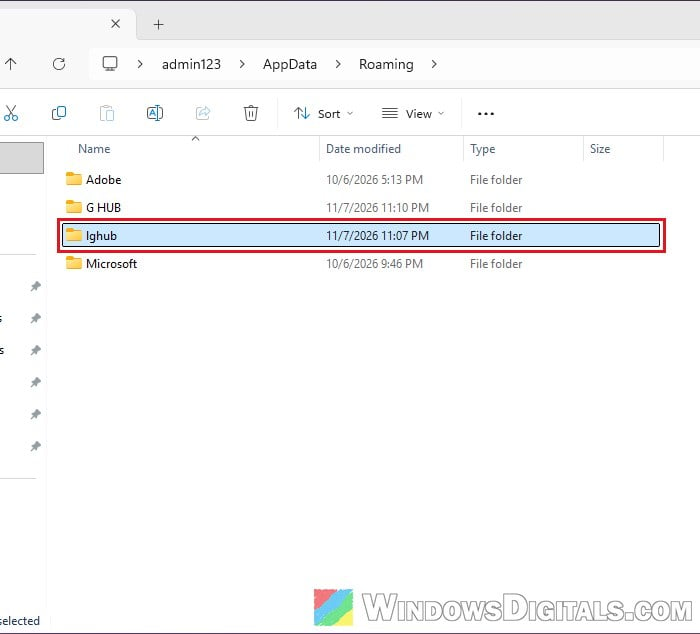
- Open File Explorer, copy and paste the following path into the address bar and press Enter:
%AppData%
- Delete the “lghub” folder.
- Go to the following path the same way (ProgramData is a hidden folder, so typing the path is the quickest way in):
C:\ProgramData
- Delete the “LGHUB” folder there too, and “old.LGHUB” if you see one.
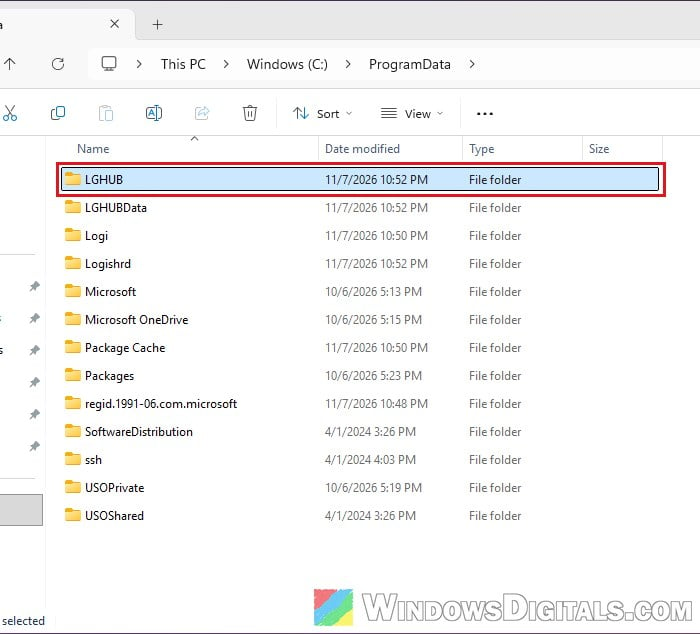
- Restart your PC.
- Download the latest G HUB installer from Logitech’s page (as in the update section above), install it and open G HUB.
If a folder won’t delete, restart the PC and try again before opening G HUB. If the installer itself fails, Logitech suggests temporarily turning off your antivirus while it runs, and turning it back on afterward.
Might be useful: How to Clean Up AppData Folder in Windows 11
If G HUB says MSVCP140_ATOMIC_WAIT.dll is missing
After a recent Windows 11 update, G HUB might show an error that MSVCP140_ATOMIC_WAIT.dll can’t be found, with the “Loading localizations” window stuck at 0% behind it. This file belongs to Microsoft’s Visual C++ Redistributable, a set of files many apps need to run. If you see this error, installing the latest Visual C++ Redistributable is worth trying.
- Download both versions of the latest redistributable from Microsoft:
- x64:
https://aka.ms/vc14/vc_redist.x64.exe - x86:
https://aka.ms/vc14/vc_redist.x86.exe
- x64:
- Run each one, tick “I agree to the license terms and conditions” and click “Install“.
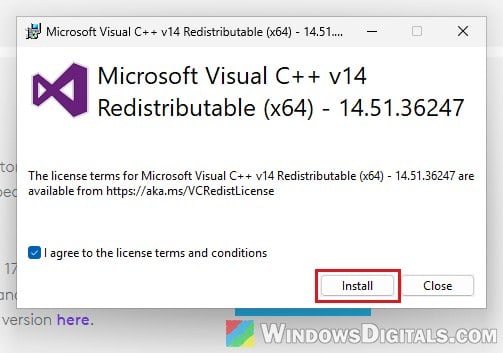
- Restart your PC and open G HUB again.
Linked issue: MSVCP140.dll or VCRUNTIME140.dll Not Found for Origin in Windows 10
What about going back to an older version?
Some people get around the problem by installing an older G HUB release. If you want to try that, you don’t need a third-party download site: on Logitech’s own G HUB download page, click “Show All Downloads” and some earlier versions are listed with their own “Download Now” button. Keep in mind that G HUB tends to update itself back to the newest version, so this may only help for a while. If none of the fixes above work, contact Logitech support with your Windows version and what you’ve already tried.