Windows 11 sets up most Ethernet ports and Wi-Fi cards by itself, either with a driver it already has or one it gets from Windows Update. But on a newly built PC, after a fresh install, or after you’ve removed the network driver, you can end up with no Ethernet and no Wi-Fi at all, and Device Manager only lists a generic “Ethernet Controller” or “Network Controller” with a yellow warning sign. Since the PC can’t go online, it can’t download the driver it needs either. This guide will show you how to find out which driver you need and get it onto the PC without internet.
Also see: Accidentally Deleted the WiFi Driver, What to do?
Why can’t Windows install the network driver by itself?
Windows 11 comes with drivers for a lot of common network adapters, but not for every chip on newer motherboards and laptops. When yours isn’t covered, Windows would normally fetch the driver from Windows Update. The problem is that Windows Update needs the internet connection the missing driver would give you.
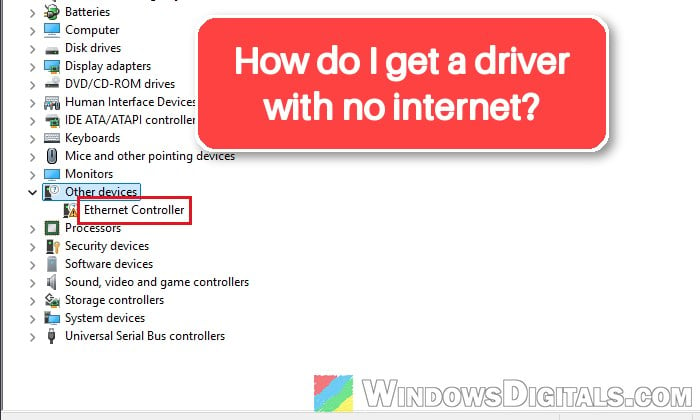
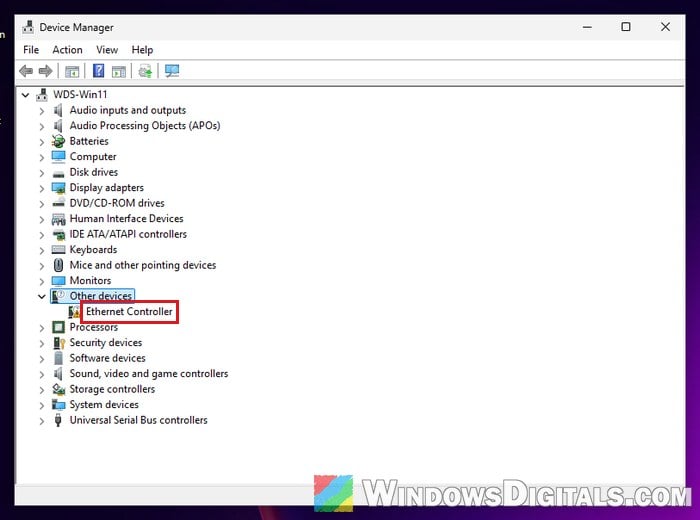
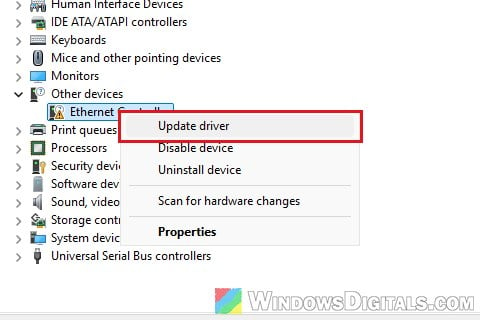
You’ll usually see this in Device Manager under “Other devices“, where the adapter shows up with a generic name instead of its real one.
The driver comes from your motherboard or laptop maker, or from the network chip’s maker (Intel, Realtek, MediaTek). So first, find out what you have.
Find out which network adapter your PC has
Your motherboard or laptop model is printed on the board’s box, the board itself, or the sticker under a laptop. To find the exact network chip, look up its hardware ID:
- Right-click the Start button and select “Device Manager“.
- Expand “Other devices“, right-click “Ethernet Controller” (or “Network Controller” for Wi-Fi) and select “Properties“.
- Go to the “Details” tab and choose “Hardware Ids” from the “Property” menu.
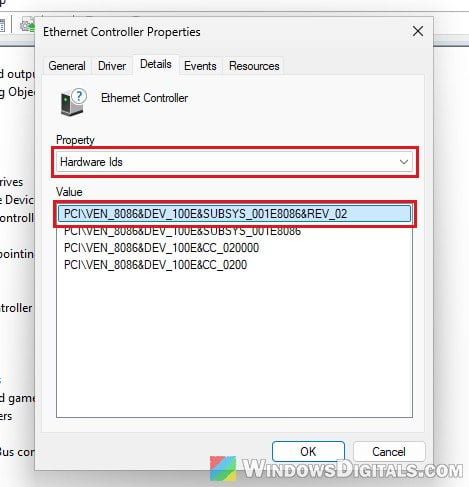
- Write down the first line. It looks something like
PCI\VEN_10EC&DEV_8125.
The part after VEN_ is the chip maker and the part after DEV_ is the chip. For example, VEN_10EC is Realtek (DEV_8125 is its RTL8125 2.5GbE controller), VEN_8086 is Intel and VEN_14C3 is MediaTek. Search the whole line on your phone or another computer to find the chip’s name.
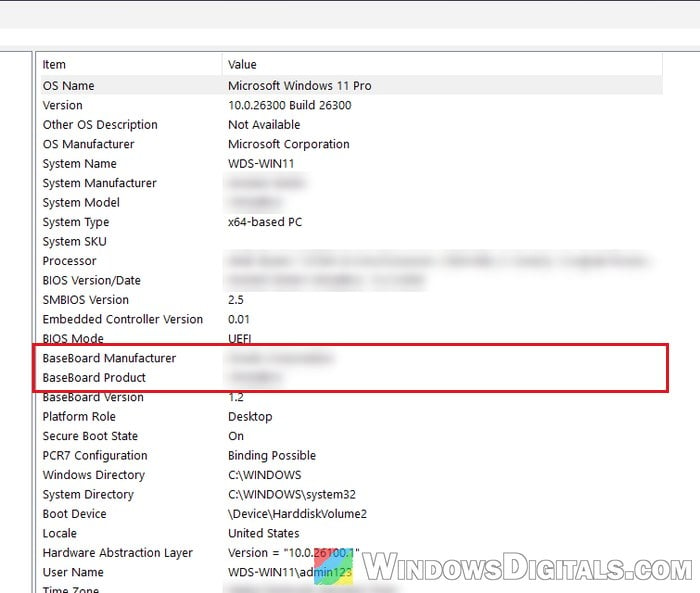
Windows shows the board model too. Press Win + R, type “msinfo32” and press Enter. In System Information, look at “BaseBoard Manufacturer” and “BaseBoard Product” (on a laptop, “System Model” is the one to search for).
Knowing the chip matters, because the wrong driver won’t install. Intel’s installer, for instance, refuses to run if the PC has no Intel adapter.
Pro tip: How to Update Realtek Drivers in Windows 11
Get online for a moment through your phone (USB tethering)
The quickest way around the missing driver is to borrow your phone’s mobile data with a USB cable. Windows 11 already includes the driver for this kind of connection, so it doesn’t need the missing network driver. On an Android phone:
- Connect your phone to the PC with a USB cable.
- Pull down from the top of the phone’s screen, then press and hold the “Hotspot” icon (if it’s not there, tap “Edit” and add it to your Quick Settings).
- Turn on “USB tethering“.
The PC then sees the phone as a wired network connection. The menu names can differ a little between phone makers, and some carriers limit or charge extra for tethering.
For iPhone users, Apple says Windows needs the Apple Devices app or iTunes before it can use the iPhone’s hotspot over USB, so you’d have to get that app onto the PC first. A Wi-Fi hotspot won’t help either if the Wi-Fi driver is the one missing.
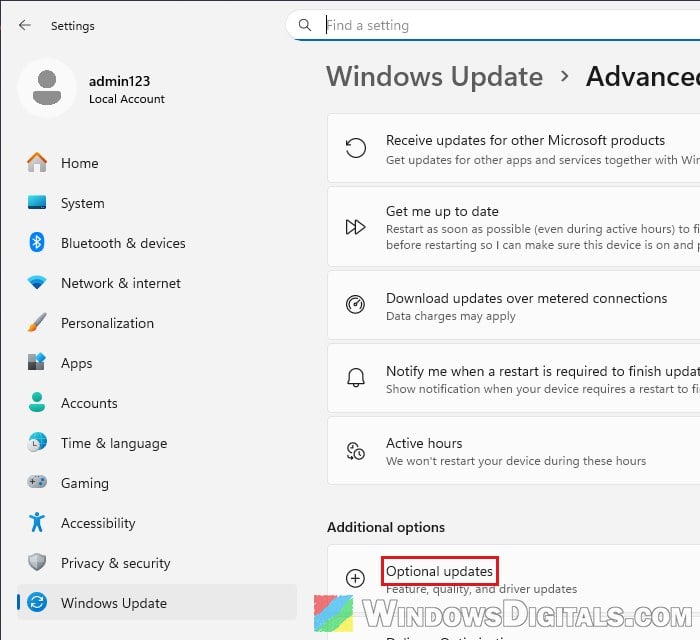
Once the PC is online, go to Settings > Windows Update and click “Check for updates“. Windows may install the network driver by itself. If not, check Settings > Windows Update > Advanced options > Optional updates, where drivers sometimes wait under “Driver updates“, or download the driver from your maker’s website on the PC itself.
Might be useful: How to Install or Update Driver in Windows 11
Download the driver on your phone or another PC
If tethering isn’t an option, download the driver somewhere else and carry it over. This is what most people end up doing.
- On your phone or another computer, go to your motherboard or laptop maker’s support page for your exact model (or the chip maker’s page).
- Choose “Windows 11” and download the “LAN” driver for Ethernet or the “WLAN” or “Wireless” driver for Wi-Fi (makers word it differently).
- If the download is a .zip file, extract it.
- Copy the extracted folder (or the setup file) to a USB flash drive and plug it into the PC. If you downloaded it on your phone, you can also connect the phone with a USB cable, set its USB mode to “File transfer“, and copy the files over in File Explorer.
If the driver comes as a setup .exe, run it and follow the prompts, then restart if it asks you to. If the installer finishes but nothing changes, or the download is only a folder of files, install it from Device Manager as shown below.
Install the driver from its folder in Device Manager
Windows can install a driver straight from a folder, as long as the folder has the driver’s .inf file in it. Here’s how to do it:
- Open “Device Manager“, right-click “Ethernet Controller” (or “Network Controller“) and select “Update driver“.
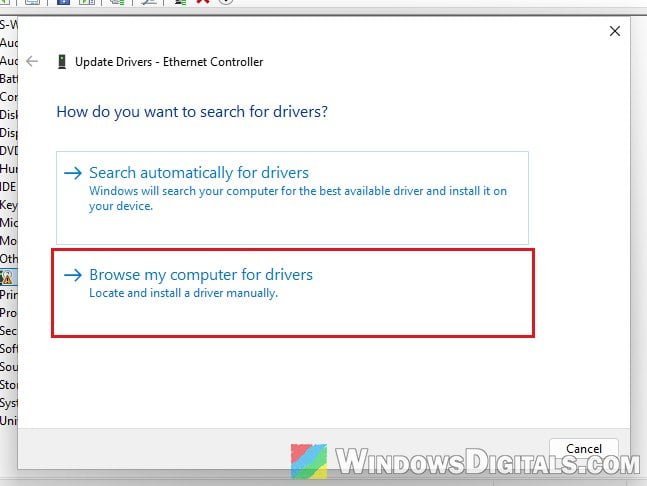
- Select “Browse my computer for drivers“.
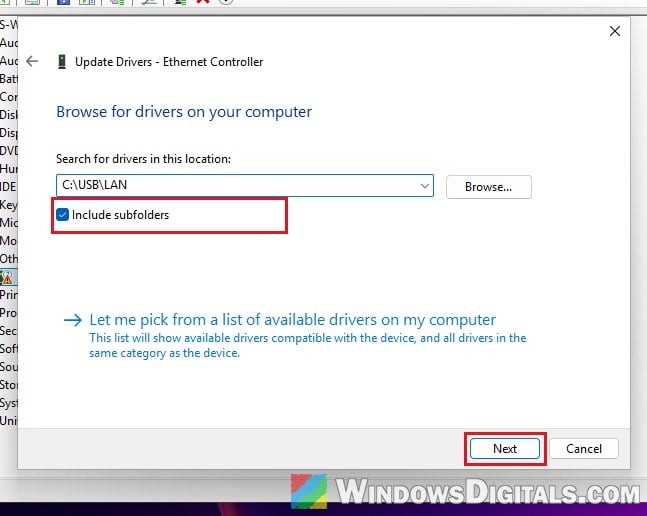
- Click “Browse…“, go to the driver folder on your USB drive and click “OK“.
- Make sure “Include subfolders” is ticked, then click “Next“.
- Wait for Windows to install it, then click “Close“.
The adapter should now show up with its real name instead of “Ethernet Controller“. If Windows doesn’t find a driver in that folder, it’s probably the wrong one, so check the hardware ID against what you downloaded.
Or install it with one command
PnPUtil does the same from a command line. It adds every driver in the folder and its subfolders and installs each on the devices it matches, handy when both the Ethernet and Wi-Fi drivers are missing and both are in one folder. Open Command Prompt as administrator and run this, with your own folder’s path:
pnputil /add-driver "D:\LAN\*.inf" /subdirs /install
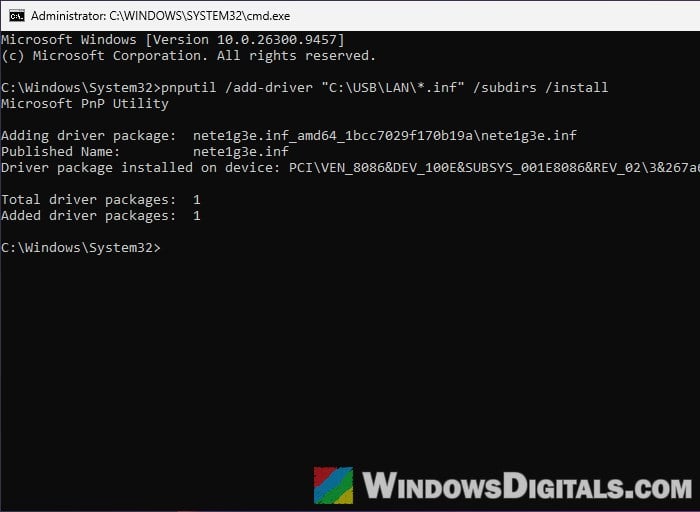
Restart the PC if the network doesn’t show up right away.
Linked issue: Ethernet Not Working in Windows 11 (Fix)
What if you’re stuck on the network screen in Windows setup?
If this happens while you’re installing Windows 11, setup stops on the “Let’s connect you to a network” screen. Microsoft added an “Install driver” button there for exactly this, which installs a driver you’ve already downloaded.
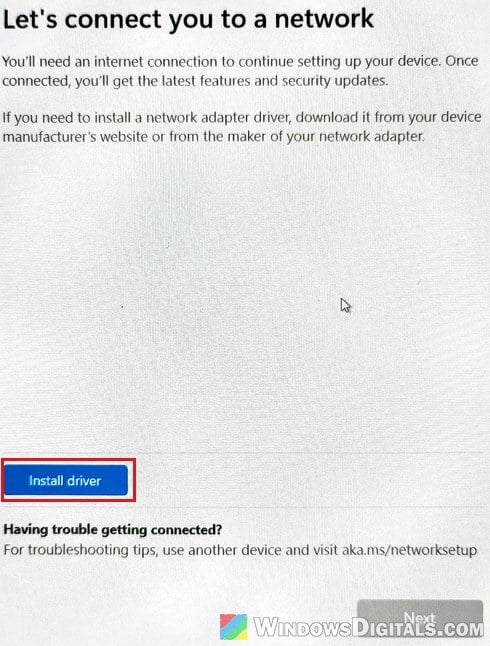
The button only accepts the extracted driver files (the .inf file), not a setup .exe or a .zip file. If the maker only offers a setup .exe, look for a .zip or “driver only” download of the same driver. On another computer, extract the driver and copy the folder to a USB flash drive. Plug it in, click the button, pick the .inf file in that folder and follow the prompts. Once the adapter is recognized, connect and carry on with setup.
Don’t count on the old tricks for skipping this screen. On recent builds, Microsoft has removed the known ways to make a local account during setup and says setup needs internet and a Microsoft account.