If Windows Security warns you about “Trojan:Win32/Commando.A!ml” with the details “This program is dangerous and executes commands from an attacker“, and the same alert keeps coming back every few minutes or at every startup even though it says “Removed”, something on your PC keeps running the command it blocks. If it showed up only once while you were installing something, it may just be a false alarm. This guide will show you how to tell which one you have and how to stop it for good on Windows 11 or 10.
Also see: Trojan:PowerShell/Boxter Keeps Coming Back in Windows Security
Page Contents
What is Trojan:Win32/Commando.A!ml?
According to Microsoft, it’s a trojan that “can perform a number of actions of a malicious actor’s choice on your device”. The !ml at the end means Microsoft Defender caught it with its machine-learning detection, so the name alone doesn’t point to one specific malware.
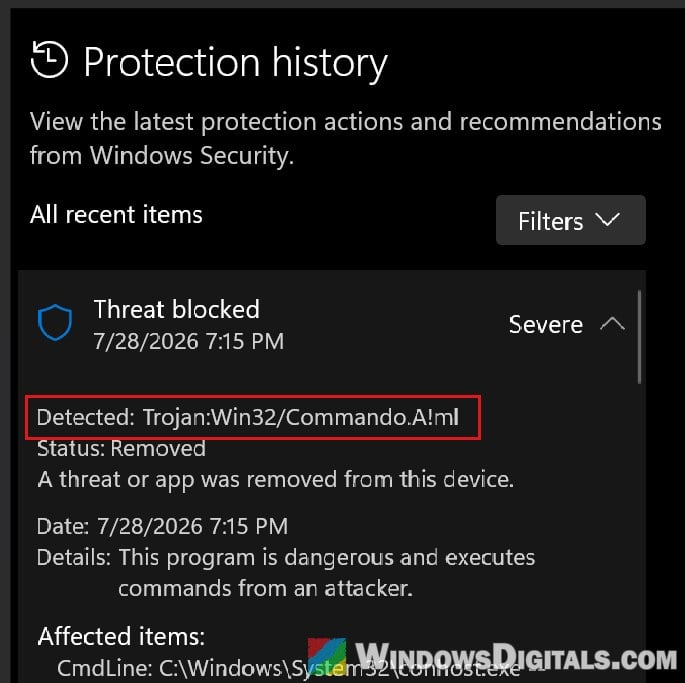
In most cases, the thing it blocks is a command, not a file. Defender shows it as a “CmdLine:” entry, usually Windows’ own PowerShell or Command Prompt running something hidden, such as:
- a command that downloads code from a website and runs it right away (it often contains
iexand a web address) - a long line of scrambled letters after
/eor-e(an encoded command) - a hidden script read from a file in AppData or ProgramData, or from a value in the registry
PowerShell and Command Prompt themselves aren’t the problem, so don’t delete powershell.exe or cmd.exe. Something keeps starting them with that command.
Related problem: Defender Asks to Restart to Remove Threats, but They’re Still There on Windows 11
First, check what it caught in Protection history
The details of the detection tell you whether it’s a real infection or a false alarm. Here’s how to find them:
- Open Windows Security from the Start menu and go to Virus & threat protection.
- Click Protection history.
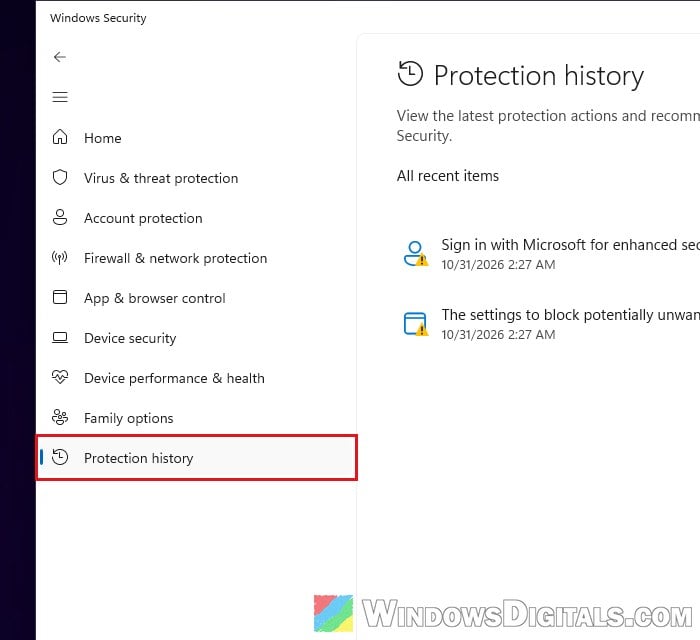
- Click the Trojan:Win32/Commando.A!ml entry to expand it, and read the Affected items line and the date and time.
- If it’s quarantined, click Actions and select Remove. Never select “Allow on device”, since that lets the command run freely.
Is it just a false alarm?
Probably, if the detection showed up only once, right while you were installing something you downloaded from its maker’s own website, the affected item points to that installer, and a full scan finds nothing else. In late October 2026, for example, the AsusSetup.exe in ASUS’s Realtek audio driver package set it off for some people. The affected item was the installer’s own command that creates a scheduled task. Make sure the download came from the maker’s real website, not a look-alike.
If you’re sure the file is fine, you can report it to Microsoft as a false positive:
- Go to
https://www.microsoft.com/en-us/wdsi/filesubmissionand select Home customer. If it then asks you to sign in, click Skip.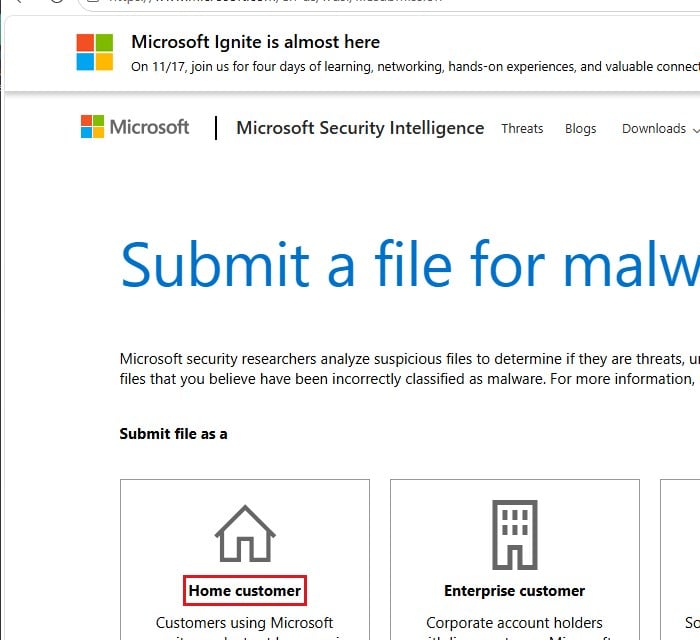
- Upload the file (up to 50 MB), enter the detection name and select “Incorrectly detected as malware/malicious“.
Don’t add an exclusion for it in Windows Security. Microsoft warns that exclusions can leave your PC more vulnerable.
Signs it’s a real infection
The alert repeats and the affected item is a hidden or scrambled PowerShell or Command Prompt command, especially with iex, a web address, -ep bypass, -w h or a registry path in it. Then disconnect the PC from the internet and follow the steps below. You’ll reconnect briefly later to update Defender.
What if it’s KMSSS.exe in an AAct folder?
Then it’s an unofficial Windows activation tool, not part of Windows. It can come with a Windows install done by a repair shop. Remove the tool along with its scheduled task (named AAct), and activate Windows with a genuine key.
Delete the hidden scheduled task behind it
A scheduled task that starts the command again and again is behind most repeating Commando.A!ml alerts, and deleting it has stopped them for several users on Reddit. Its name is often made to look harmless, like something from Edge, Lenovo Vantage, Delivery Optimization or Chrome.
- Press Win + R, type
taskschd.mscand press Enter to open Task Scheduler. - Click Task Scheduler Library in the left pane.
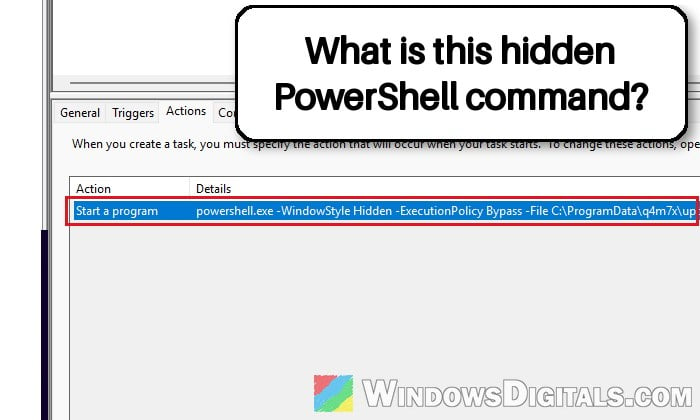
- Click each task and check the Actions tab at the bottom. Look for one that runs
powershell.exeorcmd.exewith the same command as in the detection, or with options like-w h(-WindowStyle Hidden),-e(-EncodedCommand) or-ep bypass(-ExecutionPolicy Bypass). Its trigger usually matches how often the alert shows up.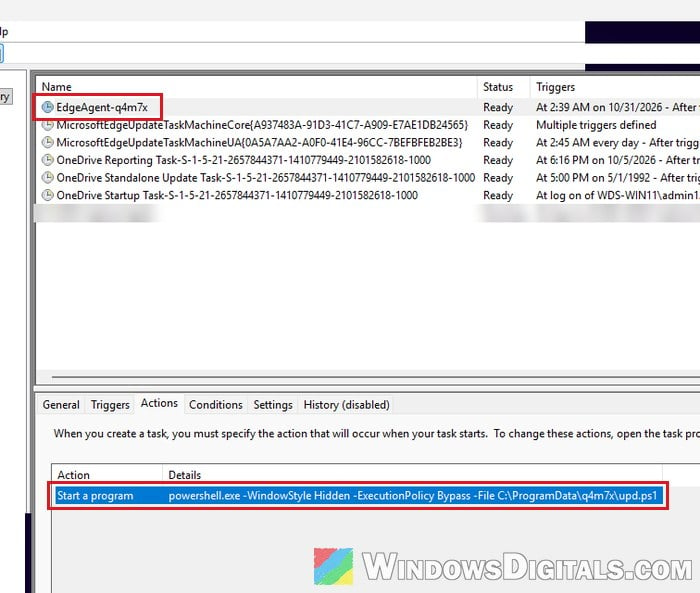
- Note the file or registry path the action uses, then right-click the task and select Delete.
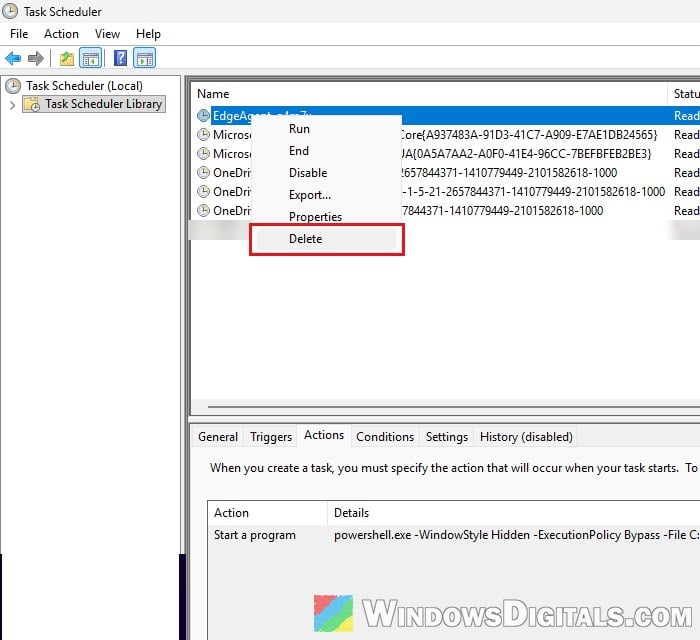
- Delete the file the task pointed to, if any.
Restart your PC and wait a few minutes to see if Windows Security warns you again. If you can’t find the task, our Trojan:PowerShell/Boxter guide shows how to check startup apps, the Run key and Autoruns, which also lists hidden WMI entries.
If the task read its script from the registry
You’ll know it’s this one if the affected item has get-itemproperty and a path like HKLM:\Software\Microsoft followed by random letters. It’s a fake key that sits right below the real Microsoft key in the list, not inside it.
Editing the registry wrongly can cause problems, so create a restore point first. If you’re unsure, skip this part and rely on the offline scan below.
- Press Win + R, type
regeditand press Enter. Click Yes if asked. - Copy and paste the following path to the address bar, and press Enter:
HKEY_LOCAL_MACHINE\SOFTWARE
- Find the key named Microsoft plus the same random letters as in the command (not the real Microsoft key), right-click it and select Delete.
Then restart your PC once more.
Linked issue: PowerShell pop up for a second and high CPU usage
Remove any exclusions it added to Defender
Some versions of this malware add their own exclusions to Microsoft Defender, such as whole folders like C:\ProgramData or C:\Users, or file types like .exe and .ps1, so Defender stops scanning them. Check for them like this:
- In Windows Security, go to Virus & threat protection.
- Under Virus & threat protection settings, click Manage settings.
- Scroll down to Exclusions and click Add or remove exclusions. Click Yes if asked.
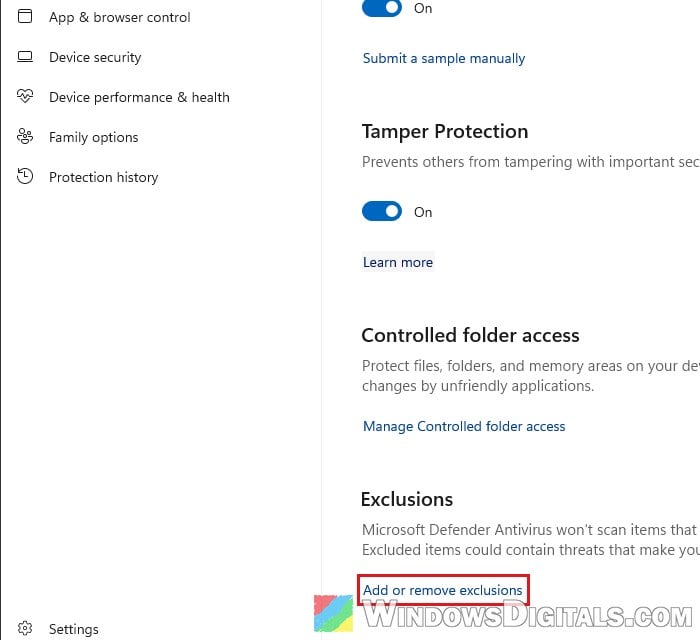
- Select any exclusion you didn’t add yourself and click Remove.
With those gone, Defender can see into those folders and files again.
Run a Microsoft Defender Offline scan
The offline scan restarts your PC and scans it before Windows loads, when the malware can’t hide or protect itself. Close your open apps first, and reconnect to the internet just for step 1:
- In Windows Security, go to Virus & threat protection > Protection updates and click Check for updates.
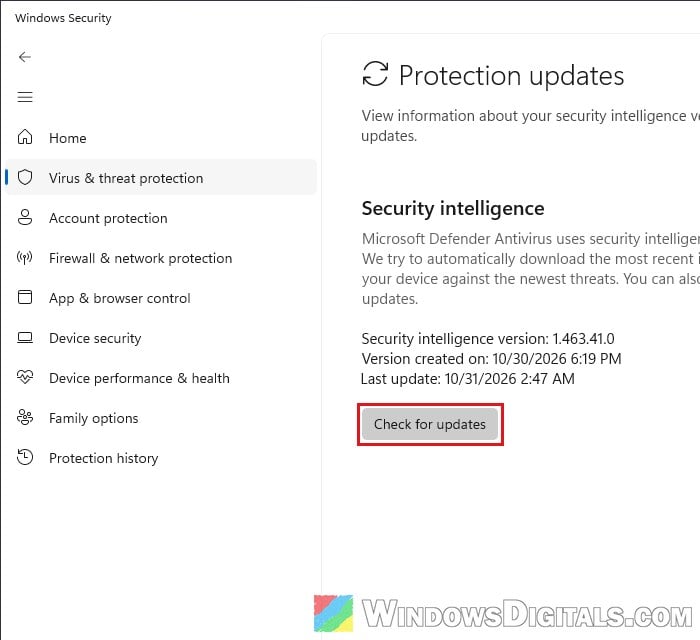
- Go back to Virus & threat protection and click Scan options.
- Select “Microsoft Defender Antivirus (offline scan)” and click Scan now.
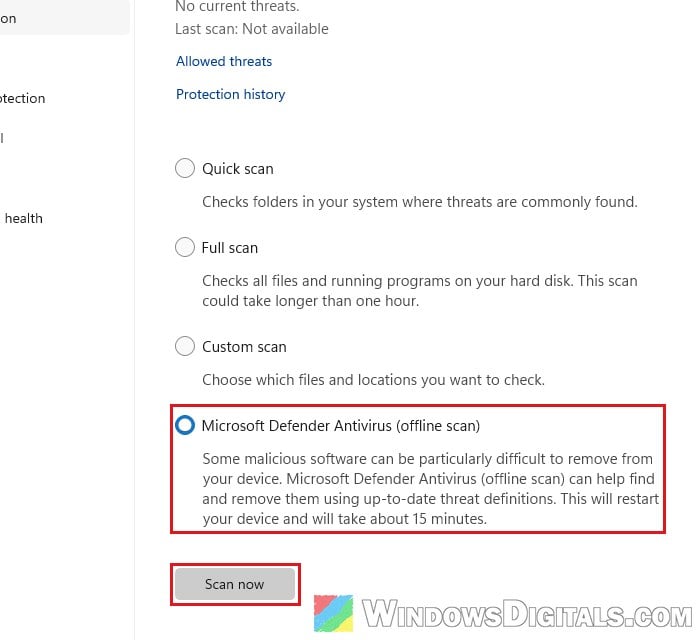
Windows restarts into the scan, which runs for about 15 minutes before it boots back to the desktop. Then check the dates of any new entries in Protection history.
Pro tip: Can’t Clear Protection History in Windows 11/10 Defender
If it keeps coming back, and afterward
If none of this stops it, back up your files and reset or reinstall Windows. That’s the surest fix, especially if the PC has pirated software or cracked tools on it.
These commands download and run code from the internet, so there’s no telling what else ran on your PC. Once the alerts stop, use a phone or another computer to change the passwords for your email, bank and other important accounts.