If you bought Office Home & Student 2021 as a one-time purchase and Word or Excel suddenly shows “Unlicensed Product“, says your Office has expired, opens files in view only or tells you to refresh the license since Office 2021’s end of support on October 13, 2026, this guide will explain what end of support actually means and show you how to get your Office working again.
Also see: How to Activate Microsoft Office 2021 or 2019 by Phone
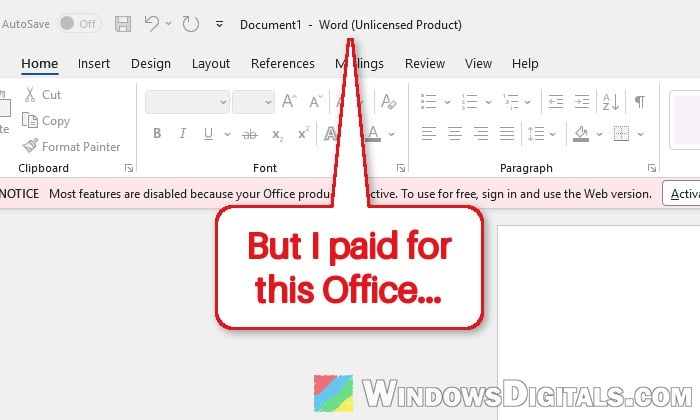
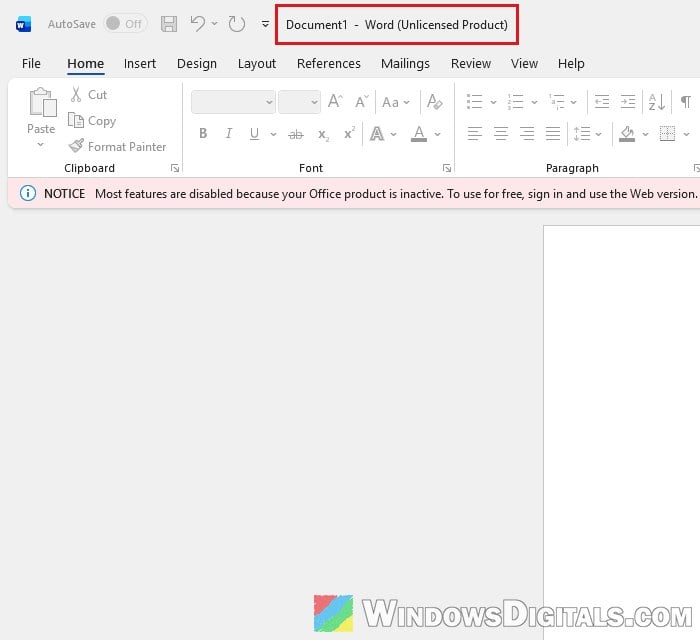
When activation fails, Office puts “Unlicensed Product” in the title bar of its apps and turns off most features, which is why your files may open in view only mode.
Page Contents
Did end of support switch off Office 2021?
No. End of support means Microsoft stops giving Office 2021 security fixes, bug fixes, updates and technical support. According to Microsoft, your Office 2021 apps may continue to function after that date, just without those fixes. Nothing on Microsoft’s end-of-support page says the license itself stops working.
Office Home & Student 2021 is a one-time purchase, not a subscription, so it has no end date to expire on. Only Microsoft 365 is a subscription that can run out. If your Office 2021 suddenly says it’s expired or unlicensed, it’s most likely because Office can’t match the copy on your PC to the license on your account anymore, and that’s worth trying to fix before you buy anything.
Please note that if you’re on a Mac and see “Your Office 2021 license is not supported with this version of the application”, that’s a separate problem with a recent Office for Mac build, and the steps below are for Windows 11 and 10.
Why does Office 2021 suddenly say it’s unlicensed?
There isn’t one single cause on Windows. Microsoft lists these as the usual reasons Office shows as unlicensed:
- You’re signed in to Office with the wrong account, one that doesn’t own the license (a work or school account, or another personal one).
- More than one copy of Office is installed, for example Microsoft 365 installed next to your Office 2021.
- The date, time or time zone on your PC is wrong, so the license check fails.
- Office doesn’t have the permissions it needs, or a firewall, antivirus or proxy is blocking the activation check.
Go through the fixes below in order, checking Word after each one.
Check which Office you have and which account it’s signed in to
The Account page shows the product name and whether it’s activated, so you’ll know right away if your PC is actually running Microsoft 365 instead of Office Home & Student 2021.
Here’s how to check it:
- Open Word (or Excel) and click File > Account.
- Look under Product Information on the right. It should name your Office product and say whether it’s activated. A copy that isn’t activated shows “View Only (Unlicensed)” and “This product is unlicensed“.
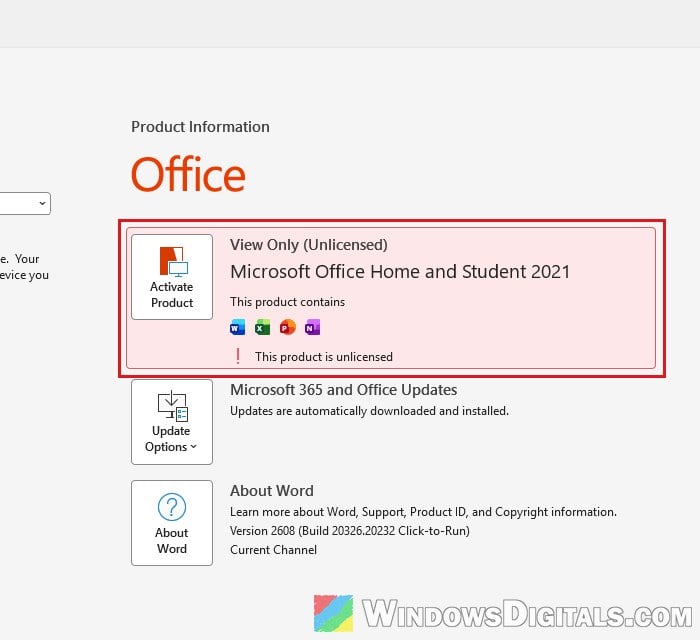
- On the left, check the account you’re signed in with. If it isn’t the account you bought Office with, click Sign out.
- Sign back in with the Microsoft account you used to buy or redeem Office Home & Student 2021.
If Office says “We couldn’t find any Office products” after you sign in, that account doesn’t have the license, so try the other Microsoft accounts you might have used.
Make sure the license is still on your Microsoft account
Your one-time Office purchase is tied to a Microsoft account, and you can see it on the account’s Subscriptions page. If Office Home & Student 2021 is listed there, the license is still on your account and the problem is only on your PC.
Here’s how to find it:
- Go to
https://account.microsoft.com/servicesin your browser. - Sign in with the account you used to buy or redeem Office.
- Look for Office Home & Student 2021 on the page (ignore any Microsoft 365 offers).
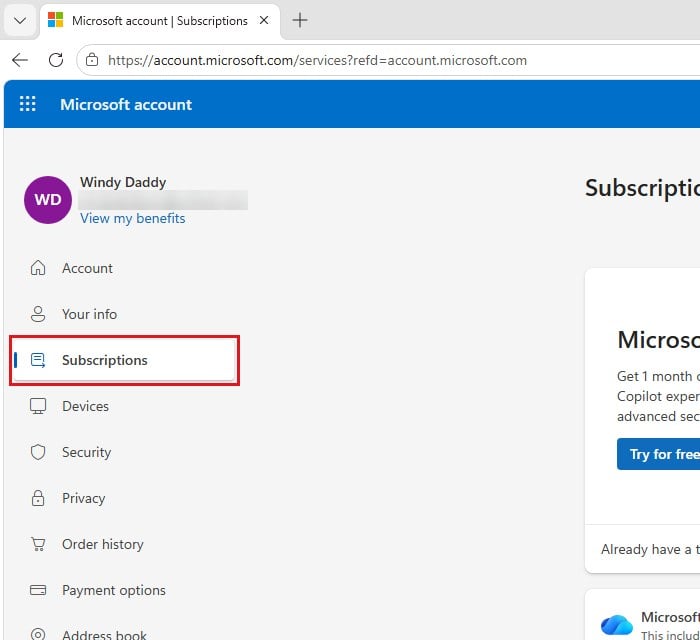
If it isn’t there on any of your accounts and Office came preinstalled on your PC, contact the PC maker or Microsoft with your proof of purchase.
Remove extra copies of Office
Activation can fail when more than one copy of Office or Microsoft 365 is on the same PC. This can happen on laptops where Microsoft 365 was installed alongside Office 2021.
Follow the steps below:
- Open Control Panel and go to Programs > Programs and Features.
- Type “office” in the search box at the top right.
- If more than one version of Office or Microsoft 365 shows up, right-click the one you don’t use and select Uninstall.
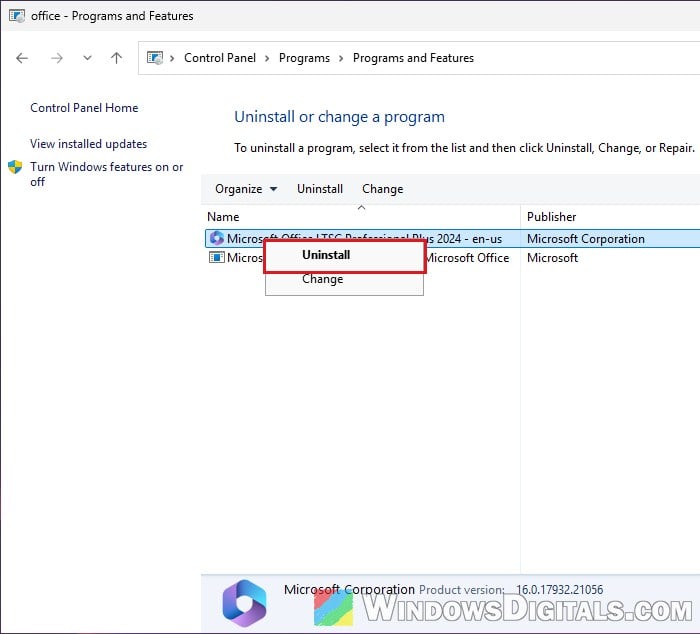
- Restart your computer, then open Word and sign in if it asks you to.
If the only one installed is Microsoft 365 but what you own is Office 2021, uninstall it, then go back to the Subscriptions page, find Office Home & Student 2021, click Install and sign in once it’s installed.
Fix the date, time and time zone on your PC
Office’s license check depends on your PC’s clock. If the date, time or time zone is off, activation can fail even with a valid license.
To fix it:
- Open Settings > Time & language > Date & time.
- Turn on Set time automatically and Set time zone automatically.
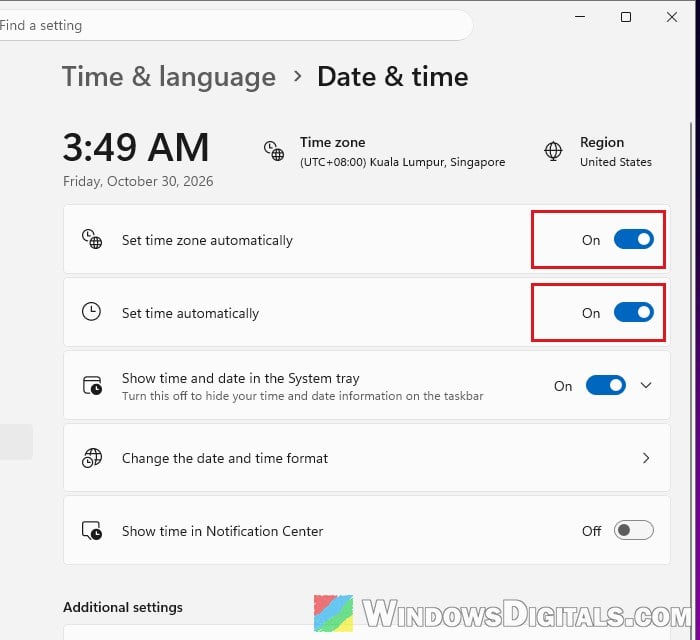
- If Set time zone automatically is grayed out, go to Settings > Privacy & security > Location, turn on Location services, then come back and turn it on.
- Close Word, open it again and check if the title bar still says “Unlicensed Product”.
Might be useful: How to Manually Change Date and Time in Windows 11
Run Word as administrator once
Microsoft also suggests running the Office app as administrator, which can fix permission problems that stop activation from finishing.
To do this:
- Click Start and type “Word“.
- Right-click Word and select Run as administrator.
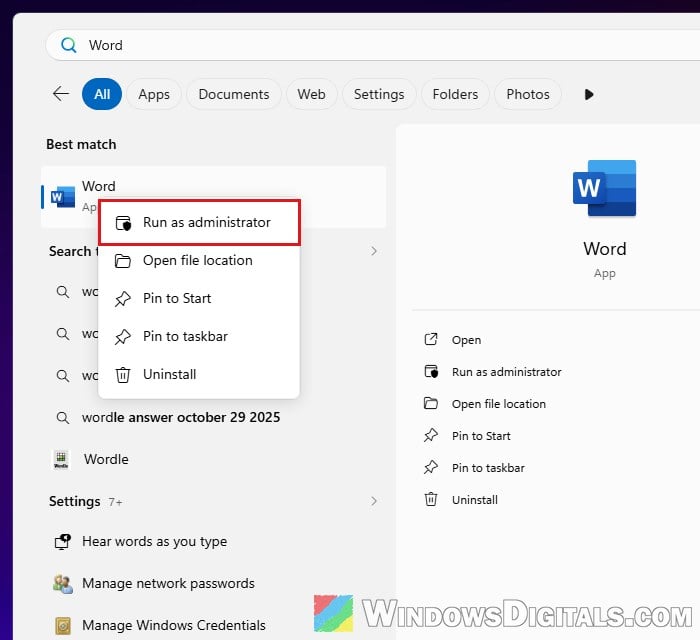
- Click Yes in the prompt, then see if the “Unlicensed Product” message is gone.
Update and repair Office
An out-of-date or damaged Office install can also fail to activate. Office 2021 won’t get new fixes now, but Microsoft still lists updating as a step for this, and a repair can fix a damaged install.
To update Office:
- In Word, go to File > Account.
- Click Update Options > Update Now. If you only see Enable Updates, click it first.
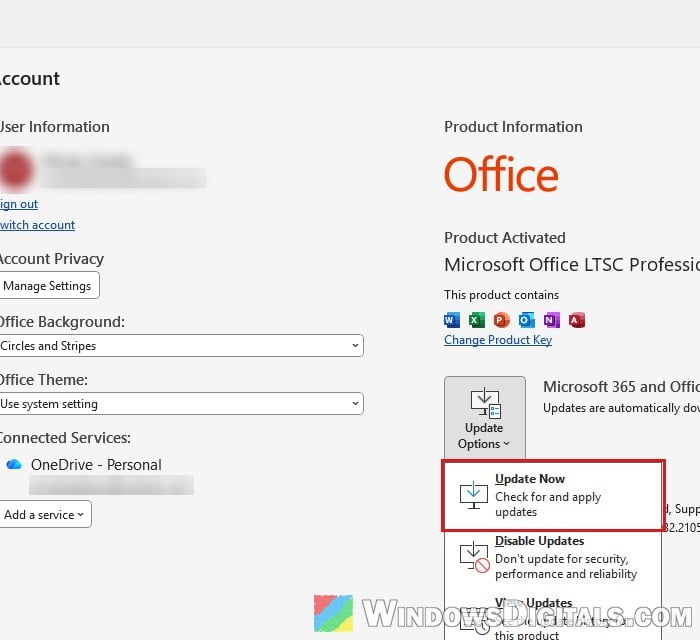
- Once it’s done, reopen Word and check Product Information again.
If that doesn’t help, repair it:
- Open Control Panel > Programs > Programs and Features.
- Select your Office product and click Change.
- Choose Online Repair and click Repair.
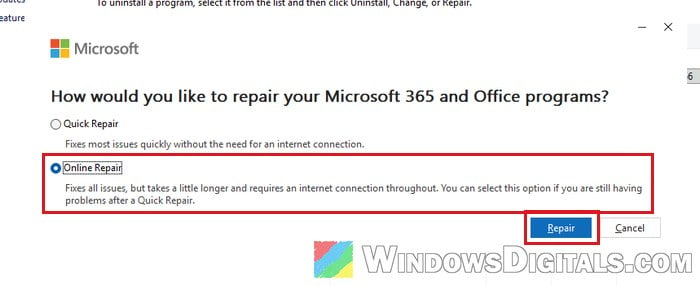
- Restart your PC when it’s done, then open Word and sign in.
Check your firewall, antivirus, proxy and VPN
If something on your network blocks Office from reaching Microsoft, the license check can’t finish. Temporarily turn off your VPN if you use one, and make sure your firewall or antivirus isn’t blocking Office.
To check the proxy settings:
- Open Settings > Network & internet > Proxy.
- Under Automatic proxy setup, turn on Automatically detect settings.
- Under Manual proxy setup, Use a proxy server should say Off, unless your network really needs one.
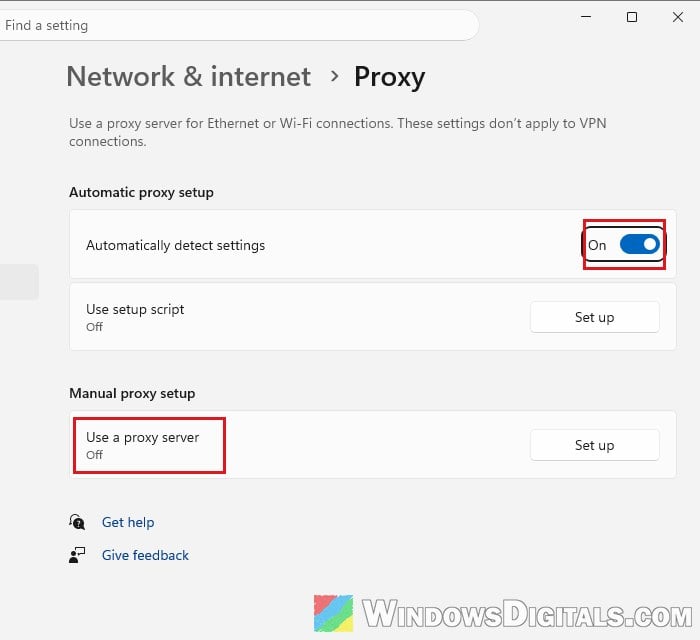
- Reopen Word and see if it activates.
Related guide: How to Disable Proxy Settings in Windows 11/10 Permanently
What if none of this works?
If online activation keeps failing, you can still activate a one-time Office 2021 purchase by phone. If even that fails, contact Microsoft Support with your purchase details. Microsoft no longer gives technical support for Office 2021 itself, so they may only be able to help with the license or your account, not the app.
If you’d rather move on, Microsoft recommends a newer version of Office or Microsoft 365.