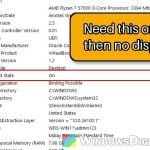
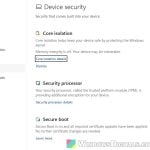
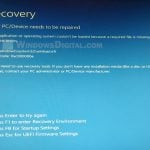
If your PC suddenly starts to a blue Recovery screen saying “Your PC/Device needs to be repaired” with Error code: 0xc0430001, and trying again only brings you back to it, Secure Boot has most likely stopped Windows from loading. This guide explains why it happens and how to get back into Windows and fix it.
Also see: Windows 11: Recovery “Your PC needs to be repaired”
Page Contents
Why does Windows stop at error 0xc0430001?
The error means that Code Integrity, the part of Windows that checks its boot files and drivers are properly signed, failed to start. With Secure Boot on, the PC then refuses to load Windows and drops you at the recovery screen.
Most reports fall into one of three situations:
- Right after a Windows update. Since the June 2026 update (KB5094126), Windows has been moving PCs from the old Secure Boot certificates, which expired in June 2026, to new ones. That rewrites the boot files on a small hidden partition, the EFI System Partition. On some PCs, mostly HP business laptops (EliteBook 840 G10, ProBook 460 G11), this goes wrong. It usually comes down to a BIOS that’s out of date or an EFI System Partition that’s too small or too full (often only 100 MB in total) to take the new files.
- After you turned on Secure Boot, usually because a game’s anti-cheat (Call of Duty, FACEIT) asks for it. Windows boots fine with Secure Boot off and shows 0xc0430001 as soon as it’s on.
- After a partition tool (AOMEI, in one case) changed the disk.
It’s a pretty common problem on Reddit, and turning off Secure Boot got most people back into Windows. Microsoft hasn’t listed it as a known issue yet.
Linked issue: Error 0x800f0922 When Installing Windows 11 or 10 Updates
Turn off Secure Boot for now to get back into Windows
Turning off Secure Boot skips the check that fails at startup, so Windows can load again. It’s only temporary, though: Secure Boot protects how your PC starts and many online games need it, so the next sections fix the cause.
Before you start, have your BitLocker recovery key ready. Changing Secure Boot can make Windows ask for it, sometimes more than once.
- On the recovery screen, press Esc to open the UEFI firmware settings (the BIOS setup).
- If that doesn’t work, hold down the power button until the PC turns off. Then turn it back on and repeatedly press F10 on HP laptops or F2 on Dell.
- Find the Secure Boot option. On HP consumer laptops, it’s under System Configuration > Boot Options. On other PCs, its name and place vary, so look through the BIOS menus for Secure Boot.
- Set Secure Boot to Disabled.
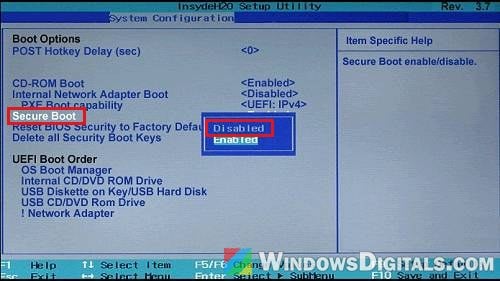
- Save and exit (F10 on HP), and let the PC restart.
Enter the BitLocker recovery key if asked, and Windows should start normally.
Related concern: BitLocker Recovery Key Not in Your Microsoft Account, What to do?
Update the BIOS and install all updates, then turn Secure Boot back on
With Windows running and Secure Boot off, the failed Secure Boot update can finish properly, and an up-to-date BIOS is less likely to trip over the new certificates. This also applies if the error started when you turned on Secure Boot for a game.
Be warned: If a BIOS update is interrupted halfway, the motherboard can be left unable to start. Only use your PC maker’s own file or tool, keep a laptop plugged in, and if you’re not sure what you’re doing, get someone to help you instead.
- Update your BIOS with your PC maker’s tool or website: HP Support Assistant on HP, Dell Command | Update on Dell.
- Open Settings > Windows Update and click Check for updates.
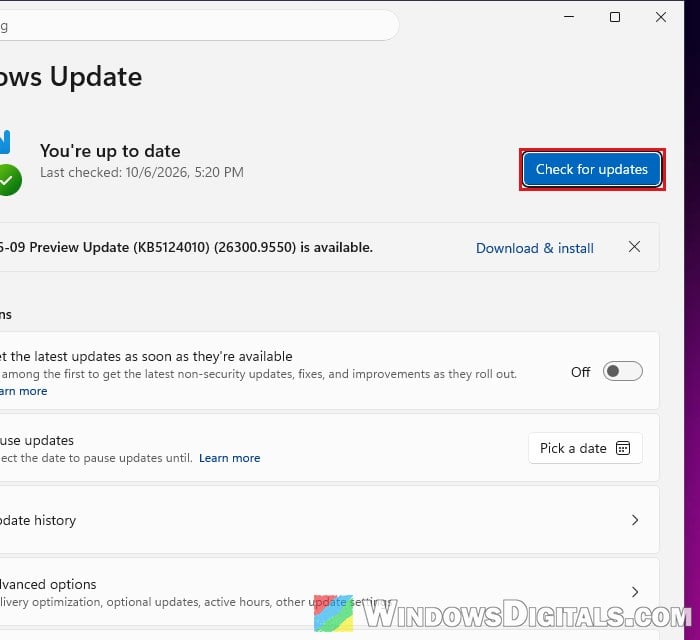
- Install everything and restart when asked. Check again after each restart until there’s nothing left.
- Restart into the BIOS and set Secure Boot back to Enabled.
If the recovery screen comes back with Secure Boot on, turn it off again and move on.
Related problem: Secure Boot “Failed Signature Verification” After Resetting Keys
Free up space on the EFI System Partition (HP laptops)
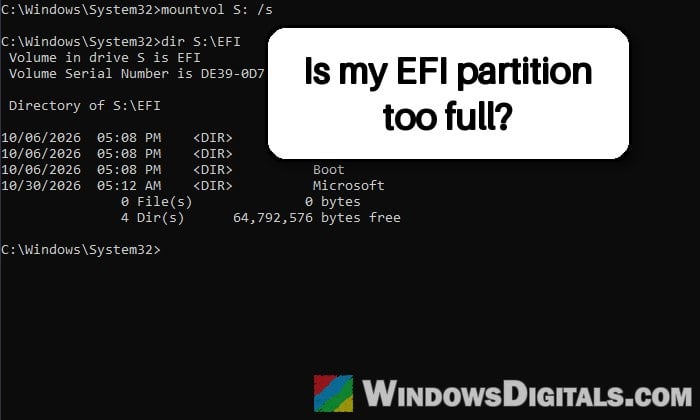
If the EFI System Partition is nearly full, the update can’t write the new boot files and fails every time. HP laptops are especially affected because HP keeps BIOS backups and firmware files in an HP folder there. On one laptop that folder took about 59 MB of the partition, and the update installed fine once it was gone.
Warning: This partition holds the files your PC needs to start. Only touch the HP folder. Never delete the Microsoft or Boot folders, and don’t delete the boot fonts some guides suggest: it can leave the BitLocker recovery screen blank.
With Windows running (Secure Boot still off), here’s what to do:
- Open Command Prompt as administrator.
- Give the EFI System Partition a drive letter (S:):
mountvol S: /s
- List its folders and check the free space (the “bytes free” figure on the last line):
dir S:\EFI
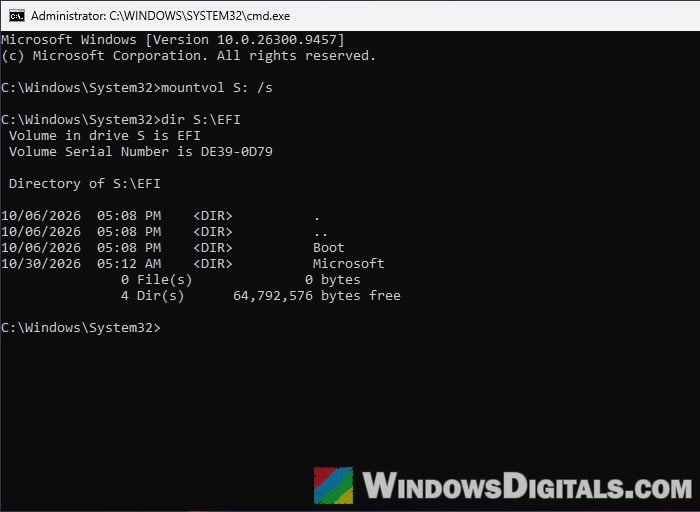
- If there’s an HP folder and only a few MB free, back it up to a USB drive first (replace E: with your USB drive’s letter):
robocopy S:\EFI\HP E:\EFI-HP-backup /e
- Delete it, and type “Y” and press Enter when asked to confirm:
rd S:\EFI\HP /s
- Remove the drive letter again:
mountvol S: /d
- Run Windows Update again, install everything, restart, and then turn Secure Boot back on.
If Windows starts with Secure Boot on, it’s fixed.
Uninstall the latest update from the recovery screen
If you can’t turn off Secure Boot, you can remove the update from the Windows Recovery Environment. It will come back later, so you’ll still want to fix the cause as above.
- On the recovery screen, press the key it shows for recovery options (usually F1). If that only brings you back, turn the PC off while the logo is showing, twice in a row. On the third start, the recovery environment should open by itself.
- Go to Troubleshoot > Advanced options > Uninstall Updates.
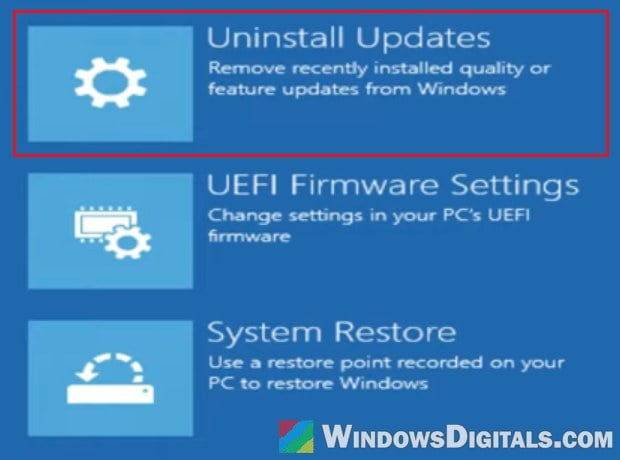
- Select Uninstall latest quality update, or Uninstall latest feature update if it started after a Windows version upgrade.
- Enter your BitLocker recovery key if asked, and follow the prompts.
If Windows still won’t start afterward, move on to the next section.
Run Startup Repair or rebuild the boot files
These are the standard boot repairs, but they rarely fix 0xc0430001, so only try them when nothing above helps. In the recovery environment, try Troubleshoot > Advanced options > Startup Repair first. If that doesn’t help, open Command Prompt from the same menu:
- Type the following commands one by one, and press Enter after each:
diskpart
list volume
- Find the small FAT32 volume of around 100 MB (the EFI System Partition), and note your Windows drive’s letter, since it isn’t always C: here.
- Give the EFI partition a letter (replace 2 with its volume number):
select volume 2
assign letter=S
exit
- Rebuild the boot files (replace C: with your Windows drive letter if needed):
bcdboot C:\Windows /s S: /f UEFI
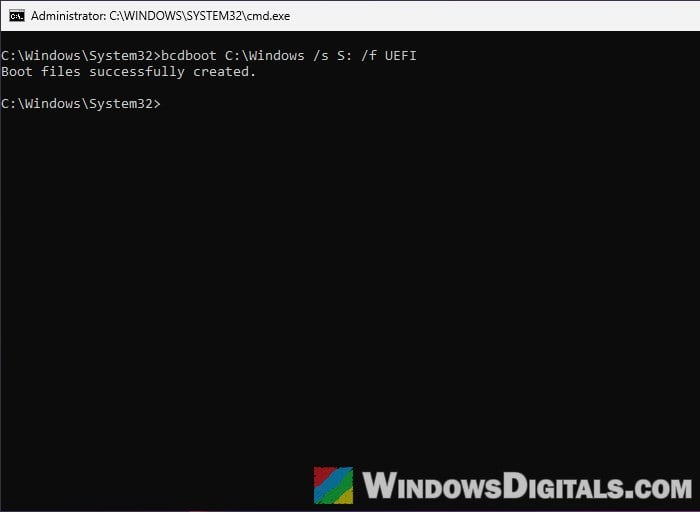
- When you see “Boot files successfully created“, close Command Prompt and restart.
Learn more: How to Startup Repair Windows 10/11 using Command Prompt
Reinstall Windows as a last resort
If nothing gets you past the recovery screen, a clean install of Windows 11 is what finally fixed it for several people. Making the EFI System Partition bigger is also possible, but moving partitions is risky and best left to a technician.
Save your files first. In the recovery environment, open Command Prompt, type “notepad” and press Enter, then click File > Save As and use that window to copy your personal folders to a USB drive. Then create Windows 11 installation media on another PC and do a clean install from it.