If a notification from “AMD.InstallManager” suddenly pops up in the bottom-right corner of your screen saying something is updating, with no logo and a strange dotted name, you might be wondering if it’s malware. In most cases it’s just AMD’s own updater doing its job. This guide explains what AMD Install Manager is, how to check that the notification is really from AMD, and how to stop it if you’d rather update on your own.
Also see: What is this random AMDAutoUpdate.exe window?
Page Contents
What is AMD.InstallManager?
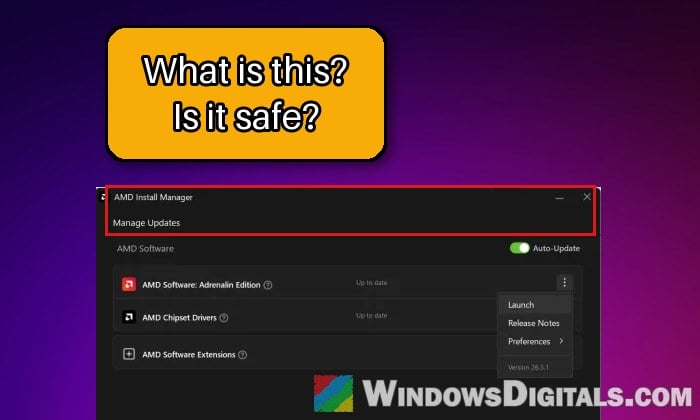
AMD.InstallManager is AMD Install Manager, a small app that comes with AMD’s graphics and chipset driver software. AMD added it with AMD Software: Adrenalin Edition 25.3.1 in March 2025, so you can manage all your AMD software from one window. It lists the AMD drivers and apps you have installed, shows when a newer version is out, and installs it for you.
It also has an automatic update option, and if it’s turned on, Install Manager checks for new AMD drivers and software regularly and updates them by itself in the background. That’s usually when the “AMD.InstallManager” notification shows up: it’s telling you an update is being downloaded or installed.
So if you have an AMD Radeon graphics card, or you installed your Ryzen chipset drivers with AMD’s installer, seeing this notification is normal. The program file behind it is called InstallManagerApp.exe, and AMD’s software installs into C:\Program Files\AMD by default.
Linked issue: AMD Software Warning: Graphics Driver Replaced?
Why does the notification have no logo and a dotted name?
Every app that sends notifications in Windows has an internal ID, and it can also tell Windows a friendly name and an icon to show with them. AMD’s notification most likely shows that internal ID, AMD.InstallManager, instead of a proper name and the AMD logo, which is why it looks so unpolished and the name doesn’t look like anything you recognize.
That’s a bit sloppy on AMD’s part, but not a sign of anything wrong. Still, the name on a notification doesn’t prove which program sent it, so it’s worth taking a minute to check, especially if you don’t own any AMD hardware.
How to check if the notification is really from AMD
The easiest check is to open AMD Install Manager yourself instead of clicking the notification. If it shows the same update, or says the software was just updated, the notification came from AMD. Here’s how to do it:
- Open AMD Software: Adrenalin Edition from the Start menu.
- Click the gear icon at the top right, then go to the System tab.
- Click Manage Updates. This opens AMD Install Manager.
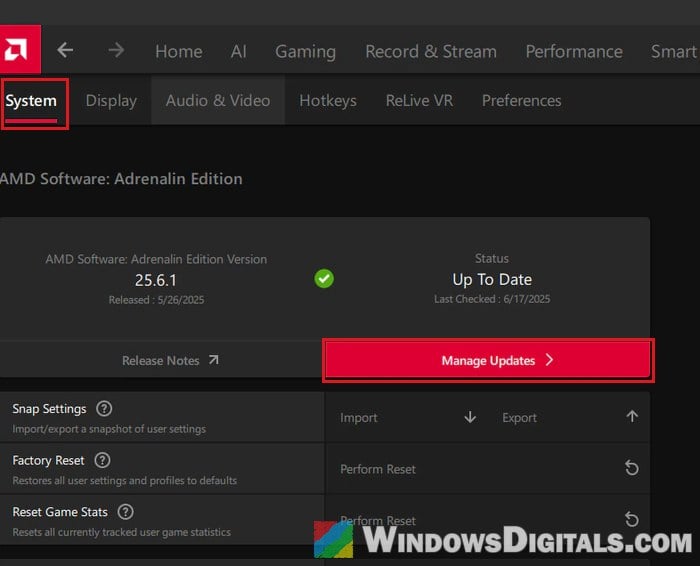
- See if the update it lists, or the version it just installed, matches what the notification was about.
If you don’t have AMD Software installed at all, or you’d like to be completely sure, check the program file itself:
- Press Ctrl + Shift + Esc to open Task Manager while the update is running.
- Look for Install Manager in the list. It may show as Install Manager App, or as
InstallManagerApp.exein the Details tab. - Right-click it and select Open file location. The genuine file sits in a folder under
C:\Program Files\AMD(or inC:\AMD\AMD-Software-Installer\Bin64while AMD’s driver installer is running).- If the update has already finished and it’s no longer in Task Manager, open
C:\Program Files\AMDin File Explorer and look forInstallManagerApp.exein its folders instead.
- If the update has already finished and it’s no longer in Task Manager, open
- Right-click
InstallManagerApp.exe, select Properties, and open the Digital Signatures tab. The signer should be Advanced Micro Devices. - Select the signer and click Details to see the full name and the line “This digital signature is OK.“
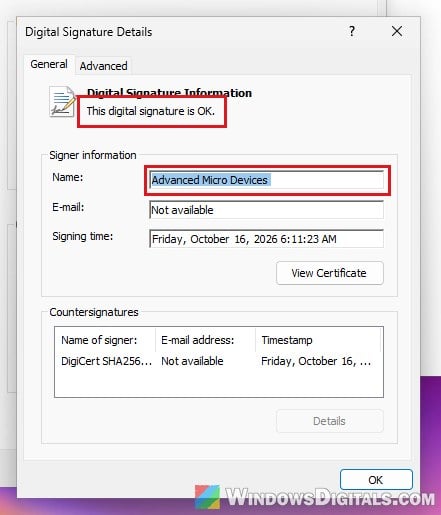
If the file is somewhere else, such as a Temp, AppData or Downloads folder, or it isn’t signed by AMD, run a full scan with Windows Security or your antivirus right away.
Pro tip: How to Scan an .exe File for Viruses to Check If It’s Safe
How to stop AMD Install Manager from updating by itself
If you’d rather decide yourself when your graphics driver gets updated, you can turn off the automatic updates in Install Manager itself. You’ll still be able to install updates whenever you want from the same window. Here’s how to do it:
- Open AMD Install Manager as shown above (AMD Software > gear icon > System > Manage Updates).
- Turn off the Auto-Update switch next to AMD Software.
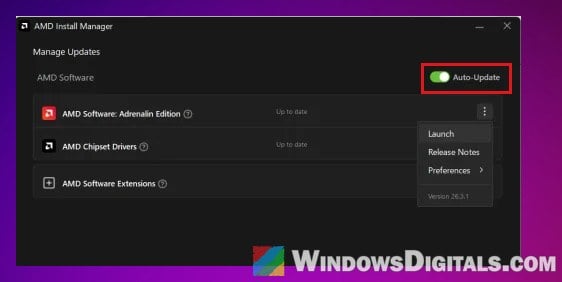
- On older versions of AMD Software (from 2025), there’s no switch. Uncheck “Automatically keep AMD software up to date” at the bottom of the window instead.
- Close the window.
From now on, Install Manager won’t download and install new versions on its own. When you want to update, open it again and install the update from there.
Might be useful: How to Disable Desktop Pop Up Notifications on Windows 11
Hide the notifications in Windows instead
If you’re fine with the automatic updates and only want the pop-ups gone, you can turn off notifications from Install Manager in Windows 11. Here’s how:
- Press Win + I to open Settings, then go to System > Notifications.
- Scroll down to “Notifications from apps and other senders“.
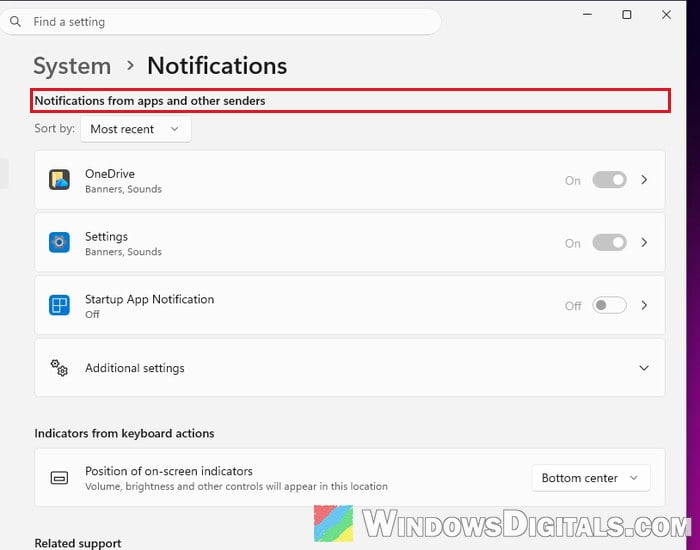
- Find the AMD Install Manager entry (it may show as AMD.InstallManager) and turn its switch Off.
Updates will keep happening quietly in the background. Just keep in mind that you won’t be told when your driver changes, so if a game starts acting up after an update, it’s worth checking AMD Install Manager to see what was installed.
What if Install Manager suddenly shows in Arabic?
Some people have seen the notification, or the whole Install Manager window, suddenly appear in Arabic even though Windows and AMD Software are in English or another language, and there’s no setting to change it back. This has been reported by quite a few people on Reddit, and it appears to be a language bug in Install Manager itself rather than anything malicious. For some, a later AMD update fixed it; for others it stayed.
Some of them fixed it by closing AMD Software and deleting the other language folders in C:\Program Files\AMD\AMDInstallManager\localization, keeping only their own language. If you try this, copy the localization folder somewhere safe first and only delete things inside it. If you’re not comfortable deleting files in Program Files, you can simply leave it, since it only changes the language the window is shown in.
Should you remove AMD Install Manager?
There’s no real need to. It’s AMD’s own tool, and AMD Software uses it to install and update your drivers, so removing it can make updating harder later. If the automatic updates or the notifications bother you, the two settings above take care of that without removing anything.