If you have an empty or useless folder stuck in the Windows 11 Start menu, either in the Pinned section or in the All apps list, and right-clicking it only gives you options like “Move left” or “Start settings” with no way to unpin or remove it, the fix depends on which kind of folder it is. This guide will show you how to tell them apart and how to get rid of each one.
Also see: Start Menu Not Working or Won’t Open in Windows 10/11
Page Contents
Which kind of folder is stuck in your Start menu?
The Windows 11 Start menu can show two completely different kinds of folders, and they don’t come from the same place:
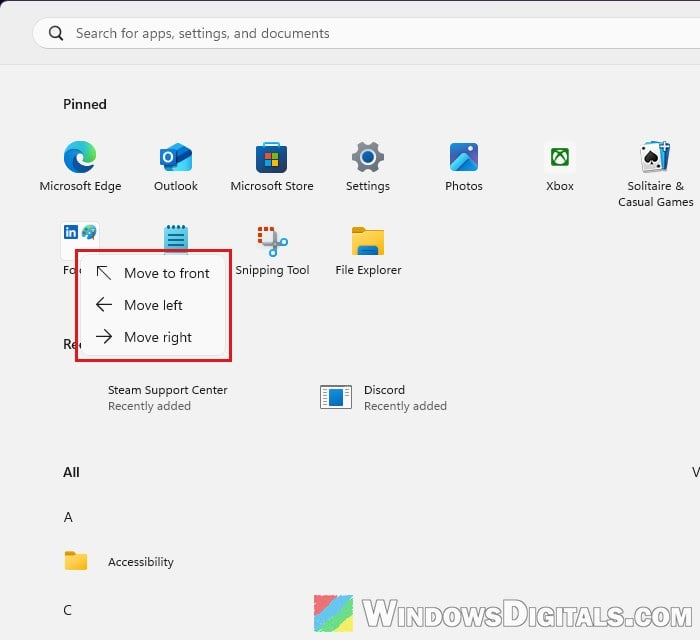
- A folder in Pinned: This is a group of pins, made when one pinned app is dragged onto another. It only exists in the Pinned section. When you right-click it, you only get “Move to front“, “Move left” and “Move right“, and no option to unpin it.
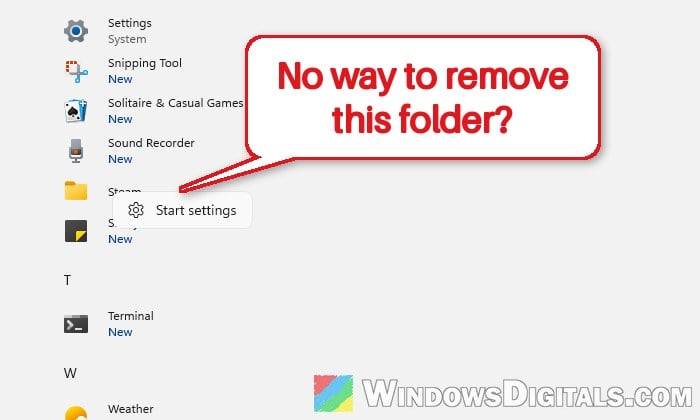
- A folder in All: This one comes from a real folder on your drive, inside the Start menu’s Programs folders. An app’s installer usually creates it, and some uninstallers forget to delete it, which is why you’ll often see a leftover Steam or Discord entry after the app is long gone. Right-clicking it only shows “Start settings“, and the apps inside it often have blank icons. If you can’t spot it, click “View” at the top right of All and choose “List“, which sorts everything alphabetically.
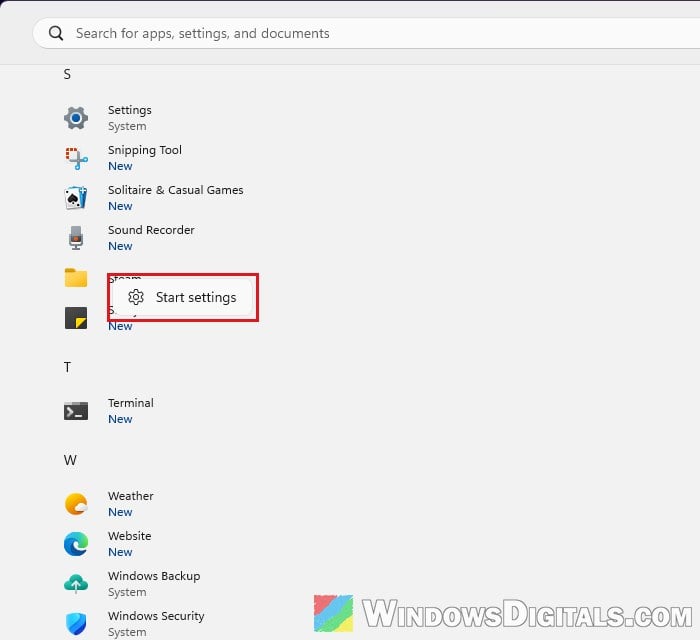
This is a pretty common thing after uninstalling apps, and it comes up quite often on Microsoft’s forums and Reddit. The two kinds are handled separately: deleting folders on your drive won’t touch a folder in Pinned, and dragging pins around won’t remove a folder from All. So check where yours is first, then go to the matching section below.
Remove a folder from the Pinned section
There’s no unpin option for a pin folder. Instead, Windows removes it once there are no apps left inside, so what you need to do is take the apps out. You can drag them out, or use the “Remove from app folder” option, which is easier than dragging if you find it fiddly.
Here’s how to do it:
- Open the Start menu and click the folder in Pinned to open it.
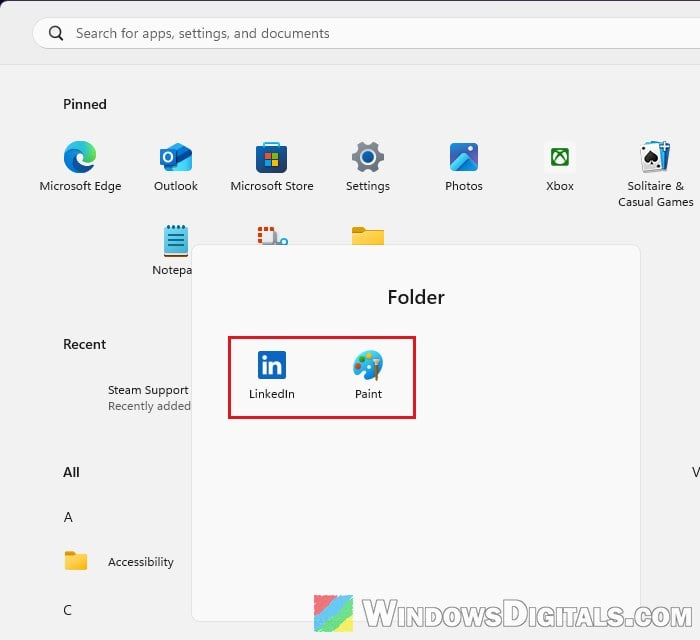
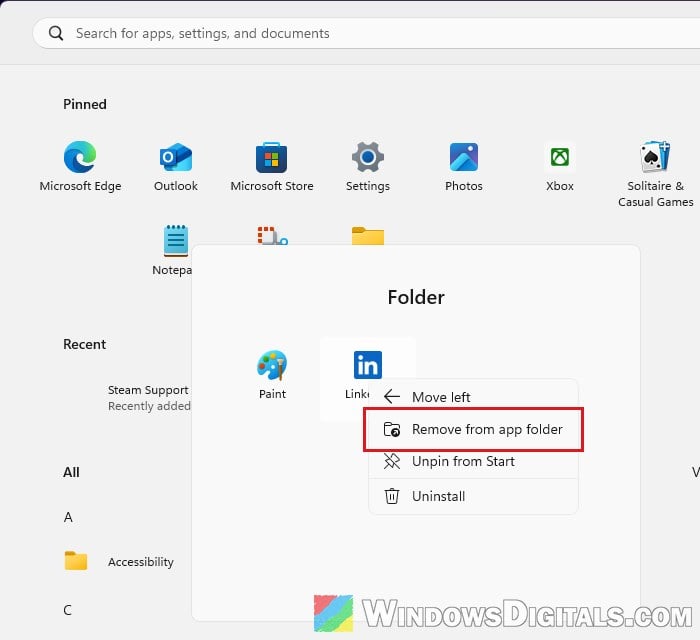
- Right-click one of the apps inside the folder and select “Remove from app folder“. You can also just drag the app out of the folder and drop it somewhere else in Pinned.
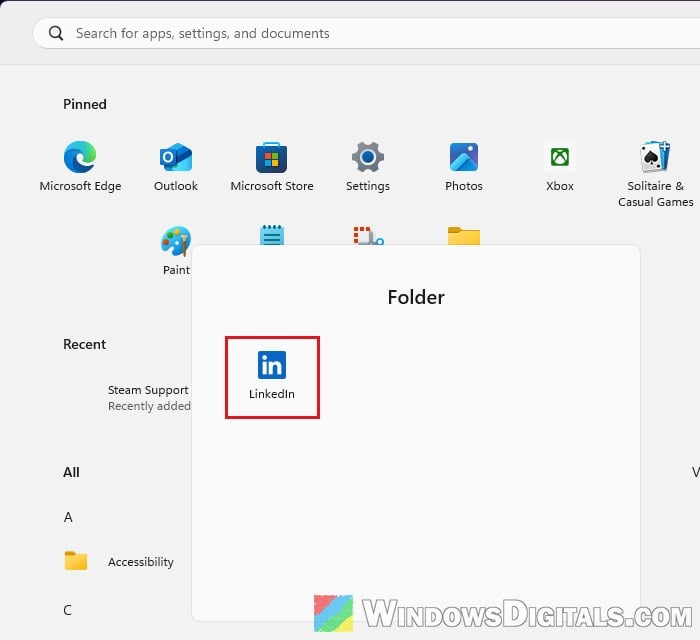
- Repeat this for every app in the folder. Make sure you also take out the last one. In our testing on a recent Windows 11 build, the folder stayed in place with one app still inside it, and it only disappeared after the last app was removed too.
- If you don’t want an app pinned at all, right-click it and select “Unpin from Start” instead.
Once the last app is out, the folder should be gone, and the apps you removed from it stay in Pinned as normal pins.
What if the folder is completely empty?
If the folder has nothing inside it to take out, give it something first. Drag any pinned app onto the empty folder to put it inside, open the folder, and then take that app back out the same way as above. When the folder has no apps left, Windows should remove it.
Restart Windows Explorer if the folder still won’t go away
If the folder refuses to leave, or the Start menu doesn’t seem to update after your changes, restarting Windows Explorer refreshes it. Your taskbar and desktop will disappear for a moment while it restarts, which is normal. Follow the steps below:
- Press Ctrl + Shift + Esc to open Task Manager.
- On the “Processes” tab, find “Windows Explorer“.
- Right-click “Windows Explorer” and select “Restart“, then wait for the taskbar to come back.
- Open Start again and repeat the steps above.
Signing out and back in, or restarting your PC, does the same thing if you prefer.
Related guide: Restart Explorer.exe with CMD or PowerShell in Windows 11
Delete a leftover folder from the All apps list
Folders in the All list come from two places on your drive: one for all user accounts on the PC and one for your own account. When an app’s uninstaller leaves its Start menu folder behind, the folder keeps showing in All even though the app is gone. Deleting that folder from your drive removes it from the Start menu. It only holds the app’s Start menu shortcuts, so deleting it just removes those shortcuts from Start, but do make sure you only delete the folder you actually want gone.
To delete the leftover folder, follow the steps below:
- Press Win + E to open File Explorer.
- Copy and paste the following path into the address bar and press Enter:
%ProgramData%\Microsoft\Windows\Start Menu\Programs
This is the Programs folder for all user accounts.
- Look for the folder with the same name as the one stuck in your Start menu (for example, Steam). Right-click it and select “Delete” (the trash can icon). If Windows asks for administrator permission, allow it, since this folder is shared by all accounts on the PC.
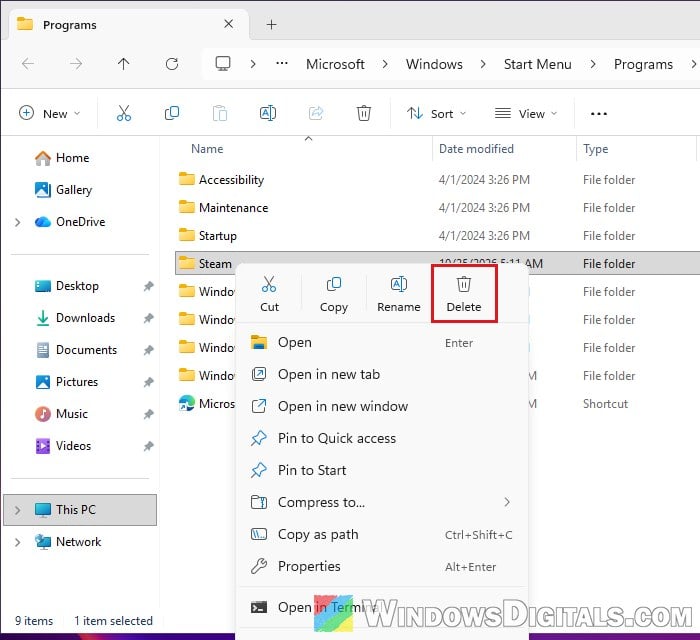
- If the folder isn’t there, paste this path into the address bar instead, press Enter, and look for it there:
%AppData%\Microsoft\Windows\Start Menu\Programs
This is the Programs folder for your own account only.
- Open Start and check that the folder is gone from All.
Note that the folder on your drive doesn’t always have the same name as the app. Discord’s leftover, for example, can sit in a folder called Discord Inc. When we deleted the leftover folder in our test, it was gone from All straight away, though the app still showed under Recent as “Recently added” for a while, so don’t worry if you still see it there. If the folder is still in All, restart Windows Explorer as shown in the previous section.
Might be useful: How to Remove “Recommended” From Start Menu in Windows 11
Use “Open file location” to find the right folder
If you can’t tell which folder on your drive belongs to the leftover entry, let the Start menu show you. This works as long as the folder still has an app inside it (even one with a blank icon), and it also works for a single leftover entry that isn’t in a folder at all. Here’s how to do it:
- Open Start, find the leftover folder in All, and click it to open it.
- Right-click any app inside it and select “Open file location“.
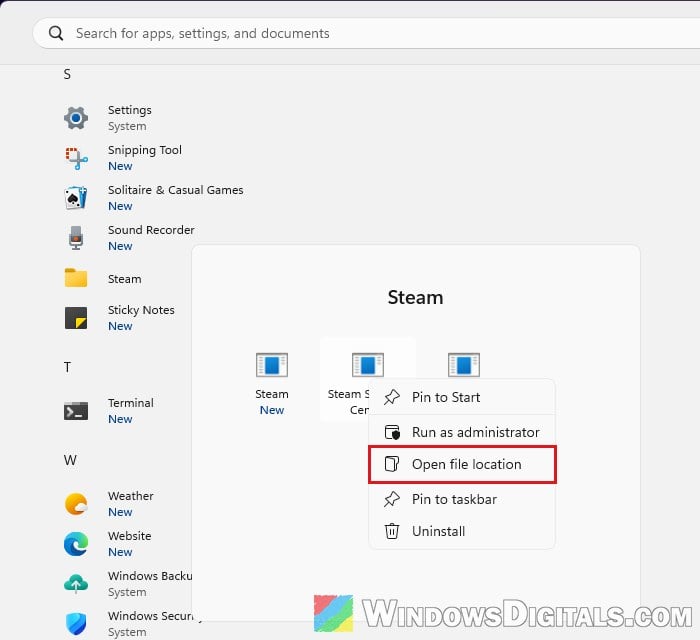
- File Explorer opens right inside the leftover folder. Click the “Up” arrow next to the address bar to go back to the Programs folder.
- Right-click the leftover folder and select “Delete“.
If the leftover is a single entry rather than a folder, step 2 takes you to the folder its shortcut is in. Delete that shortcut, or the folder around it if the folder belongs only to the app you removed. Then open Start again and the leftover should be gone from All.