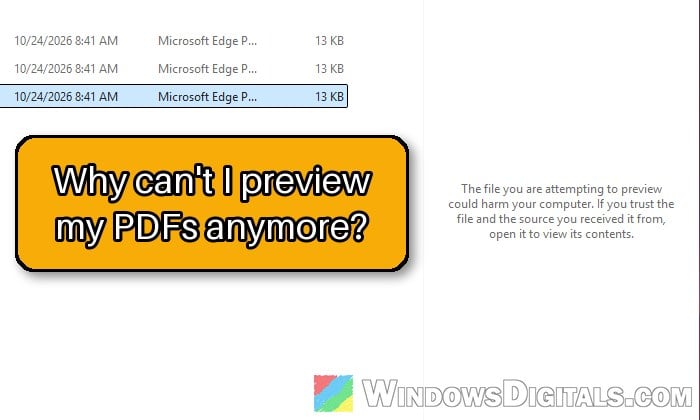
If you click a PDF, Word or Excel file you downloaded and File Explorer’s preview pane only says “The file you are attempting to preview could harm your computer. If you trust the file and the source you received it from, open it to view its contents.” instead of showing the file, this guide will explain why Windows 11 or 10 does this and how to get your previews back.
Also see: PDF Thumbnail and Preview Not Working in Windows 11 File Explorer
Page Contents
Why does File Explorer say the file could harm your computer?
This isn’t a bug or a sign that the file is infected. It’s a security change Microsoft made on purpose with the Windows security updates released on and after October 14, 2025.
When you download a file with a browser or save an email attachment, Windows quietly tags it with a hidden marker called the Mark of the Web. It tells Windows that the file came from the internet. Since those updates, File Explorer won’t preview any file with this marker.
According to Microsoft, previewing a file with certain HTML tags that point to an outside location could leak your NTLM hash (a form of your Windows sign-in credentials) to an attacker.
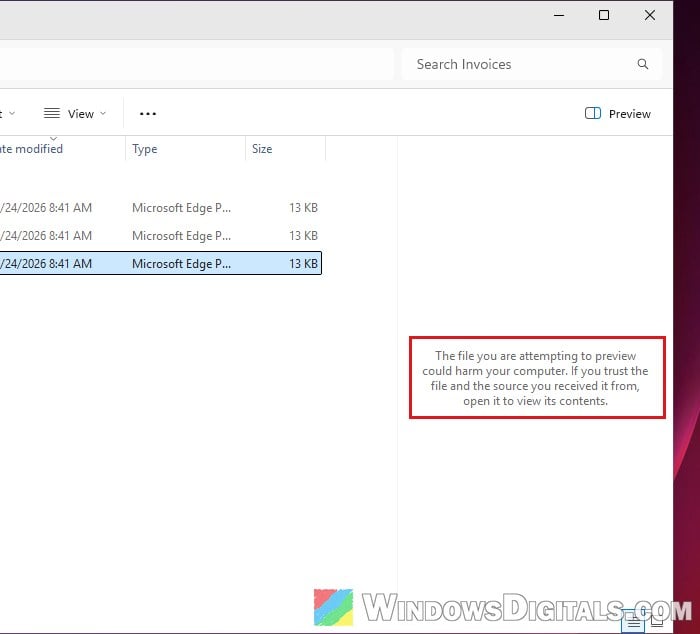
Opening the file still works; only the preview is blocked. Files on some network shares or SharePoint can show the same message too. Only use the fixes below on files you trust, from a source you trust.
Pro tip: How to Preview Files, Images and Videos in File Explorer on Windows 11
Install the latest Windows 11 update first
The good news is that Microsoft has since relaxed this block. The optional update KB5124010 from September 2026, and the October 13, 2026 security update (KB5127648) that includes it, change how the preview pane handles downloaded files on Windows 11 versions 24H2, 25H2 and 26H2:
- PDFs and other non-HTML files are previewed automatically again, without unblocking anything.
- HTML files are still blocked, but the preview pane now shows a “Preview anyway” button so you can choose to see the preview after reading the warning.
Here’s how to get it:
- Press Win + I to open “Settings” and select “Windows Update“.
- Click “Check for updates” and install everything it offers (click “Download & install” if an update is listed as available).
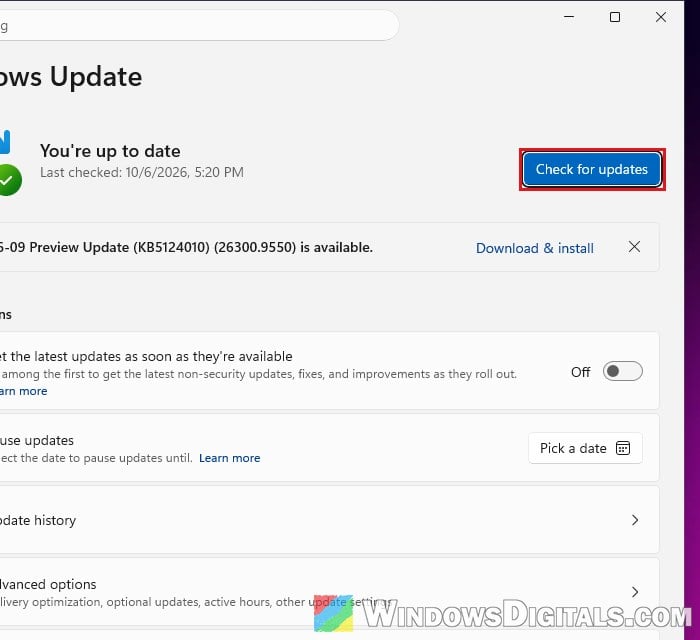
- Restart your PC when asked.
Please note that Microsoft is rolling this change out gradually, so your PC can have the update and still show the message for days or weeks. Microsoft’s notes for it only list Windows 11, so don’t count on it if you’re on Windows 10. Until it reaches your PC, use one of the methods below.
Unblock the file in its Properties
This is Microsoft’s own fix for a single file. Unblocking removes the Mark of the Web from it, so File Explorer previews it again.
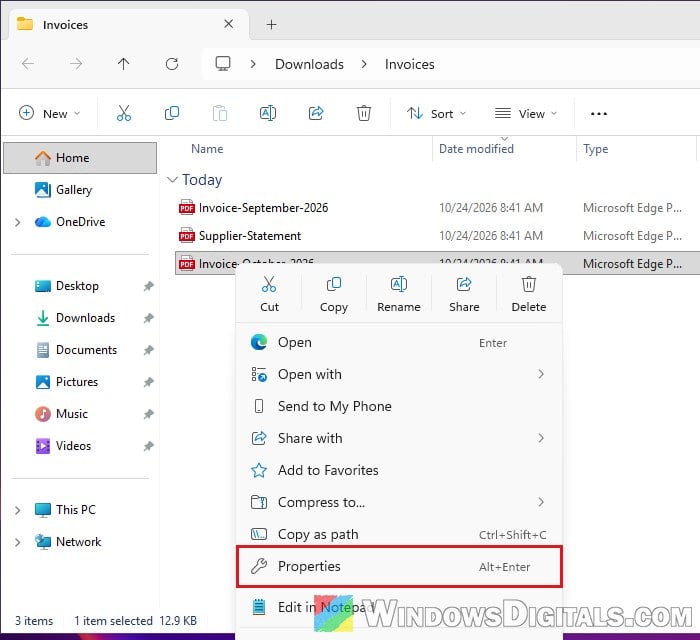
- Right-click the file in File Explorer and select “Properties“.
- On the “General” tab, look at the bottom for the “Security” line that says “This file came from another computer and might be blocked to help protect this computer.“
- Tick “Unblock” next to it.
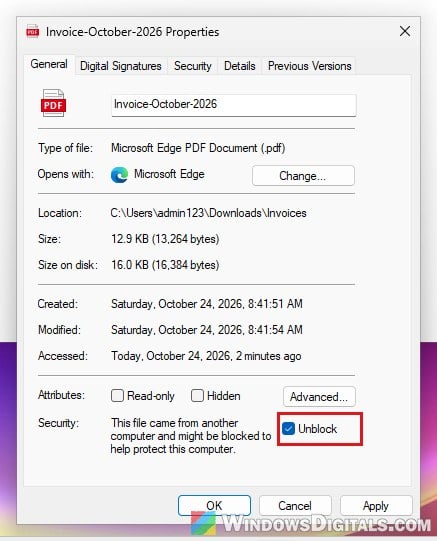
- Click “Apply“, then “OK“.
Click another file and then back on the one you unblocked, and the preview should now show. Microsoft says the change can take effect only after you sign out and back in, so if the message is still there, sign out or restart File Explorer and check again.
Related guide: Restart Explorer.exe with CMD or PowerShell in Windows 11
Unblock every file in a folder with PowerShell
Unblocking dozens of files one by one gets old quickly. PowerShell’s Unblock-File command does exactly what the “Unblock” checkbox does, and you can run it on a whole folder at once.
Be warned: This unblocks every file in the folder and its subfolders, including any installer or script you haven’t checked yet. Only run it on a folder of files you trust, not on a Downloads folder full of random files.
- Open the folder with the files in File Explorer.
- Right-click an empty area inside the folder and select “Open in Terminal“. On Windows 10, open PowerShell instead and type
cdfollowed by the folder’s path.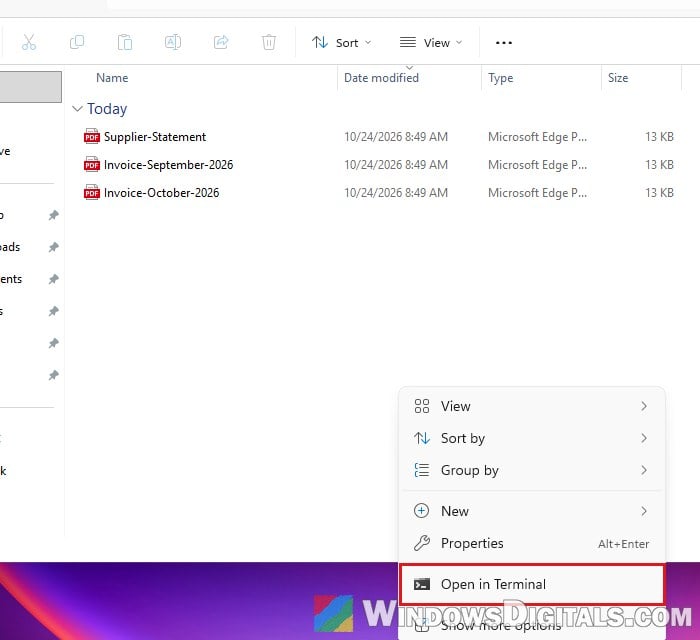
- Type the following command and press Enter:
Get-ChildItem -File -Recurse | Unblock-File
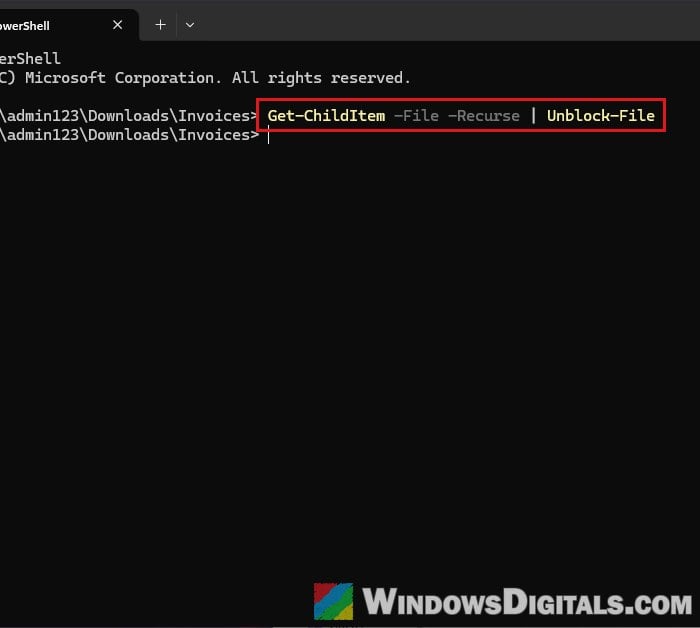 The command lists every file in the current folder and its subfolders and unblocks each one. It shows nothing when it’s done.
Go back to File Explorer and click one of the files. The preview should show again. Keep in mind this only fixes files that are already there; anything you download later gets marked again.
Add the network share or SharePoint site to “Trusted sites”
If the files sit on a network share, a mapped drive or SharePoint, Windows may be treating that location as part of the internet, so every file from it is blocked. The fix Microsoft gives is to mark that location as trusted in the old Internet Options settings. This relaxes security for every file from there, so only add a share or site you fully trust.
- Press Win + R, type
inetcpl.cpland press Enter to open Internet Properties. - Go to the “Security” tab, select “Trusted sites” and click “Sites“.
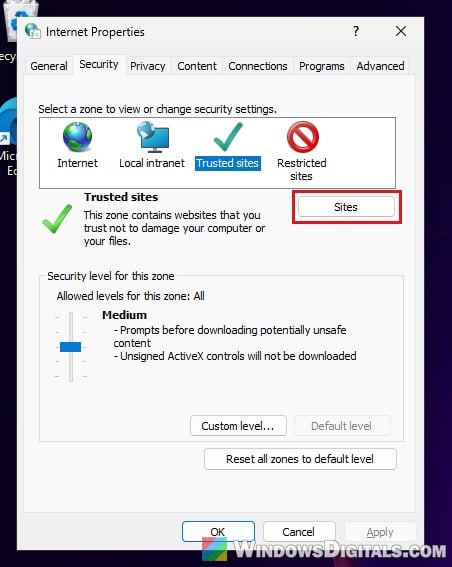
- Untick “Require server verification (https:) for all sites in this zone“. Without this, Windows won’t accept a network share address.
- Type the share’s address, for example
\\serverorfile://server, or your SharePoint address such ashttps://company.sharepoint.com, and click “Add“.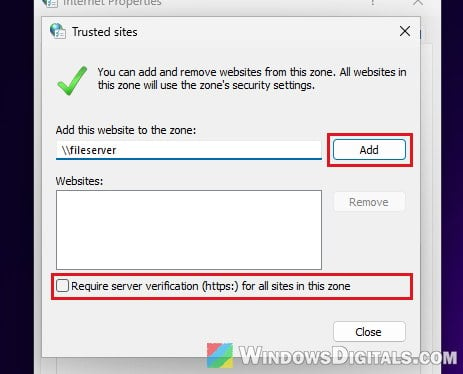
- Click “Close“, then “OK“.
“Local intranet” works for this too: select it in step 2 instead, then click “Sites” and “Advanced” to get the same address box. A website you download files from every day (a supplier’s portal, for example) can be added the same way. Then close and reopen File Explorer and try the preview again.
Might be useful: “Download Failed Blocked” on Chrome, Firefox or Edge
Stop Windows from marking new downloads (last resort)
If none of the above fits the way you work, you can tell Windows to stop adding the Mark of the Web to new downloads altogether.
Important: The Mark of the Web isn’t only for the preview pane. Windows uses it to judge how risky a downloaded file is and to warn you before you open one, so new downloads lose that protection too. It also doesn’t unblock files you already have.
Windows 11 or 10 Pro: use Group Policy
The following method needs the Pro, Enterprise or Education edition. If you’re using Home edition, please see the next section instead.
- Press Win + R, type
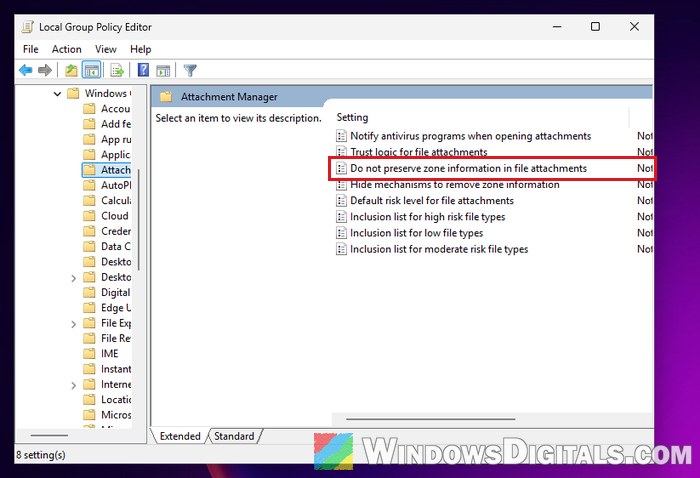
gpedit.mscand press Enter. - Go to User Configuration > Administrative Templates > Windows Components > Attachment Manager.
- Double-click “Do not preserve zone information in file attachments“.
- Select “Enabled“, then click “Apply” and “OK“.
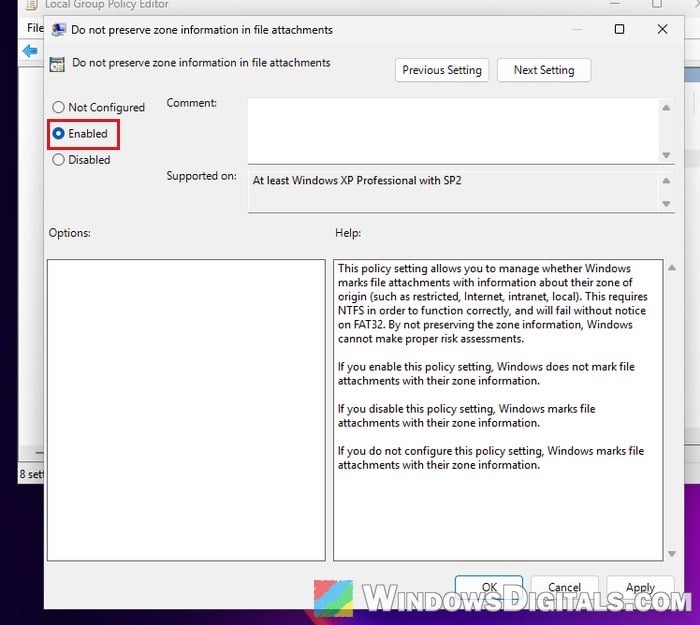
To undo it later, set the same policy back to “Not Configured“.
Windows 11 or 10 Home: use the Registry Editor
Incorrectly changing the registry could cause serious problems with Windows. Please at least create a system restore point first, and if you’re not sure what you’re doing, get someone who knows to help you instead.
- Press Win + R, type
regeditand press Enter, then click “Yes” if asked. - Copy and paste the following path to the address bar and press Enter:
HKEY_CURRENT_USER\Software\Microsoft\Windows\CurrentVersion\Policies
- If there’s no “Attachments” key under “Policies“, right-click “Policies“, select New > Key and name it
Attachments. - Select “Attachments“, right-click an empty area on the right, select New > DWORD (32-bit) Value and name it
SaveZoneInformation. - Double-click “SaveZoneInformation“, set its value data to 1 and click “OK“.
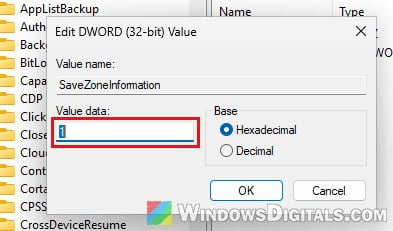
Download a new file and click it in File Explorer to check. To turn the warnings back on, delete the “SaveZoneInformation” value.