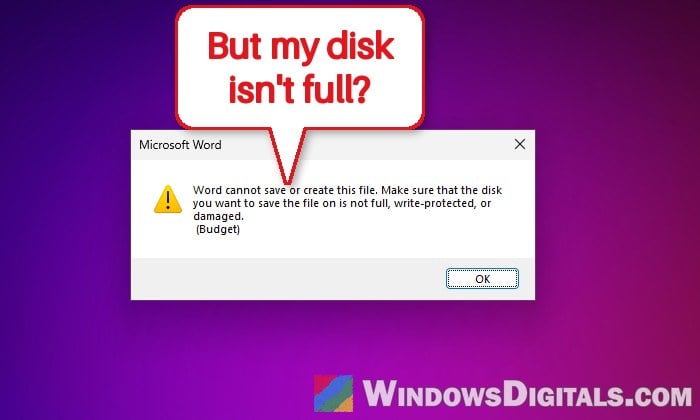
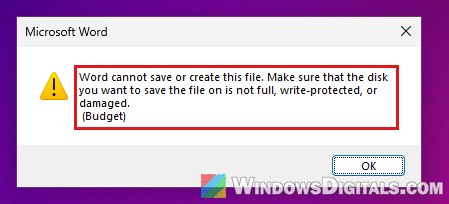
If you’re trying to save a document and Word keeps showing “Word cannot save or create this file. Make sure that the disk you want to save the file on is not full, write-protected, or damaged” even though your drive has plenty of space, the message is usually pointing at the wrong thing. This guide will show you how to keep your work safe first, and then what could actually be stopping Word from saving and how to fix it.
Also see: You require permission to make changes to this folder Windows 11
Page Contents
Why does Word say it can’t save or create the file?
Word shows this message whenever it can’t write the file, or the temporary file it makes while saving, to the folder you picked. So a full or write-protected disk is only one of many possible reasons, and it’s a pretty common complaint on Microsoft’s forums from people with plenty of free space.
Some common reasons for this issue are:
- Office isn’t activated, for example right after a subscription change.
- The file is in OneDrive, and your OneDrive storage is full.
- The drive really is full or write-protected, such as a USB drive.
- Windows Security’s Controlled folder access is blocking the save.
- An add-in, a damaged Normal.dotm template or a broken Office install is getting in the way.
- A problem inside the document itself, or a folder you can’t write to.
Before anything else, make sure you don’t lose what you’ve typed.
Save a copy somewhere else first
Saving a copy to a plain local folder keeps your work safe and tells you whether the problem is the location (OneDrive, a USB drive) or Word itself. Here’s how to do it:
- In Word, go to File > Save As > Browse.
- Pick a local folder like Documents and give the file a new, simple name, for example “Budget_v2.docx“. If it’s an old .doc file, save it as .docx.
If that still fails, the problem might be inside the document:
- Press Ctrl + A, then Ctrl + C to copy everything.
- Open a new document from File > New > Blank document.
- Press Ctrl + V and save the new document.
If nothing saves at all, paste the text into Notepad so at least the words are safe.
Check that Office isn’t showing “Unlicensed Product”
When Office can’t confirm your license, Microsoft says it shows “Unlicensed Product” in the title bar and most features are disabled. That can easily look like a saving problem, especially if you just changed your Microsoft 365 plan.
Here’s what to check:
- Look at the top of the Word window for “Unlicensed Product”.
- Go to File > Account and make sure you’re signed in with the Microsoft account that has your subscription.
- Open
https://account.microsoft.com/servicesand check that the subscription is active on that same account. - If more than one version of Office is installed, uninstall the one you don’t use from Control Panel > Programs and Features.
- Make sure your PC’s date, time and time zone are correct, and update Office.
Once Word shows as activated, restart it and try saving.
Is your OneDrive storage full?
If your document is in OneDrive, a full OneDrive can cause this error. According to Microsoft, once you’re over your storage limit, you can’t upload, edit or sync new files, and your existing files become read-only. To check it, follow these steps:
- Click the OneDrive cloud icon in the taskbar’s notification area. A red circle with a white minus sign on the icon means you’re over your limit.
- Click the gear icon, select Settings, and open the Account tab to see how much of your storage is used.
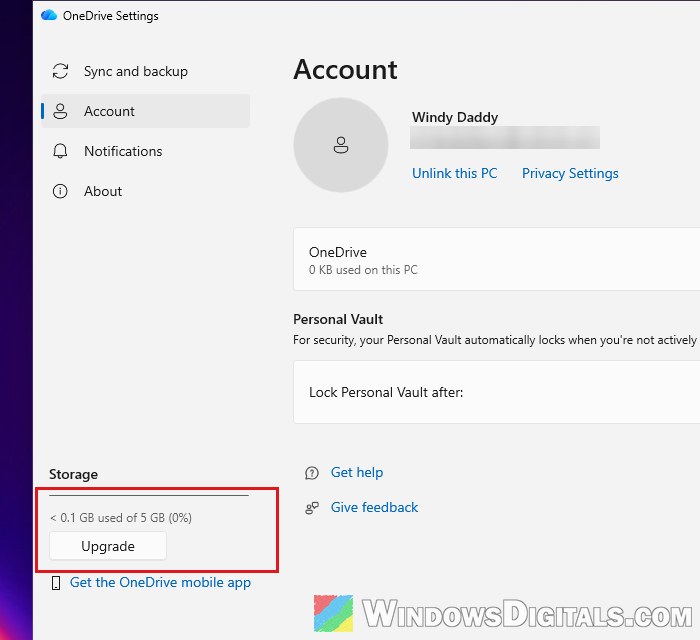
- If it’s full, delete files you don’t need (and empty OneDrive’s recycle bin on the web), or buy more storage.
Until there’s room again, save to a local folder outside OneDrive.
Linked issue: OneDrive Not Syncing or Uploading Files in Windows 11 (Sync Paused)
Make sure the drive has space and isn’t write-protected
Still, check the drive itself:
- Go to Settings > System > Storage and check how much free space your drive has.
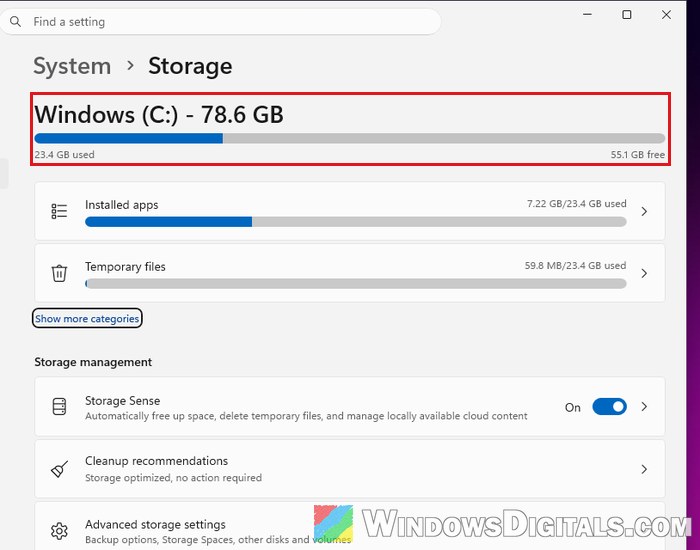
- If it’s nearly full, press Win + R, type “cleanmgr” and press Enter to open Disk Cleanup.
- Pick drive C:, tick Temporary files and Recycle Bin, and click OK.
- Saving to a USB flash drive or SD card? Check its lock switch (if any), or save to the PC first.
- To check the drive for errors, right-click it in File Explorer, select Properties, go to the Tools tab and click Check.
Then try saving your document again.
Pro tip: How to Clean C: Drive in Windows 11
Allow Word through Controlled folder access
Controlled folder access is a ransomware protection feature in Windows Security. When it’s on, only trusted apps can change files in protected folders such as Documents, Pictures, Videos and Music, and a blocked app simply can’t save there. Windows Security usually also shows an “Unauthorized changes blocked” notification.
The feature is off by default and Windows trusts most well-known apps automatically, so this only applies if you (or your workplace) turned it on. To allow Word, follow the steps below:
- Open Windows Security from the Start menu and go to Virus & threat protection.
- Scroll down to Ransomware protection and click Manage ransomware protection.
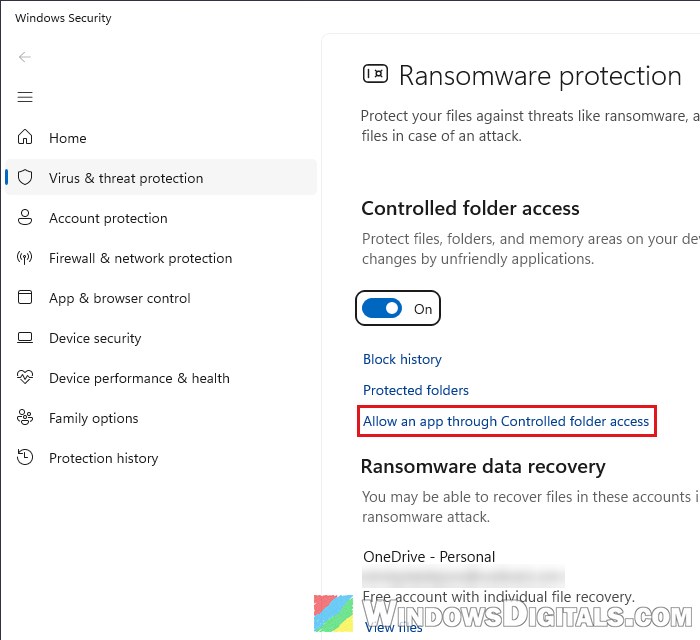
- Under Controlled folder access, click Allow an app through Controlled folder access, and select Yes when asked.
- Click Add an allowed app and choose Recently blocked apps, then add Word from the list. If it’s not there, choose Browse all apps and select Word’s program file (WINWORD.EXE).
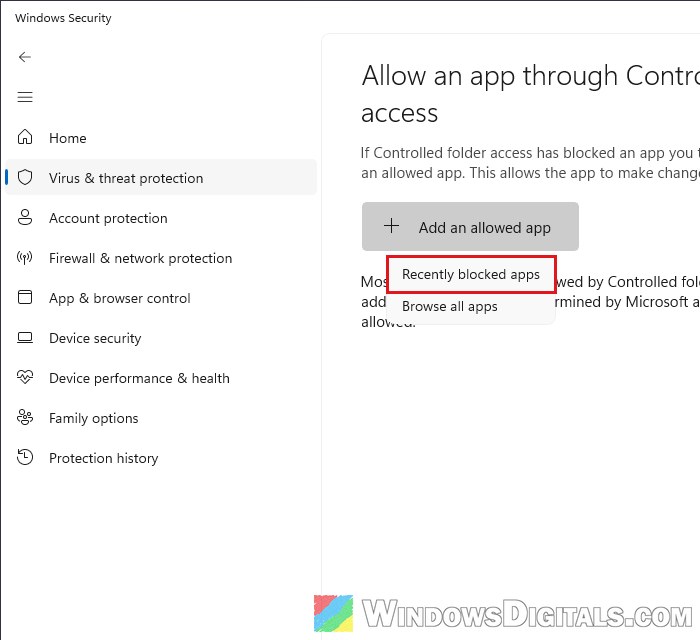
Then close Word completely and open it again, since an allowed app only takes effect when it starts.
Open Word in safe mode to rule out add-ins
A faulty add-in can break saving. Safe mode opens Word without add-ins, so it’s a quick way to tell. Here’s what you should do:
- Press Win + R to open the Run dialog box.
- Type “winword /safe” and click OK. You can also hold the Ctrl key while you open Word’s shortcut.
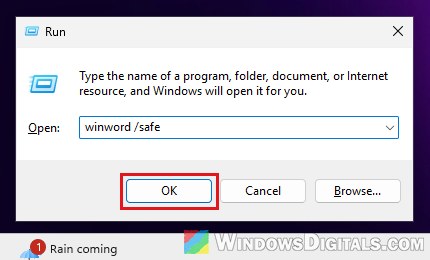
- Open your document and try saving it.
If it saves fine in safe mode, open Word normally, go to File > Options > Add-ins, choose COM Add-ins in the Manage menu, click Go, and untick the add-ins. Turn them back on one at a time to find the culprit.
Reset the Normal.dotm template
Normal.dotm is the template every new Word document is built from, with your default styles and customizations. If it’s damaged, Word can stop opening or saving documents properly. Renaming it makes Word create a fresh one the next time it starts.
- Close Word.
- Press Win + R, type the following path and press Enter:
%appdata%\Microsoft\Templates
- Right-click Normal.dotm, select Rename, and call it “Normal.old“.
- Open Word again and try saving.
Your default styles will be reset. If it doesn’t help, delete the new Normal.dotm and rename “Normal.old” back to “Normal.dotm”.
Repair Office
Some Office files might be damaged, and a repair replaces them.
- Right-click the Start button and select Installed apps.
- Find Microsoft 365 (or your Office version), click the three dots next to it, and select Modify.
- Choose Quick Repair first. If that doesn’t fix it, run Online Repair, which takes longer but fixes more.
Check the folder’s permissions
If the error only happens in one folder or drive, your account might not be allowed to write there. Right-click the folder, select Properties, open the Security tab, select your account and check that Full control is allowed. If it isn’t, click Edit to change it (or take ownership of the folder), or just save your documents in your own user folders.