If the Windows Security shield icon is no longer in the bottom right corner of your taskbar, or it comes back for a while but disappears again every time you restart your Windows 11 PC, it’s usually because the icon is hidden or the small program that draws it isn’t being started when you sign in. This guide will show you why the icon goes missing and how to bring it back for good.
Also see: What is SecurityHealthSystray.exe that Runs on Startup?
Page Contents
Why is the Windows Security icon missing from the taskbar?
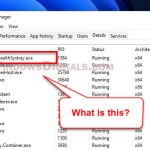
The shield icon you see in the taskbar corner isn’t Windows Security itself. It’s drawn by a small Microsoft program called SecurityHealthSystray.exe (in C:\Windows\System32), which Windows starts every time you sign in. If that program doesn’t start, the icon simply isn’t there.
Some common reasons for this are:
- The icon is just tucked away in the hidden icons area, or its switch in the taskbar settings was turned off.
- The Windows Security startup entry is disabled. When this entry is off, the icon is removed, and the taskbar switch alone won’t bring it back after a restart.
- The startup entry is gone completely, so there’s nothing left to switch on.
- A policy is hiding the icon, which is usually something a company or school sets on PCs it manages.
The good news is that a missing icon doesn’t mean your PC is unprotected. The icon is only a status shortcut, and your protection keeps running without it.
Pro tip: How to Show Hidden Icons on Windows 11 Taskbar Corner
Check the hidden icons and the taskbar setting
Before anything else, click the small up arrow (^) to the left of the clock and the network icons. If the shield is sitting in that little pop-up, just drag it back onto the taskbar.
If it isn’t there either, check whether the icon was switched off in the taskbar settings:
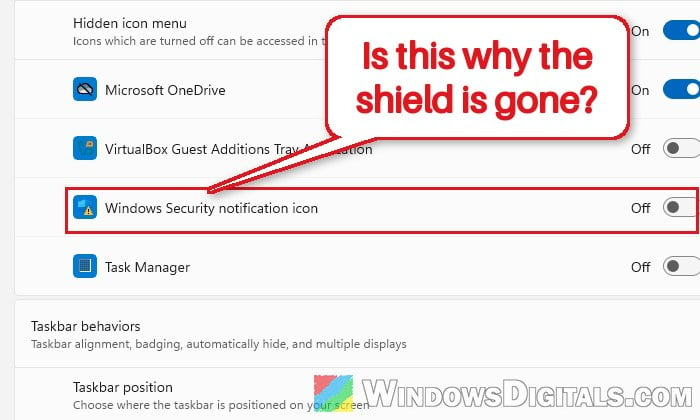
- Right-click an empty area of the taskbar and select Taskbar settings (or go to Settings > Personalization > Taskbar).
- Click Other system tray icons to expand it.
- Turn on the switch for Windows Security notification icon.
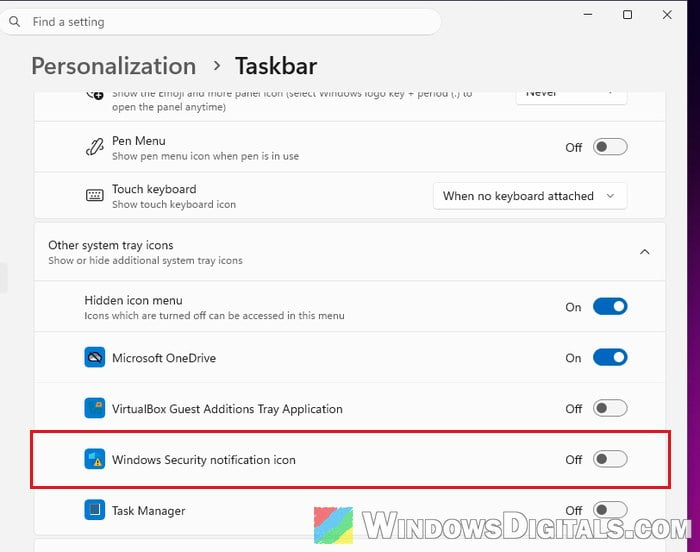
The shield should show up in the taskbar corner. If the switch was already on, or the icon is gone again after a restart, the startup entry is the next thing to check.
Turn the Windows Security startup entry back on
If the icon disappears after every restart, this is most likely the fix you need. Windows starts the icon through a normal startup entry, the same kind your other apps use. When that entry is disabled, the icon is removed at every sign-in no matter what the taskbar switch says, which is why turning the switch on often doesn’t survive a restart.
To enable it in Task Manager, follow the steps below:
- Press Ctrl + Shift + Esc to open Task Manager.
- Click Startup apps on the left.
- Find SecurityHealthSystray in the list (this is the Windows Security icon) and check its Status column.
- If it says Disabled, right-click it and select Enable.
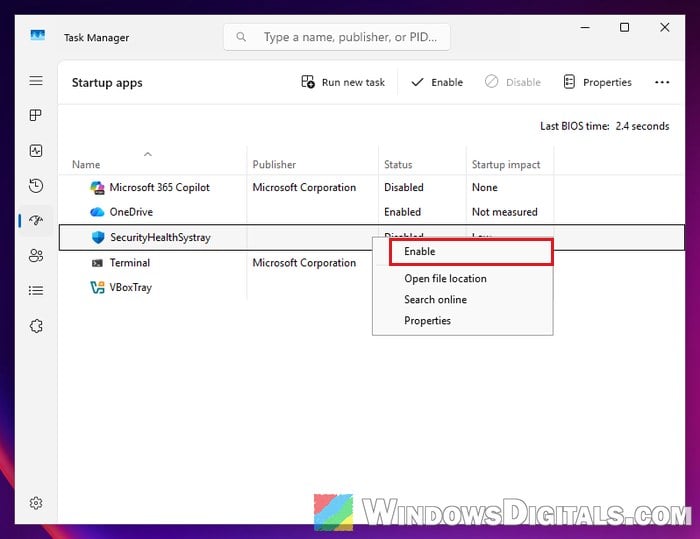
- Restart your PC.
You can also do the same thing in Settings > Apps > Startup, where the same entry is called Windows Security notification icon and has a simple on and off switch.
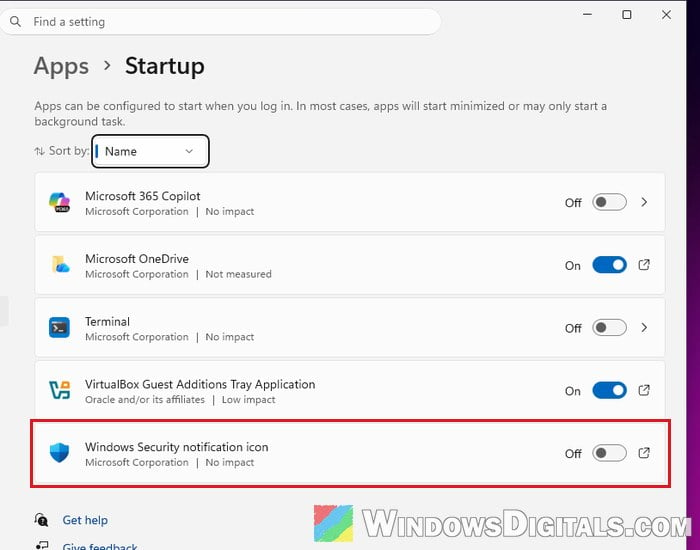
After the restart, the shield should be back in the taskbar corner and stay there.
Might be useful: How to Disable Startup Programs in Windows 11
Bring the icon back right away with SecurityHealthSystray.exe
If you just want the icon back now without restarting, you can start the program that draws it yourself. This is quick and safe, since it’s the same file Windows runs at sign-in. Here’s how to do it:
- Press Win + R to open the Run dialog box.
- Type or paste the following path and click OK:
C:\Windows\System32\SecurityHealthSystray.exe
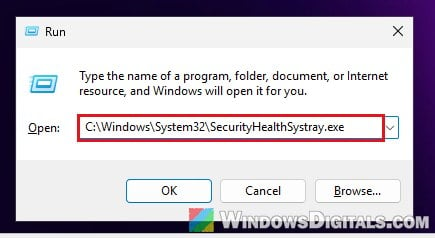
The shield should appear in the taskbar corner straight away. Keep in mind that this only lasts until the next restart if the startup entry is still off or missing, so do this together with the fix above or the one below.
If the startup entry is missing, add it back
Sometimes there’s no Windows Security entry in Startup apps at all, so there’s nothing to enable. In that case, you’ll need to add it back yourself, either with a Startup folder shortcut or with a command.
Put a shortcut in the Startup folder
This is the easiest way, and it doesn’t touch the registry. Anything in your Startup folder runs every time you sign in. Here’s what you should do:
- Press Win + R, type “shell:startup” and press Enter. This opens your Startup folder.
- Right-click an empty space in the folder and select New > Shortcut.
- In the location box, paste the following path, then click Next:
C:\Windows\System32\SecurityHealthSystray.exe
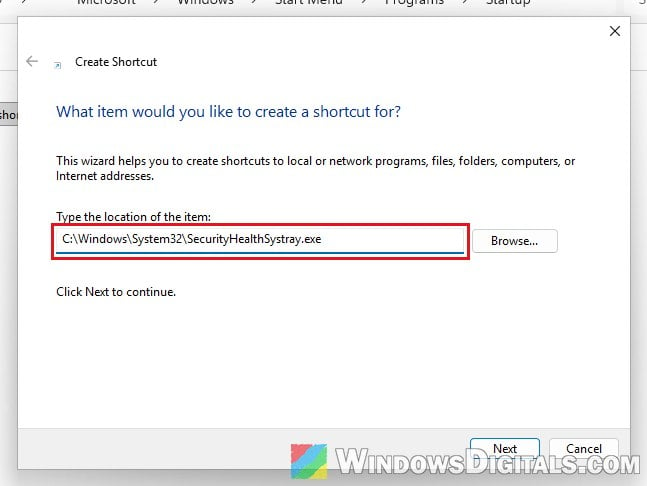
- Leave the name as it is (or call it “Windows Security icon”) and click Finish.
- Restart your PC and check the taskbar corner.
Learn more: Where is the Startup Folder in Windows 11/10 for All Users
Add the startup entry back with a command
If you’d rather have a real startup entry back (so it shows up in Startup apps again), you can add it with one command. It writes a value to the registry, so please at least create a system restore point first. Here’s how to add it:
- Search for “cmd” in the Start menu, right-click Command Prompt and select Run as administrator.
- Type the following command and press Enter:
reg add "HKLM\SOFTWARE\Microsoft\Windows\CurrentVersion\Run" /v SecurityHealth /d "%windir%\system32\SecurityHealthSystray.exe" /t REG_SZ /f
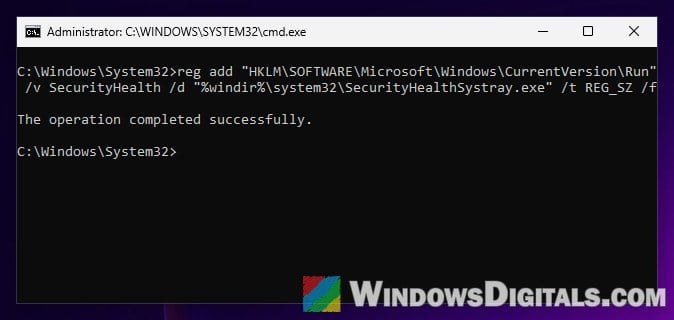
- Restart your PC.
If you created the Startup folder shortcut earlier and this entry now works, you can delete the shortcut, since you no longer need it.
Check if a policy is hiding the icon
If none of the above works, Windows may have been told to hide the icon for every user. This is done with a policy called Hide Windows Security Systray. It’s usually set by a company or school, so if your PC is managed by your work or school, ask your IT admin before changing it.
On Windows 11 Pro, Enterprise or Education, you can check it in the Local Group Policy Editor:
- Press Win + R, type “gpedit.msc” and press Enter.
- Go to Computer Configuration > Administrative Templates > Windows Components > Windows Security > Systray.
- Double-click Hide Windows Security Systray.
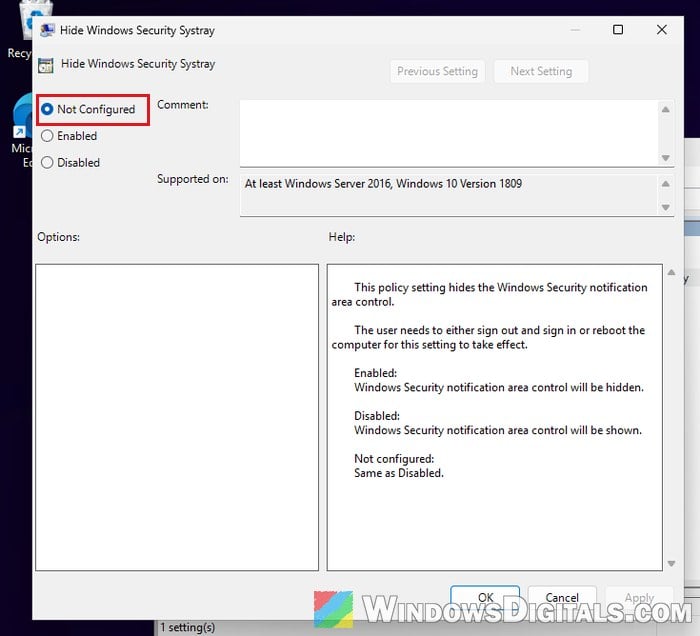
- Select Not Configured and click OK.
- Restart your PC.
For Windows 11 Home users, the same policy is kept in the registry. Incorrectly changing the registry can cause serious problems, so please at least create a system restore point first. If you’re not sure what you’re doing, it’s better to get someone to help you instead. Here’s how to check it:
- Press Win + R, type “regedit” and press Enter.
- Copy and paste the following path to the address bar and press Enter: If Registry Editor stops at a key higher up instead, the Systray key isn’t there, which means no policy is hiding the icon, and you can leave the registry alone.
HKEY_LOCAL_MACHINE\SOFTWARE\Policies\Microsoft\Windows Defender Security Center\Systray
- If there’s a value called HideSystray set to 1, right-click it and select Delete (or double-click it and change it to 0).
- Restart your PC.