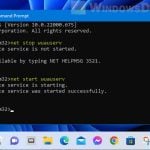
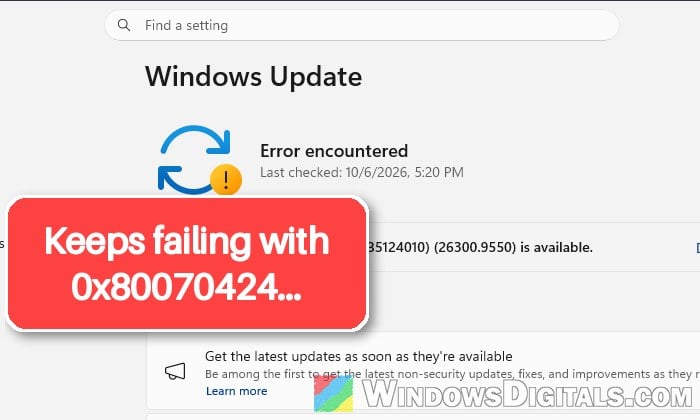
If Windows Update keeps failing with error 0x80070424, or an app installer stops with that code while it tries to get updates, it usually means the Windows Update service itself is missing from your PC. In Windows 11, the Windows Update page may only say “Error encountered” with a “Retry” button that doesn’t fix anything. This guide will explain what the error means and how to get the service back.
Also see: Update Orchestrator Service is Missing in Windows 11
Page Contents
What does error 0x80070424 mean?
Error 0x80070424 stands for “The specified service does not exist as an installed service“. In other words, Windows tried to start a service it needs, and that service isn’t there at all. For Windows Update, that service is called Windows Update (wuauserv), and its settings live in a registry key that has gone missing or been damaged.
This is different from the similar 0x80070422 error, which Microsoft lists for when the Windows Update service is there but stopped or disabled. With 0x80070424, the service is usually gone completely, which is why simply restarting it doesn’t help.
Malware is a common reason the service disappears, so it’s worth scanning your PC before you bring the service back.
Linked issue: Microsoft Store “Error encountered – One of the update services is not running properly”
Check if the Windows Update service is still there
Before changing anything, check whether the service actually exists. This takes a few seconds and tells you which fix you need.
- Search for “cmd” in the Start menu, right-click Command Prompt and select “Run as administrator“.
- Type the following command and press Enter:
sc query wuauserv
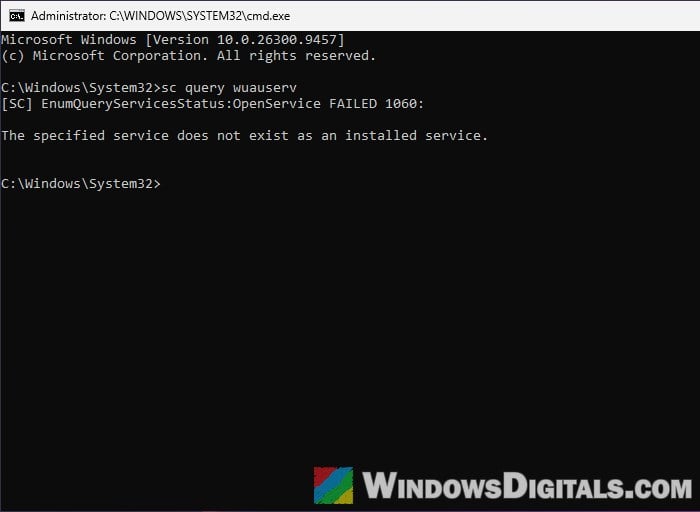
- If it says “FAILED 1060” and “The specified service does not exist as an installed service“, the service is gone. Skip to the malware scan and then restore the service as shown below.
- If it shows the service with a state (for example STOPPED or RUNNING), the service exists. Press Win + R, type “services.msc” and press Enter.
- Find Windows Update, Background Intelligent Transfer Service and Cryptographic Services, and double-click each one to check its “Startup type“. By default, Windows Update and Background Intelligent Transfer Service are Manual, and Cryptographic Services is Automatic. If one is set to Disabled, change it back and click “Apply“. A disabled service can’t start at all (Windows reports error 1058).
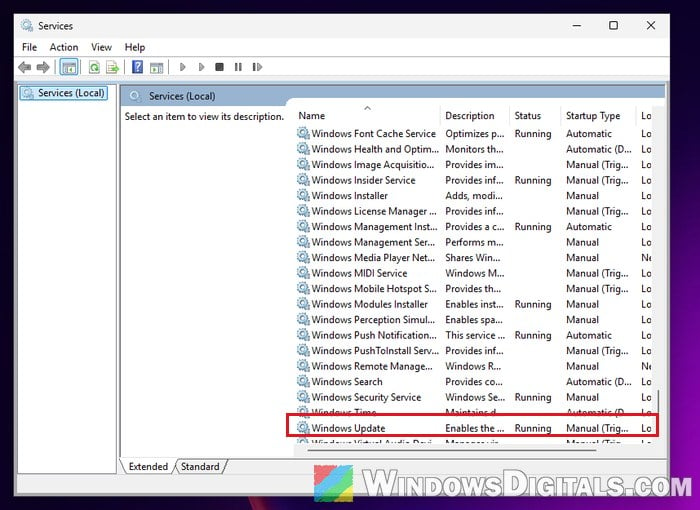
- Click “Start” for any of them that isn’t running, click “OK“, and try Windows Update again.
Related guide: How to Restart Windows Update Service on Windows 11
Scan your PC for malware first
If the service is missing, scan your PC before you restore it. If malware deleted it, it can simply delete it again. The best tool for this is Microsoft Defender Offline, which scans your PC before Windows fully loads, when malware is harder to hide.
- Open Windows Security and go to “Virus & threat protection“.
- Click “Scan options“.
- Save your work, then select “Microsoft Defender Antivirus (offline scan)” and click “Scan now“.
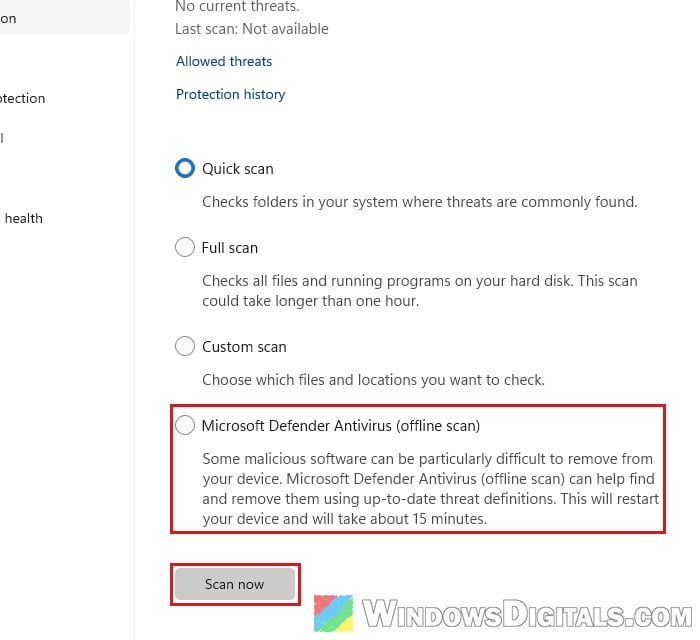
- Your PC restarts and runs the scan, which takes about 15 minutes.
You can see what it found afterward under “Protection history” in Windows Security.
If Windows Security is broken or missing too, use Microsoft Safety Scanner instead. It’s a free scanner from Microsoft that doesn’t need installing. Download it from https://learn.microsoft.com/en-us/defender-endpoint/safety-scanner-download, then run it. It stops working 10 days after you download it, so get a new copy if you need it again later.
Might be useful: How to Reinstall Windows Defender in Windows 11
Restore the Windows Update service from another PC
Once the PC is clean, you can bring the service back by copying its registry key from another PC that runs the same version of Windows. This is the fix that has worked for most people with this error on Microsoft’s forums. We tested it on a PC with the service deleted, and Windows Update worked again after a restart.
Incorrectly changing the registry could cause serious problems, so please create a system restore point on the broken PC first. If you’re not sure what you’re doing, it’s better to get someone to help you instead.
On the working PC:
- Open Command Prompt as administrator.
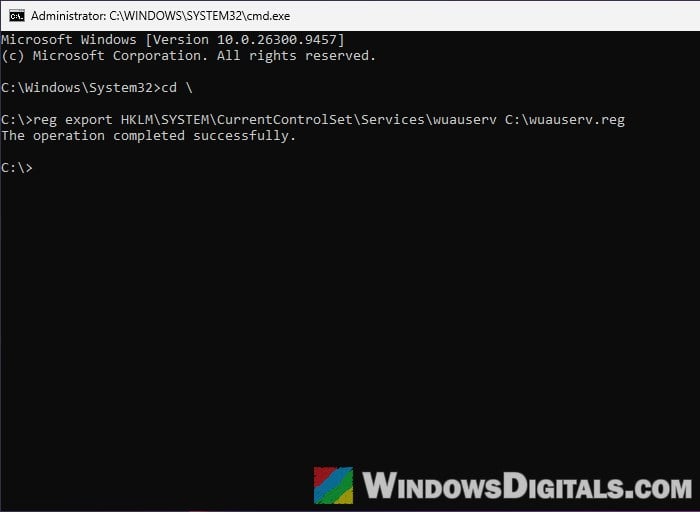
- Run the following command to save the Windows Update service’s key to a file:
reg export HKLM\SYSTEM\CurrentControlSet\Services\wuauserv C:\wuauserv.reg
- Copy
C:\wuauserv.regto a USB drive.
On the PC with error 0x80070424:
- Copy
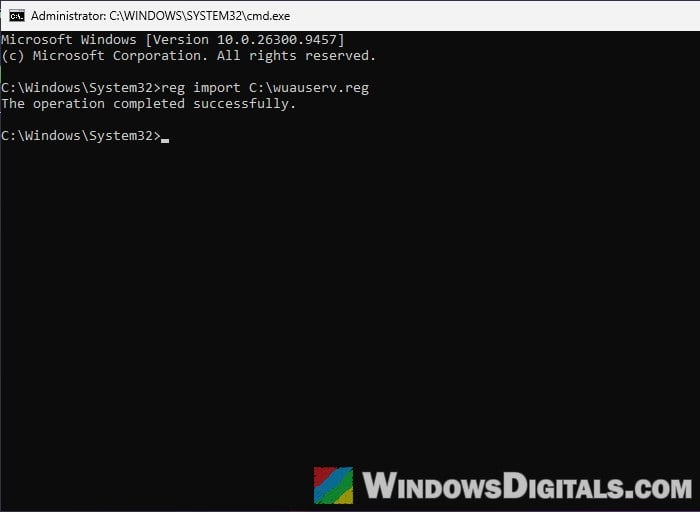
wuauserv.regto the root of the C: drive. - Open Command Prompt as administrator and run:
reg import C:\wuauserv.reg
- Restart your PC. The service won’t show up until after a restart.
- Run
sc query wuauservagain. It should now show the service as STOPPED or RUNNING instead of FAILED 1060.
After that, open Settings > Windows Update and click “Check for updates“.
Repair install Windows as a last resort
If you don’t have another PC with the same Windows version, or the import fails with “Not all data was successfully written to the registry“, a repair install is the next step. It reinstalls Windows over itself, which usually puts missing system files and services back, while keeping your personal files and apps.
- For Windows 11, download the ISO from
https://www.microsoft.com/software-download/windows11. For Windows 10, use the Media Creation Tool fromhttps://www.microsoft.com/software-download/windows10to create a USB drive. It has to be the same edition as yours, and the same or a newer version. - Right-click the ISO file and select “Mount” (or plug in the USB drive), then open setup.exe from that drive in File Explorer.
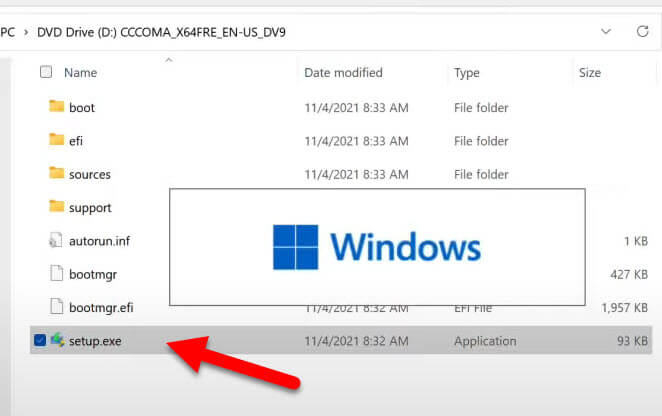
- Follow the setup. When it gets to the summary, make sure it says “Keep personal files and apps“. If not, click “Change what to keep” and choose it.
- Click “Install” and let it finish.
When it’s done, check the startup types in Services again as shown above. In some cases the service comes back but is set to Disabled. If so, change it to Manual, start it, and try Windows Update again.