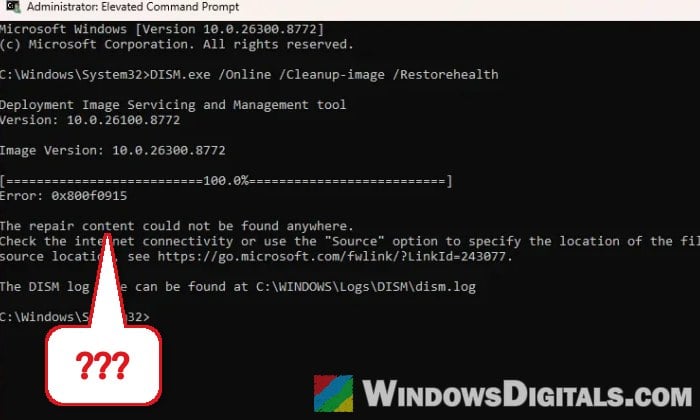
If you ran DISM /Online /Cleanup-Image /RestoreHealth to repair Windows 11 and it stopped with “Error: 0x800f0915 The repair content could not be found anywhere“, it’s a pretty common problem. Pointing DISM at a downloaded Windows ISO often ends with the exact same error too. This guide will explain why DISM can’t find its repair files and show you how to get Windows repaired anyway.
Also see: Windows 11 Update Keeps Failing With Error 0x800f0991
Page Contents
What does error 0x800f0915 mean?
To repair Windows, DISM needs good copies of the damaged files. By default, it downloads them from Windows Update, and you can add other places with the /Source option. Error 0x800f0915 means it couldn’t get the files it needed from any of them.
There are two common reasons for this:
- DISM couldn’t reach Microsoft’s servers properly.
- Your Windows build is newer than the source. According to Microsoft, a repair source has to be on the latest cumulative update. A Windows ISO only has the files from the day it was released, so on a PC with newer updates, DISM can’t find what it’s looking for. That’s why so many people get the same error again after mounting an ISO.
It often shows up right after a Windows update. If sfc /scannow finds nothing and Windows Update still installs updates normally, the error may not be affecting anything at all.
Pro tip: How to Run SFC Scannow Command At Boot in Windows 10/11
Check your connection and install pending updates
Since Windows Update is where DISM gets its files by default, a bad connection to Microsoft’s servers is enough to cause this error. Restarting the router and the PC is sometimes enough to fix it. It’s also a good idea to install any pending updates before you try again.
Here’s what to do:
- Restart your router or modem, then restart your PC.
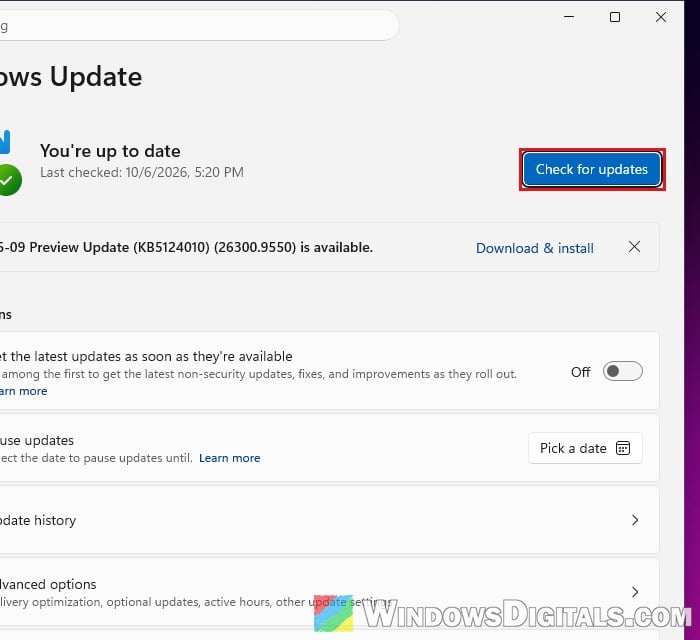
- Press Win + I, go to Windows Update and click Check for updates. Install everything it offers and restart your PC if it asks.
- Click Start, type “cmd“, and select Run as administrator for Command Prompt, then click Yes.
- Run DISM again:
DISM /Online /Cleanup-Image /RestoreHealth
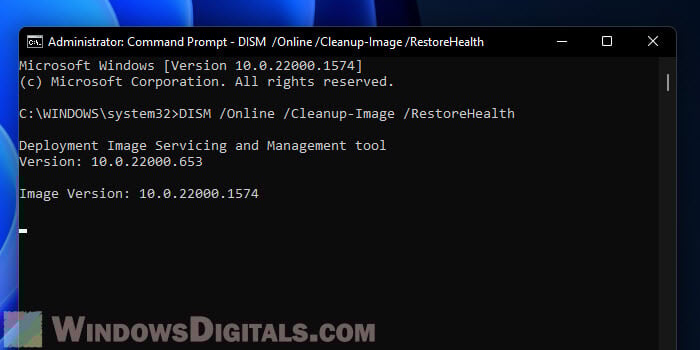
If it finishes with “The restore operation completed successfully“, run sfc /scannow afterwards to repair any system files that are still damaged.
Clean up the component store and run DISM again
Windows keeps old versions of updated system files in the component store. Cleaning out the ones it no longer needs before running the repair again can sometimes get rid of the error. It doesn’t always work, but it’s safe to try. It can take a while, though.
Open Command Prompt as administrator again, then follow the steps below:
- Type the following command and press Enter:
DISM /Online /Cleanup-Image /StartComponentCleanup
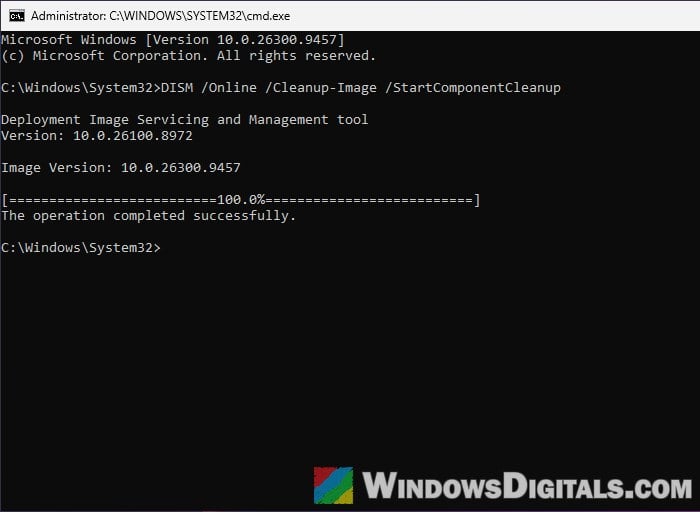
- Restart your PC.
- Open an admin Command Prompt again and run:
DISM /Online /Cleanup-Image /RestoreHealth
If it now finishes with “The restore operation completed successfully“, run sfc /scannow too.
Note: Don’t add /ResetBase to the cleanup command. Microsoft warns that installed updates can’t be uninstalled after it.
Use “Fix problems using Windows Update”
If DISM still can’t find its files, the most reliable way out is to let Windows reinstall itself. On Reddit and Microsoft’s forums, a repair reinstall is usually what finally got people past this error. The “Fix problems using Windows Update” option downloads a fresh copy of the same Windows build you have and reinstalls it, which replaces the broken system files. According to Microsoft, it keeps your apps, files and settings.
Keep your PC plugged in and connected to the internet the whole time. Follow the steps below:
- Press Win + I and go to System > Recovery.
- Under “Fix problems using Windows Update“, click Reinstall now.
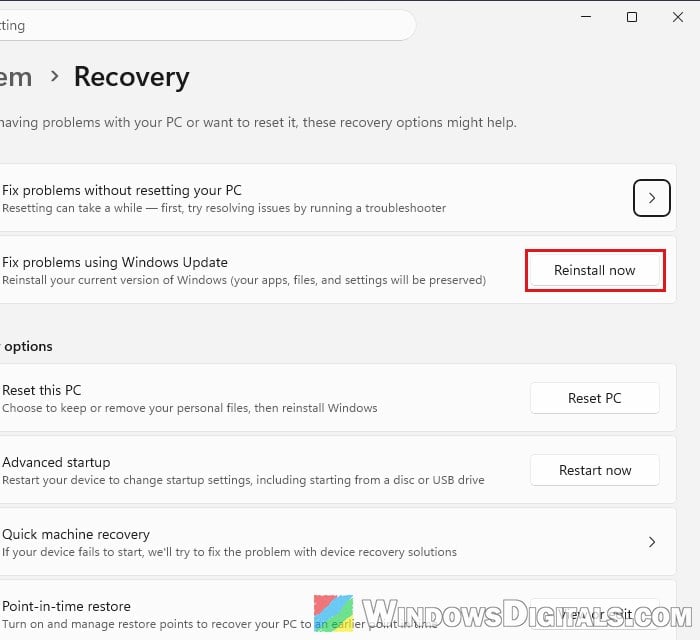
- Tick “Automatically restart my PC 15 minutes after installation” if you want it to restart by itself, then click OK.
- Windows Update now downloads and installs the files. Restart your PC when it’s done if it didn’t restart by itself.
After the restart, run DISM /Online /Cleanup-Image /RestoreHealth again. It should now finish without the error.
Learn more: “Reinstall your current version of Windows” Message
What if the option isn’t there?
Microsoft says the option needs Windows 11 with the February 2024 optional update or a later update. It may also be missing on PCs managed by a work or school organization, or when certain Windows Update policies are set. In that case, use the ISO method below.
Repair Windows with the Windows 11 ISO
Microsoft’s Windows 11 ISO has the same files. You can point DISM at it, which only works when the ISO is as new as your Windows, or run its setup to reinstall Windows over itself while keeping your files and apps.
Download and open the ISO
- Go to
https://www.microsoft.com/software-download/windows11. - Under “Download Windows 11 Disk Image (ISO) for x64 devices“, open the Select Download list, pick Windows 11 (multi-edition ISO for x64 devices) and click Confirm.
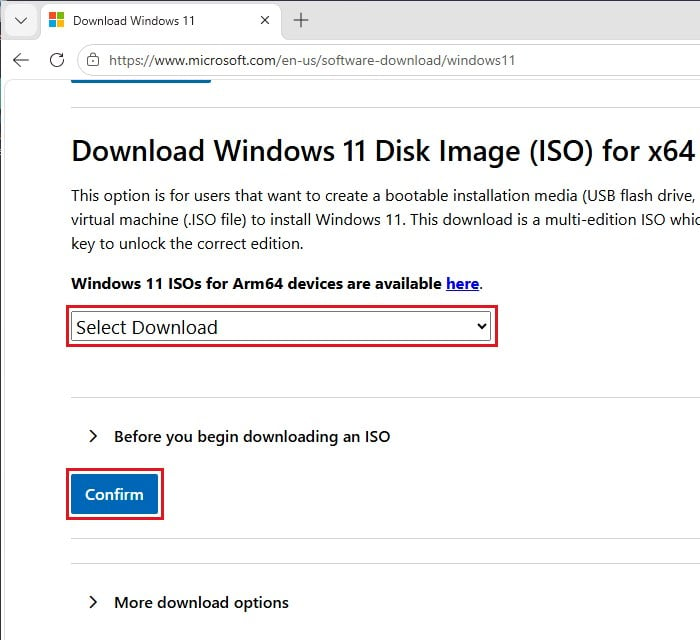
- Pick the same language your Windows is in, click Confirm, then click 64-bit Download.
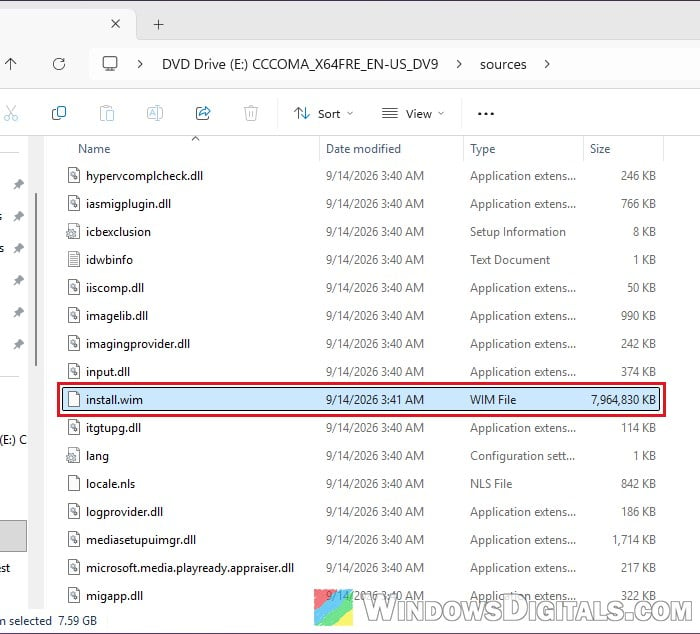
- Right-click the downloaded ISO file and select Mount. Windows opens it as a new drive in File Explorer. Note its drive letter (for example E:). Its sources folder has the install.wim file DISM needs.
Point DISM at the ISO
DISM needs to know which edition inside the ISO matches yours, so you first look up its number (the index).
- In an admin Command Prompt, run the following command, replacing E: with your ISO’s drive letter: Find your edition (for example Windows 11 Pro) in the list and note its Index number.
DISM /Get-ImageInfo /ImageFile:E:\sources\install.wim
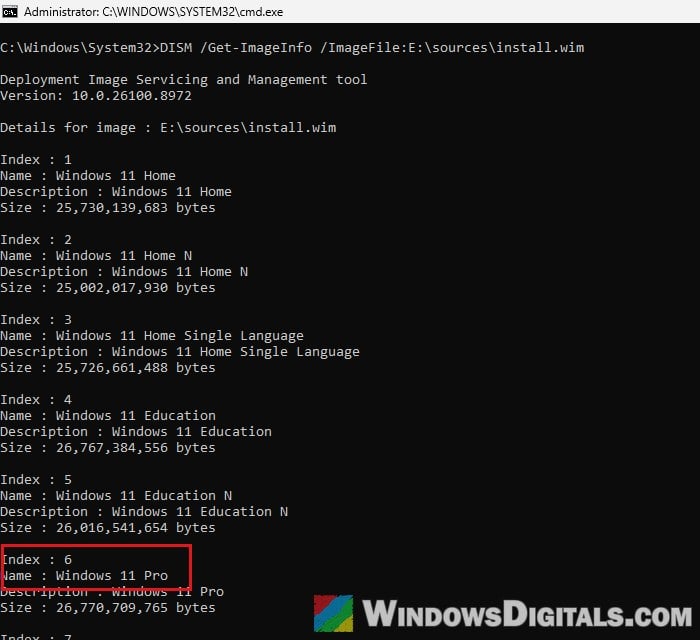
- Run the repair with your index (6 for Windows 11 Pro in this example) and your drive letter:
/LimitAccessmakes DISM use only the ISO and skip Windows Update.DISM /Online /Cleanup-Image /RestoreHealth /Source:wim:E:\sources\install.wim:6 /LimitAccess
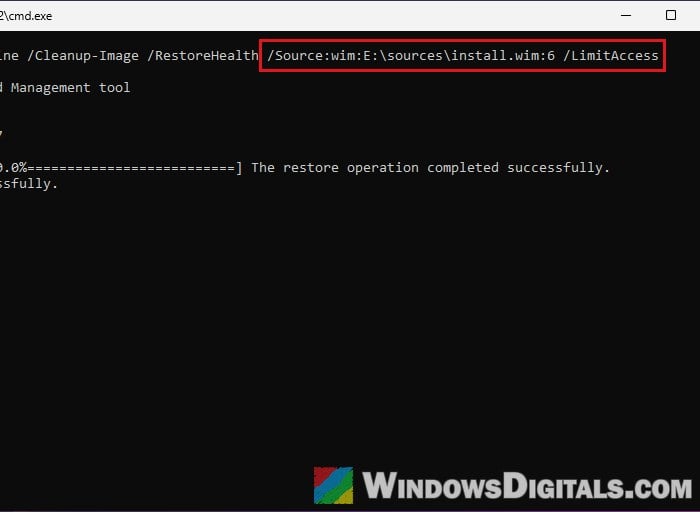
If you get 0x800f0915 again, your Windows build is most likely newer than the ISO. Trying older ISOs won’t help, so use the in-place upgrade below instead.
Reinstall Windows over itself (in-place upgrade)
An in-place upgrade reinstalls Windows from the ISO while keeping your files and apps, and replaces the damaged system files along the way. Back up anything important first, just in case.
- Open the mounted ISO drive in File Explorer, double-click setup and click Yes.
- Click Next, then Accept on the license terms.
- On the “Ready to install” screen, make sure it says “Keep personal files and apps“. If it doesn’t, click Change what to keep and select it.
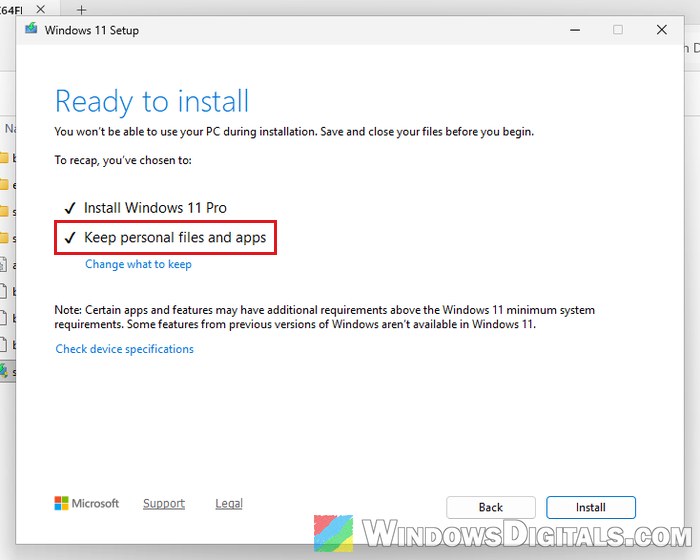
- Click Install and keep the PC plugged in until it’s done.
Once Windows is back up, check Windows Update for the latest updates, then run DISM once more to confirm the component store is healthy.
Might be useful: In-place Upgrade of Windows 11 on Unsupported Hardware