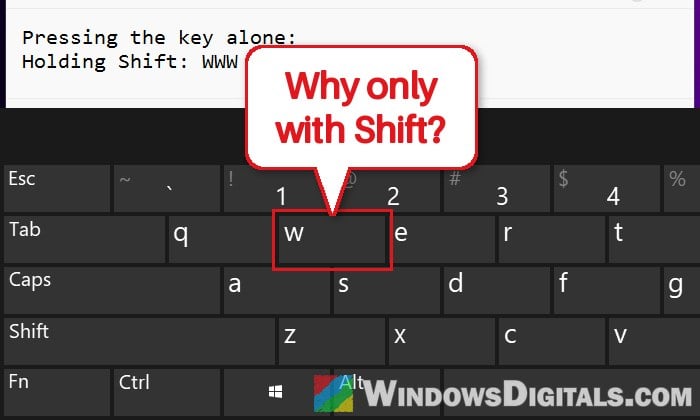
If one letter on your keyboard, say W, suddenly types nothing when you press it on its own, but gives you a capital W as soon as you hold Shift, while every other key works normally, the keyboard is usually not the problem. This guide will show you what’s most likely catching that key and how to get it typing normally again on Windows 11 or 10.
Also see: Windows 11 Keyboard Shortcuts Not Working (Fix)
Page Contents
Why does a key only work when you hold Shift?
The most common cause is a program that uses the plain key as its own shortcut. A game capture tool that takes a snapshot when you press a letter, a music recorder, a laptop hotkey utility or a macro script can all claim a key for themselves. When they do, the key press goes to that program and never reaches Notepad, your browser or anything else you’re typing in.
The reason Shift gets around it is simple. A shortcut in Windows is a key plus the modifier keys that have to be held with it (Ctrl, Alt, Shift or Win). A shortcut set on the bare key only fires when nothing else is held down, so Shift + the key isn’t a match, and you get a normal capital letter.
A hardware fault in the keyboard (dirt, liquid or a damaged circuit) can also make a single key misbehave, but that’s less common, since the key does register when you hold Shift. The quick tests below help you tell the two apart.
First, test the key with the on-screen keyboard
Before changing anything, these two quick tests give you a good idea whether it’s the keyboard or Windows. Here’s the first one:
- Press Win + R, type
oskand press Enter to open the On-Screen Keyboard. You can also turn on the On-Screen Keyboard toggle in Settings > Accessibility > Keyboard. - Open Notepad and click into it.
- Click the problem key on the on-screen keyboard (without Shift).
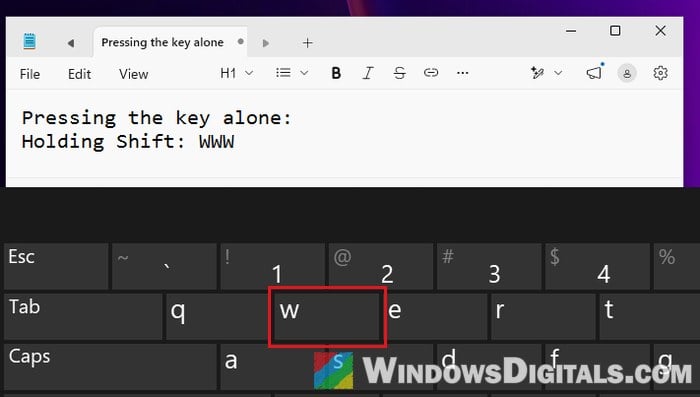
If the letter also doesn’t show up from the on-screen keyboard, something in Windows is most likely catching it, so carry on with the next section. If it types fine from there, the physical key may be the problem.
The more reliable check is to plug in another USB or Bluetooth keyboard. If the same key works on that one, your keyboard is at fault (skip to the last section). If it fails on every keyboard, it’s software.
Linked issue: Keyboard or Mouse Not Working After Windows 11/10 Update
Find the program that’s taking over the key
The culprit is usually a program that starts with Windows and runs in the background from the notification area. Programs with their own keyboard shortcuts are the first to suspect:
- game capture and screen recording apps (including their snapshot shortcuts)
- screenshot tools and audio or music recorders
- laptop hotkey utilities from the manufacturer, such as ASUS Hotkey
- macro tools
- AutoHotkey scripts (a script line like
w::takes over the plain W key)
To find out which one it is, close them one at a time and test the key after each:
- Click the small arrow on the right side of the taskbar to show the hidden icons, then right-click each app’s icon and choose its Exit or Quit option.
- If that doesn’t help, press Ctrl + Shift + Esc to open Task Manager.
- On the Processes tab, select an app you don’t need right now (you can type its name in the search box at the top to find it) and click End task. Test the key again in Notepad.
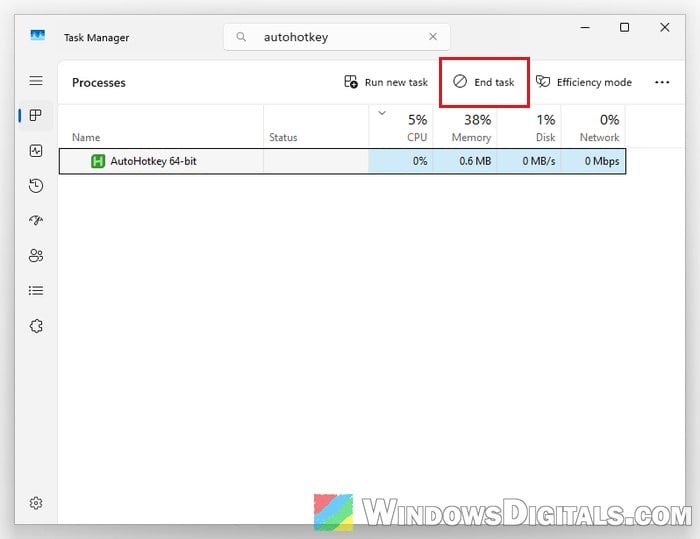
- Repeat with the next app until the key starts working.
Once the key types normally again, the last app you closed is the one. Open its settings and change or remove the shortcut that uses that key, or uninstall the app if you don’t need it. For a laptop hotkey utility like ASUS Hotkey, uninstalling it may be the only way to get the key back.
Use a clean boot to find it faster
If closing apps by hand doesn’t find it, or something keeps restarting itself in the background, a clean boot starts Windows with only Microsoft’s own services and no startup apps. If the key works after a clean boot, you know a third-party program or service is behind it. It’s the method Microsoft itself recommends for finding a program that’s causing trouble.
To do a clean boot, follow the steps below:
- Press Win + R, type
msconfigand press Enter to open System Configuration. - Go to the Services tab, check “Hide all Microsoft services“, then click Disable all and Apply.
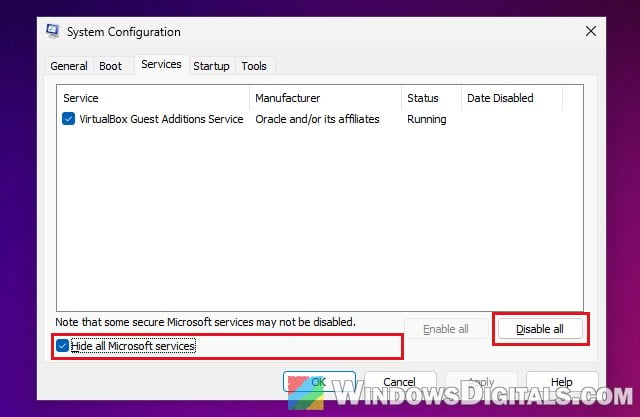
- Go to the Startup tab and click Open Task Manager.
- In Task Manager’s Startup apps page, select each app that is Enabled and click Disable.
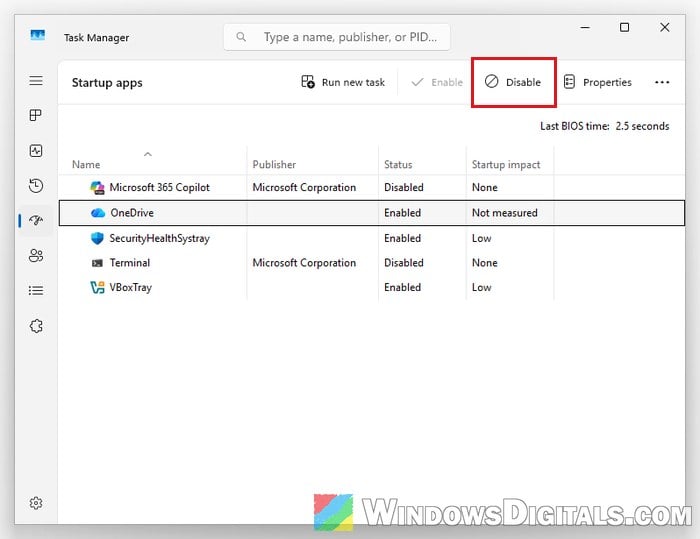
- Close Task Manager, click OK in System Configuration, and restart your PC.
After the restart, test the key in Notepad. If it works, turn the services and startup apps back on a few at a time (restarting each time) until the problem comes back. The last group you turned on contains the program. When you’re done, go back to the General tab in System Configuration and select Normal startup.
Pro tip: How to Disable Startup Programs in Windows 11
Make sure Sticky keys, Filter keys and Toggle keys are off
These accessibility features change how Windows reads your key presses. They don’t usually cause this exact problem, but they’re quick to rule out, especially if one got turned on by accident. Here’s how to check them:
- Open Settings and go to Accessibility > Keyboard.
- Turn off Sticky keys, Filter keys and Toggle keys.
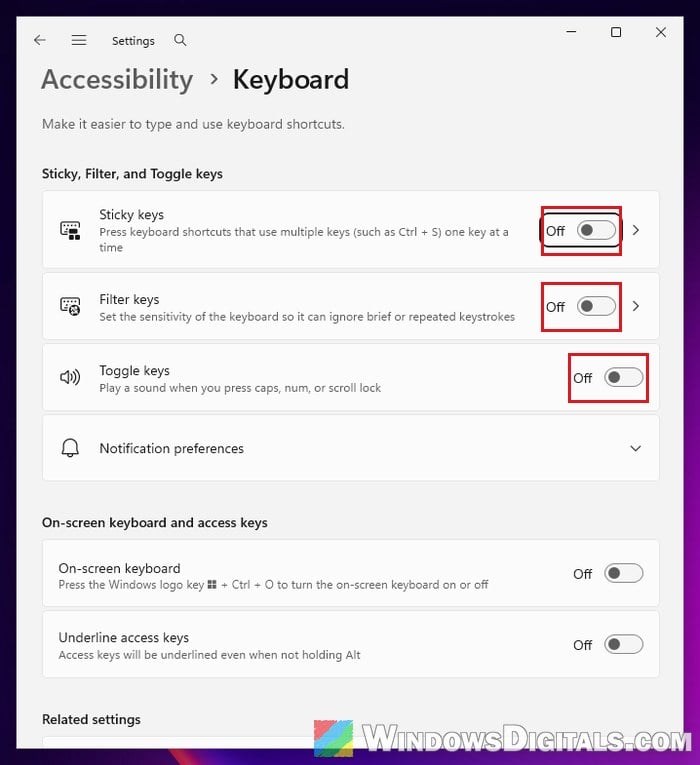
- Test the key again in Notepad.
Reinstall the keyboard driver
A broken keyboard driver can sometimes make keys behave oddly. Removing it lets Windows install a fresh copy on the next restart. It’s not likely to be the fix for a single key, but it costs you nothing to try. Follow the steps below:
- Press Win + R, type
devmgmt.mscand press Enter to open Device Manager. - Expand Keyboards.
- Right-click your keyboard and select Uninstall device, then confirm.
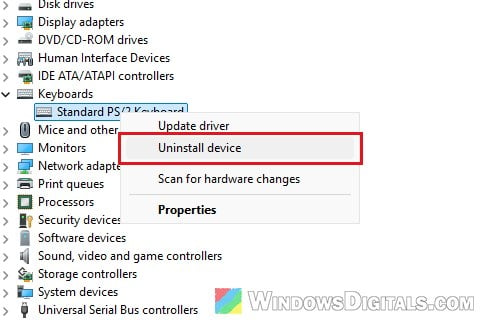
- Restart your PC. Windows reinstalls the keyboard driver by itself.
Once Windows is back, open Notepad and try the key on its own again.
Might be useful: How to Uninstall Drivers in Windows 11
When it’s the keyboard itself
If the same key works on another keyboard (and it typed fine from the on-screen keyboard), the problem is most likely in your keyboard. A crack in the keyboard’s circuit, dust or a bit of spilled liquid can affect one key while the rest keep working.
- Blow compressed air under and around the key to clear out dust.
- For a USB or wireless keyboard, the simplest fix is to replace it.
- On a laptop, the keyboard usually has to be replaced. If your laptop is still under warranty, contact the manufacturer before you open anything.
In the meantime, an external keyboard will get you typing normally again.