If your Windows 11 PC with an AMD Radeon graphics card suddenly freezes with the picture stuck while the audio keeps playing, and AMD Software later says “a driver timeout has occurred“, it’s a pretty common issue on cards like the RX 7900 XTX and RX 9070 XT. This guide will explain what the timeout means and show you the fixes that have worked for other users.
Also see: Radeon Stutters and Freezes with DX11 Games and Chrome
Page Contents
What does an AMD driver timeout actually mean?
Windows has a feature called Timeout Detection and Recovery (TDR). When the graphics card or its driver takes longer than allowed to finish a task (2 seconds by default), Windows resets the graphics driver to get the display working again. When the reset doesn’t go well, the picture stays frozen while the rest of the PC keeps running, which is why the sound carries on and sometimes the mouse still moves.
Unfortunately, there’s no single cause. It can be the driver version, a Windows graphics feature, unstable clock or undervolt settings, or power delivery, so you may need to try a few of the fixes below.
First, unfreeze the screen and check the logs
When the screen is frozen, press Win + Ctrl + Shift + B first. Microsoft says this shortcut resets the graphics driver, and you should hear a beep or see a flicker before the display comes back. One RX 9070 XT owner found that locking the PC with Win + L and waiting a few seconds also brought the picture back.
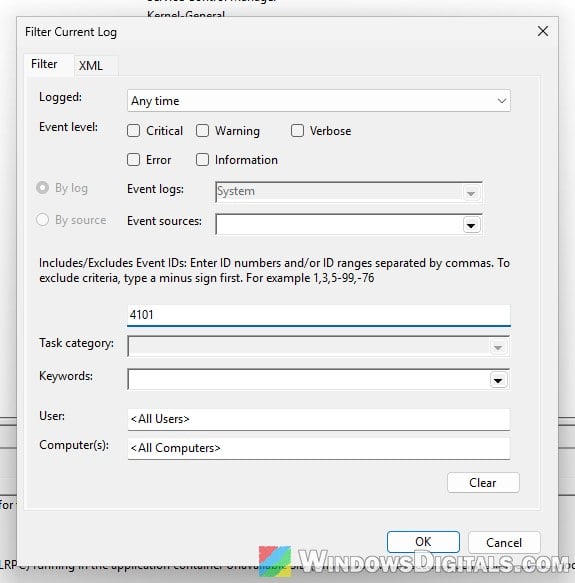
A driver timeout that Windows recovers from is logged in Event Viewer as Event ID 4101 with the source Display, saying that the display driver (for AMD, amdkmdag) stopped responding and recovered. To look for it:
- Press Win + R, type
eventvwr.mscand press Enter. - Go to Windows Logs > System.
- Click “Filter Current Log…” on the right.
- Type “4101” in the “Includes/Excludes Event IDs” box and click OK.
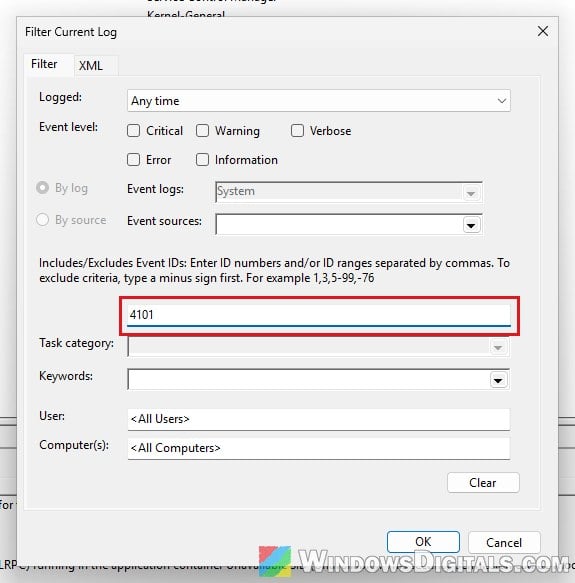
If there’s nothing there, it doesn’t mean it isn’t a driver timeout. One user had no entries at all, only the unexpected shutdown after the hard lock.
Turn off hardware-accelerated GPU scheduling
This is the fix users mention most for this problem, so try it first. Hardware-accelerated GPU scheduling (HAGS) hands most of the graphics scheduling work from Windows to the graphics card itself. In one recent Reddit thread, two RX 7900 XTX owners said they haven’t had a freeze since turning it off (one of them for 20 days, together with a clean driver reinstall). An RX 9070 XT owner whose freezes started with driver 26.9.2 turned it off too, and so far it seems to have fixed it.
Here’s how to do it:
- Open Settings > System > Display > Graphics.
- Under Default settings, turn off “Hardware-accelerated GPU scheduling“. On older versions of Windows 11, click “Change default graphics settings” first.
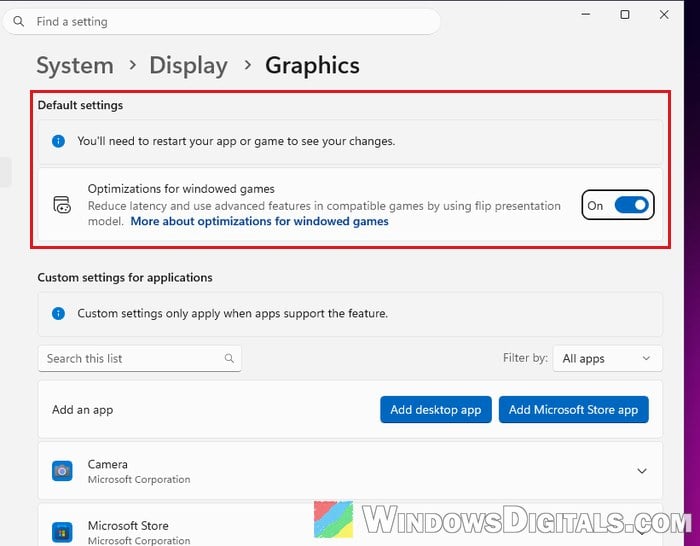
- Restart your PC.
You need an administrator account. If you don’t see the switch, your card or driver doesn’t support HAGS, so skip this fix. After the restart, use the PC as you did when it froze and see if the timeouts come back.
Put GPU clocks and undervolts back to default
A couple of users stopped their timeouts by setting the card back to its factory clock speeds, and one RX 9070 XT owner got further before a freeze after lowering the clock. So if you’ve overclocked or undervolted your graphics card, undo it.
The quickest way is AMD Software’s own reset, which puts all AMD Software settings back to default without reinstalling the driver:
- Open AMD Software.
- Type “Factory Reset” in its search box.
- Select “Factory Reset – System Settings“.
- Click Perform Reset, then Proceed.
If you use a memory overclock (EXPO or XMP in the BIOS), turning it off for a while is also a good test. If the freezes stop at default settings, the old settings weren’t stable.
Related concern: Does Faulty RAM Cause Freezes or Crashes on PC?
Do a clean reinstall of the AMD driver
If the driver files are messed up, a clean reinstall can fix it. Download the latest driver from AMD before you start. AMD’s own advice is to do a clean install, and there are two ways to do it:
- Factory Reset in the installer: When you run the AMD Software installer, select “Factory Reset (Optional)“. It removes all earlier versions of AMD Software, restarts the PC and then carries on with the install by itself.
- AMD Cleanup Utility: Download AMD’s Cleanup Utility (
https://www.amd.com/en/resources/support-articles/faqs/GPU-601.html) and run it to remove the old AMD graphics and audio drivers (it leaves the chipset drivers alone). When it asks, click Yes to restart and run it in Safe Mode, which is what AMD recommends.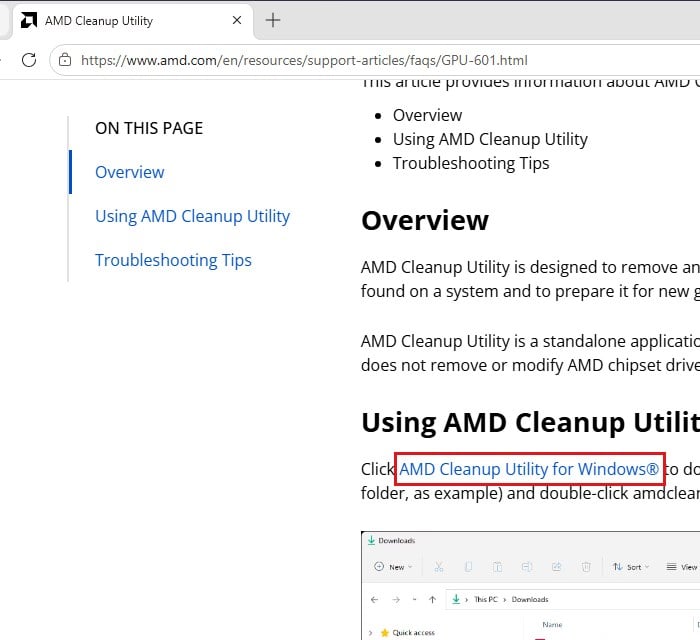
After the Cleanup Utility, install the driver you downloaded. Then use the PC normally and see if the timeouts return.
Some users use the third-party tool DDU (Display Driver Uninstaller) in Safe Mode instead. One said a careful DDU run, with the network adapter off so Windows couldn’t grab a driver by itself, kept their PC stable over several restarts, while another said it only helped for two days.
Stop Windows Update from swapping the driver
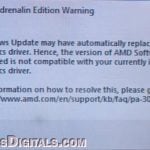
Some users found that Windows Update had replaced their AMD driver with an older one. If AMD Software shows the warning below, follow the post linked after it to install the right driver again and keep Windows from replacing it.
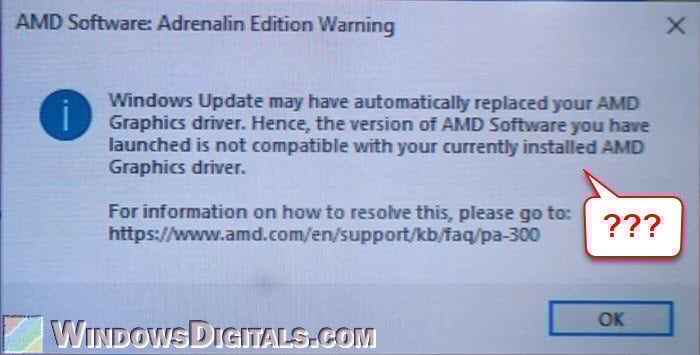
Linked issue: AMD Software Warning: Graphics Driver Replaced?
Turn off hardware acceleration in your browser and apps
If the freezes mostly happen on the desktop, in YouTube or while Discord is open, try turning off hardware acceleration in those apps. An RX 7900 XTX owner said this stopped every crash for months, through every unstable driver this year, and that it worked for a friend with the same card too. They do notice a small stutter in the browser now and then.
In Microsoft Edge, for example:
- Open Settings > System and performance > System.
- Turn off “Use graphics acceleration when available“.
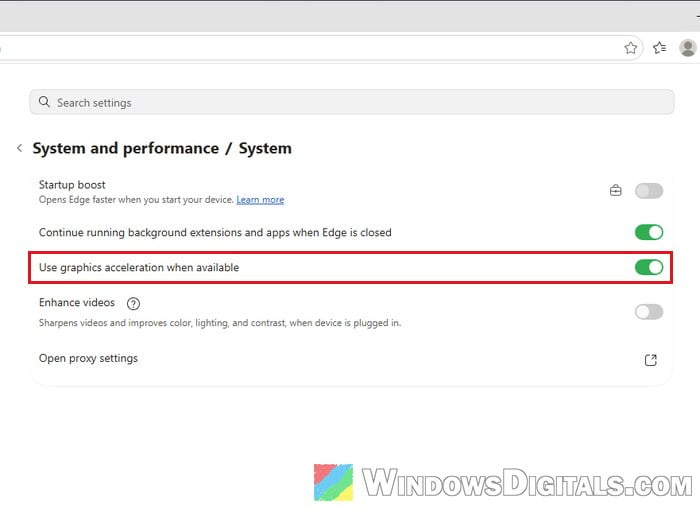
- Restart Edge.
Discord and Steam have the same kind of switch in their settings.
Try a different driver version
No driver version works for everyone. One RX 7800 XT owner settled on 26.3.1, while others found an older or a newer version that stopped it on their card. The newest driver at the time of writing is AMD Software: Adrenalin Edition 26.9.2, an optional release from September 29, 2026.
If the freezes started right after a driver update, install the version you had before. If you’re on an older driver, try the newest one. Check the release notes too, since AMD lists driver timeouts in specific games there. For example, 26.9.2 fixed timeouts in Final Fantasy VII Rebirth (RX 7000) and HITMAN (RX 9000), and still has a known timeout in War Thunder on the RX 5000 series, for which AMD recommends 26.9.1 instead.
Check the power cables and the card itself
If none of the above works, the problem might be with the hardware itself. AMD suggests making sure the PCIe power cables are fully seated, reseating the graphics card in its slot (if you’re not comfortable opening your PC, get someone to help), and, if you can, testing with another graphics card to see whether the problem moves with it.
Some users replaced their power supply with no change, so this is usually the last thing to suspect. If your card is under warranty and still freezes after a clean driver install with everything at default, contact the card’s maker.