If Microsoft Defender keeps warning you about a file called tcblaunch.exe in your Downloads folder, and the threat disappears from Windows Security only to come back minutes later, you’re probably wondering if it’s a real Windows file or something worse. This guide explains what tcblaunch.exe actually is, why a copy in Downloads is a red flag, and what you should do about it.
Also see: How to Scan an .exe File for Viruses to Check If It’s Safe
Page Contents
What is tcblaunch.exe?
The real tcblaunch.exe is the TCB Launcher (TCB stands for Trusted Computing Base), a Microsoft file that’s part of Windows itself. Secure Launch, a Windows security feature, uses it very early in the boot process to start the Windows hypervisor and the Secure Kernel in a trusted state.
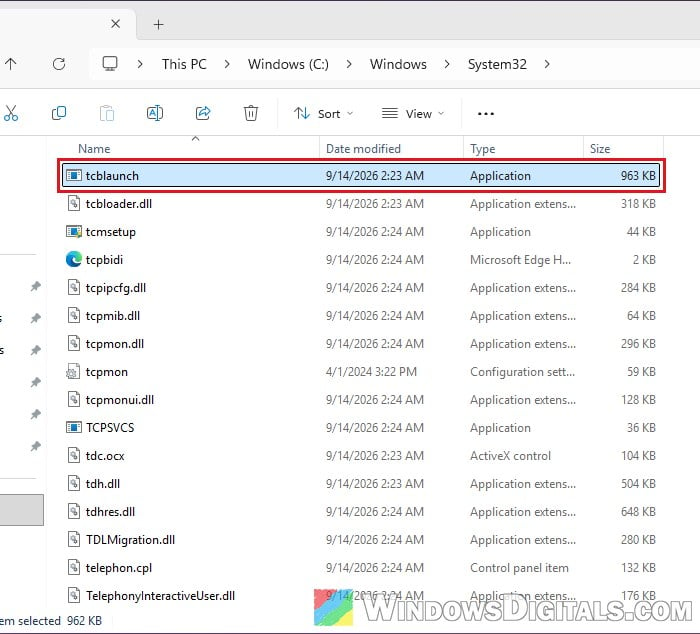
In other words, it’s a boot-time security component, not a program you’d ever download or open yourself. The genuine file lives in System32:
C:\Windows\System32\tcblaunch.exe
So don’t delete or “clean up” the copy in System32. It belongs there.
Suggested read: What is 7zr (7zr.exe) in Windows Task Manager?
How to check the real tcblaunch.exe
Here’s how to check that the real file is there and untouched:
- Open File Explorer and paste
C:\Windows\System32into the address bar, then press Enter. - Click any file in the list and type “tcblaunch” to jump to it. If file extensions are hidden, it shows as just tcblaunch with the type Application.
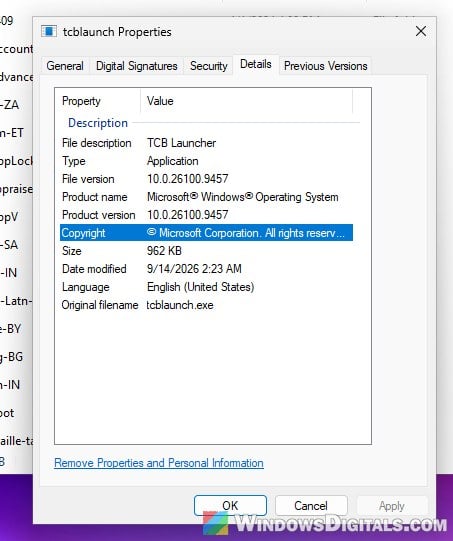
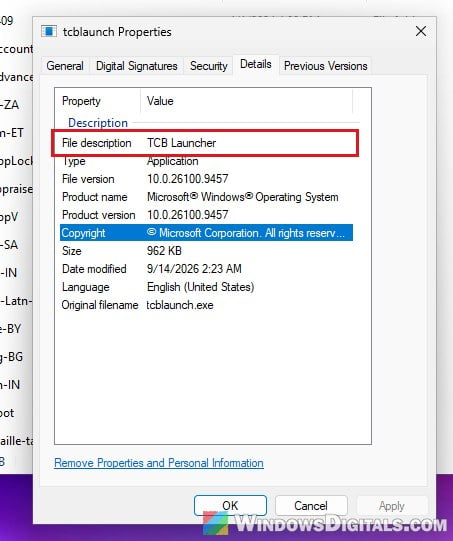
- Right-click tcblaunch.exe and select Properties, then open the Details tab. The file description should read “TCB Launcher” and the copyright should be Microsoft Corporation.
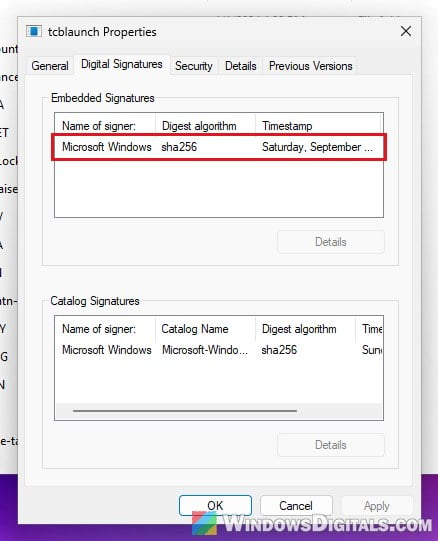
- Open the Digital Signatures tab. The file should be signed by Microsoft Windows.
If you find a tcblaunch.exe in your Downloads folder, it’s not the real Windows file, even though the name is the same.
Why is there a tcblaunch.exe in your Downloads folder?
A very likely reason is that malware is borrowing the name of a real Windows file, since most people won’t look twice at a file that sounds like it’s part of Windows. This also isn’t the first time malware has used this exact name. Dr.Web, an antivirus company, has documented a password-stealing trojan that dropped itself as a tcblaunch.exe in the user’s folder and started again with Windows.
In a recent case reported on Microsoft’s Q&A forum, one of the detections was a “Behavior” detection pointing at the tcblaunch.exe in Downloads, together with a process ID. A Behavior detection means Defender caught the file doing something, not just sitting on the disk, so it’s very likely the file was actually running.
Related concern: Trojan:Win32/Wacatac.H!ml: What You Need to Know
Why does it keep coming back after quarantine?
When Defender quarantines a file and the same detection shows up again a few minutes later, it usually means something else keeps putting the file back. That could be the installer or archive it came from, a startup entry, or a scheduled task that recreates it.
What should you do?
First, don’t restore the file or choose “Allow on device“. Then go through the checks below, in this order.
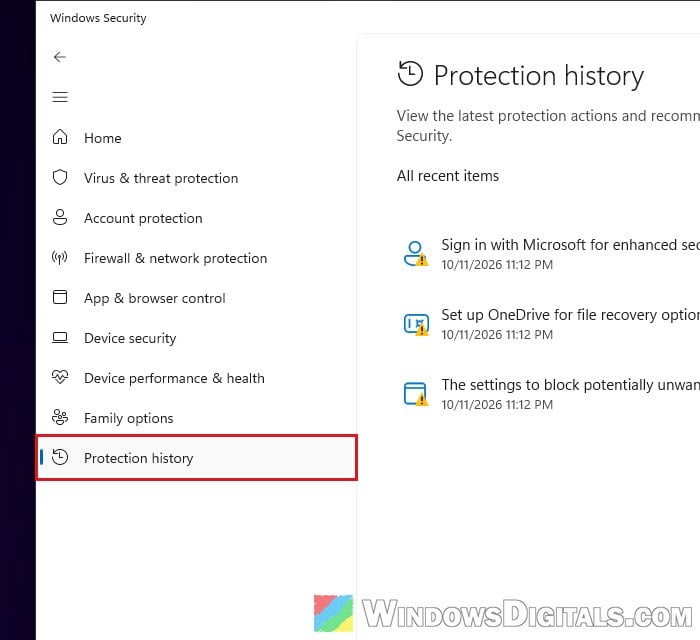
Read the detection in Protection history
Open Windows Security > Virus & threat protection > Protection history and click the entry (this needs administrator rights). Note the threat name, the affected file path and the date. If the entry offers Remove, use that.
Find what brought it in
Sort your Downloads folder by date and look at what you downloaded around the time of the first warning. The usual suspects are cracked software, game mods or cheats, “driver fixer” tools, and files from links shared on Discord or YouTube. Delete the archive or installer it came with.
Check startup apps and scheduled tasks
These are the usual places something hides to bring the file back. Here’s what you should check:
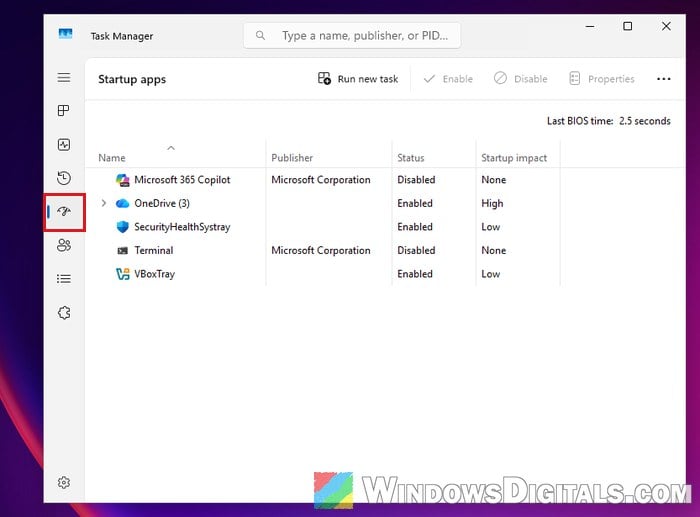
- Press Ctrl + Shift + Esc to open Task Manager and go to Startup apps. Look for entries you don’t recognize.
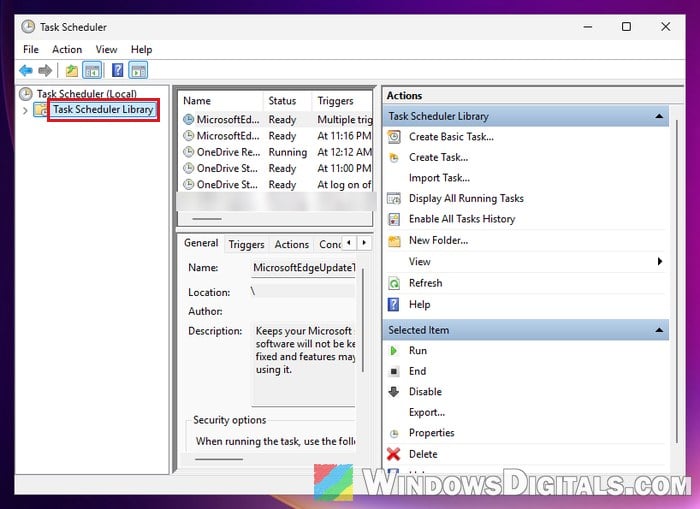
- Search for “Task Scheduler” in the Start menu, open it, and look through the Task Scheduler Library for odd tasks.
- If you’re comfortable with it, download Autoruns from
https://learn.microsoft.com/en-us/sysinternals/downloads/autoruns(it doesn’t need installing) and run it. - In the Options menu, turn on Hide Microsoft Entries to shorten the list. Keep in mind that a fake file can claim to be from Microsoft, so also look at the Image Path column for anything that runs from Downloads or another user folder.
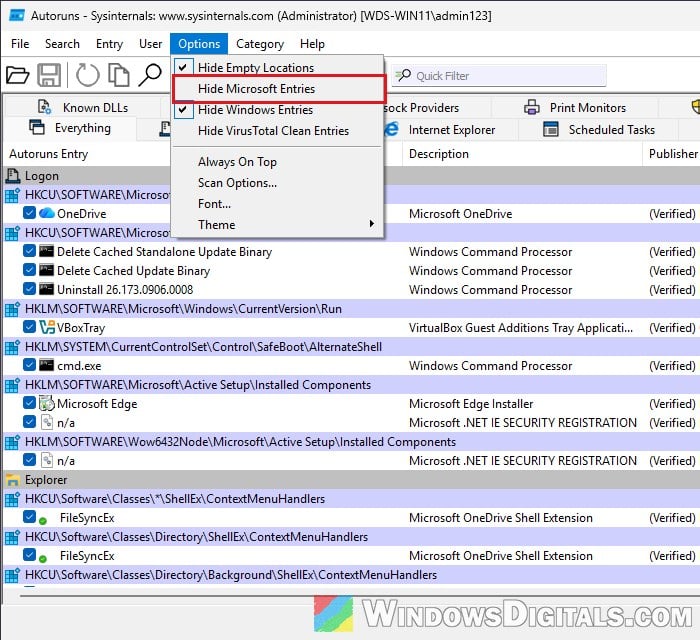
If an entry points to the tcblaunch.exe in Downloads or the file it came with, disable it, note its path, and delete or scan that file.
Might be useful: Unknown Program in Task Manager Startup Tab Windows 11/10
Run a second scan
A different scanner can catch what the first one missed:
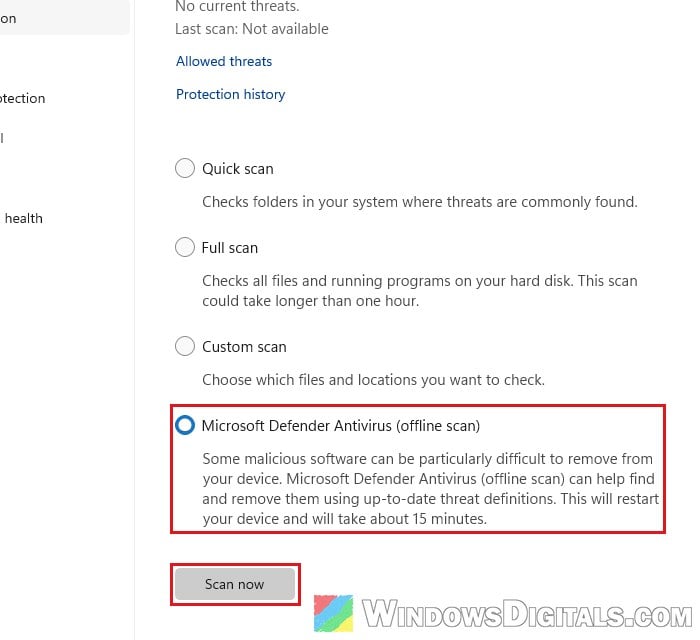
- Microsoft Defender Offline scan: In Virus & threat protection, click Scan options, select Microsoft Defender Antivirus (offline scan) and click Scan now. Your PC will restart and the scan takes about 15 minutes.
- Microsoft Safety Scanner: A free one-time scan tool from Microsoft. Download it from
https://learn.microsoft.com/en-us/defender-endpoint/safety-scanner-download. It expires 10 days after you download it. - Malwarebytes Free: A free third-party scanner that was suggested as a second opinion in the Microsoft Q&A thread about this file.
If none of them find anything and the warnings stop, you’re likely clean.
Change your passwords if it ran
If the detection was a Behavior detection, or you remember opening the file, it may have been trying to steal passwords. From another device you trust, change the passwords for your email, banking and Microsoft account, and turn on two-step verification where you can.
Reset Windows as a last resort
Be warned: Resetting with Remove everything wipes all your apps, files and settings, so back up your personal files to an external drive or cloud storage first. If you’re not sure what you’re doing, it’s better to get someone who knows to help you instead.
If tcblaunch.exe keeps coming back no matter what, use Reset this PC with the Remove everything option. For detailed instructions, see: How to Reset Windows 11/10 to Factory Default.