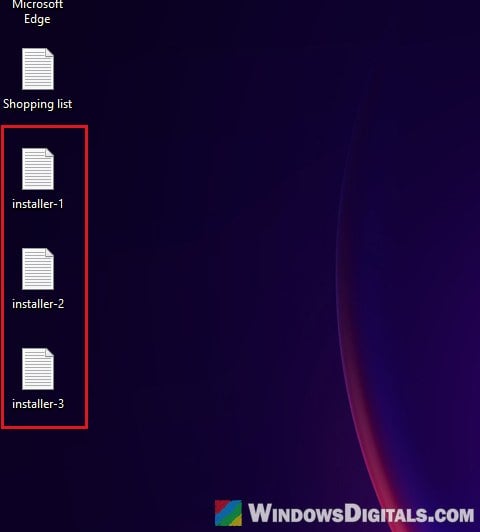
If all the files from your Downloads folder suddenly show up on your desktop, and deleting one of them from the desktop also deletes it from Downloads, the Downloads folder has most likely been merged with the Desktop folder. This guide will show you why it happens and how to separate the two folders again on Windows 11.
Also see: Accidentally Deleted Desktop Folder in Windows 11
Page Contents
Why are my downloads showing on the desktop?
Downloads, Desktop and the other folders in your user folder are special folders, and Windows lets you change where each one is stored from the folder’s “Properties” > “Location” tab. If the Downloads folder’s location gets set to the Desktop folder, for example by picking the wrong folder after clicking “Move…” or by typing the wrong path, Windows combines the two into one folder.
When that happens, every file that was in Downloads is moved onto the desktop, the original Downloads folder is removed, and anything you download afterward lands on the desktop too. That’s also why deleting something from the desktop gets rid of the download.
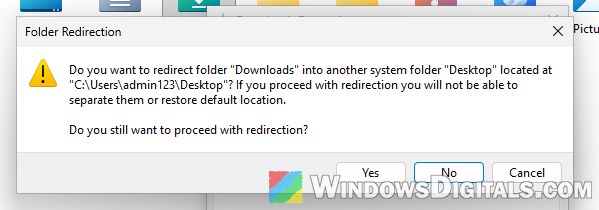
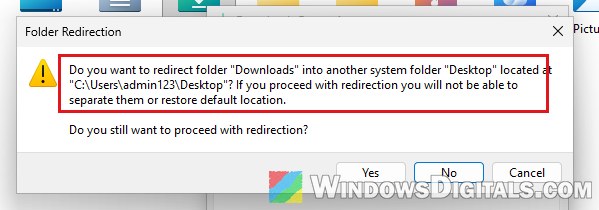
Windows does warn you before it does this. After you confirm moving the files, a “Folder Redirection” box asks if you want to redirect “Downloads” into another system folder, and it clearly says that you will not be able to separate them or restore the default location afterwards. It’s easy to click “Yes” without reading it.
Why “Restore Default” doesn’t fix it
The usual advice for a moved user folder is to click “Restore Default” on its “Location” tab. Once two folders are merged, that doesn’t work. We tried this on a Windows 11 PC. After the merge, Downloads was gone from File Explorer, so there was nothing to right-click. “Restore Default” on the Desktop’s “Location” tab didn’t do anything either, because the Desktop was already in its default place.
One user on Reddit, who had merged the two folders the other way around by accident, also found that “Restore Default” did nothing. You’ll need to change the location back in the registry instead.
Linked issue: Windows 11 Folder Properties Location Tab Not Showing (Fix)
How to separate the Downloads and Desktop folders
Windows keeps the location of each user folder in the registry, under a key called User Shell Folders. After the merge, the entries Windows uses for Downloads point to the Desktop. To separate them, you’ll change those entries back, make a new Downloads folder and move your files into it. Do the three parts below in order.
1. Set the Downloads location back in the registry
This is the same fix an Independent Advisor gave on Microsoft Q&A to someone whose Downloads folder was moved by mistake, and it was accepted as the answer.
Incorrectly changing the registry can cause serious problems in Windows, so please at least create a system restore point first. If you’re not sure what you’re doing, it’s better to get someone who knows to help you. Here’s how to do it:
- Click the Start button, type “regedit” and press Enter to open Registry Editor.
- Copy and paste the following path into the address bar at the top of Registry Editor and press Enter (if you don’t see the address bar, click “View” and turn on “Address Bar“):
HKEY_CURRENT_USER\Software\Microsoft\Windows\CurrentVersion\Explorer\User Shell Folders
- On the right, look for the value whose name starts with
{374DE290. This is the Downloads folder, and its data will show your Desktop folder instead of Downloads. There may also be a second one starting with{7D83EE9Bthat points to the Desktop.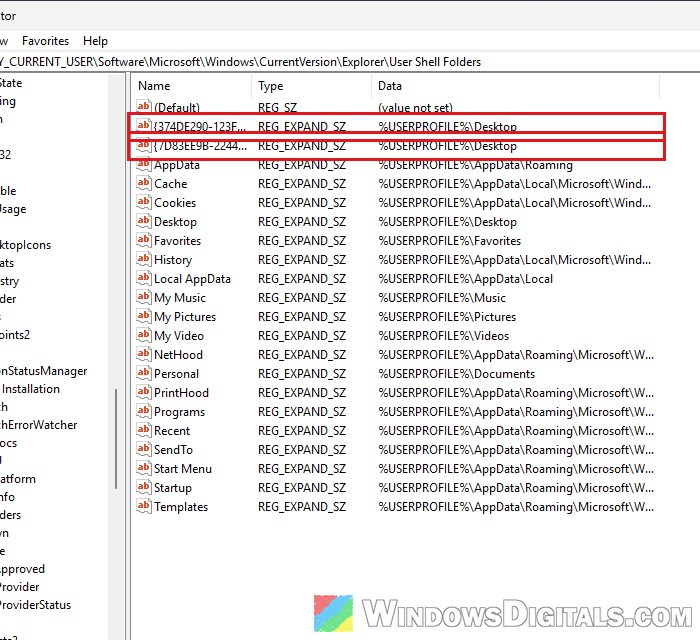
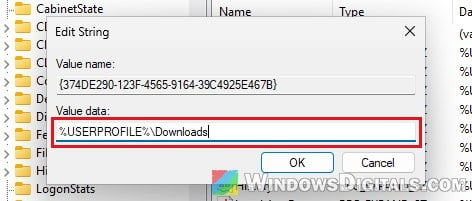
- Double-click the
{374DE290-123F-4565-9164-39C4925E467B}value, replace the “Value data” with the line below and click “OK“:%USERPROFILE%\Downloads
- If the
{7D83EE9B-2244-4E70-B1F5-5393042AF1E4}value is there too, change its “Value data” to%USERPROFILE%\Downloadsthe same way. - Close Registry Editor.
If it was the Desktop that got pointed at Downloads instead (we couldn’t test this case ourselves), look at the value named “Desktop” in the same key. By default it reads %USERPROFILE%\Desktop, so if it shows your Downloads folder, change it back.
2. Create the Downloads folder again
The merge removed the original Downloads folder from your user folder, and in our test Windows didn’t create it again by itself after the registry change. So you’ll need to make it yourself:
- Open File Explorer and go to your user folder,
C:\Users\<your user name>. - Click “New” > “Folder“.
- Name the new folder “Downloads” and press Enter.
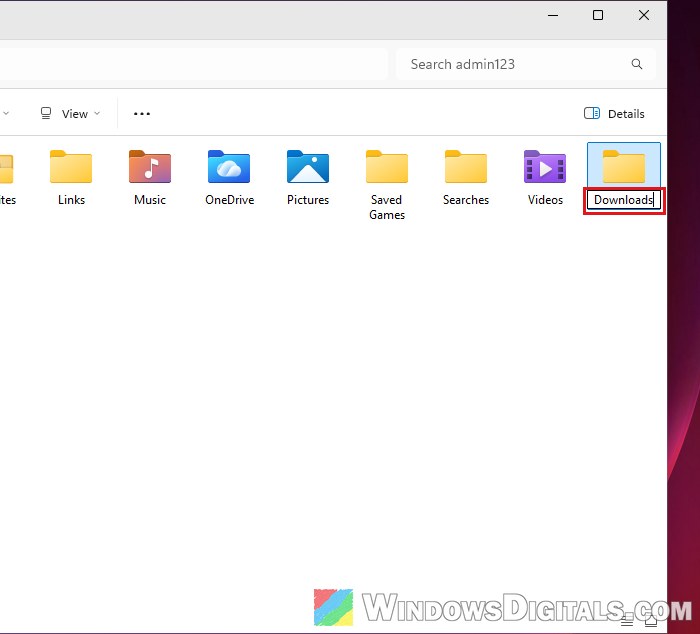
- Restart your PC, or sign out and back in, so that Windows uses the new location.
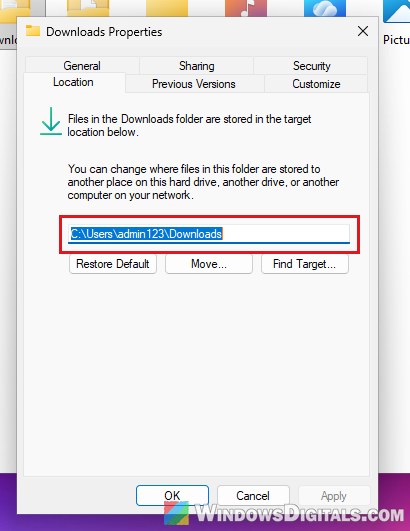
In our test, just restarting File Explorer was enough to bring Downloads back in File Explorer’s left pane, but restarting your PC is the safer bet. To check that it worked, right-click the “Downloads” folder, select “Properties” and open the “Location” tab. It should now show C:\Users\<your user name>\Downloads.
Related guide: Restart Explorer.exe with CMD or PowerShell in Windows 11
3. Move your downloads back off the desktop
Fixing the location doesn’t move any files. Everything that used to be in Downloads is still sitting on your desktop, mixed in with your own desktop items. Select the files that belong in Downloads, press Ctrl + X, open the new Downloads folder and press Ctrl + V to move them there.
Might be useful: “The folder isn’t supported because of its location” Windows 11
How to avoid this next time
If you want your downloads saved somewhere else, such as another drive, create an empty folder of its own for them first (for example, D:\Downloads) and choose that in the “Location” tab. Never pick the Desktop or another user folder. And if the “Folder Redirection” warning ever shows up while you’re changing a folder’s location, don’t click “Yes“, since that warning means you’re about to merge two system folders.