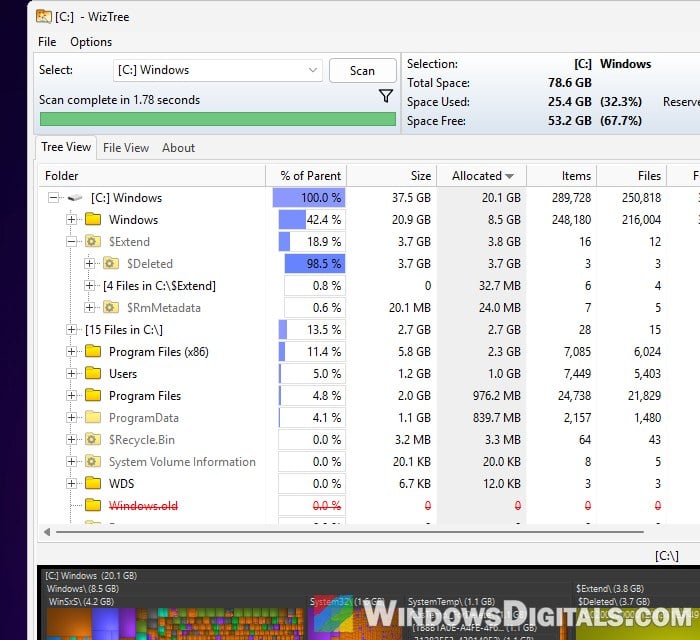
If you’ve scanned your drive with a disk space tool like WizTree and found a hidden folder called $Extend\$Deleted taking up several gigabytes (sometimes tens of gigabytes), you’ve probably also noticed that you can’t open it or change its permissions. This guide explains what this folder actually is, why it’s holding so much space, and how to get that space back safely.
Also see: What files can I delete from C: drive to free up space?
Page Contents
What is the $Extend\$Deleted folder?
$Extend is a protected system folder that the NTFS file system uses for its own system files. It can show up on any NTFS drive, not just C: (one Reddit user found 51 GB in it on their D: drive). Inside it, $Deleted is where NTFS keeps files that were deleted while a program still had them open.
Here’s how that happens. If the program using the file allows it, Windows removes the file’s name right away, so it disappears from its folder. But as Microsoft’s documentation explains, the file’s data sticks around for any program still using it, until the last one lets go. Until then, the space isn’t freed, and the file waits in $Extend\$Deleted under a random-looking name.
I tested this on Windows 11 by creating a 3.7 GB file, keeping it open in a background process and then deleting it. The file was gone from its folder, but the free space on the drive stayed the same. WizTree then showed $Deleted holding exactly those 3.7 GB.
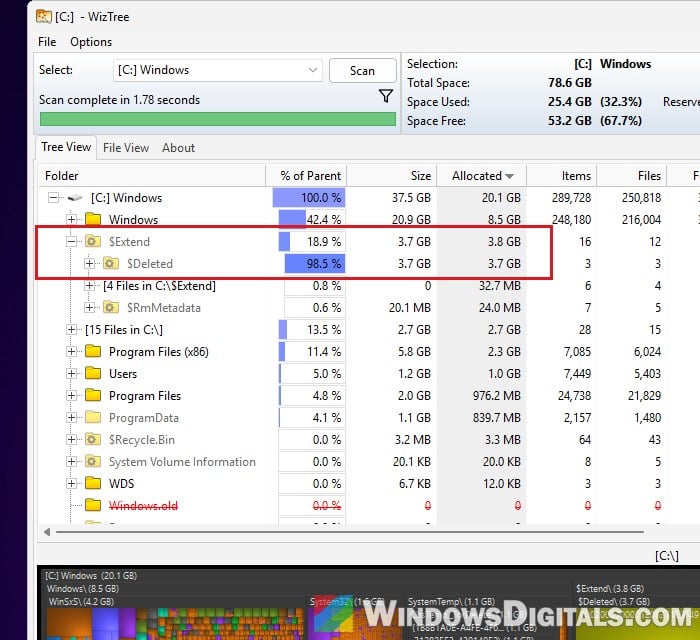
Related guide: How to Download WizTree Safely from the Official Site
Why is it taking up so much space?
It usually means a large file was deleted while an app was still using it, and that app is still running. For example, one Reddit user found a 40 GB file in there, about the size of a video they had deleted. Another user in the thread pointed to apps like video editors or screen recorders, which can keep a file open after you delete it.
It also adds up on PCs that run the same apps for days without a restart. One user on Microsoft Q&A who kept development tools and browsers running nonstop saw the hidden $Extend folder grow to 294 GB on a 500 GB drive, and the space came back every time they restarted.
Pro tip: How to Know Which Process is Using a File in Windows 11
Can you delete the $Extend\$Deleted folder?
No. Microsoft’s own support staff have said that $Extend is a required NTFS system folder and that you shouldn’t delete it. Don’t try to take ownership of it or force your way in either.
The good news is that you don’t need to. The files in $Deleted are already deleted. They’re just waiting for the program that’s holding them to let go, and once that happens, Windows frees the space by itself.
Might be useful: How to Clean C: Drive in Windows 11
How to get the space back
Restart your PC (not shut down)
This is the fix that usually works. The Reddit user above confirmed that their storage went back to normal after a restart, and the accepted answer on Microsoft Q&A says these files are normally cleared on a reboot.
Make sure you choose “Restart” and not “Shut down“. With Fast Startup turned on, Shut down doesn’t fully close Windows: Microsoft says the kernel session is hibernated instead. A restart always does a full boot.
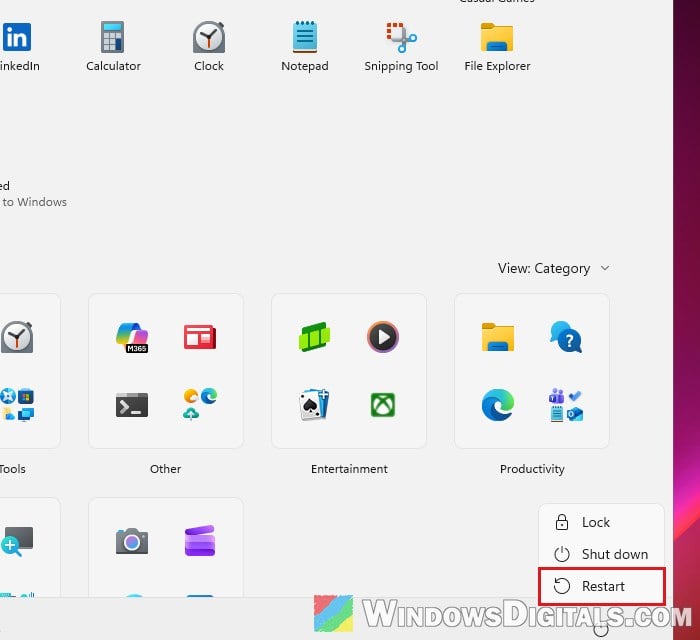
After the restart, scan the drive again and check whether $Deleted is back to a normal size.
Find and close the program holding the file
If you can’t restart right now, or the folder fills up again soon after, you can find out which program is holding the deleted file with Resource Monitor:
- Press Win + R, type “resmon” and press Enter.
- Go to the “CPU” tab.
- In the “Associated Handles” section, type “Deleted” in the “Search Handles” box and press Enter.
- Check the “Image” column to see which program is holding each file in
$Extend\$Deleted.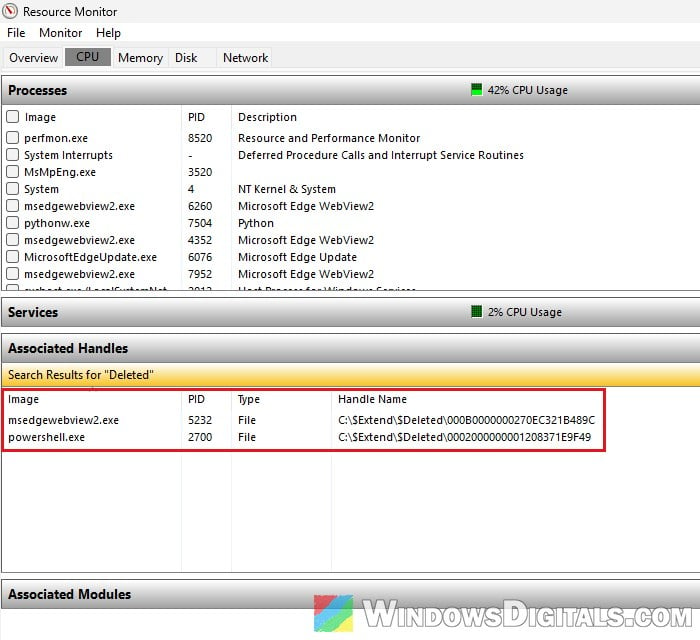
- Save your work in that program and close it normally.
When I tried it, the background PowerShell process I’d left running showed up there, along with Windows’ own msedgewebview2.exe. Look for the app that had your big file open, like a video editor or a recording app.
If the program won’t close normally, you can right-click it in the list and select “End Process“, then confirm with “End process“. As Windows warns, you’ll lose any unsaved data in it, and ending a system process can make Windows unstable, so only do this for an app you recognize.
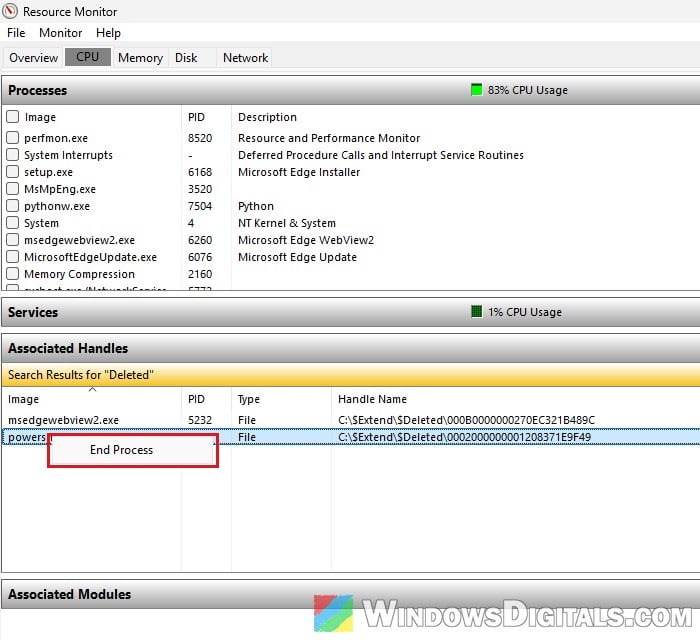
As soon as the process ended, the 3.7 GB came back to the drive.
If the space still won’t come back
If even a restart doesn’t free it, the Microsoft staff member in that Q&A thread suggested running CHKDSK on the drive with the /f and /r options, and Disk Cleanup with “Clean up system files“. It didn’t help the person who asked, though, so don’t expect too much from it. For the steps, see: How to Run CHKDSK in Windows 10/11 from CMD or Before Boot.
If nothing else works and the space keeps getting stuck, the last option they gave was a clean install of Windows.