If you press Win + Shift + S or the Print Screen key and, instead of the snipping bar, you get a box with MS-Screenclip:// at the top that says “This file does not have an app associated with it for performing this action“, it means Windows doesn’t know which app should handle your screenshot. This guide will show you why it happens and how to get Snipping Tool working again.
Also see: Install or Uninstall Windows 11 Snipping Tool via PowerShell
Page Contents
Why does Win + Shift + S say there’s no app associated with it?
Neither Win + Shift + S nor the Print Screen key opens Snipping Tool directly. They open a special link called ms-screenclip, and Windows passes that link to Snipping Tool. You can actually see it in the error, where the title reads something like MS-Screenclip://?source=PrintScreen.
When Windows can’t find an app to pass the link to, it shows the “no app associated” error. Some common reasons for this are:
- Snipping Tool is broken or partly missing, for example after a cleanup tool deleted some of its files.
- The ms-screenclip link isn’t set to Snipping Tool anymore in Default apps.
- Snipping Tool was never set up for your user account. It’s a Microsoft Store app that sets itself up per user the first time it runs, so a brand new or freshly reset account can show this error until Snipping Tool is opened once.
The error often comes with another symptom: Snipping Tool won’t open from the Start menu either, and Microsoft Store shows its download or update stuck at “queued”.
Start with the quick test below, then work down the fixes in order.
Related problem: Why did all my Screenshots come out Black in Windows 11?
Test the ms-screenclip link first
Before changing anything, it helps to see whether the link itself is broken or just the shortcut. Here’s how to test it:
- Press Win + R to open the Run dialog box.
- Type “ms-screenclip:” (with the colon at the end) and click “OK“.
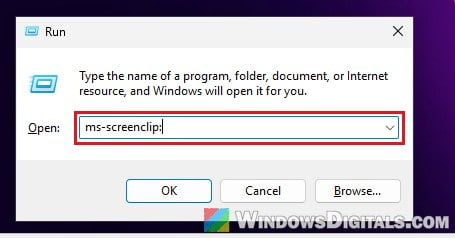
If you get the same “no app associated” error, the problem is with Snipping Tool or its link, and the fixes below should help. If the snipping bar shows up at the top of the screen instead, the link works and the problem is on the key side. In that case, see the next part.
What if only the Print Screen key shows the error?
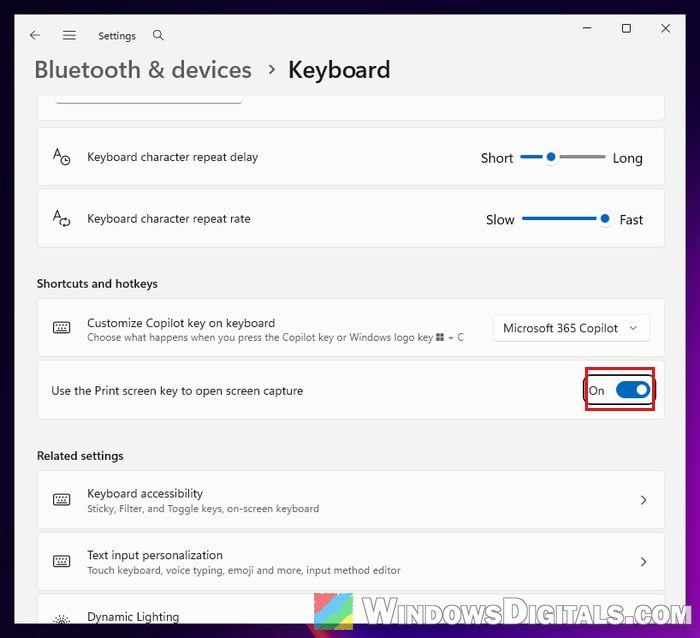
If Win + Shift + S works and only Print Screen shows the error, you can turn off the Print Screen shortcut for now. Go to Settings > Bluetooth & devices > Keyboard and, under “Shortcuts and hotkeys“, turn off “Use the Print screen key to open screen capture“. The key will then simply copy the whole screen to your clipboard, without the error, while you work through the fixes below.
Related guide: How to Print Screen Without PrintScreen Button
Repair or reset Snipping Tool
A user on Reddit who got this exact error after deleting files to free up space confirmed that repairing and resetting Snipping Tool fixed it, so start here. Snipping Tool can be repaired from Settings like any other Microsoft Store app, without touching its data. If that’s not enough, you can reset it from the same page.
- Open Settings > Apps > Installed apps.
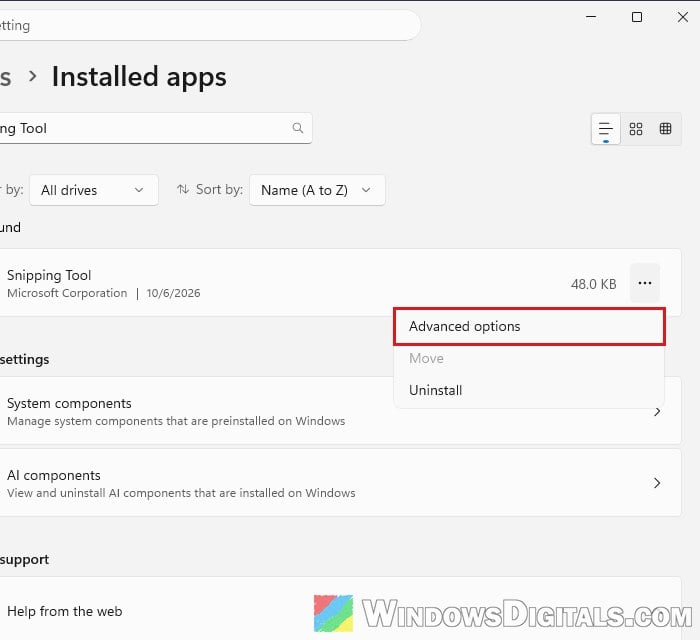
- Search for “Snipping Tool“, click the three dots next to it and select “Advanced options“.
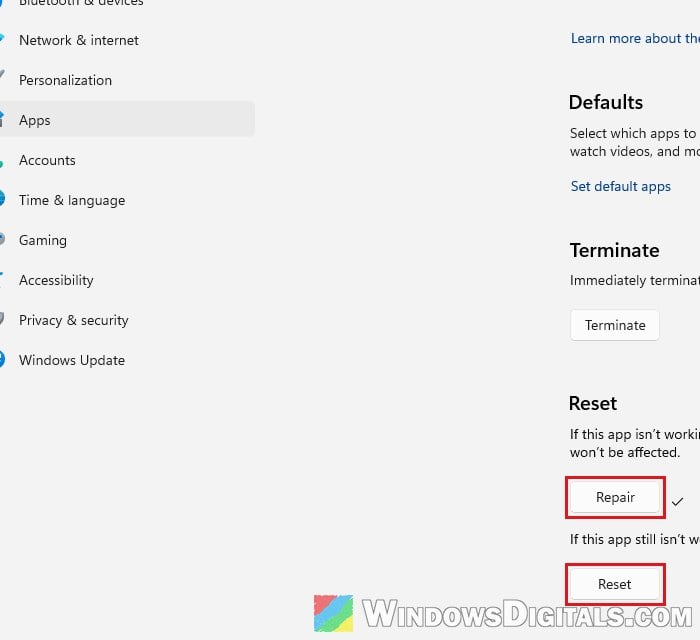
- Scroll down and click “Repair“. Wait for the check mark to appear next to the button.
- Press Win + Shift + S again to see if the snipping bar shows up.
If you still get the error, come back to the same page and click “Reset“, then confirm. Resetting puts Snipping Tool’s own settings back to default, so you may have to set them again afterwards.
Pro tip: How to Find Snipping Tool History in Windows 11 or 10
Set “MS-SCREENCLIP” to Snipping Tool in Default apps
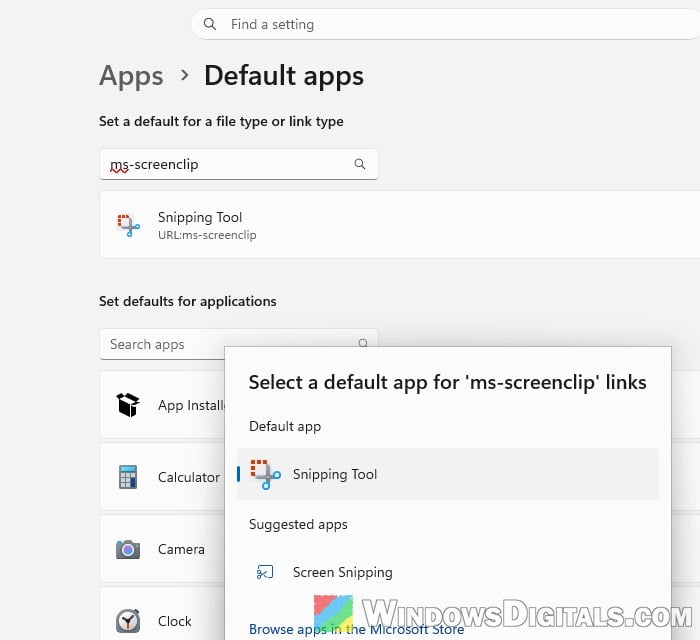
The error message actually tells you what to do here: “create an association in the Default Apps Settings page”. On Microsoft Q&A, the most helpful answer for this error was to link MS-SCREENCLIP to Snipping Tool again. Here’s how to do it:
- Open Settings > Apps > Default apps.
- In the search box under “Set a default for a file type or link type“, type “ms-screenclip“.
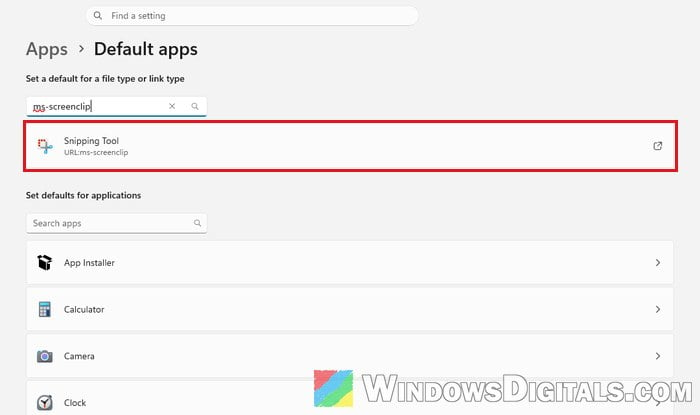
- Click the result below the search box. It shows the app currently set for “URL:ms-screenclip“.
- Select “Snipping Tool” and click “Set default“.
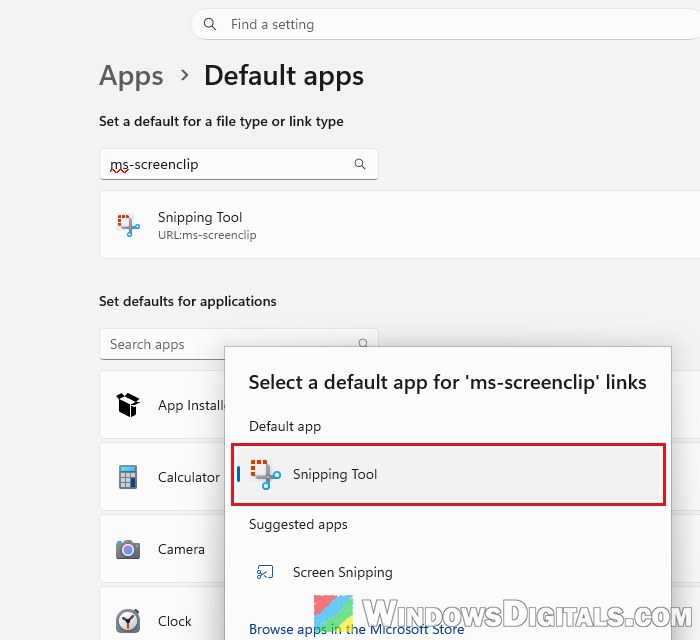
Press Win + Shift + S or Print Screen again and see if the snipping bar shows up this time.
If Snipping Tool isn’t in the list at all, open it once from the Start menu first. Snipping Tool only registers itself for your account the first time it runs, so an account that has never opened it may have nothing to link. If it won’t open from Start either, go to the next fix.
Try “Screen Snipping” instead
Back in 2025, when a Snipping Tool bug made it crash or save blank snips, many users on Microsoft Q&A got the shortcut working again by setting MS-SCREENCLIP to “Screen Snipping” instead of Snipping Tool, using the same steps above. It’s listed under “Suggested apps” in the same window. It’s worth a try if Snipping Tool is already set and the error keeps coming back. The downside is that Snipping Tool’s text extraction won’t work while it’s set this way, so switch it back once Snipping Tool is fixed.
Reinstall Snipping Tool from Microsoft Store
If Snipping Tool won’t repair, or Microsoft Store shows its download stuck at “Queued“, reinstalling it is worth trying. First, clear the Microsoft Store cache so the download can actually start:
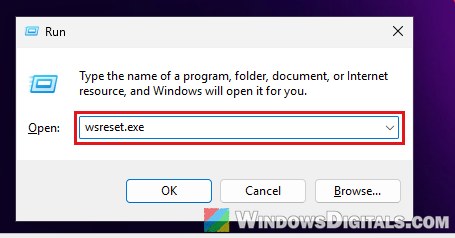
- Press Win + R, type “wsreset.exe” and click “OK“. Wait until Microsoft Store opens by itself.
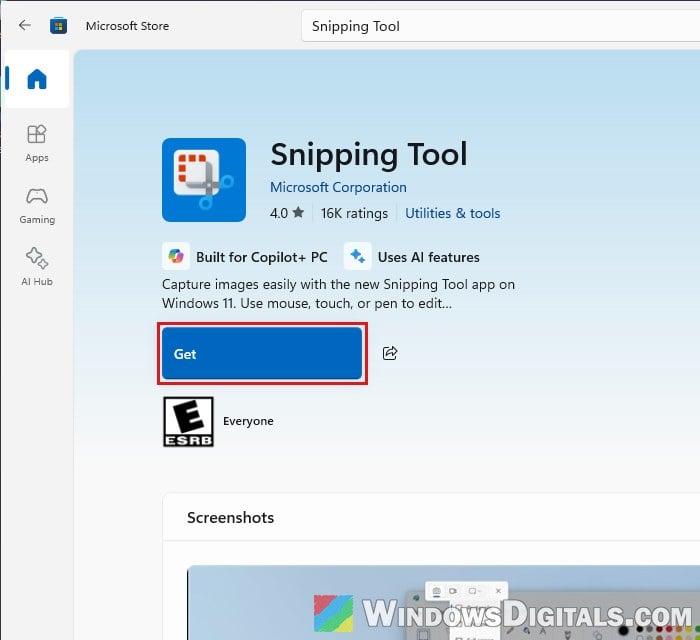
- In Microsoft Store, search for “Snipping Tool” (published by Microsoft Corporation) and click “Get” or “Update“, whichever it shows.
- Restart your PC once it’s installed, then try Win + Shift + S again.
If Snipping Tool is still listed as installed but broken, you can remove it first from Settings > Apps > Installed apps (three dots > “Uninstall“) and then install it again from Microsoft Store. You can also do the whole reinstall with PowerShell, as shown in our guide linked at the top of this article.
Might be useful: Can’t Download or Install Apps on Microsoft Store
Repair install Windows as a last resort
If nothing above helped, something in Windows itself may be damaged. A repair install (also called an in-place upgrade) reinstalls Windows over itself while keeping your files and apps, and an advisor on Microsoft Q&A suggested it for this exact error when nothing else worked. For how a repair install works, see: In-place Upgrade of Windows 11 on Unsupported Hardware.