If some of your games or apps started to close without warning, refuse to launch, or crash as soon as music starts playing after you installed the KB5124010 update on Windows 11, there’s a good chance you’re running into a known bug with AC-3 (Dolby Digital) audio decoding that Microsoft has already confirmed. This guide will show you how to check if this is your problem and what you can do until Microsoft releases a fix.
Also see: Sound or Audio Not Working on Windows 11/10 After Update
Page Contents
Why do games and apps crash after KB5124010?
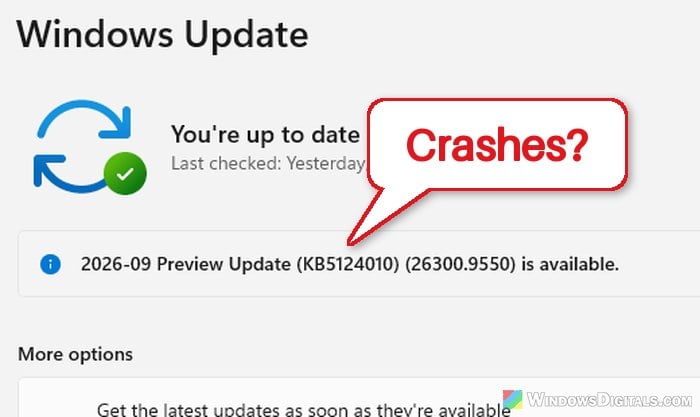
KB5124010 is the optional non-security preview update Microsoft released on September 22, 2026, for Windows 11 versions 24H2 (OS Build 26100.9550), 25H2 (OS Build 26200.9550) and 26H2 (OS Build 26300.9550). After installing it, or any update released after it, some apps that need Windows to decode AC-3 (Dolby Digital) audio might close unexpectedly.
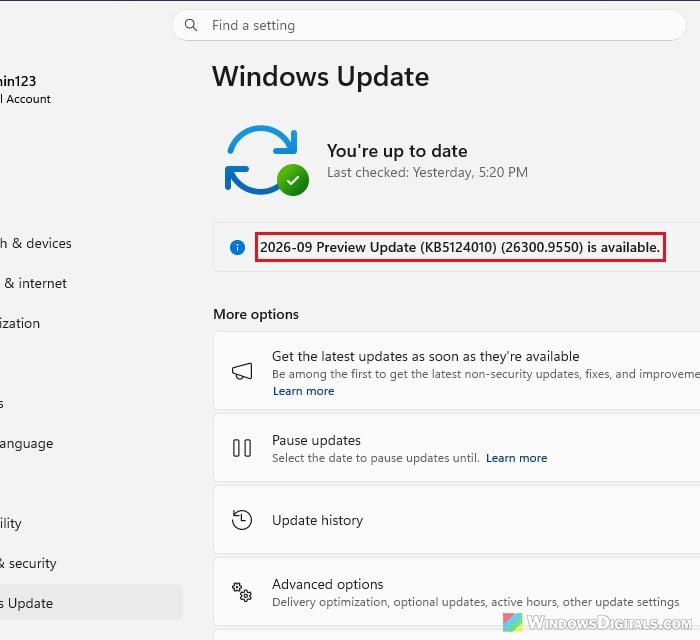
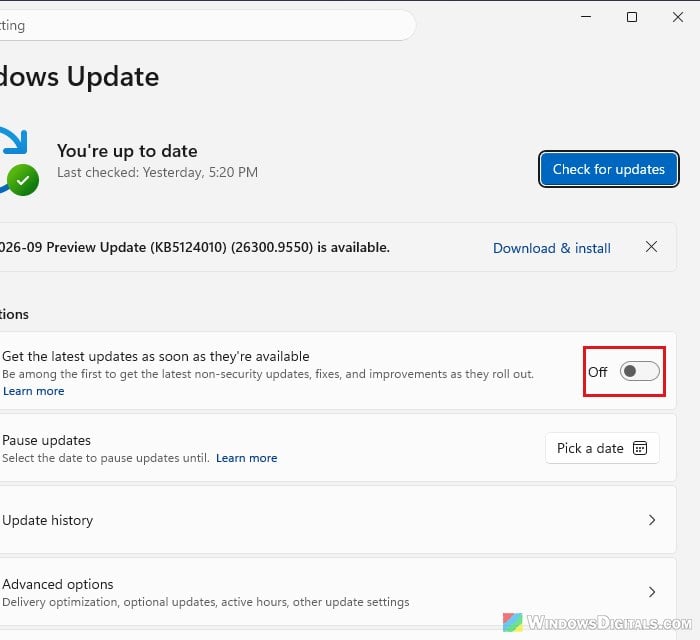
If Windows Update still shows KB5124010 as available, like in the screenshot above, it isn’t installed on your PC yet.
How it shows up depends on what the app is doing. Some apps fail to launch at all, some close without warning, and others work normally until you use a certain feature, such as playing music. According to Microsoft, the affected apps can include games, media players and even some productivity apps.
The good news is that many newer apps aren’t affected. The problem is in an audio component mostly used by older (“legacy”) apps that still rely on Windows’ built-in audio decoding, while many newer apps bring their own decoder. The games named so far by the modding community and tech sites are all older ones:
- The Elder Scrolls IV: Oblivion
- Fallout 3 and Fallout: New Vegas
- SimCity 4
In the Bethesda games, the crash often comes right after the main menu, just before the loading screen, or when you load a save. These games call on Windows’ AC-3 decoder every time the soundtrack switches, even though they don’t use it to play their music, and that’s what crashes them.
Related problem: Game Lag and Slow Performance After Windows Update
Check if this is the problem you have
Before you remove anything, it’s worth making sure it’s really this bug and not something else. The quickest way is to look at the crash in Event Viewer. Here’s how to do it:
- Press Win + R to open the Run dialog box.
- Type
eventvwr.mscand press Enter.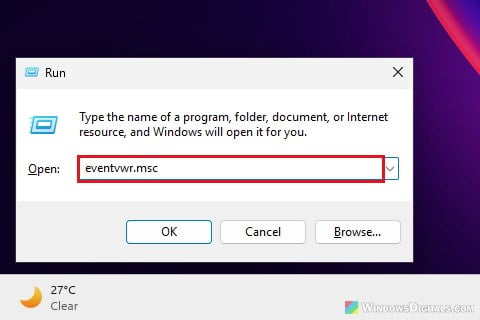
- In Event Viewer, go to Windows Logs > Application.
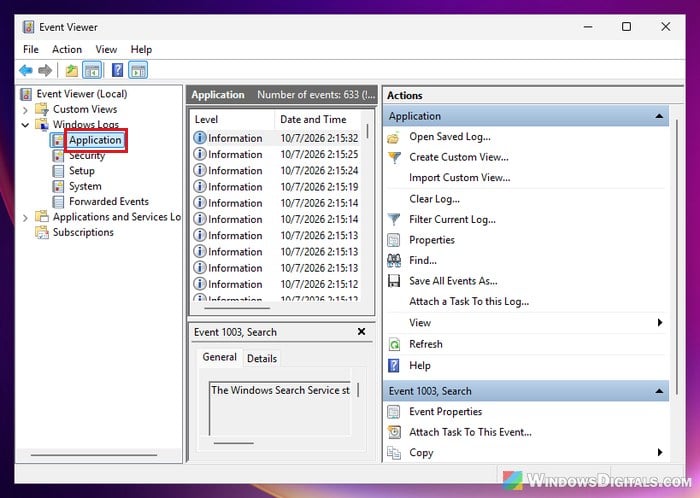
- Look for an Error from around the time the game or app crashed, usually with Application Error as the source, and click it.
- In the details, check the faulting module name. If it says msmpeg2ac3dec.dll, often with the exception code 0xc0000602, then it’s this issue. That file is the Windows AC-3 audio decoder.
You can also confirm that the update is installed by going to Settings > Windows Update > Update history and looking for KB5124010 in the list.
Pro tip: How to Check if a KB Update is Installed in Windows 11
Uninstall the KB5124010 update
Since Microsoft hasn’t offered a workaround yet, removing the update is the most direct fix. Tech sites covering the bug say affected users got their games and apps working normally again after removing it, and the developer of the community fix covered below also points to it as the alternative to their plugin. Because KB5124010 is an optional non-security preview update, uninstalling it doesn’t remove any security fixes from your PC.
To uninstall KB5124010, follow the steps below:
- Open Settings and go to Windows Update > Update history.
- Scroll down and click Uninstall updates.
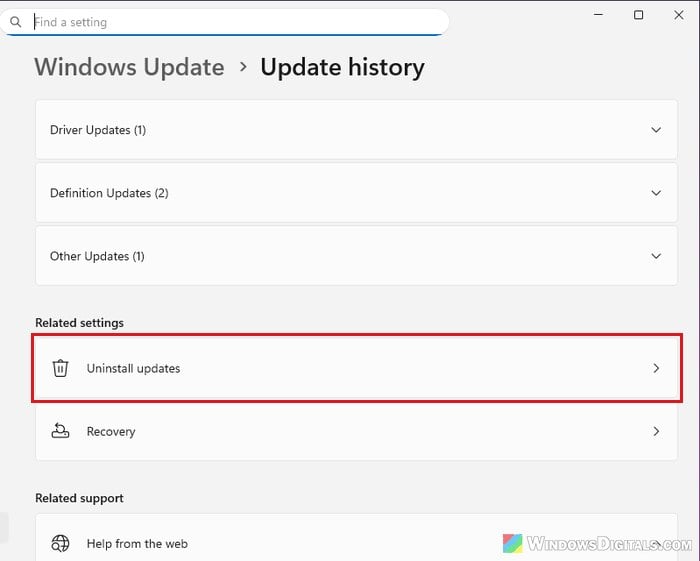
- Find KB5124010 in the list and click Uninstall.
- Restart your PC when it’s done.
Once your PC has restarted, open the game or app that was crashing and see if it works again.
Microsoft does note that some updates can’t be uninstalled this way. If KB5124010 isn’t in the list, a newer update may be installed instead, and updates released after KB5124010 can cause the same crashes. Removing a regular monthly update also removes its security fixes, so in that case it’s better to try the community fix below (if you play one of the three Bethesda games) or wait for Microsoft’s fix.
Linked issue: “Application Error” Won’t Go Away on Windows 11
Stop the update from coming back
After you uninstall it, Windows might install the update again, which would bring the crashes right back. Until Microsoft releases the fix, these two settings on the Settings > Windows Update page can help, but they work differently:
- Turn off “Get the latest updates as soon as they’re available“. With this on, your PC gets non-security updates like KB5124010 as soon as they’re out. Turning it off doesn’t stop your regular monthly updates, though, and Microsoft says updates released after KB5124010 can cause the same crashes.
- Use Pause updates to stop all updates for a while and choose the date they should resume (on Windows 11 26H2, click Pick a date next to it).
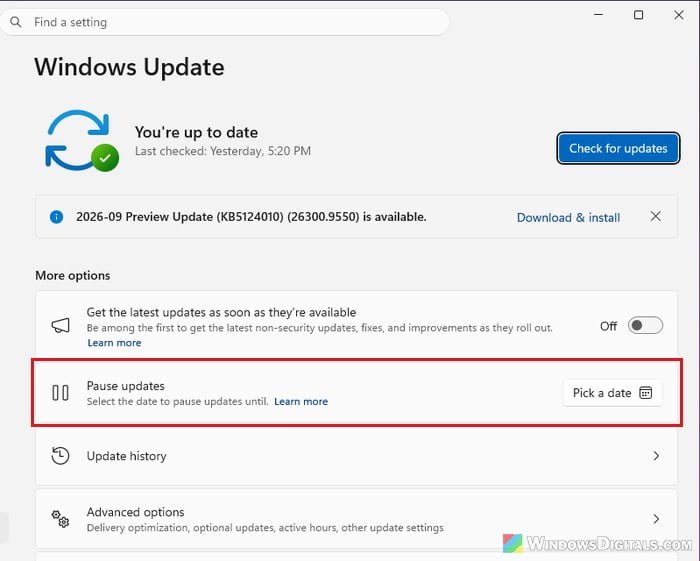
Please note that pausing updates also delays your security updates, so don’t leave it paused for long. If the crashes come back after a later update, use the Event Viewer check above to see if it’s the same bug.
Use the community fix for Oblivion, Fallout 3 or New Vegas
If the crashes are in Oblivion, Fallout 3 or Fallout: New Vegas and you’d rather keep your updates installed, the modding community already has a workaround called “Sep 2026 Loading Crash Fix (Windows 11 KB5124010)“. It’s a small script extender plugin that makes Windows skip the faulty AC-3 decoder while the game is open. It doesn’t touch any game or Windows files, and the in-game music still works.
Be warned: This is an unofficial plugin made by a member of the modding community, not by Microsoft or Bethesda, and its Nexus Mods page is tagged as AI-generated content. Like any game mod, it runs its own code on your PC, so use it at your own risk and only download it from its Nexus Mods page. If you’d rather not run third-party code, uninstall the update or wait for Microsoft’s fix instead.
Several players on Nexus Mods have confirmed that it fixed their crashes. Here’s how to use it:
- Make sure you have the script extender for your game installed: xOBSE for Oblivion, xNVSE for New Vegas or FOSE for Fallout 3.
- Download the plugin for your game from its Nexus Mods page (
https://www.nexusmods.com/newvegas/mods/99809for New Vegas, which also links the Oblivion and Fallout 3 versions). - Install it with your mod manager, or copy it into your game’s
Datafolder so the DLL ends up inData\OBSE\Plugins,Data\NVSE\PluginsorData\FOSE\Plugins. - Launch the game and see if it gets past the point where it used to crash.
To remove it later, just delete the DLL. According to its developer, it’s safe to leave installed after Microsoft fixes Windows, since it then does nothing. It was tested on Oblivion and New Vegas, while the Fallout 3 version hasn’t been tested by the developer yet.
When will Microsoft fix it?
Microsoft says a fix is coming in a future Windows update, but there’s no date yet. The issue is listed as confirmed on the Windows release health page for Windows 11 versions 24H2, 25H2 and 26H2, and its status will change there once it’s fixed. When that happens, resume updates and turn the “Get the latest updates as soon as they’re available” option back on if you had it on before.