There is a fairly common problem among PC gamers and modders where Windows Security suddenly flags a game file, a mod or a small tool as “Trojan:Win32/Kepavll!rfn” with a Severe alert level, then quarantines or removes it. It often turns out to be a false alarm, but it can also be real malware, especially when the file came from a cracked game or a repack. This guide will help you work out which one it is and what to do.
Also see: Trojan:Win32/Yomal!rfn on Epic Games or Firefox Installer
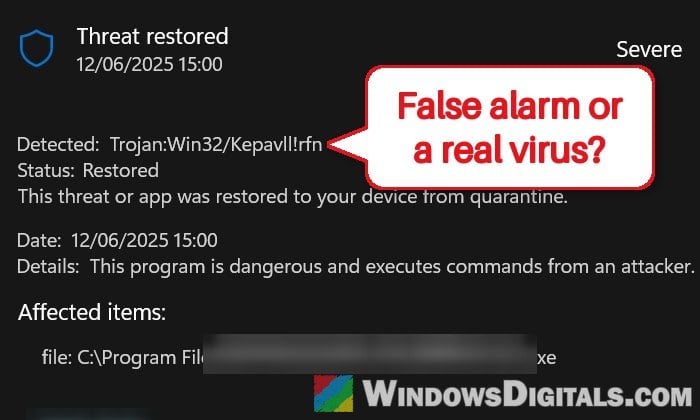
What is Trojan:Win32/Kepavll!rfn?
It’s a detection name from Microsoft Defender. “Trojan” is the kind of threat Defender thinks it is, and “Win32” means it’s a Windows program. According to Microsoft, the part after the ! is only an internal marker, and Microsoft has no public write-up on Kepavll itself. Most people who’ve looked into it treat it as a generic detection, where Defender flags a file for how it looks or acts rather than for matching one known virus, but Microsoft hasn’t said so.
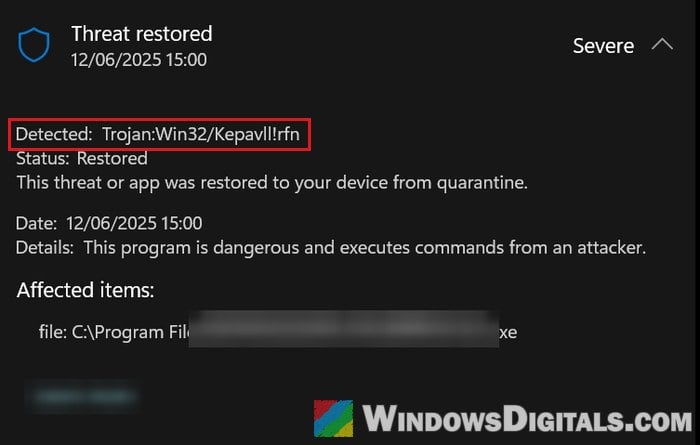
Since at least mid-2025, it keeps coming up on:
- Game files that replace or bypass DRM, such as files from cracked games, repacks and “online fixes”. This is by far the most common case.
- Mods and modding tools, like a Cyberpunk 2077 mod, a Minecraft mod download or a Steam emulator.
- Small portable tools. The makers of MouseJiggler, for example, confirmed that the detection on their portable download was a false positive.
It has also been flagged on the hosts file in C:\Windows\System32\drivers\etc. So the name alone can’t tell you whether your file is safe. What matters is the file itself and where it came from.
Related concern: Trojan:Win32/Vundo.gen!D in Roblox Files, False Positive?
Check which file Defender flagged
Here’s how to see which file Defender caught:
- Open Windows Security from the Start menu and click Protection history.
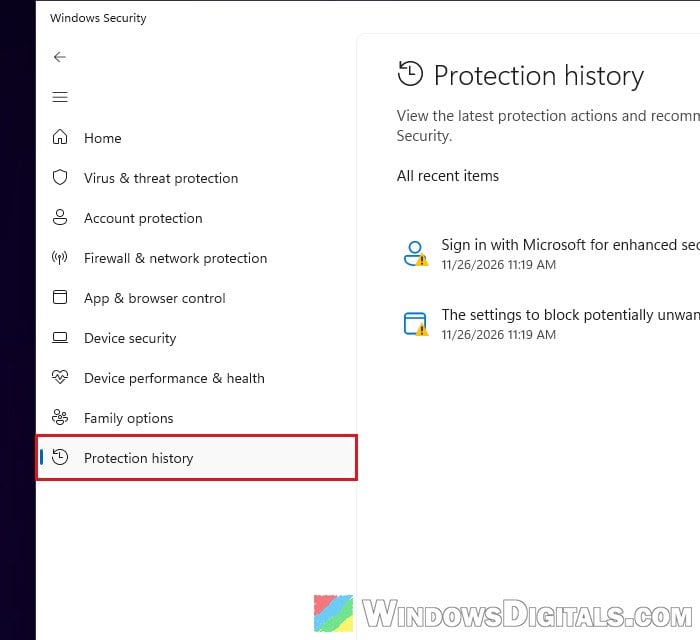
- Click the entry that says Trojan:Win32/Kepavll!rfn to expand it, and click Yes if Windows asks for admin permission.
- Write down the path under Affected items. That’s the flagged file.
- Check the status:
- Threat blocked or Removed: Defender has already removed it.
- Threat quarantined: It’s locked away and shouldn’t be a risk while it stays there.
- Threat found – action needed: Choose Quarantine. Microsoft’s own advice is to quarantine whenever you’re not sure.
- Threat restored: The file was put back from quarantine, and Defender will flag it again.
Don’t click Restore or Allow on device yet. If the file turns out to be malware, either one puts it back on your PC where it can run.
Think about where the file came from
Go by the path you wrote down. Where the file came from tells you most of what you need:
- From the maker’s own website or official GitHub page (a tool or a mod): this is most often a false alarm.
- From a cracked game, a repack, a key generator or a torrent: treat it as a real threat. Cracks are a common way for malware to get onto a PC. Don’t restore it.
- A file in
C:\Windows\System32with a random name (like a DLL or a service you’ve never heard of), or Kepavll showing up together with other detections: that points to a real infection. Run the full and offline scans below, then go to the last section. - The hosts file: check whether you or your security software changed it. Copy the file to your desktop, rename the copy to “hosts.txt“, open it in Notepad and compare it with a default hosts file.
Linked issue: What is Trojan:Win32/Casdet!rfn and How to Remove it
Get a second opinion on VirusTotal
VirusTotal checks a file against dozens of antivirus engines at once. If many engines flag it, it’s real. If only Defender and one or two lesser-known engines flag it, a false alarm is much more likely. Here’s how to use it:
- Go to
https://www.virustotal.com/in your browser. - Click Choose file and select the flagged file. If Defender has already quarantined or removed it, there’s nothing to upload, and it isn’t worth restoring it for this, so go on to the scans below.
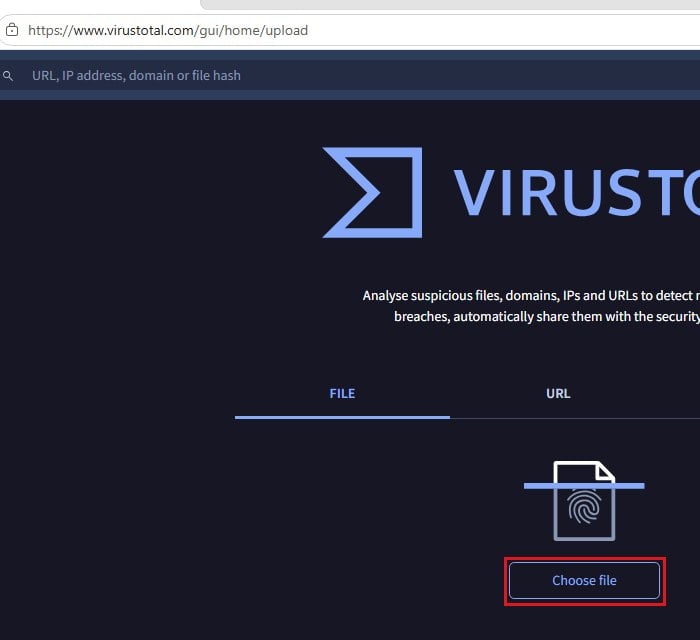
- Check how many engines flagged it and which ones.
If dozens of engines flag it, it isn’t a false alarm, however many people say the same download worked for them. Delete it, and if it’s a mod or a tool, download it again from its maker’s own page. A clean result isn’t a guarantee either, especially for a crack.
Update Defender and run a full and an offline scan
A full scan checks every file on your PC, not just the one in the alert. The offline scan runs before Windows starts, which helps with malware that’s hard to remove otherwise.
- In Windows Security, go to Virus & threat protection > Protection updates and click Check for updates.
- Go back to Virus & threat protection and click Scan options.
- Select Full scan and click Scan now.
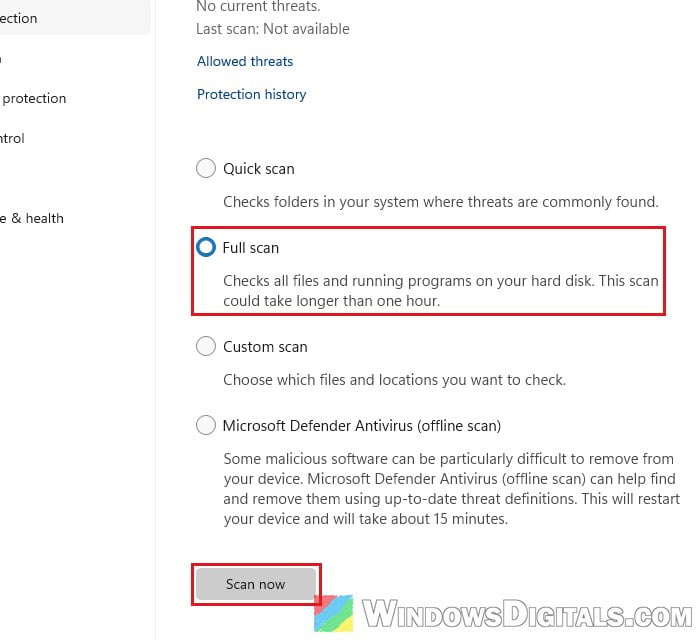
- When it’s done, save your open files, go back to Scan options, select “Microsoft Defender Antivirus (offline scan)” and click Scan now.
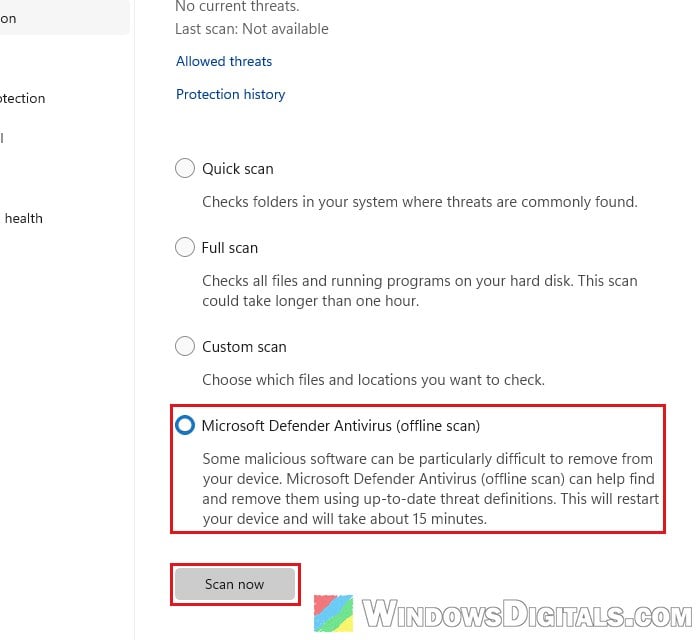
The PC restarts for the offline scan, and its results show up in Protection history once Windows is back.
What if the alert disappeared before you could do anything?
Sometimes the Kepavll!rfn alert shows for a few seconds and then vanishes from Protection history. That can mean Defender has already dealt with it, and the event log shows what happened:
- Press Win + R, type
eventvwr.mscand press Enter. - Go to Applications and Services Logs > Microsoft > Windows > Windows Defender > Operational.
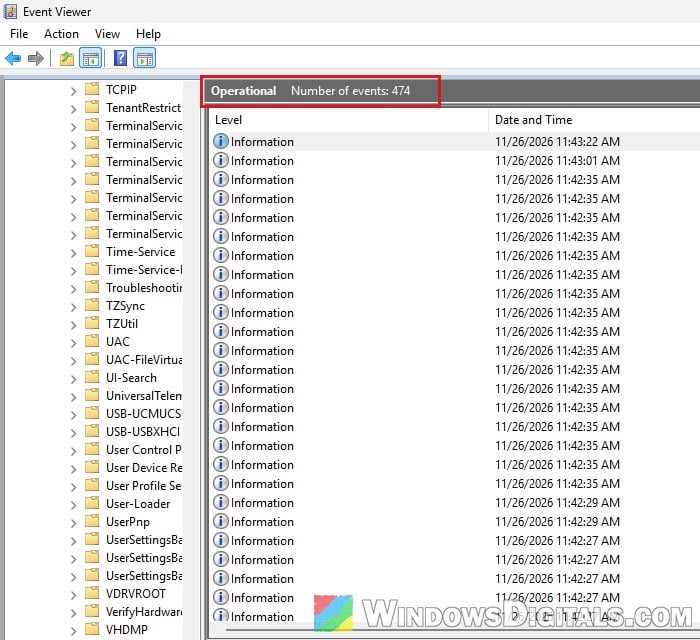
- Look for event 1116 (Defender found something) and event 1117 (Defender took action to protect your PC) at that time.
An 1117 entry followed by a clean offline scan is a good sign the threat was handled.
Related problem: Defender Asks to Restart to Remove Threats, but They’re Still There on Windows 11
If you’re sure it’s a false positive
When the file is from its real maker and VirusTotal mostly agrees it’s clean, report it to Microsoft as a false positive at https://www.microsoft.com/en-us/wdsi/filesubmission. Microsoft’s review can take a while, and a later Defender update can stop flagging the file.
If you need the file before then, click Restore on its entry in Protection history. When Defender flags it again, choose Allow on device on the new entry. Only do this for a file you’re sure about, and never for a cracked file. Avoid adding the whole game folder as an exclusion too, since Defender then won’t check anything else that ends up in it.
If it turns out to be real
If you ran a crack you aren’t sure about, or Kepavll keeps coming back after the scans, assume something got through and protect your accounts first:
- From your phone or another computer, change the passwords for your email, bank and other important accounts, and turn on two-step verification.
- In those accounts’ security settings, sign out of all other sessions and devices.
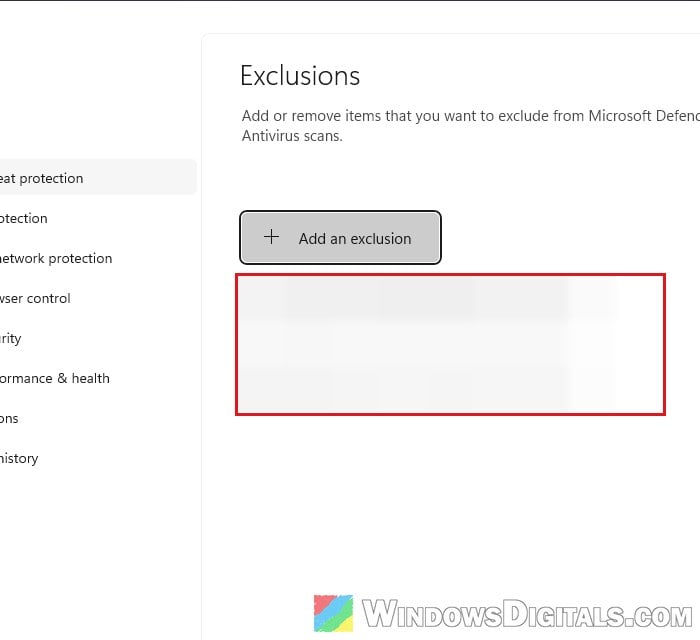
- In Windows Security, go to Virus & threat protection > Manage settings > Exclusions > Add or remove exclusions, and remove any exclusion you didn’t add yourself. Some malware adds its own so Defender stops scanning those places.
If system files are flagged or the detections keep returning after all of this, reset Windows instead of trying to clean it bit by bit. Back up your files to an external drive or cloud storage first, since a reset removes your apps and, depending on the option you pick, your files too.