You’re using your PC as usual when a window pops up saying “CorsairCpuIdService has unexpectedly encountered a crash“, then another one opens on top of it, and another, while the CPU and GPU temperatures in iCUE show nothing and, on some PCs, the fans drop back to a slow speed. This guide will show you how to stop the pop-ups, how to keep your PC cool while the sensors are gone, and what to do once Corsair releases a fix.
Also see: iCUE Not Detecting RAM, What to Do?

Why does CorsairCpuIdService keep crashing?
CorsairCpuIdService is the part of iCUE that reads your CPU, GPU and motherboard sensors so iCUE can show them and use them for fan curves. When it crashes, iCUE loses those readings, and its crash report window opens again and again.
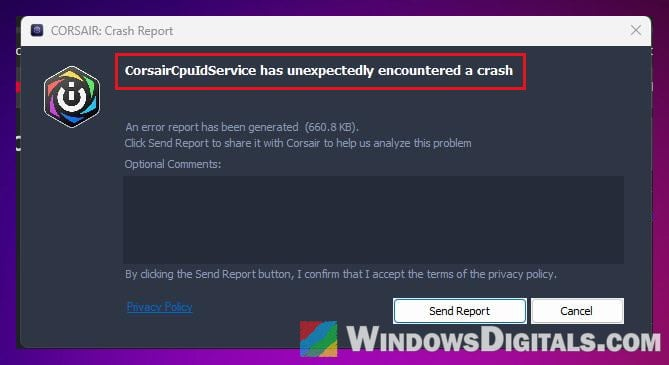
You’ll usually also see a notification in iCUE that says “CORSAIR CPUID Service Error: Sensor reporting may be affected. Restart your system to fix the issue.”
The crashes started for a lot of people right after iCUE updated itself to version 5.54.46, which Corsair published on November 17, 2026. It’s been a pretty common issue on Reddit since the update, and it hits all kinds of Corsair setups: Corsair One and Vengeance prebuilt PCs, AIO coolers like the H100i and iCUE LINK TITAN 360, and even owners of a Corsair mouse like the Scimitar. It happens with both NVIDIA and AMD graphics cards, so it’s very unlikely to be your hardware. It’s most likely a bug in the 5.54.46 build of the service, though Corsair hasn’t confirmed it.
Sadly, the usual fixes don’t seem to help with this one. Many users have already tried a clean reinstall of iCUE, removing other monitoring apps (Armoury Crate, MSI Afterburner, Core Temp), updating the BIOS and reinstalling graphics drivers, and the crashes came back. Rolling back to an older iCUE version didn’t work either, as iCUE simply updated itself to 5.54.46 again. Corsair’s 5.54.46 release notes don’t mention the problem, and at the time of writing (late November 2026) there’s no newer version yet.
In some cases, it goes further than pop-ups. There have been 0x7F blue screens whose crash dump pointed at CorsairCpuIdService and the NVIDIA driver, and they stopped once iCUE was disabled.
Related concern: How to Fix Blue Screen With Sad Face on Windows 10/11
Stop and disable the Corsair CPUID service
Until Corsair fixes it, the workaround that has stopped the pop-ups for most people who tried it, though not on every PC, is to stop the CPUID service and set it to Disabled, so it can’t start again. Your Corsair devices and lighting keep working without it. What you lose is the sensor data, which is already broken while the service keeps crashing.
Before you start, close the crash windows that are already open with “Cancel“, and don’t click “Send Report”. Sending the report can keep new pop-ups coming even after the service is disabled.
Here’s how to disable it:
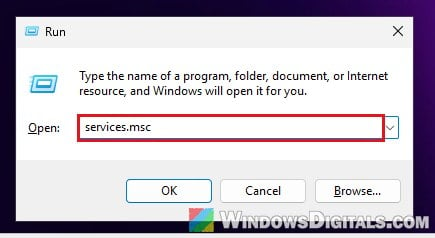
- Press Win + R to open the Run dialog, type “services.msc” and press Enter.
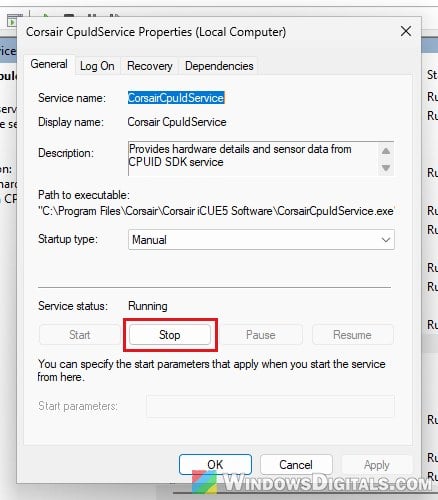
- In the Services window, scroll down to “Corsair CpuIdService“, next to the other Corsair services.
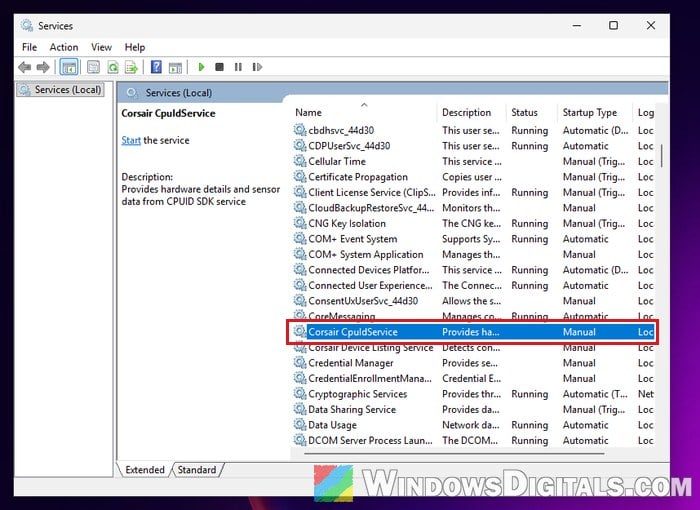
- Right-click it and select “Properties” (or just double-click it).
- Under “Service status“, click “Stop“.
- Click the “Startup type” dropdown and select “Disabled“.
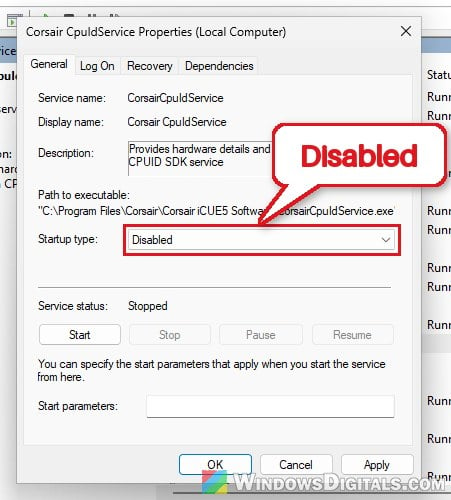
- Click “Apply“, then “OK“.
Restart your PC and wait a few minutes after iCUE opens. The crash pop-ups should stop. iCUE will now show a CPUID service error instead, and the CPU, GPU and motherboard sensors on its dashboard (and on a Xeneon Edge’s widgets) stay empty. That’s expected with the service off.
Pro tip: How to Disable Startup Services on Windows 11 or 10
Do it with commands instead
If the pop-ups make it hard to click through Services, use commands instead. Search for “PowerShell” in the Start menu, select “Run as administrator“, and run these commands one by one, pressing Enter after each:
sc.exe stop CorsairCpuIdService
sc.exe config CorsairCpuIdService start= disabled
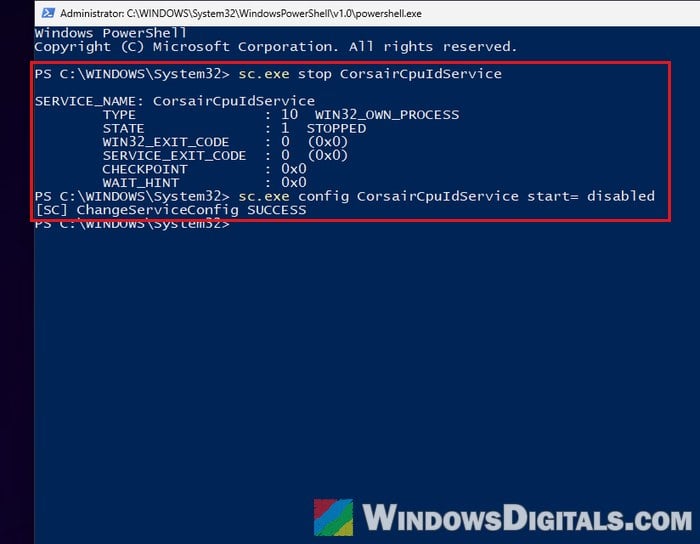
The first command stops the service right away, and the second sets its startup type to Disabled. Type sc.exe in full, since sc alone means something else in PowerShell, and keep the space after start=, or the command won’t work.
Keep your fans at a safe speed in the meantime
Your fans are the bigger worry here. If your fan curves follow the CPU or GPU temperature, iCUE has nothing to follow once those sensors are gone. On some PCs, the fans also dropped to a slow default speed every time the crash hit, even on the Extreme preset or a fixed-speed preset.
Once the service is disabled, don’t rely on a curve tied to CPU or GPU temperature. Set your fans to a fixed speed that keeps your PC cool under load, or, if you have an AIO cooler, use a curve based on its own coolant temperature.
Another option is to save a fixed fan speed to the device’s onboard memory (device memory mode) and close iCUE, so the fans hold that speed without it. Corsair suggests the same for Commander Core XT fans that misbehave when iCUE is closed, though it doesn’t work for everyone.
Might be useful: Computer Fans Randomly Speed Up, Why?
If the error only shows after a shutdown, turn off Fast Startup
There’s an older, slightly different version of this problem that has nothing to do with 5.54. iCUE shows a CPUID service error after you shut down and turn the PC back on, but everything works after a normal restart. In that case, Fast Startup is a likely culprit, since a shutdown with Fast Startup on doesn’t fully restart Windows the way a restart does. Turning it off has fixed this exact pattern before.
- Press Win + R, type “control” and press Enter to open Control Panel.
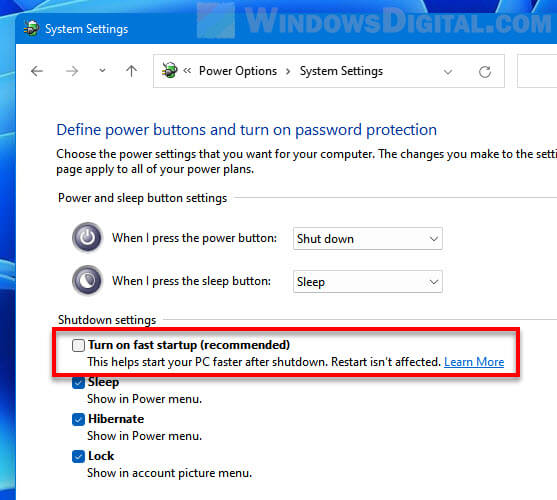
- Go to “Hardware and Sound” > “Power Options“, then click “Choose what the power buttons do” on the left.
- Click “Change settings that are currently unavailable“.
- Uncheck “Turn on fast startup (recommended)” and click “Save changes“.
Other sensor and RGB apps, such as NZXT CAM, HWiNFO, MSI Afterburner, MSI Center, Armoury Crate or Razer’s apps, can also make the CPUID service fail at boot if they start before iCUE. Disabling them from starting with Windows, letting iCUE load first and then opening them has helped in some cases. For the 5.54 crash, though, this didn’t help, so go back to the service fix above if the pop-ups keep coming.
Send your logs to Corsair
Corsair’s support asks for your logs to look into it, so it’s worth opening a ticket even with the workaround in place. iCUE can export everything they need from its settings:
- Open iCUE and click the gear icon at the top right (“iCUE Settings“).
- On the “General” page, next to “Export System Info and Logs“, click “Export” and save the file.
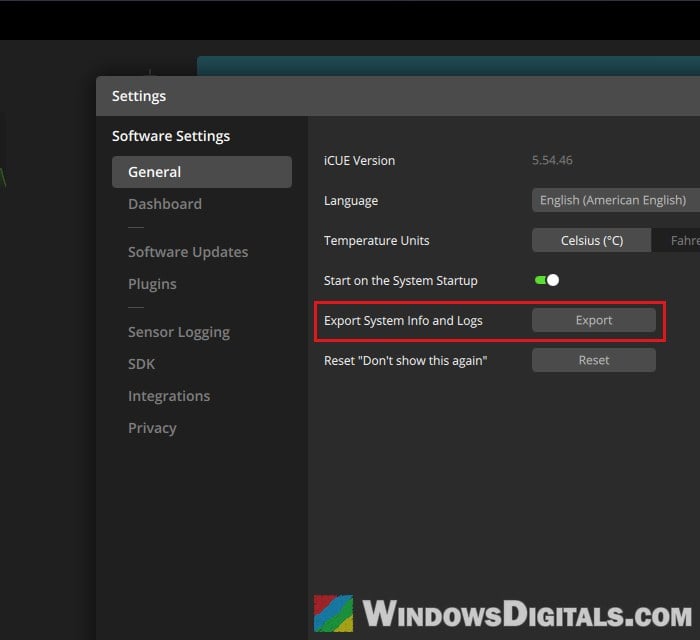
- Open a ticket with Corsair Support through the chat on Corsair’s support site and attach the file. Say that you’re on iCUE 5.54.46 and that the crash pop-ups started after the update.
Support may also ask for a SupportInfo.zip file from Corsair’s Windows Reporter Utility.
Turn the service back on after Corsair releases a fix
Once Corsair fixes the bug, you’ll want your sensors back. Keep an eye on Corsair’s iCUE release notes at https://www.corsair.com/us/en/explorer/release-notes/icue/ for a version newer than 5.54.46.
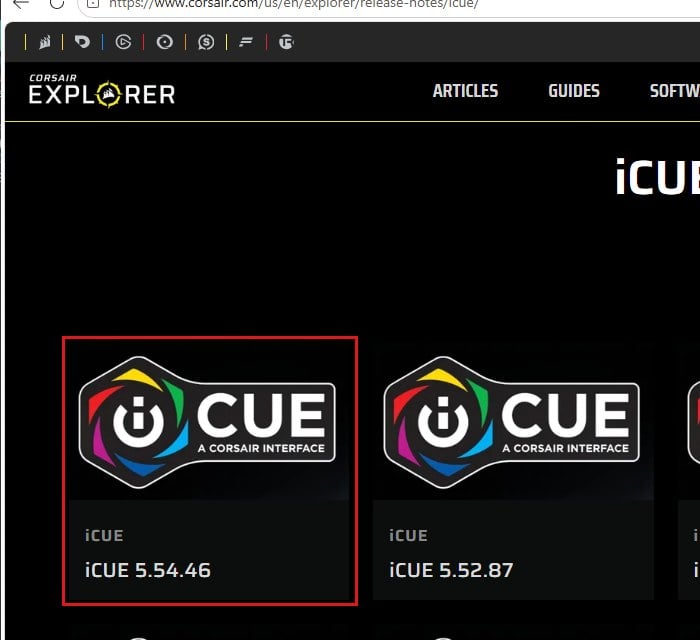
After you’ve updated iCUE:
- Open Services again and double-click “Corsair CpuIdService“.
- Set “Startup type” back to “Manual“, its default.
- Click “Apply“, then “Start“, then “OK“.
Restart your PC and check that your CPU and GPU temperatures show up in iCUE again before you switch your fan curves back to them.