If you want to change the name of your user folder in C:\Users because it’s the first five letters of your email, it’s misspelled, or it has non-English letters some apps can’t handle, you’ve probably noticed there’s no setting to rename it. This guide will show you the safe ways to change it in Windows 11, plus the riskier registry way.
Also see: How to Change User Account Name in Windows 11
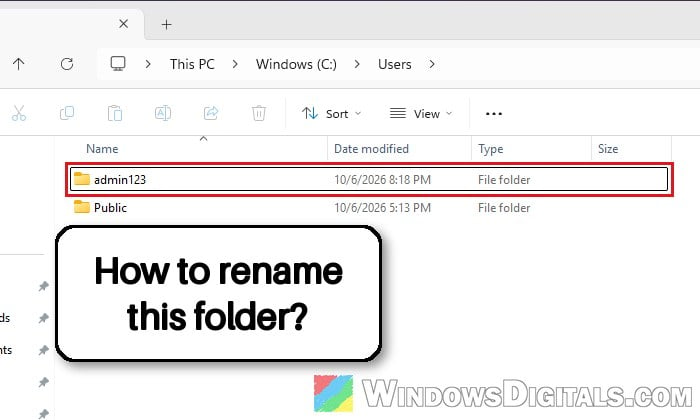
Why can’t you just rename the user folder?
When the first account you set up on a PC is a Microsoft account, Windows names its user folder after the first five characters of the account’s email address. So an email starting with “patrickson” ends up as C:\Users\patri. A local account’s folder gets the account’s name. Either way, it’s named at the account’s first sign-in, and renaming the account later doesn’t change it (by design, says Microsoft). You can see yours in File Explorer under This PC > C: > Users.
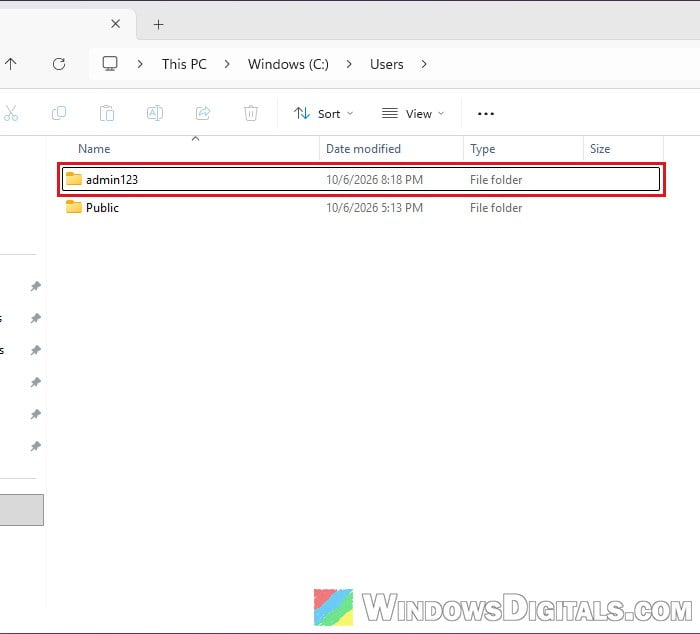
You can’t just press F2 on it because Windows keeps each account’s folder path in the registry, and apps store it in many other places too. Rename it in File Explorer and Windows can’t find your profile, so you land in a fresh temporary profile or see “The User Profile Service failed the sign-in. User profile cannot be loaded.” Renaming it back can bring everything back.
Non-English letters in the name can also cause real trouble. Some apps and games read a path with a letter like “ž” wrongly and fail to start, while working fine in an account with a plain English folder name.
Linked issue: “User Profile Service Failed The Logon” Windows 10/11
Set the folder name during Windows setup (new PC or clean install)
On a new PC or a reinstall, this is the cleanest way. Since the May 2026 update KB5089573 (builds 26100.8524 and 26200.8524), Windows 11 setup lets you pick it. On the “Name your device” page, click “Show user folder name” below the device name and type the name in the “User folder name” box.
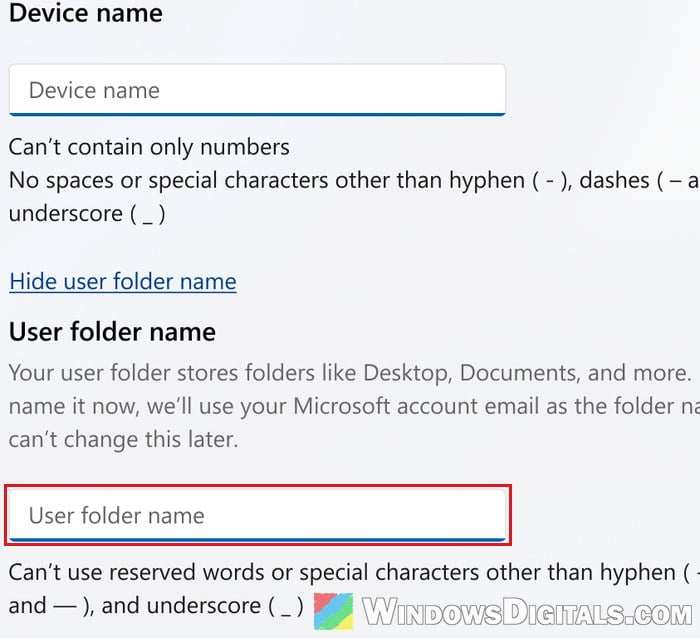
- It only works during setup, which warns you can’t change it later. Left empty, you get the five letters of your email.
- It’s rolling out gradually and older install media may not have it, so the link might not show.
- No reserved words like CON or NUL, and no special characters other than hyphens, dashes and underscores.
If your setup doesn’t have this option, set up the PC with a local account first, then switch it to your Microsoft account. The folder keeps the local name.
Might be useful: How to Login Windows 11 Without Microsoft Account
Create a new account with the name you want (recommended)
For a PC that’s already set up, this is what almost everyone recommends, using the same steps Microsoft gives for moving to a new profile. The new account gets a new folder with its name, you move your files over, and the registry isn’t touched. The catch is that app settings don’t come along, so some apps need setting up again or reinstalling, and email in an email app must be imported again.
1. Add a new local account
A local account is what lets you pick the name. You can link your Microsoft account to it later.
- Open Settings > Accounts > Other users.
- Next to “Add other user”, click “Add account“.
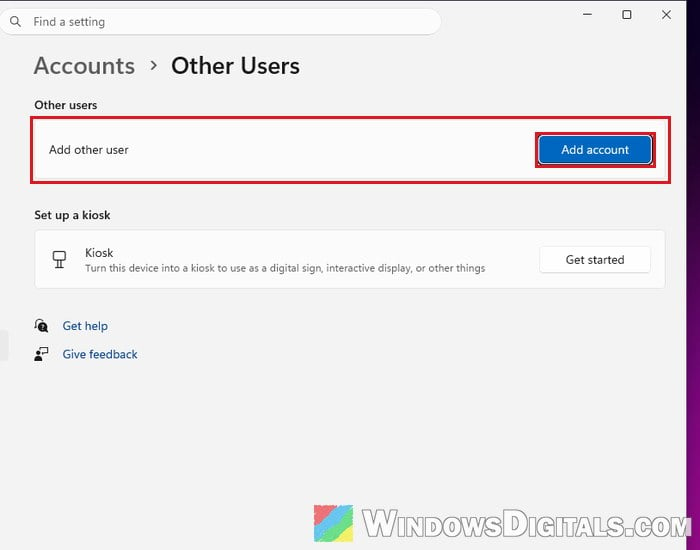
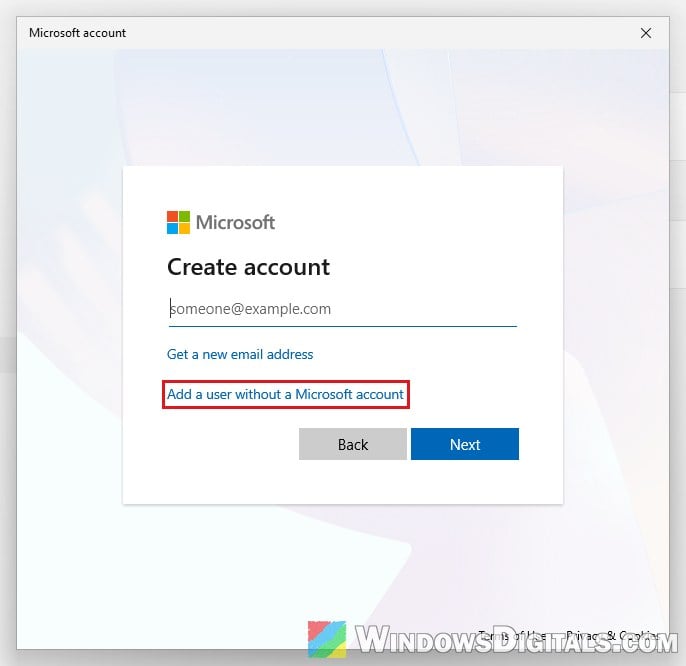
- Click “I don’t have this person’s sign-in information“, then “Add a user without a Microsoft account“.
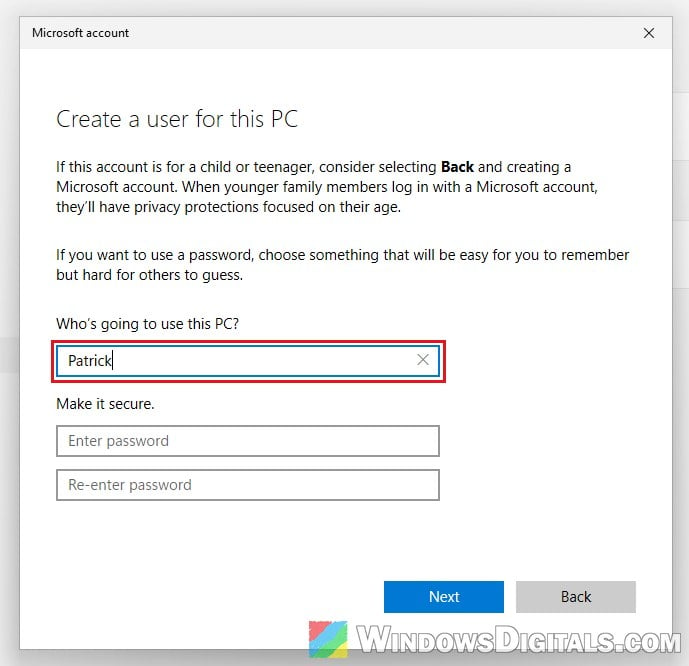
- Type the name you want for the folder (plain English letters, no spaces), set a password, and finish the prompts.
2. Make the new account an administrator
- In Settings > Accounts > Other users, click the new account, then “Change account type“.
- Select “Administrator” and click “OK“.
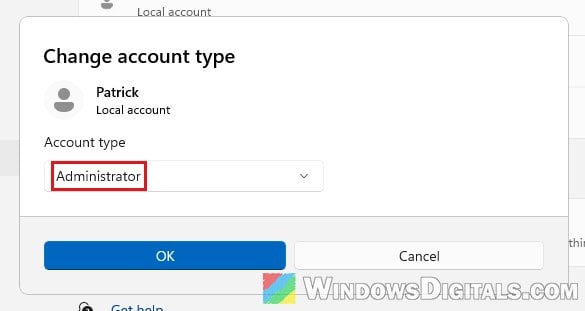
Related guide: Give Admin Permission/Rights to User in Windows 11/10
3. Move your Microsoft account to the new account (if you use one)
Free your Microsoft account from the old account first, so the new one can use it. Using a local account? Just restart, sign in to the new account and go to part 4.
- Still signed in to your old account, go to Settings > Accounts > Your info and click “Sign in with a local account instead“. Follow the prompts.
- Restart and sign in to the new account. This first sign-in creates
C:\Users\<new name>. - There, go to Settings > Accounts > Your info, click “Sign in with a Microsoft account instead” and use the same email.
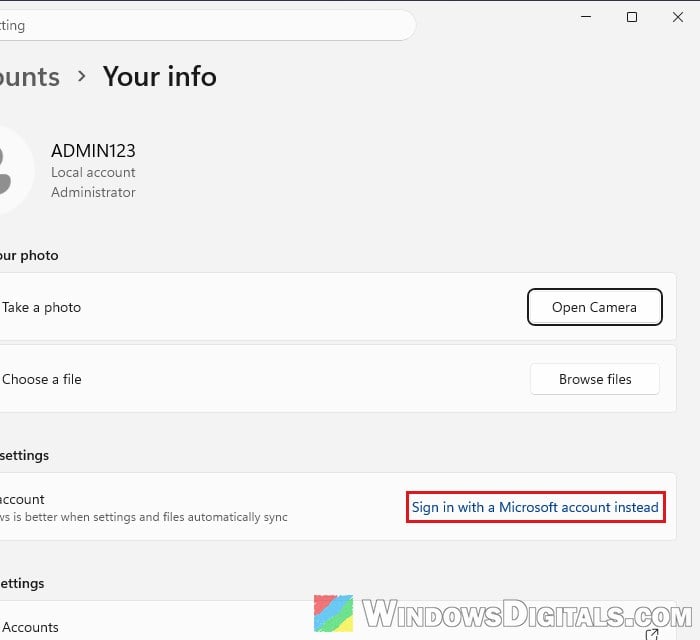
4. Copy your files over
- In the new account, open File Explorer and go to This PC > C: > Users > your old folder.
- Press Ctrl + A and Ctrl + C to copy everything inside it (not the folder itself).
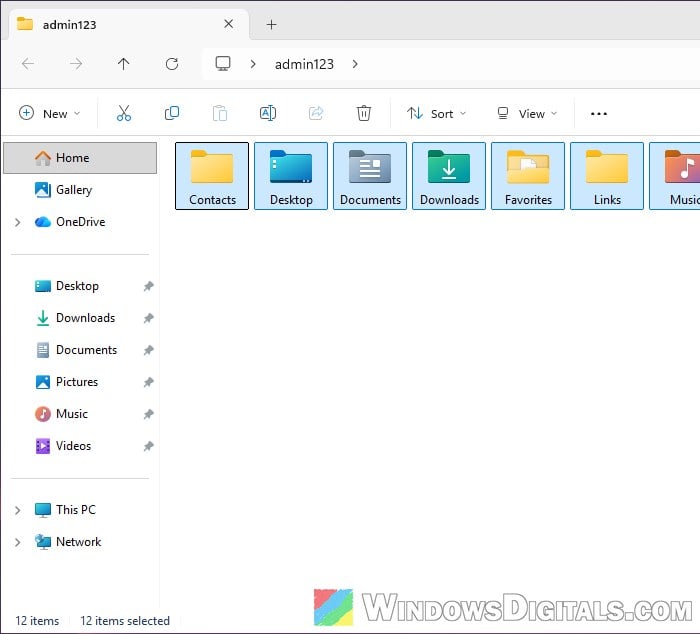
- Open
C:\Users\<new name>and paste with Ctrl + V. - Restart the PC and sign in to the new account again.
Don’t turn on showing hidden or protected system files for this, as Microsoft warns. Desktop, Documents and Pictures backed up to OneDrive come back once you sign in to OneDrive there.
5. Remove the old account (when you’re sure)
Wait until you’re sure nothing is missing, since removing the account deletes its user folder and everything left in it.
- Sign in to the new account and go to Settings > Accounts > Other users.
- Click the old account, then click “Remove“.
- Click “Delete account and data“.
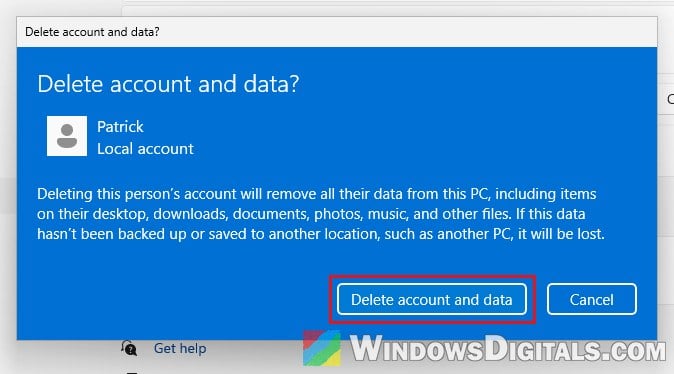
Rename the folder and change “ProfileImagePath” (advanced)
The folder can also be renamed directly, as long as the registry is changed to match. It works when done right, but it’s also how a lot of people end up with a broken profile, and Microsoft says not to use this workaround on Windows 10 or later because it can stop the winget command from working. Some apps that saved the old path may need reinstalling too.
A wrong registry change can stop you from signing in at all, so back up your files and at least create a system restore point first. If in doubt, use the new account method instead.
- Sign out of the account whose folder you want to rename.
- Sign in to a different administrator account (create one with the first two parts above if needed). Restart and sign in to it again so nothing of the old account is running (or the folder shows as open in another program).
- Open PowerShell as administrator and run this command. Note the SID next to the account you’re renaming.
Get-LocalUser | Select-Object Name, SID
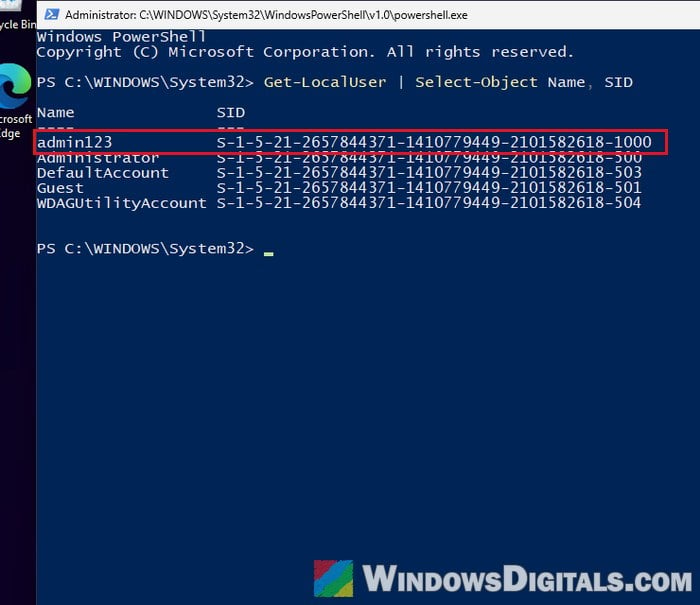
- Press Win + R, type “regedit” and press Enter. Paste this path into the address bar, then click the key with exactly that SID under it (not one ending in
.bak):HKEY_LOCAL_MACHINE\SOFTWARE\Microsoft\Windows NT\CurrentVersion\ProfileList
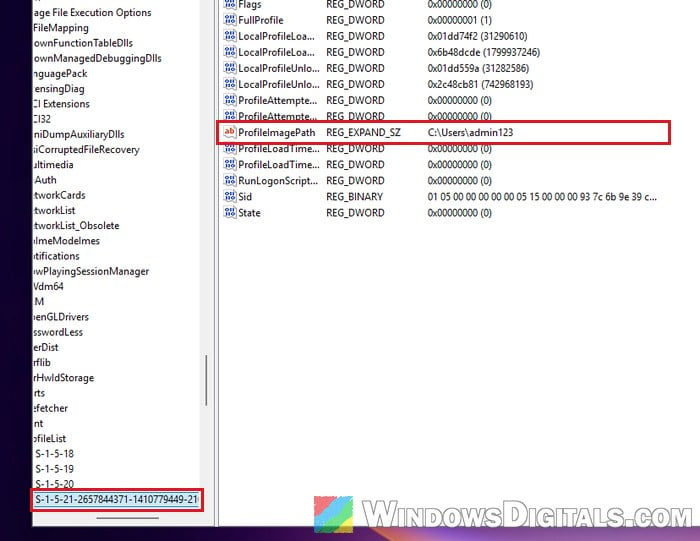
- Double-click “ProfileImagePath“, change only the folder name at the end (for example,
C:\Users\patritoC:\Users\Patrick), and click “OK“.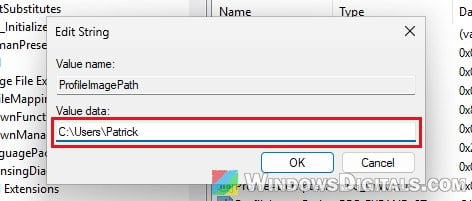
- In File Explorer, go to
C:\Usersand rename the old folder to exactly that new name.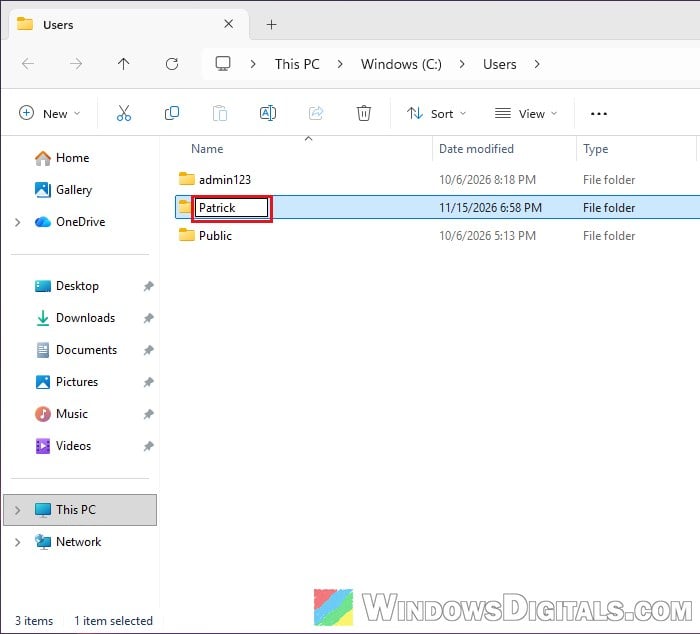
- In Command Prompt as administrator, link the old path to the new one, so anything using the old path still works:
mklink /d "C:\Users\patri" "C:\Users\Patrick"
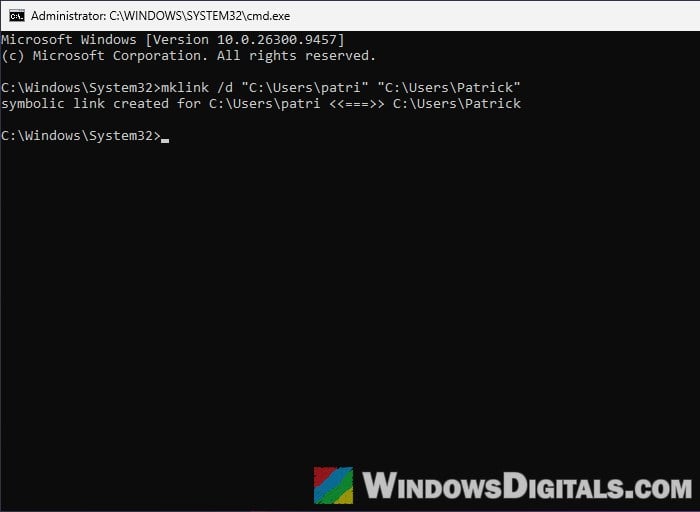
- Sign out and sign in to the renamed account. Your files and desktop should be back where they were.
If you use OneDrive, check its folder location isn’t still the old one, and rebuild the Windows Search index to clear old paths. Then delete the extra administrator account if you made one for this.