If you’ve been signing in to Outlook.com or Hotmail with the right password, but Microsoft still wants to send a security code to your other email address every single time, even on the same PC you always use, reports of this have piled up since mid-November 2026. It’s worse when two Outlook accounts are each other’s recovery email, since each one asks for a code only the other can receive. This guide will explain why Microsoft keeps asking, how to stop it, and how to get out of that two-account loop.
Also see: “Password Sign-In Isn’t Available. Try Another Method” on Microsoft Account
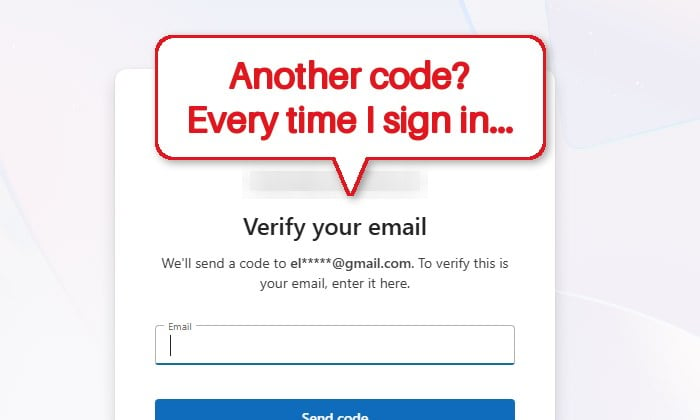
After you enter your password, Microsoft shows a “Verify your email” or “Verify your identity” page with your other address partly hidden, and it won’t let you in until you get a code there.
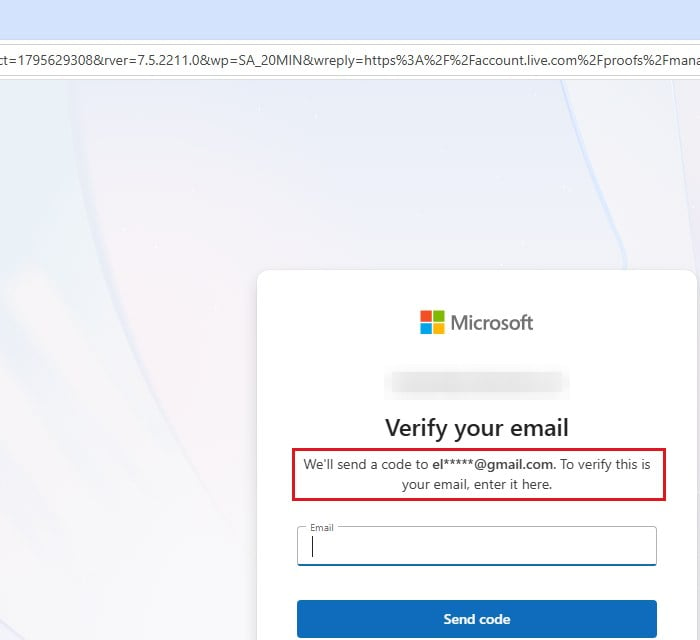
Why does Microsoft ask for a code every time?
Microsoft hasn’t said why this started, but the way its code check works explains a lot of it. Some common reasons are:
- Two-step verification is on. According to Microsoft, with two-step verification turned on you get a code by email, phone or the Authenticator app every time you sign in on a device that isn’t trusted. With it off, Microsoft only asks now and then, when something looks risky, like a new device or location.
- Your browser forgets you. Microsoft most likely remembers a browser you’ve already verified through its cookies and site data. If your browser clears cookies when you close it, or you always sign in from a private window, every sign-in looks like a brand-new device.
- Microsoft sees something unusual. A different location or network can trigger the check even with the same PC and browser. If it goes further and your account gets locked for unusual activity, that’s a different problem.
The loop between two Outlook accounts works differently. If account A’s only recovery email is account B, and account B’s only recovery email is account A, signing in to either one needs a code from the other.
Sign in with a passkey instead of a password
The surest fix is to stop using the password and email code altogether. A passkey signs you in with Windows Hello (your face, fingerprint or PIN), a phone or a security key. You’ll need the code one more time to set it up.
To add a passkey on your Windows PC, follow the steps below:
- Go to
https://account.live.com/proofs/manageand sign in. - Under Ways to prove who you are, click Add another way to sign in to your account.
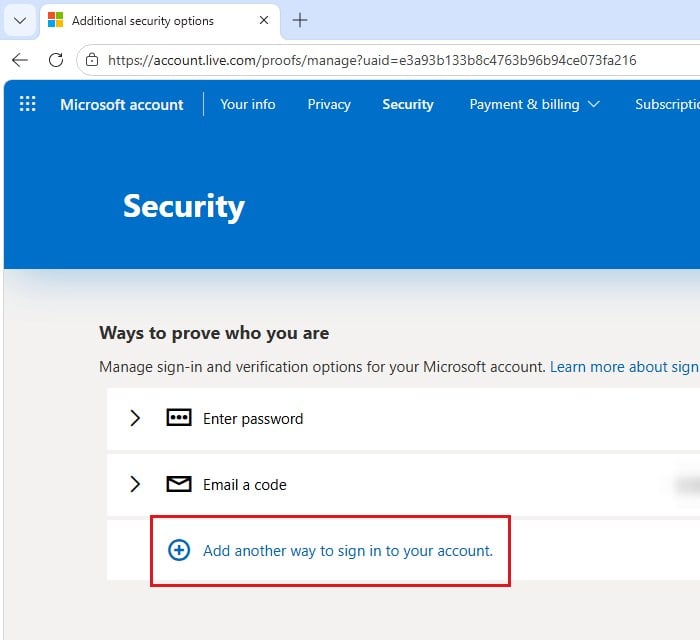
- In the Add a new way to sign in or verify box, select Face, fingerprint, PIN, or security key.
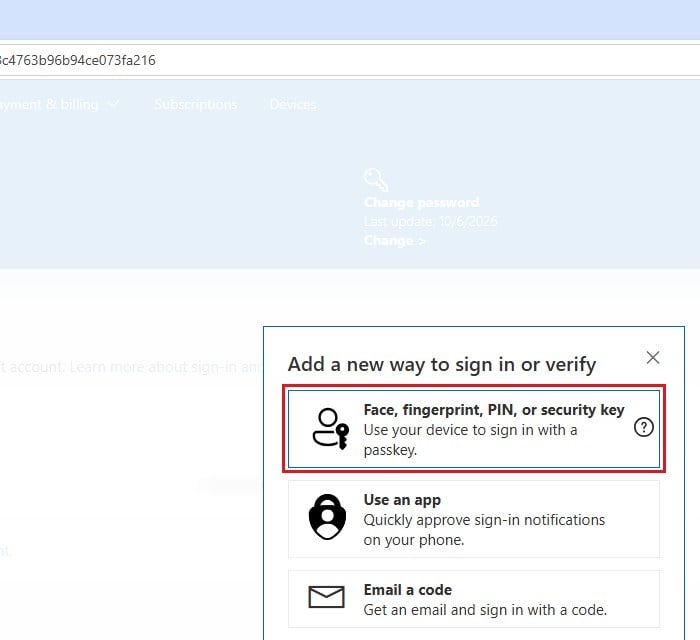
- Follow Windows’ prompts and confirm with your face, fingerprint or PIN to save the passkey on this PC. You can also save it on your phone or in a password manager.
Next time you sign in, choose the passkey and confirm it on your device instead of typing your password. If you’d rather approve sign-ins on your phone, pick Use an app in the same box instead.
Pro tip: Stop the “Choose where to save your passkey” Pop-up in Windows 11
Stop your browser from clearing Microsoft’s cookies
If you’d rather keep using your password, make sure your browser keeps the cookies that tell Microsoft this PC is already verified.
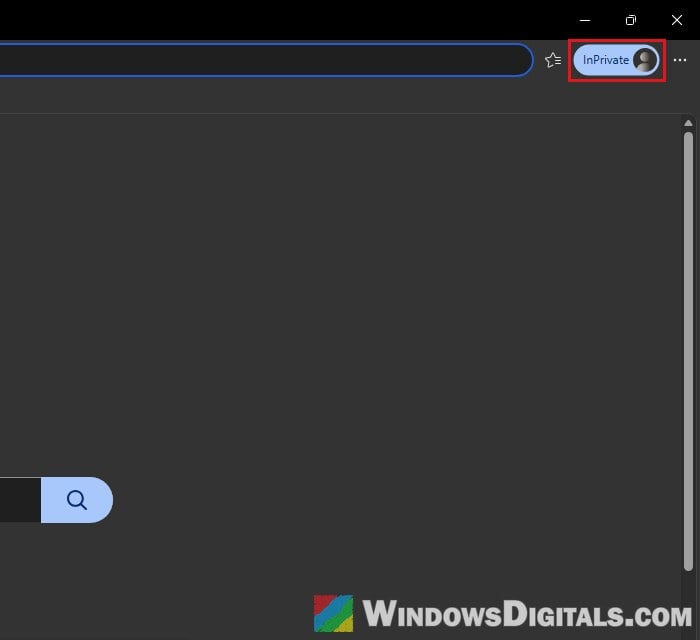
- Use a normal browser window on your own PC to sign in, not a private or InPrivate window.
- If your browser deletes cookies when you close it, add an exception for Microsoft’s sign-in sites, or turn that option off.
- Try Outlook in Microsoft Edge with Edge itself signed in to the same Microsoft account. Some people found that this got them past the prompts.
Even then, Microsoft may still ask for a code now and then.
Related concern: How to Clear Cookies in Windows 11
Check whether two-step verification is on
If two-step verification is turned on, a code at every sign-in on an untrusted device is exactly how it’s supposed to work. Turning it off makes Microsoft ask only when it sees a risk, but your account will be easier to break into, so a passkey is the safer way to get rid of them. Here’s how to check it:
- Go to
https://account.microsoft.com/securityand sign in. - Click Manage how I sign in.
- Scroll down to Additional security and find Two-step verification. It shows ON or OFF under its name.
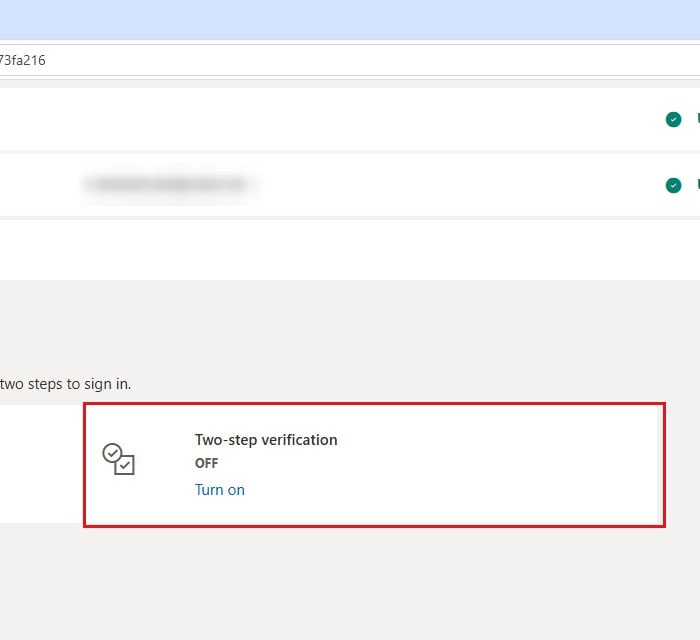
- If you decide to turn it off, click Turn off and follow the instructions on the screen.
Break the loop between two Outlook accounts
If your two Outlook or Hotmail accounts recover each other, give at least one of them a recovery email from another provider, like Gmail, Yahoo or Proton Mail.
First you need to get into one of the accounts. Try these:
- Use a device where one of the accounts is still signed in, such as the Outlook app on your phone, or another browser.
- Use the two-window trick Microsoft suggests: sign in to the first account in a private window (Ctrl + Shift + N in Edge) and leave it at the code page. Then open a second private window, sign in to the other account there, copy the code from the Microsoft account team’s email, and enter it in the first window. This only works if the second account lets you in.
Once you’re in, add the new email and remove the old one:
- Go to
https://account.live.com/proofs/manageand click Add another way to sign in to your account. - Select Email a code, type the Gmail (or other) address, and enter the code Microsoft sends to it.
- Back under Ways to prove who you are, expand the Email a code row with your other Outlook address and select Remove.
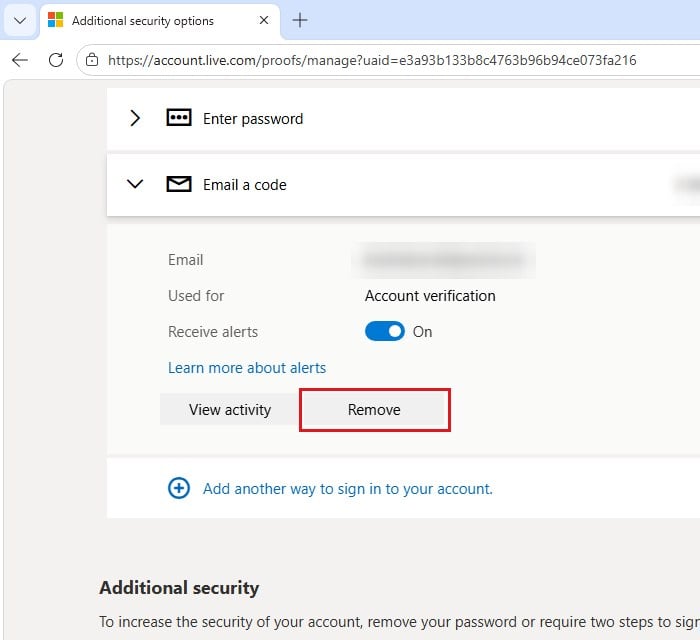
Then do the same on the other account.
Locked out of both? Replace your security info
If you know the password but can’t receive any code at all, Microsoft lets you replace your security info, with a catch: you have to wait 30 days before you can sign in with the new info. Support can’t shorten the wait or send you a code.
- Sign in with your password.
- On the Verify your identity page, click Show more verification methods and use any other method you have.
- If none of them work, select I don’t have any of these and follow the prompts to add a new email, preferably not another Microsoft one.
- Wait for the 30 days to pass, then sign in with the new info.
If you sign in with your old recovery email during those 30 days, the change is canceled. Also, don’t keep requesting codes. Too many requests can block them for a while, so if they stop arriving, wait a day (up to a week) before trying again. Real codes come from an @accountprotection.microsoft.com address, so check your Junk folder too.
Save a recovery code once you’re back in
Once you can sign in again, create a recovery code, a 25-digit code that gets you into your account when every other method fails.
- Go to
https://account.live.com/proofs/manage/additionaland sign in. - Scroll to the Recovery code section and select Generate a new code.
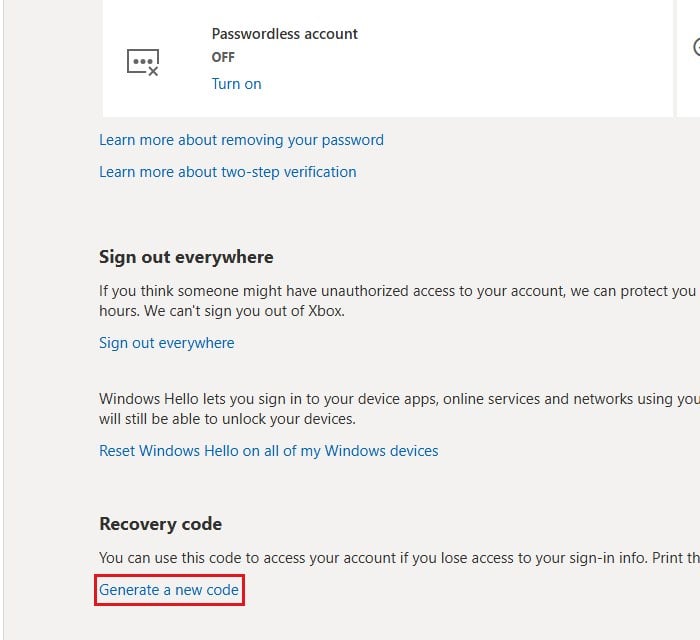
- Print it or write it down, and keep it somewhere safe, not on the devices you sign in with.
Creating a new code cancels the old one. If you ever need it, choose Other ways to sign in > Use my password > Forgot password? > Use a different verification option > I don’t have any of these on the sign-in page, and enter the code when Microsoft asks for it.