Adding your GoDaddy Microsoft 365 email to Outlook (or signing in to Word, Teams or “Access work or school” in Windows) should only take typing your email address and clicking Next. Since mid-October 2026, though, the next window says “This sign-in page is being retired” and points you to a GoDaddy help article, and it’s been happening to a lot of GoDaddy users. This guide will explain why it happens and show you what you can do to get signed in again.
Also see: Microsoft 365 Outlook 1001 Error “Something went wrong”
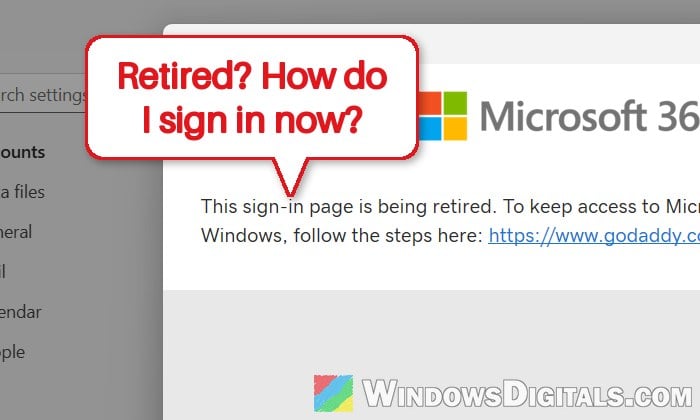
Why does GoDaddy say “This sign-in page is being retired”?
Microsoft 365 accounts bought through GoDaddy sign in on GoDaddy’s own sign-in page, not Microsoft’s. Inside apps like Outlook, that page opens in a small sign-in window that Windows still draws with an old web engine by default (the EdgeHTML-based web view).
GoDaddy no longer supports signing in through that old window. According to GoDaddy, its sign-in now needs the newer sign-in experience in Windows 11 version 24H2 or later, which uses Microsoft Edge WebView2 (the same Chromium engine Edge uses). Microsoft added this option with the December 2025 update, but it stays off until a registry value turns it on. Microsoft says it will become the default in a future Windows release.
Before you start, a few things to know:
- It affects both classic Outlook and the new Outlook, and the other apps that use the same Windows sign-in: Word and Excel, Teams, Edge, and adding a work account in Windows Settings.
- Outlook on the web and the Outlook phone app still work, so your mailbox itself is fine.
- Microsoft 365 accounts bought directly from Microsoft don’t get this page at all.
- An account that’s already signed in usually keeps working. It mostly shows up on a new PC, after reinstalling Office or after a password change.
- Windows 10 isn’t supported by GoDaddy’s fix, and the registry change may not help on Windows Server either.
Linked issue: Work or school account problem keeps popping up Windows 11
Check your Windows version and install the latest updates
GoDaddy’s fix only works on Windows 11 version 24H2 or later with recent updates, so check that first:
- Open Settings and go to System > About.
- Under “Windows specifications“, look at Edition and Version.
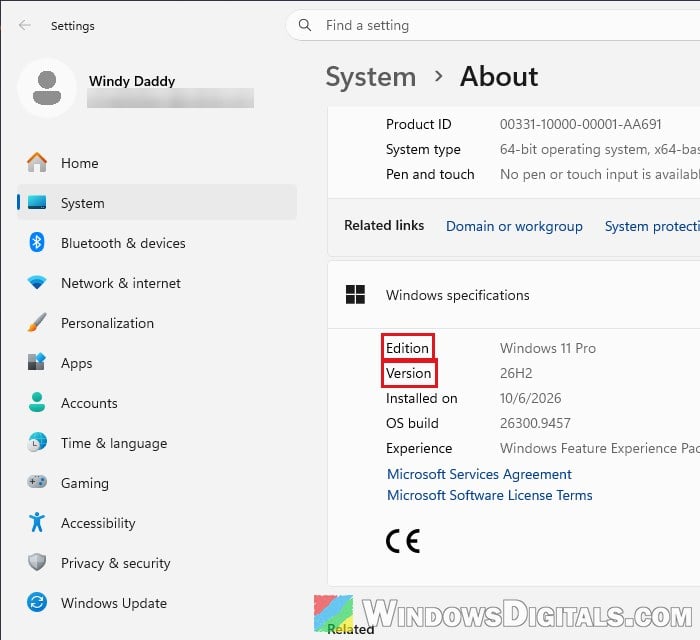
- If Version says 23H2 or older, you’ll need to install a newer version of Windows 11 first.
- If Edition says Windows 10, the Windows fixes below won’t work for you. Skip to the last two sections.
- Go to Settings > Windows Update and click “Check for updates” (or “Download & install all” if updates are already waiting).
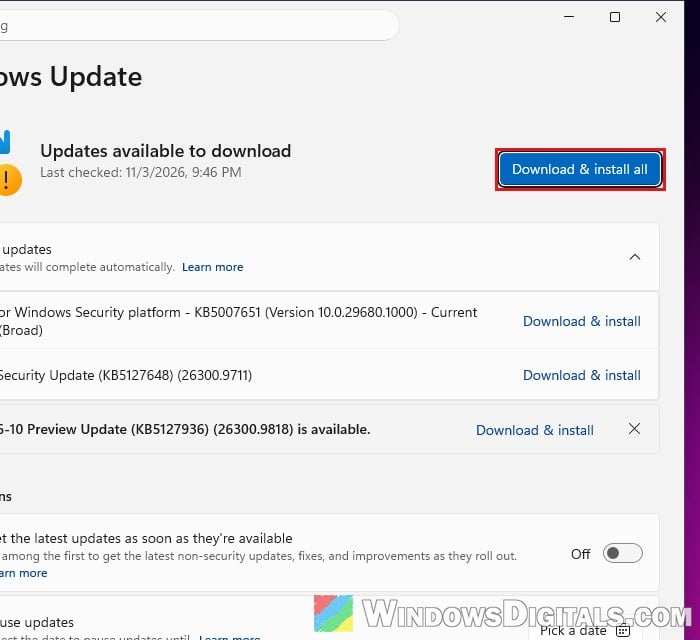
- Install everything it offers, including a newer Windows 11 version if there’s one, and restart when asked.
The newer sign-in arrived with the December 2025 cumulative update (KB5072033, build 26100.7462 or 26200.7462), so any later update includes it.
Turn on the newer sign-in with the “WebView2Integration” value
This is the fix GoDaddy’s own help page points to, and it has gotten a good number of people signed in again. It tells Windows to draw the sign-in window with WebView2. You need an administrator account.
Incorrectly changing the registry can cause serious problems with Windows, so please at least create a system restore point first. If you’re not sure what you’re doing, it’s better to get someone who knows to help you instead.
- Press Win + R, type “regedit” and press Enter. Click Yes if Windows asks for permission.
- Copy and paste the following path to the address bar and press Enter:
HKEY_LOCAL_MACHINE\SOFTWARE\Policies\Microsoft\Windows
- If there’s no AAD key under Windows, right-click Windows, select New > Key, and name it AAD.
- Select AAD, right-click an empty area in the right pane, and select New > DWORD (32-bit) Value. Don’t pick String Value or QWORD.
- Name the new value WebView2Integration.
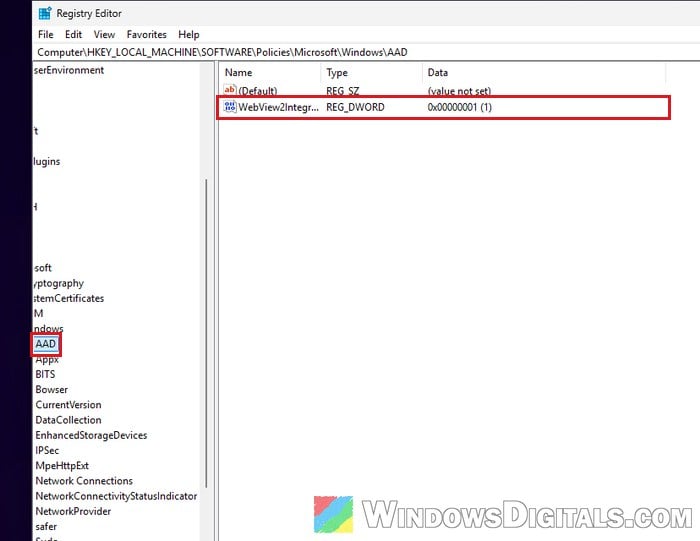
- Double-click it, set “Value data” to 1, and click OK.
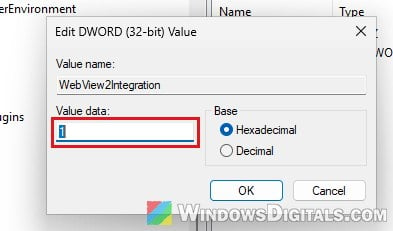
- Restart your PC. The change only applies once the Windows sign-in process (Microsoft.AAD.BrokerPlugin) has closed, and a restart takes care of that.
- Open Outlook and add your GoDaddy email account again (in classic Outlook, File > Add Account).
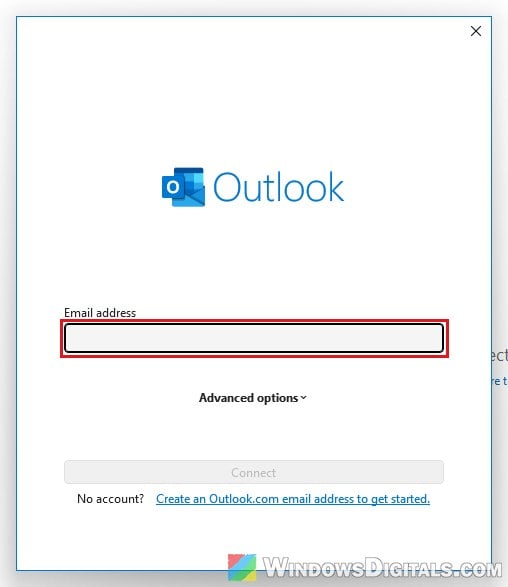
This time, the sign-in window should let you sign in instead of showing the retired notice. If you ever want to turn the newer sign-in off again, set WebView2Integration back to 0.
Do it with one command instead
A single command creates the same value:
- Search for “cmd” in the Start menu, right-click Command Prompt and select Run as administrator.
- Run the following command:
reg add "HKLM\SOFTWARE\Policies\Microsoft\Windows\AAD" /v WebView2Integration /t REG_DWORD /d 1 /f
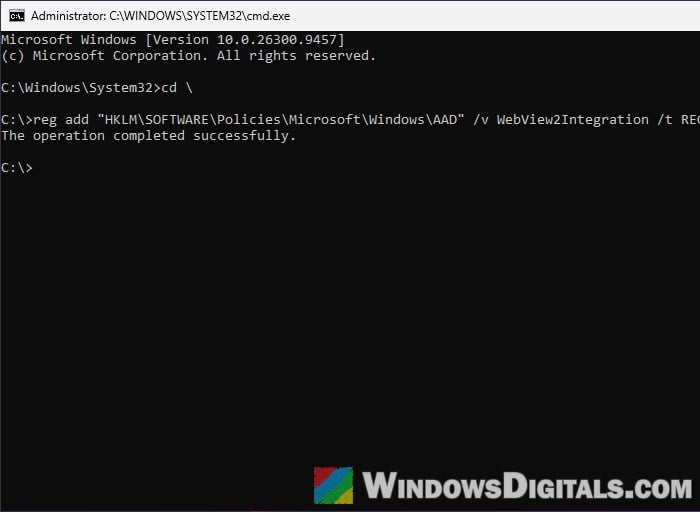
- Restart your PC and add the account in Outlook again.
Sometimes it doesn’t take on the first try, and for some people it never does. If you still see the retired page, try the next two sections.
Delete old sign-in settings that override it
Some PCs have Office registry values that make Office skip the Windows sign-in completely. When any of them is there, WebView2Integration has no effect, because Office never uses the window it changes. This part doesn’t need administrator rights.
- Open Registry Editor again.
- Copy and paste the following path to the address bar and press Enter:
HKEY_CURRENT_USER\Software\Microsoft\Office\16.0\Common\Identity
- In the right pane, look for DisableAADWAM, DisableADALatopWAMOverride and EnableADAL.
- Right-click each one that exists, select Delete, then click Yes.
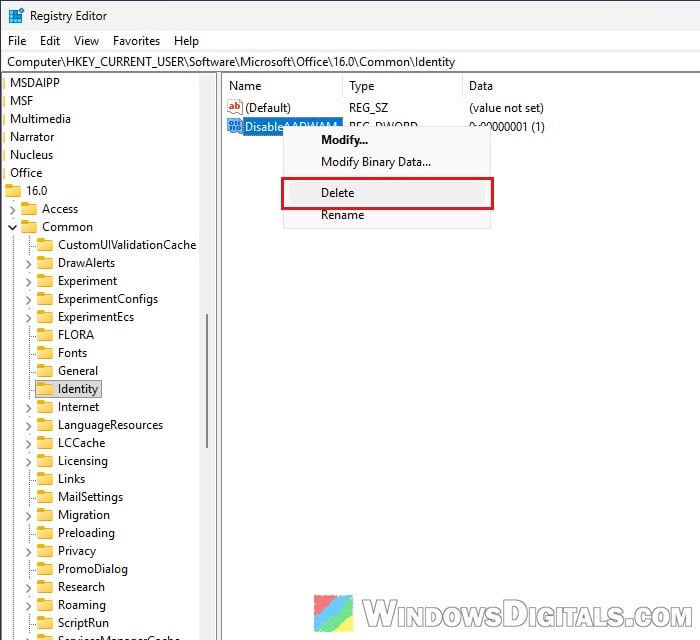
- Restart your PC and sign in again.
Repeat this for every Windows user on the PC who uses Outlook.
Note: On Citrix, Remote Desktop or other shared or virtual desktops, these values are often set on purpose. If your PC is managed by your company, check with your IT admin before deleting them.
Make sure Microsoft Edge WebView2 Runtime is installed
The newer sign-in is built on WebView2, so it can’t work if the WebView2 Runtime is missing from your PC. GoDaddy says to look for it in Settings > Apps > Installed apps, but on the Windows 11 26H2 PC we tested, it wasn’t listed there even though it was installed. Checking its folder is easier:
- Open File Explorer, then copy and paste the following path to the address bar and press Enter:
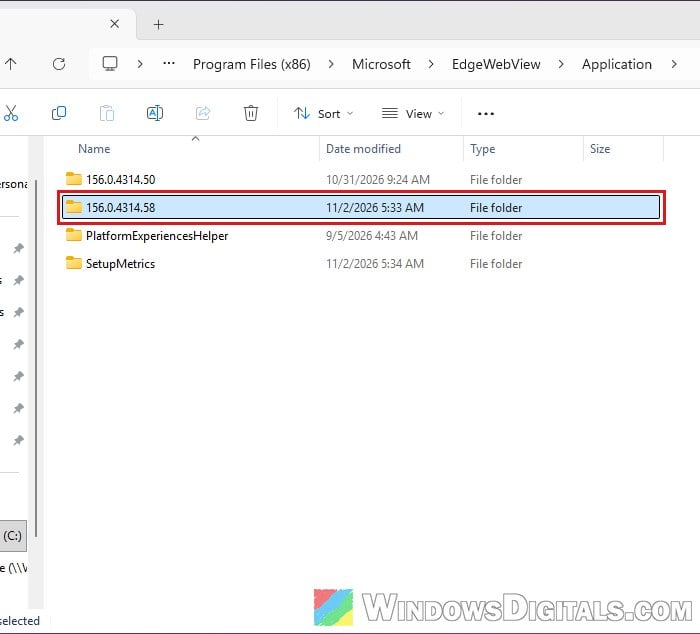
C:\Program Files (x86)\Microsoft\EdgeWebView\Application
- If you see a folder named with a version number (like 156.0.4314.58), the runtime is installed.
- If the folder doesn’t exist, go to
https://developer.microsoft.com/en-us/microsoft-edge/webview2/, and under Evergreen Bootstrapper, click Download and run the file.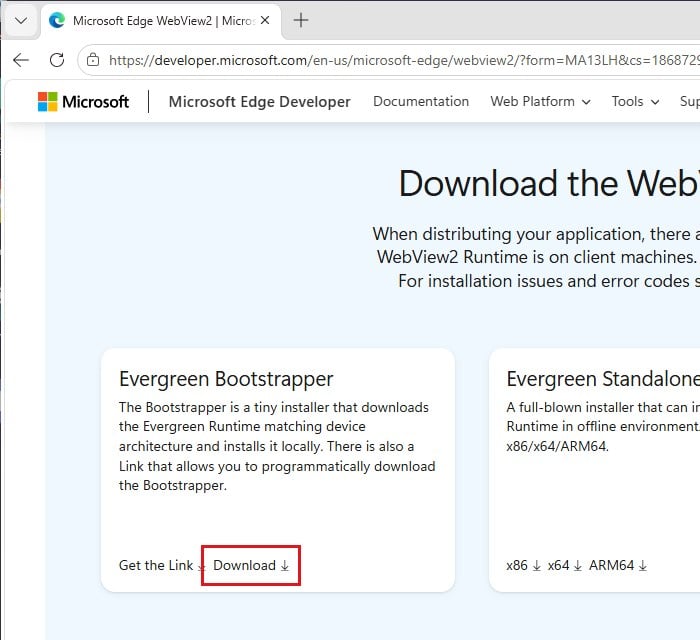
- Restart your PC and try signing in again.
Use Outlook on the web or the phone app for now
If you’re on Windows 10, GoDaddy’s own advice is to use Outlook on the web in your browser until it’s sorted, and it’s the best stopgap if nothing above worked either. Your mailbox works there as usual, and so does the Outlook app on your phone, so at least you won’t miss any emails while you wait.
Pro tip: QR code to Sign in Outlook on iPhone or Android
If you manage the email accounts, ask GoDaddy to turn off its single sign-on
The Windows fixes above only change how Windows shows GoDaddy’s sign-in page. For PCs where the newer sign-in isn’t an option (Windows 10) or may not help (Windows Server, and some Windows 11 PCs), the other way is to stop the account from using GoDaddy’s sign-in page at all.
Some admins on Reddit got their accounts working again by asking GoDaddy to turn off its single sign-on (SSO) for the accounts, also called defederating. After about 20 minutes and a password reset, the accounts signed in normally. You may have to reset the password on every account, and not every GoDaddy agent agrees to do it.
In the long run, several admins moved their Microsoft 365 accounts away from GoDaddy to Microsoft directly, where this sign-in page doesn’t exist.