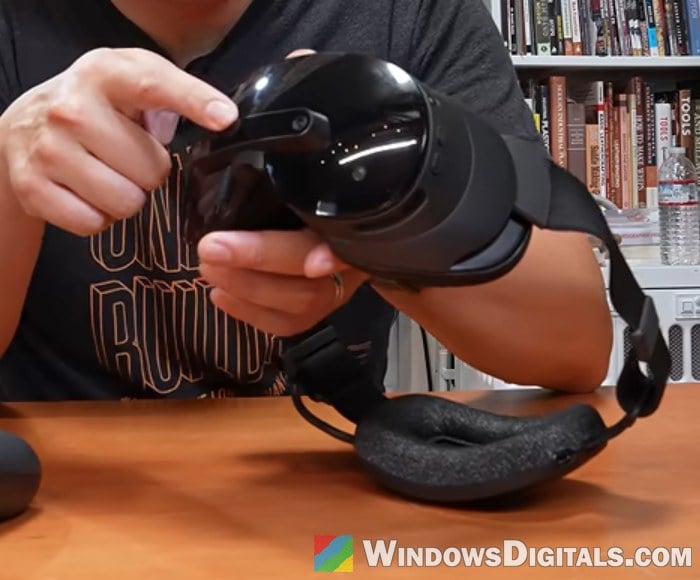
The Steam Frame keeps a game’s world locked in place when you play it standalone, but once you stream a VR game or your desktop from the PC, the whole scene can wobble, sway or rubber-band every time you move your head, while the headset’s own menus stay perfectly still. This guide will walk you through why the streamed picture does that and the settings that cut it down.
Also see: Quest Link Disconnects and Won’t Reconnect Until PC Restart
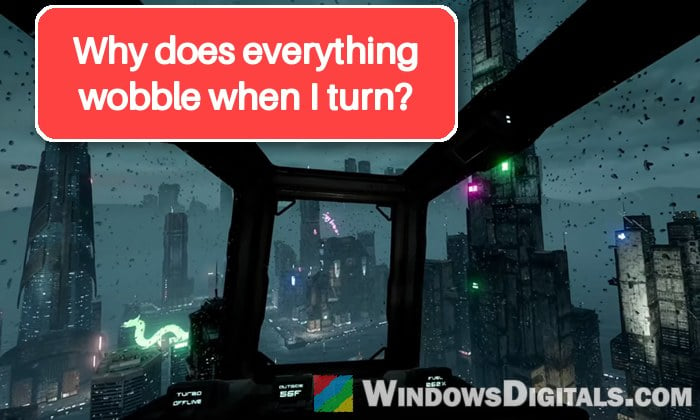
Why does the streamed picture wobble on the Steam Frame?
Valve hasn’t said exactly why, but the likely reason is how streaming works. Every frame is drawn on your PC for where your head is expected to be, then compressed, sent to the headset and decoded there, which takes a few milliseconds. If you turn your head quickly, the picture that arrives can overshoot a little and then settle back, which feels like the world is swaying or lagging behind your head.
The dock and the menus that run on the headset itself are drawn right there with no delay, which is most likely why they don’t wobble at all. It also makes the wobble easy to spot when a streamed window sits next to the headset’s own menu. The effect isn’t only a Steam Frame thing either, since people see the same effect with Steam Link on other wireless headsets like the Quest 2 and Pico.
A few things make it clearly worse:
- A low refresh rate, especially 72 Hz with motion smoothing on.
- A low frame rate on the PC side. The lower the FPS, the stronger the wobble.
- Delay on the wireless link, from a busy Wi-Fi channel, a blocked adapter or switching between links.
- A recent beta update of the headset’s software.
Valve knows about it too. Its SteamOS 0.5.10 beta for the Steam Frame lists reduced head wobble when streaming remote desktops among its changes.
Raise the refresh rate and check motion smoothing
This is the fix that comes up most often. The jitter tends to be worst at 72 to 108 Hz and fades a lot at 120 Hz or higher, and motion smoothing at 72 Hz makes it even worse. A mismatch can do it too, such as the headset running at 120 Hz while SteamVR on the PC runs at 90 Hz.
Here’s what to try on the headset:
- Find the refresh rate setting on the headset and raise it, for example from 72 Hz to 90 Hz or 120 Hz.
- If the headset and SteamVR on the PC run at different rates, set them to the same one.
- Open VR Settings on your Steam Frame, go to Video and set Motion Smoothing to off.
- If you set a game up on its own before, open Per-Application Video Settings under Video, pick the game and check Frame Limit / Refresh Rate Override and Motion Smoothing there. They override the global settings, so set them to match, or click Reset to Default.
Start the stream again and turn your head left and right quickly. The wobble usually drops a lot, even if it doesn’t disappear completely. Only go as high as your PC can actually hold, because a game that can’t keep up starts dropping frames and you’re back to a worse wobble.
Linked issue: Meta Quest Link Keeps Freezing on Newer NVIDIA Drivers, Why?
Make sure your PC can keep up with the game
A game that’s too heavy for your PC at its current settings runs at a lower frame rate, and that makes the wobble stronger. Lower the game’s own graphics settings first. You can also lower Resolution Per Eye for that game under Per-Application Video Settings on the headset.
To see whether the PC is the problem, watch SteamVR’s frame timing on the PC while you play. Lots of red spikes means the PC can’t render frames in time.
Cut the delay on the wireless connection
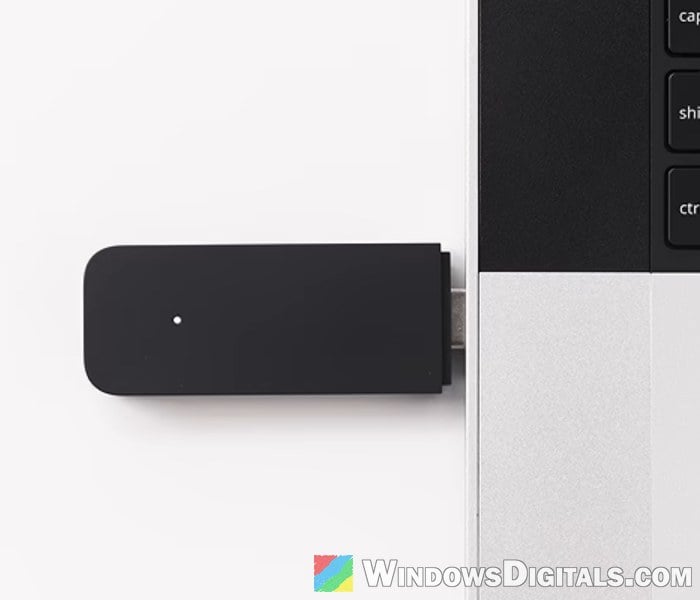
Any extra delay between the PC and the headset makes the streamed picture lag behind your head more. Valve itself recommends the wireless adapter over your home Wi-Fi, because the adapter gives the headset a direct link of its own.
Check these one by one:
- Plug the adapter into a USB 3 port on the PC.
- Keep it within about 20 feet (6 meters) of where you play, with a clear line of sight. If your PC sits under a desk, put the adapter higher up.
- Connect your PC to the router with an Ethernet cable instead of Wi-Fi.
- If your home has a 6 GHz Wi-Fi access point, it can sit on the same channel as the adapter. Change the channel on that access point, or turn it off, so they don’t overlap.
- While streaming, look for Allow Multiple Links in Steam Link’s advanced settings and turn it off, so the headset doesn’t keep switching between the adapter and your Wi-Fi.
- If you set the streaming bitrate by hand, set it back to Auto, or try a lower value. Higher bitrates can add delay.
Might be useful: WiFi 5 vs WiFi 6 vs WiFi 6E for Virtual Desktop (VR)
Update the headset, or leave the beta if it started after one
Valve has been fixing streaming in its beta updates. The SteamOS 0.5.10 beta reduced head wobble when streaming remote desktops and made Multi-Link streaming hold up better on a poor connection, and 0.5.11 improved streaming decode and tracking when you’re almost still. At the time of writing, both are beta updates only.
A beta can also cause it, though. If the wobble only started right after a beta update, switching back to the stable channel can fix it. Betas have also come with serious bugs, like charging problems and a broken adapter connection, so don’t treat them as a free upgrade.
To switch the update channel on the headset:
- On the Steam Frame, open Steam Settings > System.
- Under System Update Channel, choose Beta to get the latest fixes, or Stable if the wobble started after a beta update.
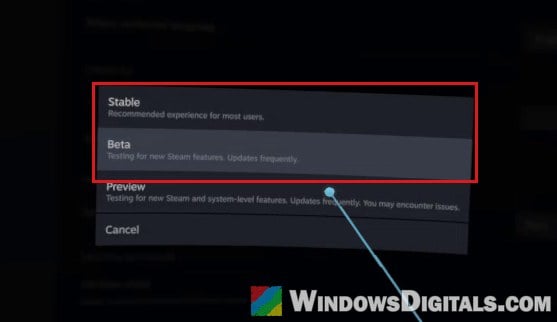
SteamVR on the PC has its own beta too. If the wobble started after you joined it, leave that beta too:
- In your Steam library on the PC, right-click SteamVR.
- Choose Properties.
- Open Game Versions & Betas. The beta row (SteamVR Beta Update) is the one you joined.
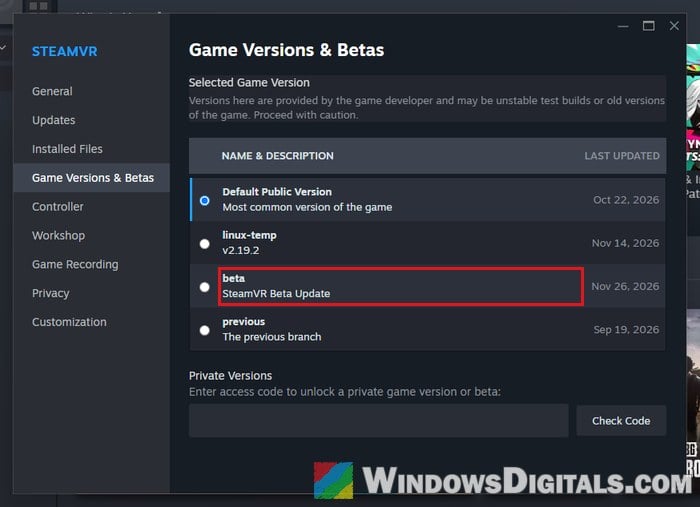
- Select Default Public Version to go back to the normal version.
Related problem: Ping Spikes Every Few Seconds in Online Games on Windows 11
Restart Steam Link if it starts after you take the headset off
Sometimes the wobble only shows up after you take the headset off and put it back on, often with one eye looking out of sync with the other. If that’s what you see, close Steam Link and start the stream again, or restart the headset. It only helps in this one case, but it’s quick to try.