If you’ve added a Game Capture source in OBS Studio and the preview stays completely black once your game is running in fullscreen, even though OBS finds the game and Display Capture shows it just fine, it usually means OBS couldn’t hook into the game. This guide will show you why Game Capture can’t see the game and how to get it to show up again without capturing your whole desktop.
Also see: Discord Stream (Screen Share) Lag, Low Quality or FPS Drop
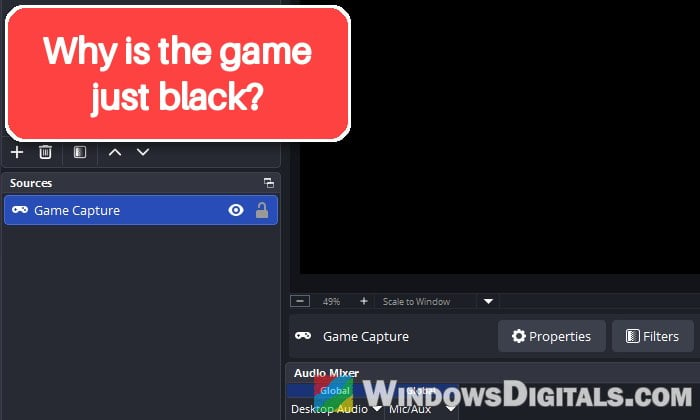
Why does OBS Game Capture show a black screen?
Game Capture doesn’t record your screen. It hooks into the game itself and grabs each frame straight from its graphics. When that hook can’t attach, you get a black box instead.
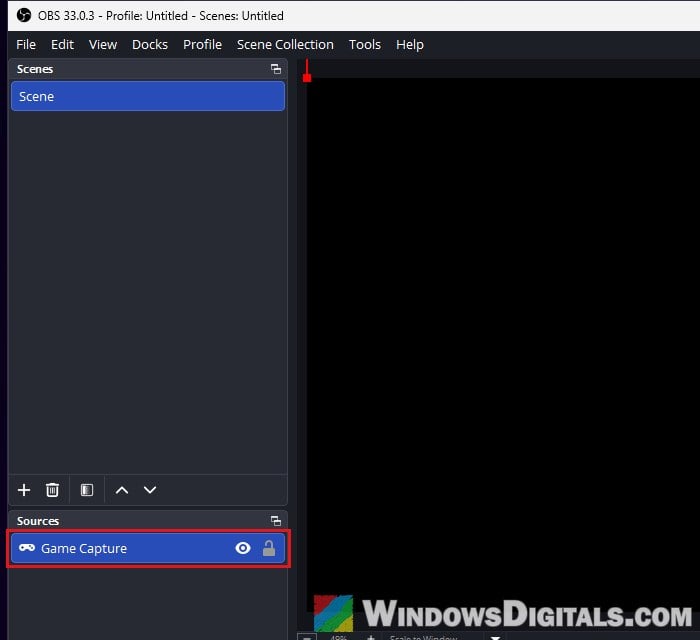
Some common reasons for this are:
- OBS and the game run on different graphics cards, which happens a lot on gaming laptops with both integrated and NVIDIA or AMD graphics.
- An overlay or FPS counter hooks the game first, especially RivaTuner Statistics Server and MSI Afterburner.
- The game needs OBS to run as administrator to be captured.
- The game or its anti-cheat blocks the hook entirely, as with Destiny 2 and Counter-Strike 2.
- The source is set up wrong, for example pointing at no game in particular, or stuck at a tiny size.
Before changing anything, make sure the black screen is real. A game in exclusive fullscreen stops drawing as soon as you Alt+Tab out of it, so the preview can turn black just because you switched to OBS. Make a short test recording while you play and watch it back, or move OBS to a second monitor.
Run OBS as administrator
Some games will only let OBS capture them when OBS has administrator rights. According to OBS, this includes Call of Duty, Valorant, Genshin Impact, Honkai: Star Rail and Zenless Zone Zero, and running as admin can help performance in some cases too. It has fixed the black screen for a few people on Reddit, though not for everyone.
Here’s how to do it:
- Close OBS Studio completely.
- Search for “OBS Studio” in the Start menu and click “Run as administrator” on the right (or right-click it and select “Run as administrator“). Click “Yes” when Windows asks.
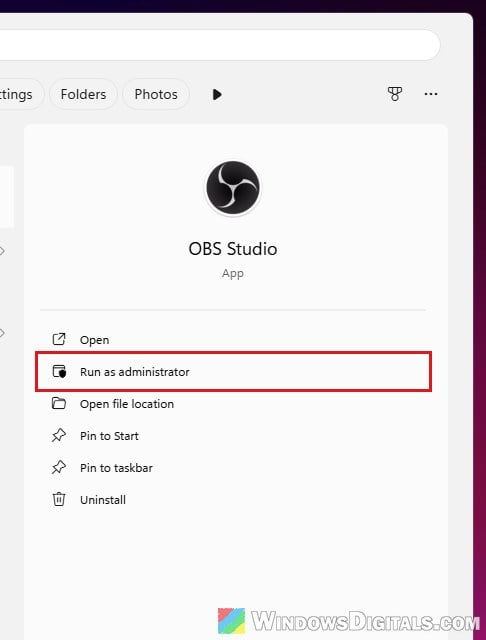
- Start your game and check the Game Capture preview again.
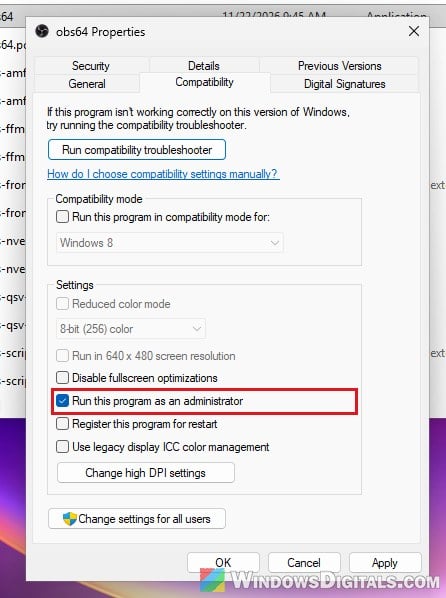
To make OBS always open as admin:
- Go to
C:\Program Files\obs-studio\bin\64bit, right-clickobs64.exe(it may show as just “obs64”) and select “Properties“. - Open the “Compatibility” tab, tick “Run this program as an administrator” and click “OK“.
Make OBS and the game use the same graphics card
Game Capture only works when OBS and the game run on the same graphics card. If OBS ends up on the integrated graphics while the game runs on your NVIDIA or AMD card, OBS can see the game but can’t grab anything from it. Minecraft: Java Edition, for one, starts on the integrated graphics by default.
Here’s how to put both on the same card in Windows 11:
- Close OBS Studio first.
- Open Settings and go to System > Display > Graphics.
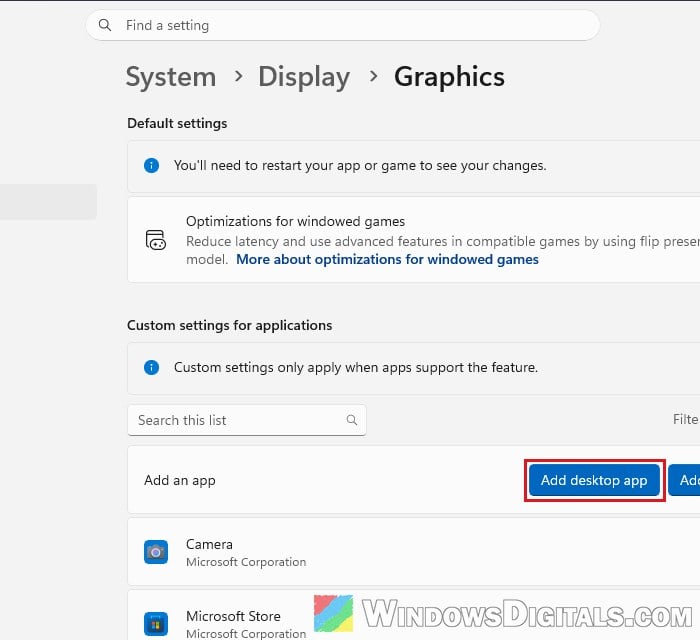
- Click “Add desktop app“, paste
C:\Program Files\obs-studio\bin\64bit\obs64.exeinto the “File name” box and press Enter. - Click “OBS Studio” in the list to expand it, and set “GPU preference” to “High Performance“. The name of your graphics card shows next to “Power Saving” and “High Performance“.
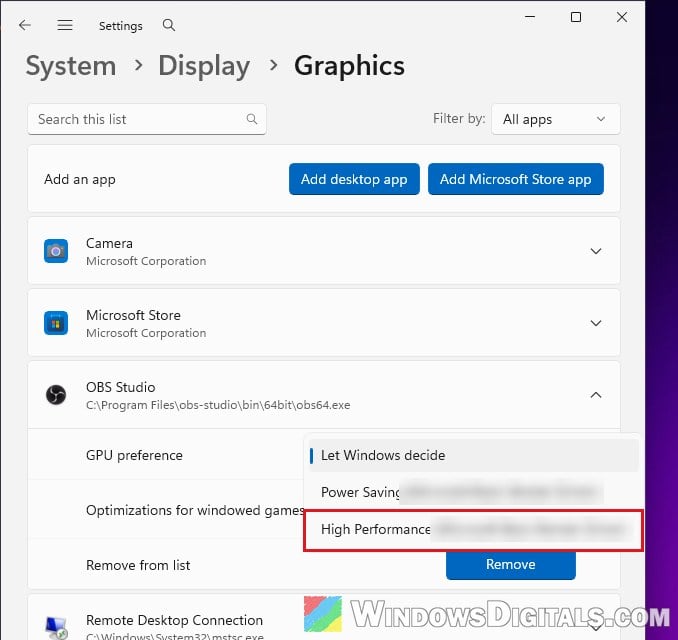
- Do the same for your game’s exe file, so it also runs on the high-performance card.
Open OBS and the game again and see whether the preview shows the game now. On Windows 10, the same page is called Graphics settings: add OBS with “Browse” and set it to “High performance” there.
Pro tip: Force App or Game to Use Nvidia GPU or Integrated Graphics
Close overlays like RivaTuner and MSI Afterburner
Overlays and FPS counters hook into games the same way OBS does, and when one gets to the game first, OBS can’t hook it. OBS names RivaTuner Statistics Server (RTSS) and MSI Afterburner as the most common troublemakers, along with the Discord overlay, Overwolf and other recording tools.
Close these apps completely, restart the game and try Game Capture again. It also helps to open OBS before the game, so OBS gets to hook it first.
If you’d rather keep the RivaTuner overlay, change how it hooks games instead (RTSS 7.3.2 or newer):
- Open RivaTuner Statistics Server from the system tray and click “Setup“.
- Under “Injection properties“, tick “Use Microsoft Detours API hooking” and click “OK“.
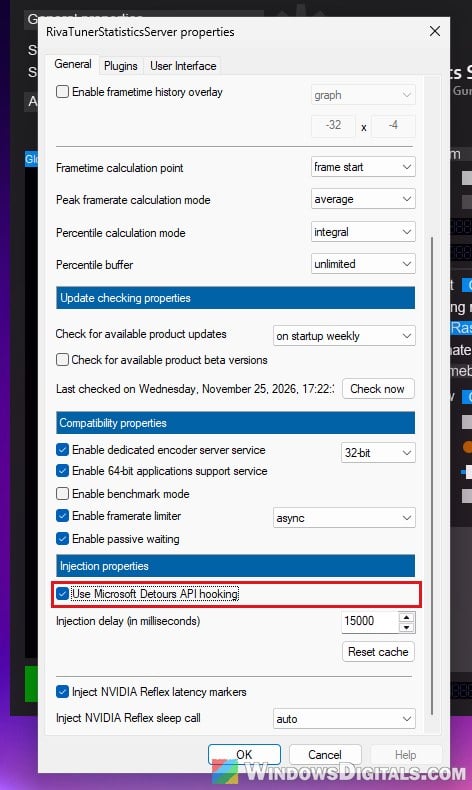
- Restart your game, since the change doesn’t apply to a game that’s already running.
Might be useful: How to Record Screen on Windows 11/10 With NVIDIA Share
Point Game Capture at the game itself
Instead of “Capture any fullscreen application“, it’s more reliable to point the source at the game itself. Here’s how:
- Start your game and wait until it has fully loaded.
- In OBS, double-click your “Game Capture” source in the “Sources” box to open its properties.
- Set “Mode” to “Capture specific window“.
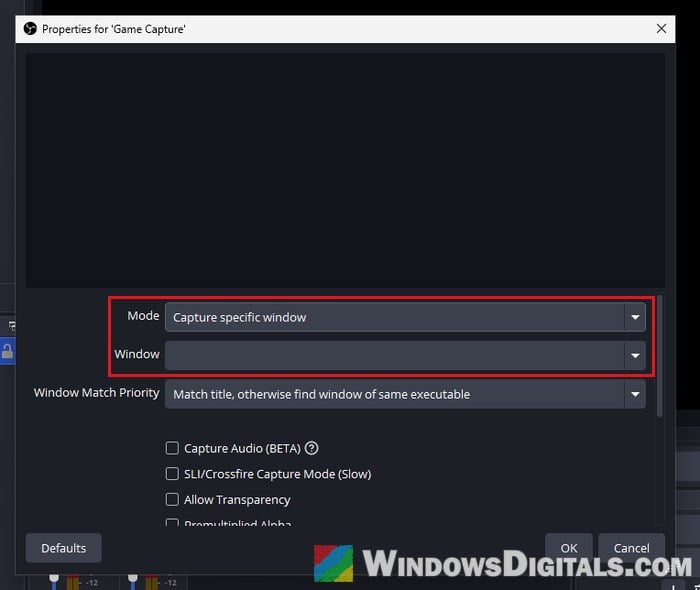
- In the “Window” list, select your game’s exe and click “OK“.
Check it with a short test recording. If the game isn’t in the list, delete the Game Capture source and add a new one. A fresh source sometimes lists the game when the old one wouldn’t.
Make OBS grab the game again
Sometimes the hook just needs another try:
- Start the game in windowed mode, wait until Game Capture shows it, and then switch the game to fullscreen while OBS keeps capturing.
- Hide the source and show it again with the eye icon next to it in the “Sources” box. To do it while playing, set the same hotkey for showing and hiding the source in File > Settings > Hotkeys and press it twice.
Only seeing a small red dot? Fit the source to the screen
If the preview is black except for a small red dot or red frame in the top-left corner, the source may just be squeezed to a tiny size. Fitting it to the screen fixed it for some people. To do that:
- Right-click the Game Capture source in the preview or in the “Sources” box.
- Go to “Transform” and select “Reset Transform” (Ctrl + R).
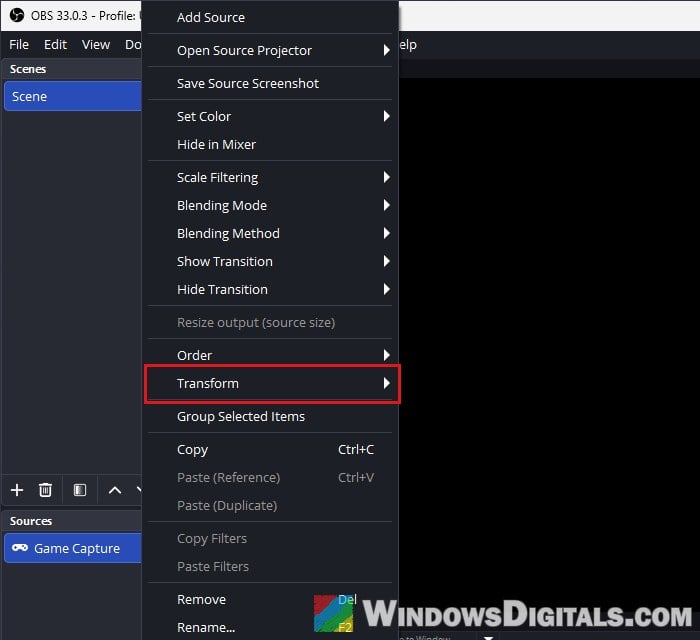
- Then go to “Transform” again and select “Fit to screen” (Ctrl + F).
If the game was there all along, it now fills the preview.
Switch to borderless fullscreen and use Window Capture
Some games block Game Capture with their anti-cheat, and emulators and some older games don’t work with it at all. For games that block the hook, OBS recommends running the game in windowed or borderless fullscreen and using Window Capture instead. Window Capture still shows only the game’s window, so your desktop and notifications stay off stream.
Follow the steps below:
- In the game’s video settings, change the display mode from exclusive “Fullscreen” to “Borderless” or “Windowed fullscreen“.
- In OBS, click + in the “Sources” box, select “Window Capture” and pick the game’s window.
- If the Window Capture is black too, it might help to open its properties and set “Capture Method” to “Modern (WGC)“.
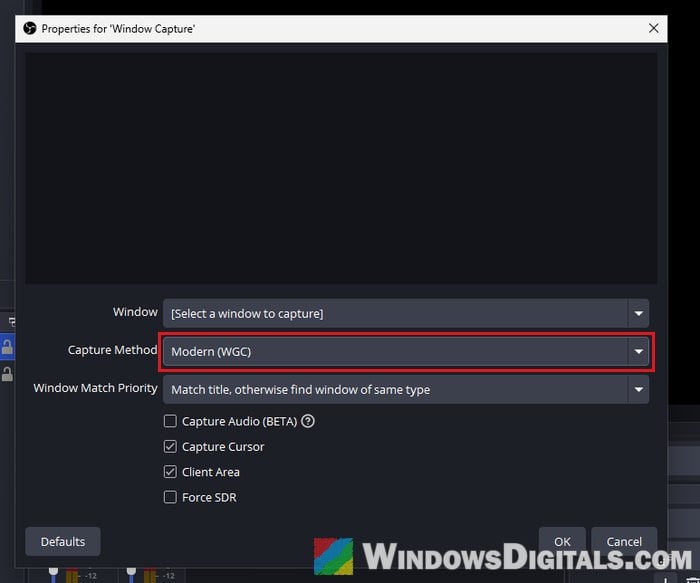
Then go back to the game and check whether the Window Capture shows it.
Related problem: Why is Twitch Stream Loading Infinitely (Black Screen)?
Did it break right after an OBS update?
If Game Capture worked fine until you updated OBS, check whether you installed a beta version. The 32.2 beta in July 2026 broke Game Capture for some people. To roll back, download the latest stable installer from https://obsproject.com/ and run it. It installs right over the beta.