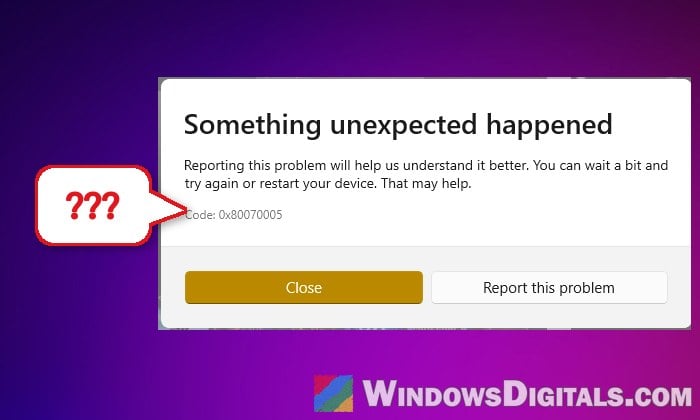
Microsoft Store normally installs apps in a click and keeps them updated in the background, so it’s annoying when an app or an update suddenly fails with error 0x80070005, sometimes for every app and sometimes only for a few. Minecraft, the Xbox app and Photos are common ones. The code means “access denied“, so something is stopping the Store from setting the app up on your PC. This guide will help you find what’s blocking it and get your apps installing again on Windows 11 or 10.
Also see: Can’t Download or Install Apps on Microsoft Store
What does error 0x80070005 mean in Microsoft Store?
0x80070005 is Windows’ general “access denied” error. On its own, it doesn’t say what was denied, which is why the same fix doesn’t work for everyone. With Microsoft Store, the usual reasons are:
- A second Microsoft account sitting in Windows’ list of accounts that apps can use.
- A third-party antivirus blocking the folder where Store apps are installed.
- Wrong permissions on the “Packages” folder in your user profile.
- Damaged Windows files that only a repair of Windows itself can fix.
Running sfc /scannow, DISM or reinstalling the Store rarely helps with this code. So the fixes below start with the one that has worked for most people, then the quick checks.
Linked issue: Microsoft Store “Error encountered – One of the update services is not running properly”
Remove a second account used by your apps
Windows keeps a list of the accounts your apps are allowed to sign in with. When there’s more than one Microsoft account in it (or the same one twice), the Store can fail to install anything with 0x80070005. It’s not obvious why, but it’s one of the fixes that has worked most often on Microsoft’s forums, and it only takes a minute.
Here’s how to check:
- Press Win + I to open Settings.
- Go to Accounts > Your accounts. On older builds of Windows 11 and on Windows 10, this page is called Email & accounts.
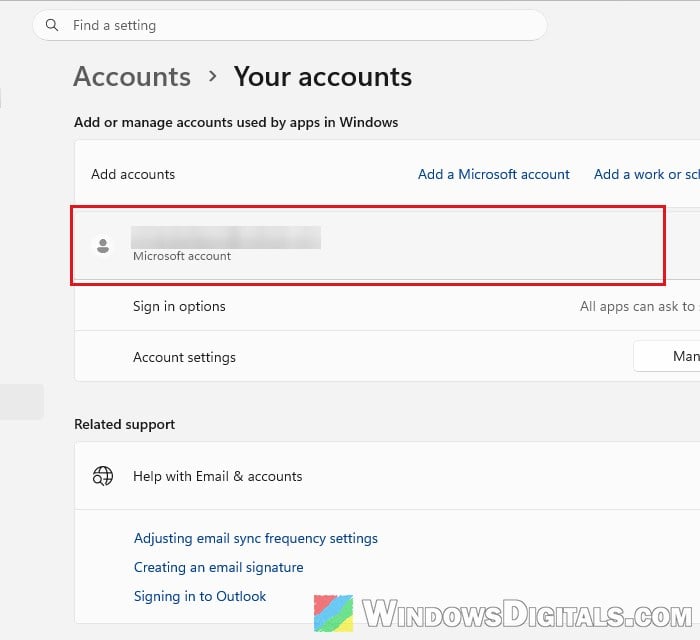
- Look at the list under “Add or manage accounts used by apps in Windows” (or “Accounts used by other apps” on older builds). If there’s a Microsoft account you don’t use with the Store, or the same account is listed twice, expand or click the extra one and remove it.
- Restart your PC.
Then open Microsoft Store, make sure you’re signed in with the account you actually use, and try installing the app again.
Clear the Store cache and update the Store
If there was nothing extra in that list, rule out the quick stuff next. Microsoft’s own advice for Store app problems is to make sure both Windows and the Store itself are up to date. Here’s what to do:
- Press Win + R to open the Run dialog box.
- Type
wsreset.exeand click OK. A blank window opens and closes by itself after a few seconds, and then Microsoft Store opens.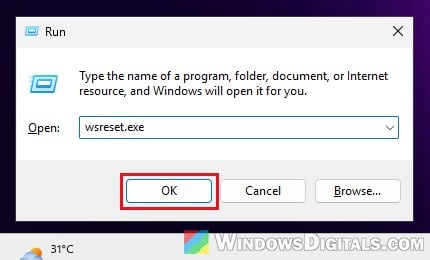
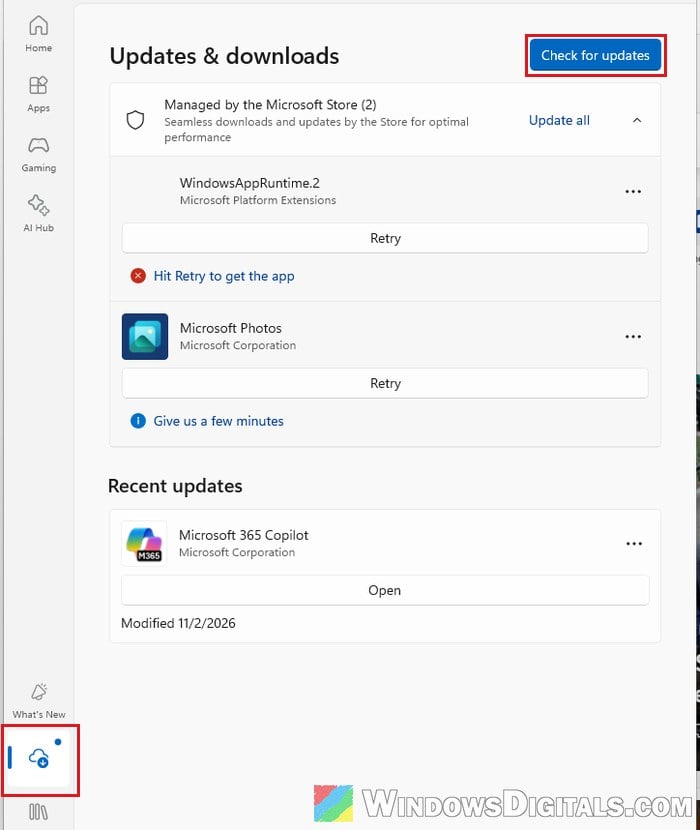
- In Microsoft Store, click Downloads at the bottom left, then Check for updates (on older versions of the Store, it’s Library > Get updates).
- Open Settings > Windows Update, click Check for updates, and install whatever it finds.
Try the app again. If it still fails with 0x80070005, you can also repair the Store app itself.
Repair or reset the Microsoft Store app
On Windows 11, do the following:
- Open Settings and go to System > System Components.
- Click the three dots next to Microsoft Store and select Advanced options.
- Click Repair. If that doesn’t help, click Reset.
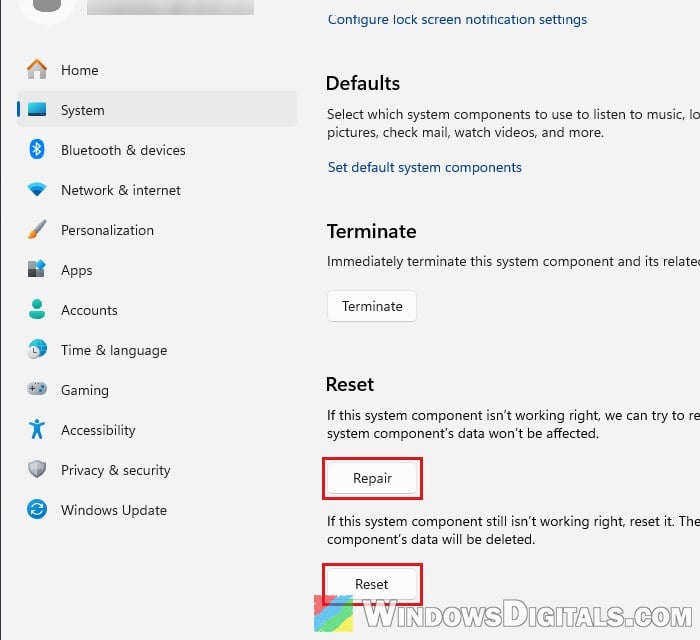
Repair keeps the Store’s data. Reset clears it, so you’ll have to sign in to the Store again, but your installed apps stay where they are.
Check your third-party antivirus
Store apps are installed into a protected folder, C:\Program Files\WindowsApps. Some third-party antivirus programs block changes there, and the Store then gets “access denied” on every install or update. Norton and Malwarebytes have both been found blocking the Store.
If you have a third-party antivirus, try one of these:
- Add
C:\Program Files\WindowsAppsto its exclusions (each antivirus puts this setting in a different place). - Turn its protection off for a few minutes and install the app while it’s off.
- If neither is possible, uninstall the antivirus to test.
If the app installs now, the antivirus was the problem. Keep the exclusion in place, or switch to another antivirus if it keeps getting in the way.
Install the app from another administrator account
Before changing any permissions, try the same install from another administrator account on the PC. A new account starts with clean settings and permissions, so if the app installs there, you know the problem is tied to your own user account rather than Windows as a whole. Stuck Store updates sometimes go through from the new account too, which may be all you need. Here’s how to do it:
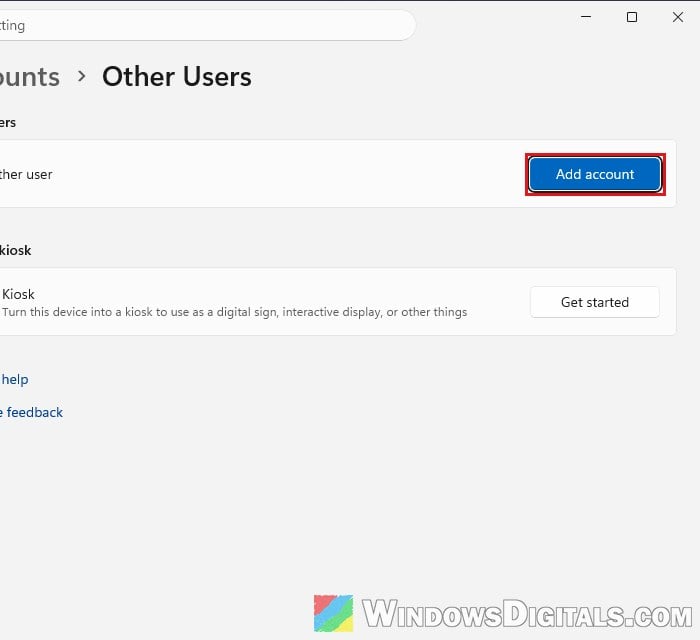
- Open Settings and go to Accounts > Other Users.
- Click Add account and follow the prompts to create the account, then make it an administrator.
- Sign out, sign in to the new account, open Microsoft Store and try the install there.
If the app installs from the new account, the “Packages” folder fix below is the likely one for your own account.
Pro tip: Create local admin account without password in Windows 11/10
Give “Users” full control of the “Packages” folder
Store apps use a folder called Packages in your user profile. If the permissions on that folder got messed up, the Store can download an app but not set it up, and you get 0x80070005 right after the download. If that’s what happened, giving the “Users” group full control of the folder fixes it.
Only change this one folder. Don’t reset the permissions of your whole C: drive, since that removes protections Windows needs. If you’re not sure about changing permissions, create a system restore point first, or get someone who knows to help you. Then follow these steps:
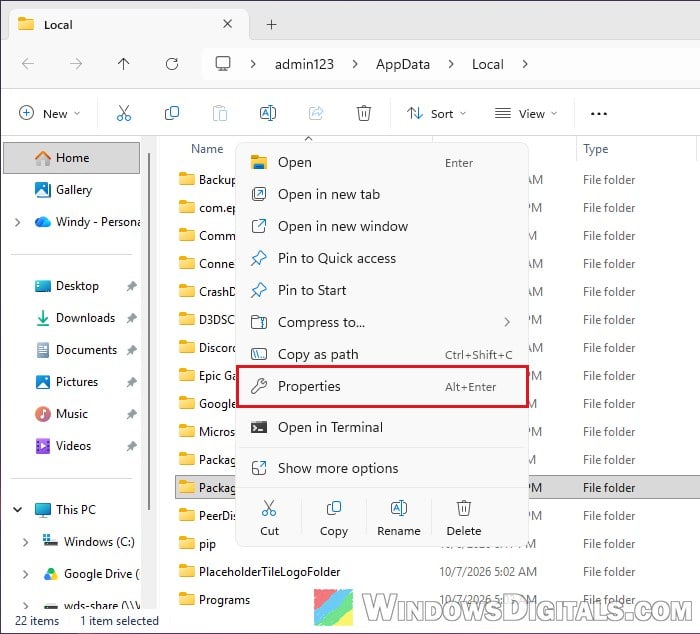
- Press Win + R, type
%localappdata%and press Enter. This opens yourAppData\Localfolder. - Right-click the Packages folder and select Properties.
- Go to the Security tab and click Advanced.
- Check whether Users is listed with Full control. If it isn’t, click Add.
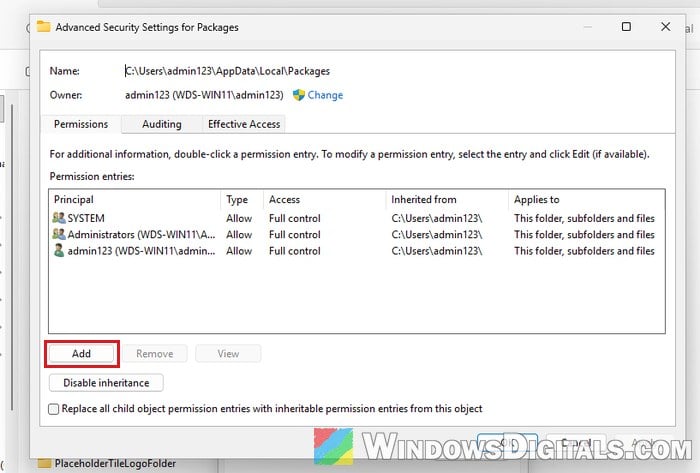
- Click Select a principal, type “users” in the box, click Check Names and then OK.
- Tick Full control and click OK, then OK in each remaining window.
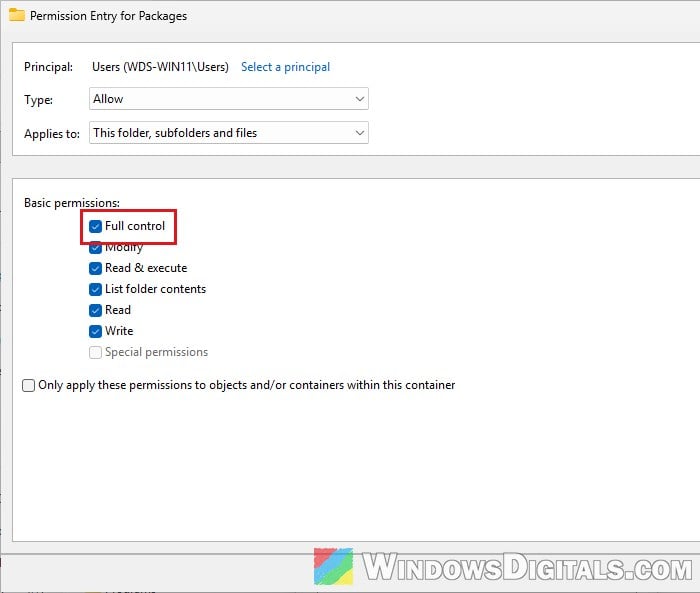
Then try downloading the app again.
Related problem: 0x8D050003 Microsoft Store Error on Windows 11 or 10
Repair Windows as a last resort
When none of the above helps, especially when Windows Update is failing with the same code, the damage is probably deeper in Windows itself. Reinstalling Windows over itself while keeping your files and apps often gets the Store working when nothing else did. Turn off any third-party antivirus first, so it doesn’t get in the way of the repair.
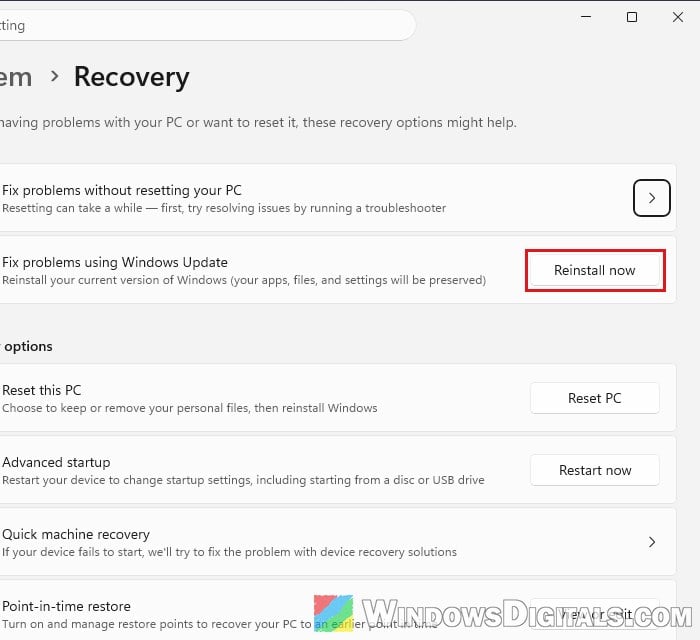
On Windows 11, go to Settings > System > Recovery and click Reinstall now next to “Fix problems using Windows Update“. It downloads the current version of Windows and reinstalls it without touching your files or installed apps.
If that option isn’t there, or you’re on Windows 10, run Windows setup from the installation media (the Media Creation Tool or an ISO file) and choose to keep your personal files and apps. For more on what the reinstall does and whether it’s safe, see what the “Reinstall your current version of Windows” message means.