When you’re using the Proton VPN browser extension in Firefox, Chrome or Brave, you might find that it logs you out by itself every day or two, sometimes even while the browser is still open, so the VPN in that browser stops working until you sign in again. This guide will show you why it keeps happening and how to make the extension stay signed in.
Also see: Firefox Keeps Signing You Out of Gmail and YouTube
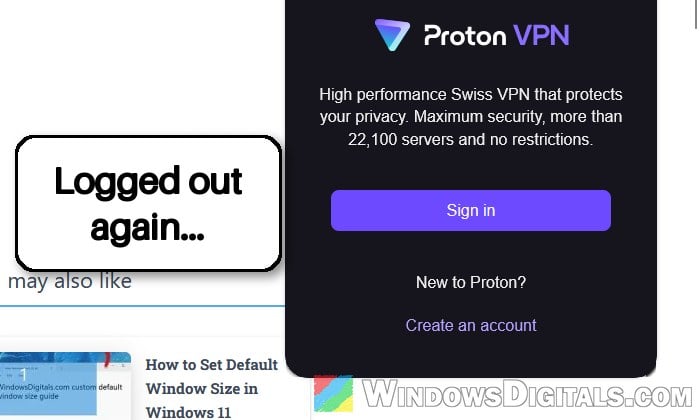
Why does the Proton VPN extension keep logging you out?
Since early November 2026, quite a few people on Reddit have reported that the extension signs out on its own, mostly in Firefox and browsers based on it (Waterfox, Zen), but also in Brave and Chrome. It can even pop up a Windows notification saying the VPN has logged out.
There are two likely reasons:
- A bug in the extension itself. Proton released version 1.3.9 on November 17, 2026 with a fix for an issue that “could sign you out unexpectedly”. It didn’t fix it for everyone, though, since several people still got logged out after updating to 1.3.9.
- The browser deleting Proton’s cookie. According to Proton, the extension keeps you signed in with a cookie it stores in your browser. If the browser (or a privacy extension) deletes cookies when it closes, the session goes with them and you have to sign in again. This one only explains being logged out after you close and reopen the browser, not while it’s still open.
If you also use Proton Pass, its extension might stop working at the same moment the VPN extension logs out, and settings like its auto-lock timer may have to be set again after you sign back in.
Update the extension to version 1.3.9 or newer
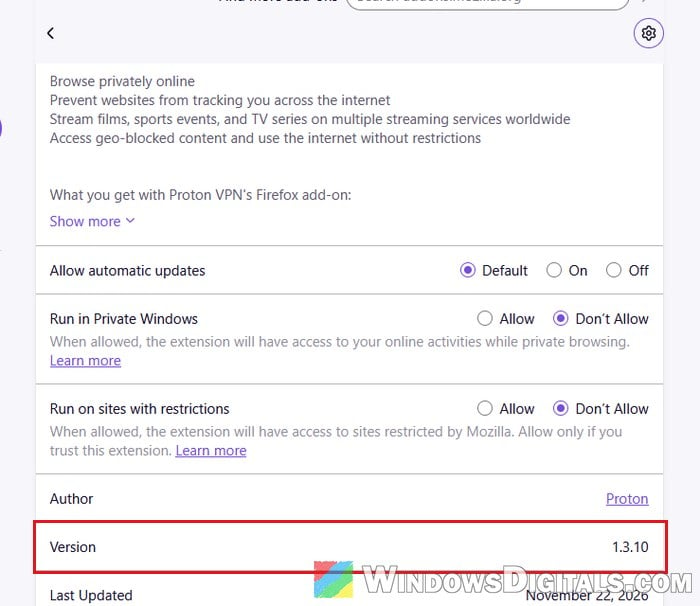
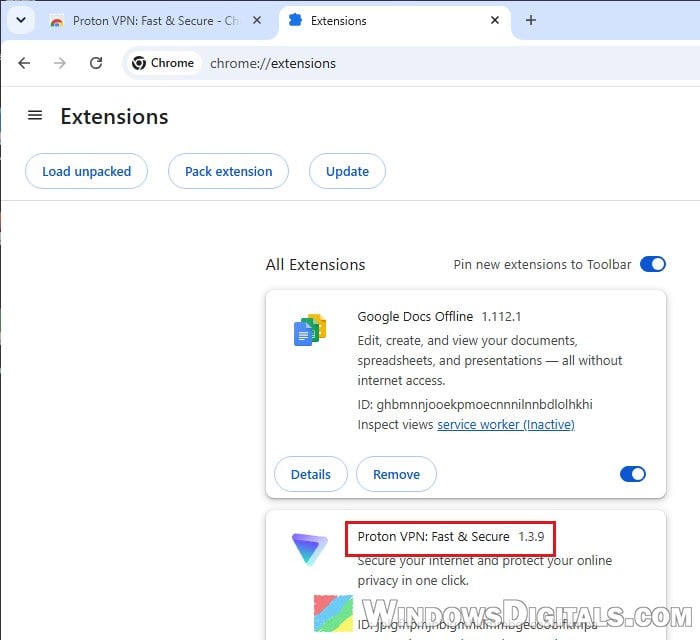
Since 1.3.9 is the version that Proton says fixes the unexpected sign-outs, the first thing to check is that you’re actually on it or newer. Extensions usually update by themselves, but the Chrome and Firefox versions don’t always come out on the same day. At the time of writing, the Firefox add-on is already on 1.3.10 (a newer version than the one in Proton’s release notes), while the Chrome Web Store still has 1.3.9.
In Firefox:
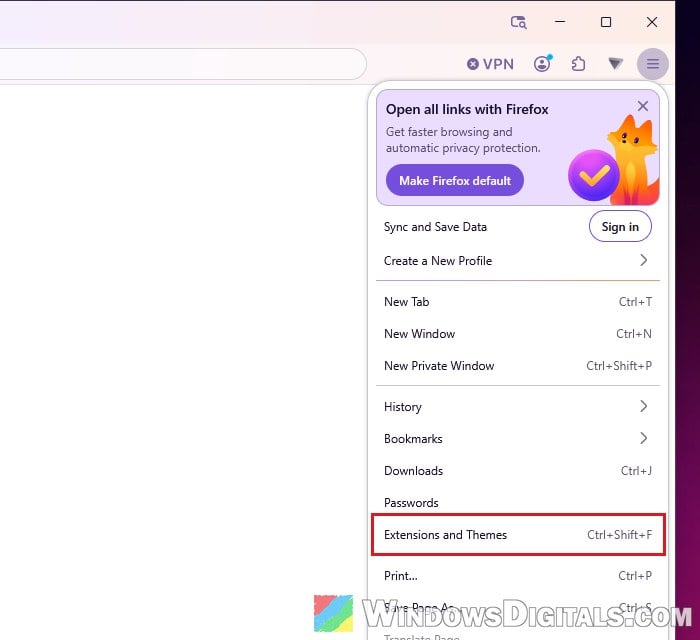
- Click the Firefox menu button (the three lines at the top right) and select “Extensions and Themes“.
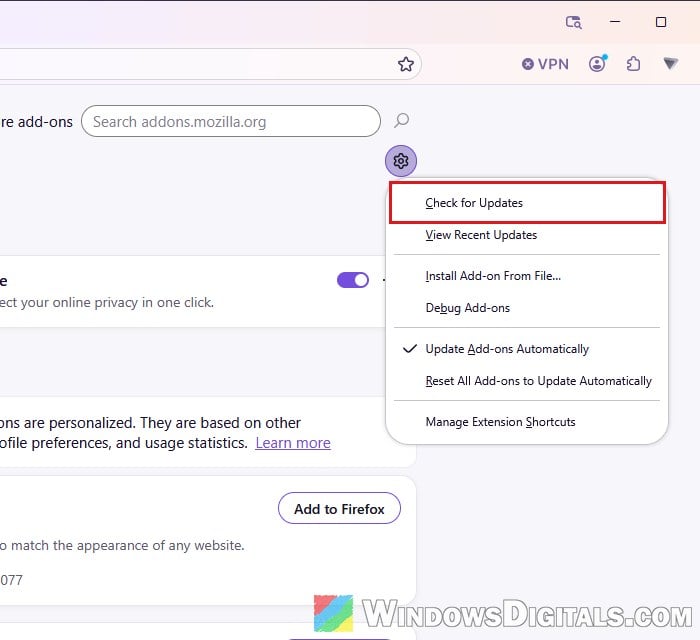
- Click the gear icon at the top of the “Manage Your Extensions” page and select “Check for Updates“.
- Click “Proton VPN: Fast & Secure” in the list, scroll down its page and look at the “Version” line.
In Chrome (Brave’s extensions page works the same way):
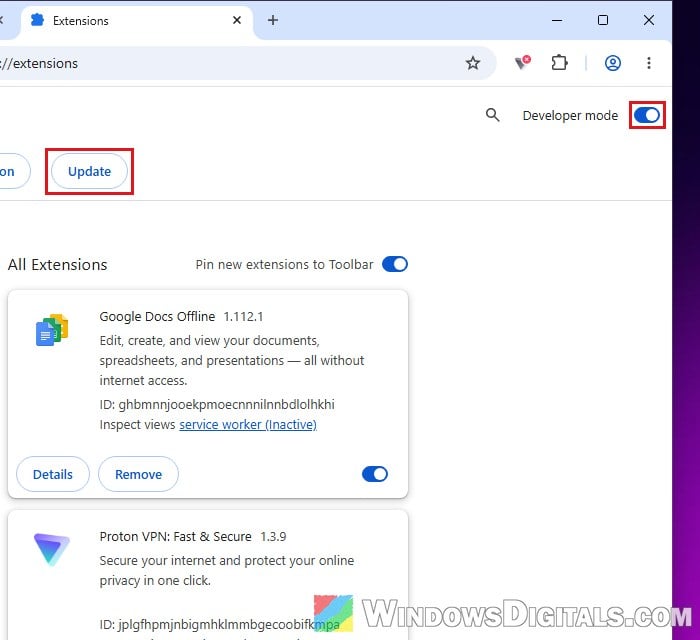
- Type
chrome://extensionsin the address bar and press Enter. - Turn on “Developer mode” at the top right, then click “Update” to update all your extensions now.
- Find “Proton VPN: Fast & Secure” in the list and check the version number next to its name.
If it’s already on 1.3.9 or newer and still logs you out, try the next fix.
Tick “Keep me signed in” when you sign in
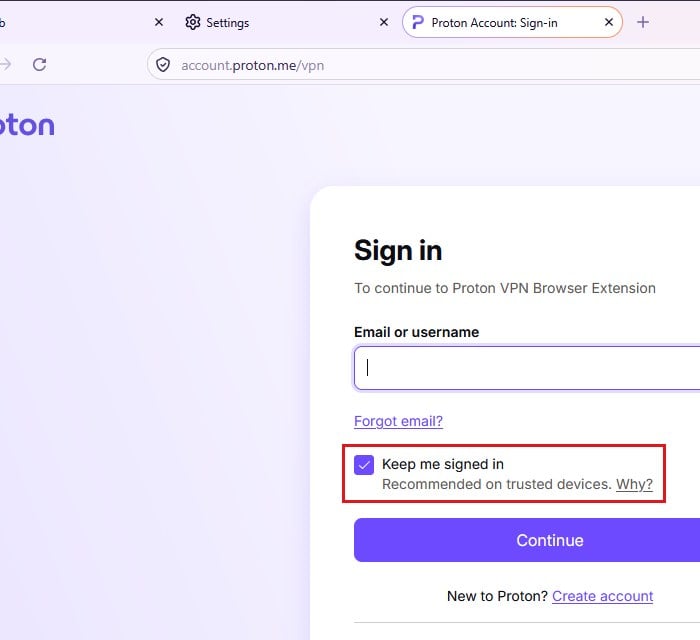
Proton says that if you leave the “Keep me signed in” option unticked when you sign in, the extension doesn’t store any cookie in your browser at all. That means your session ends every time the browser closes, so you have to sign in again each time.
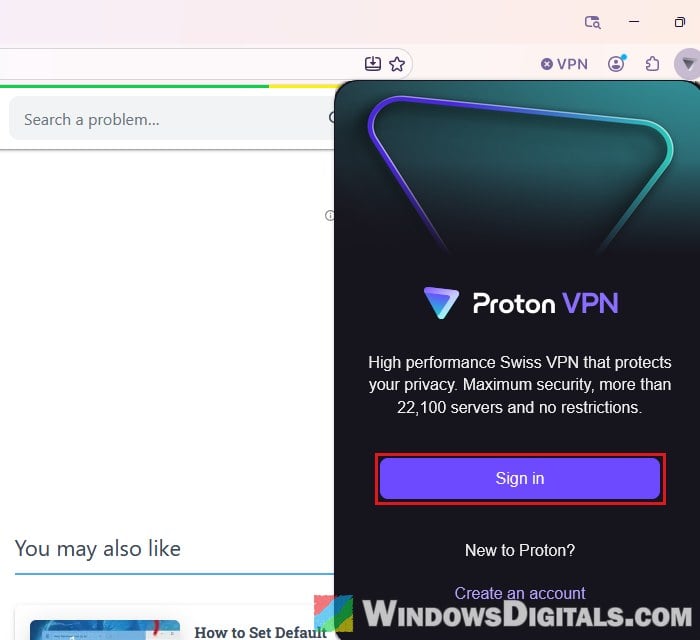
The next time the extension asks you to sign in, click “Sign in” in the extension. Proton’s sign-in page opens in a new tab, and the “Keep me signed in” box is right under the “Email or username” field. It’s ticked by default, so just make sure you don’t untick it before you click “Continue“.
Stop your browser from deleting Proton’s cookies
If your browser is set to clear cookies and site data every time it closes, it will also wipe the cookie that keeps the extension signed in. Clearing only your browsing history or cache won’t log you out, according to Proton, as long as the extension’s own storage isn’t cleared too.
In Firefox:
- Open the Firefox menu, select “Settings“, then “Privacy and security” on the left.
- Under “Browsing data“, see if “Clear cookies and site data every time you close Firefox” is ticked.
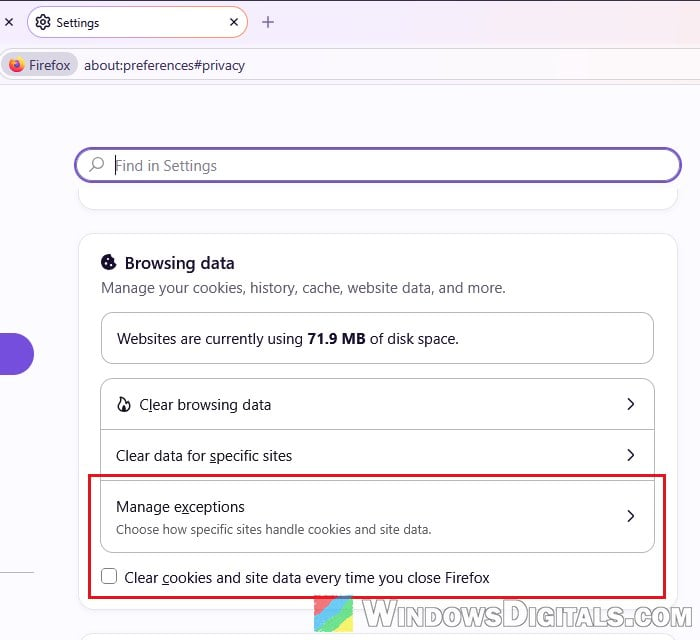
- If it is, either untick it, or keep it on and click “Manage exceptions” to add Proton as a site that’s always allowed to keep its cookies.
- In the exceptions window, type
https://proton.mein the “Address of website” box and click “Allow“. Do the same forhttps://account.proton.me(the address Proton’s sign-in page uses), then click “Save changes“.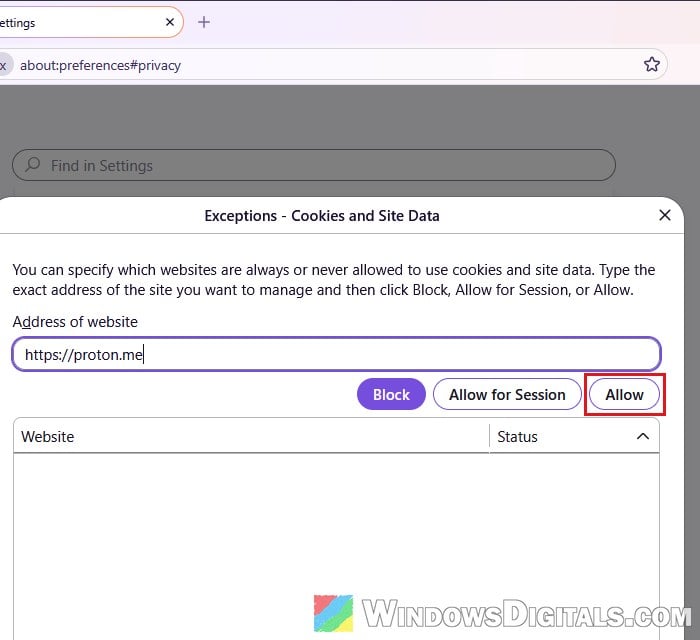
In Chrome:
- Type
chrome://settings/content/siteDatain the address bar and press Enter to open the “On-device site data” page. - See if “Delete data sites have saved to your device when you close all windows” is selected.
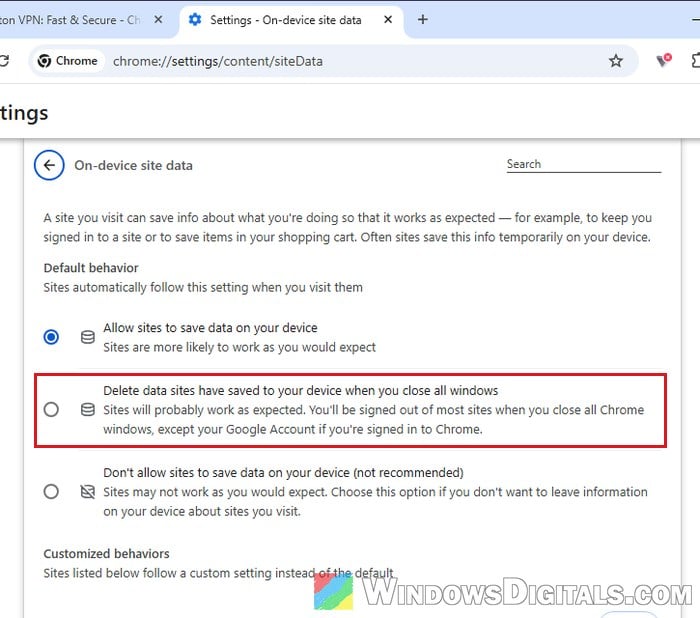
- If it is, switch to “Allow sites to save data on your device“, or click “Add” next to “Allowed to save data on your device” and add
proton.methere.
In Brave, Brave Shields and its own clear-on-exit settings can do the same, so check those for Proton too. A privacy extension that auto-deletes cookies can also wipe Proton’s cookie in any browser, so look at its settings as well.
Sign in to the extension once more, then close and reopen the browser to see if it stays signed in.
Reinstall the extension
If you’re on the latest version and nothing is clearing your cookies, Proton suggests removing the extension, installing it again from scratch, and clearing your browser’s cache and cookies. That way nothing from the old install is left behind.
- In Firefox, open “Extensions and Themes“, click the three-dots button next to “Proton VPN: Fast & Secure” and select “Remove“. In Chrome, click “Remove” on its card in
chrome://extensions.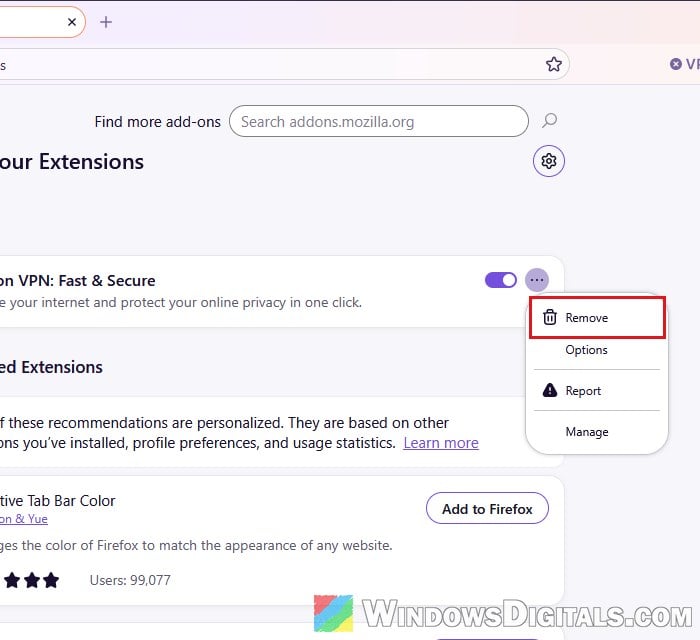
- Clear your browser’s cache and cookies.
- Install the extension again from the official store: search “Proton VPN” on the Firefox Add-ons site and click “Add to Firefox“, or on the Chrome Web Store and click “Add to Chrome“.
- Sign in again, with “Keep me signed in” ticked.
Keep in mind that clearing cookies also signs you out of most websites. After you sign the extension back in, close and reopen the browser to make sure it stays signed in.
Pro tip: How to Clear Cookies in Windows 11
Use the Proton VPN app for Windows for now
If none of this stops the extension from logging out, the Proton VPN app for Windows is a good way around it until Proton fixes the problem. The app protects your whole PC instead of just one browser, though, so it isn’t a full replacement if you use the extension to put different browsers on different countries.
Might be useful: How to Disable VPN in Windows 11
Still logging out? Tell Proton support
Contact Proton’s support and tell them your browser version, the extension version, and any privacy extensions you have installed. They’ll usually ask for these first anyway.
To see which devices and browsers are signed in to your account, sign in at account.proton.me and go to “Settings” > “Security and privacy” > “Session management“. Don’t revoke the extension’s own session there, or it will sign out again.