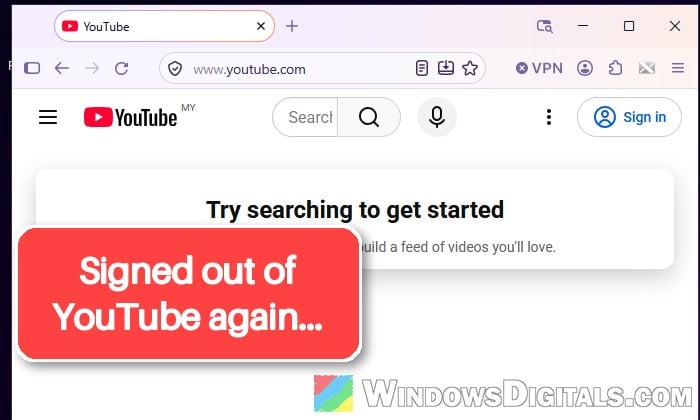
Firefox keeps you signed in to Gmail, YouTube and other Google sites until you sign out yourself, but since around November 10, 2026, plenty of Firefox users have been getting logged out of their Google accounts every few minutes, sometimes right after signing in and refreshing the page, while Amazon, eBay and other sites stay signed in. This guide will show you what’s behind it and how to stop it.
Also see: YouTube Not Loading in Firefox While Other Sites Work
Turn off or remove the X-notifier add-on
The sign-outs started for most people on the same day Firefox 160 came out, so it’s easy to blame the update. But it isn’t really Firefox 160, since people still on Firefox 159 got signed out the same way, and one person who reinstalled Firefox 160 still had it. What nearly everyone with the problem had in common is the X-notifier add-on, an old extension that tells you when new mail arrives in Gmail, Hotmail, Yahoo, AOL and other webmail accounts.
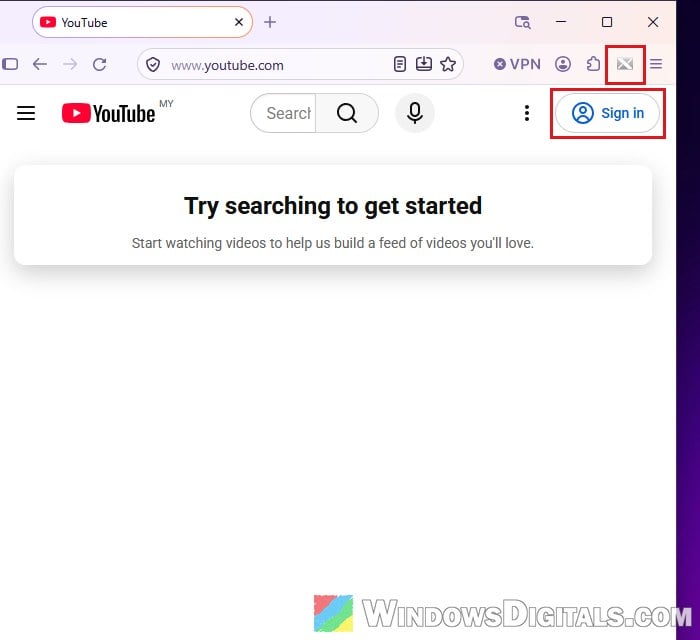
X-notifier signs in to your mail accounts on its own, using the logins saved in Firefox’s password manager, so it can check them in the background.
Since November 10, those background sign-ins seem to clash with your normal Google session, and the sign-outs also seemed to come about as often as the add-on checked for mail. The add-on itself hasn’t been updated since 2023, so it might be a change on Google’s side that the old add-on doesn’t handle. Turning X-notifier off stopped the sign-outs for pretty much everyone on Reddit who tried it.
Here’s how to turn it off:
- Click the Firefox menu button (the three lines at the top right) and select “Extensions and Themes“. You can also press Ctrl + Shift + F.
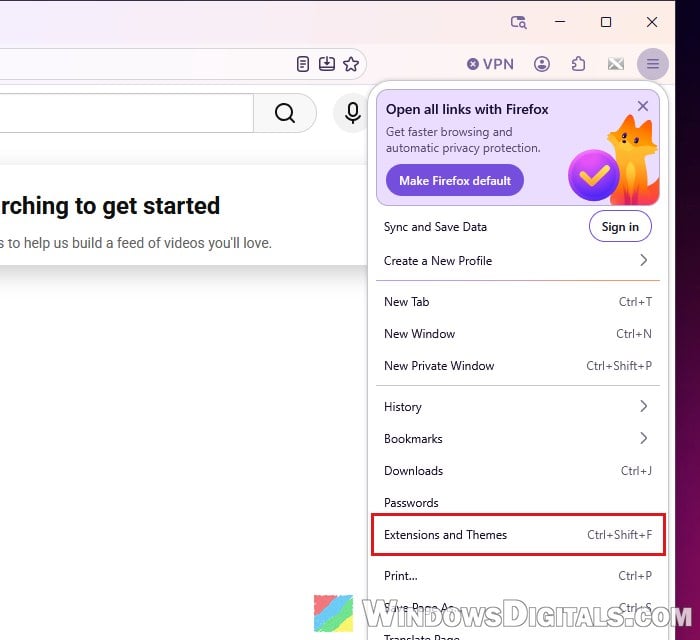
- In the “Add-ons Manager“, make sure “Extensions” is selected on the left.
- Find X-notifier in the list and click its toggle to turn it off.
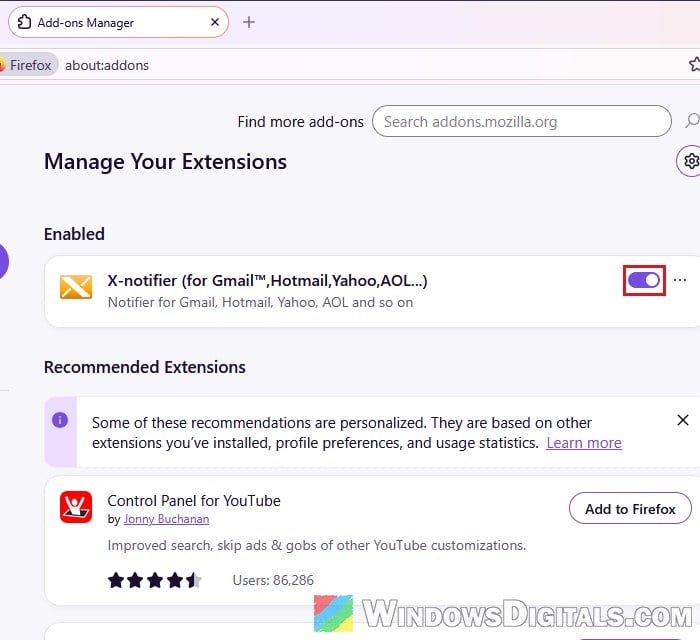
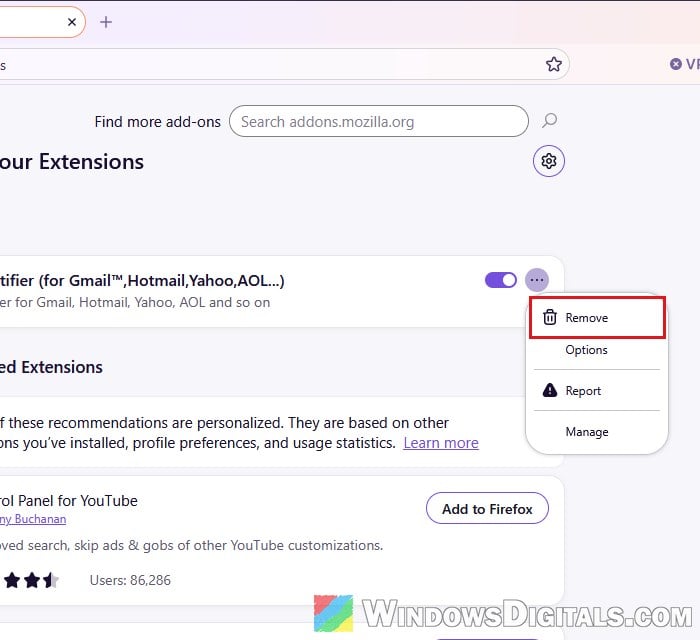
- If you don’t need it anymore, click the three-dots button next to it and select “Remove” instead.
- Go to Gmail or YouTube and sign in to your Google account again.
Leave a Gmail or YouTube tab open for a while. If you’re still signed in after half an hour or so, the add-on was the cause.
What if you still want mail notifications?
The same developer also makes a newer add-on called X-notifier Neo, which is a separate add-on on Firefox’s add-ons site (https://addons.mozilla.org/en-US/firefox/addon/xnotifier-neo/). A couple of people who switched to it said it works and they stay signed in. It’s not as widely tested as simply turning the old one off, so if the sign-outs come back after installing it, turn it off too.
Remove Google’s cookies and sign in again
Your signed-in state on a website is kept in that site’s cookies. If you still get signed out after turning off X-notifier, especially after adding another Google account, removing only Google’s cookies (and YouTube’s) and signing in again gives you a fresh session without touching any other site.
This signs you out of Google and YouTube, which is what we want here. Other sites stay as they are.
- Click the Firefox menu button and select “Settings“.
- Select “Privacy and security” on the left.
- Under “Browsing data“, click “Clear data for specific sites“.
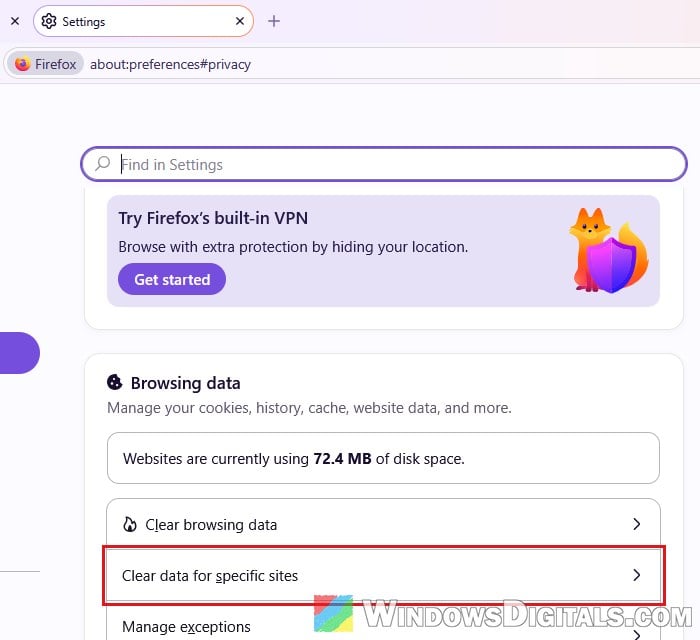
- In the “Manage Cookies and Site Data” window, type “google” in the “Search websites” box.
- Select google.com in the list, then click “Remove Selected“.
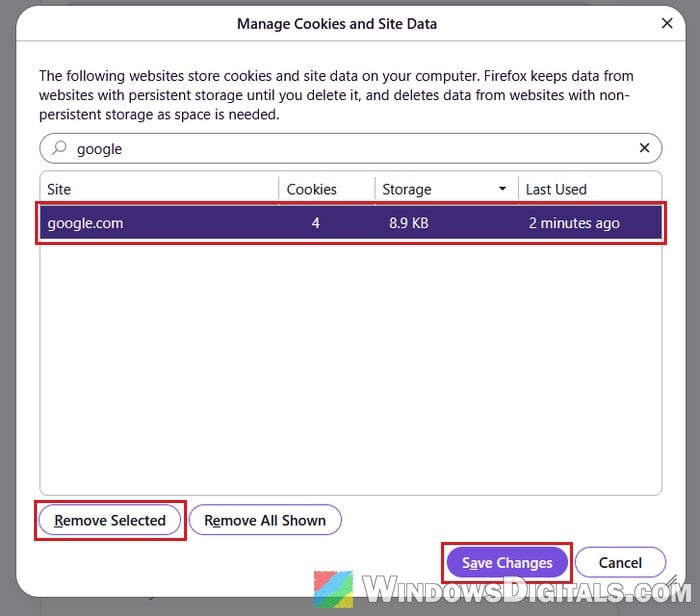
- Do the same for “youtube“, then click “Save Changes” and confirm with “Remove“.
- Open Gmail or YouTube and sign in again.
If you’d rather do it from the site itself, you can also click the “View site information” icon (the shield) on the left of the address bar and select “Clear cookies and site data“, then “Clear“. Do it once on a Google page and once on YouTube.
Check back after a while to see if you stay signed in this time.
Pro tip: How to Clear Cookies in Windows 11
Use Troubleshoot Mode to find another add-on
If you don’t have X-notifier at all, another add-on might be doing something similar. Another mail notifier is the most likely one, but any add-on can be behind it. Troubleshoot Mode starts Firefox with all add-ons turned off, so it’s a quick way to tell whether one of them is involved.
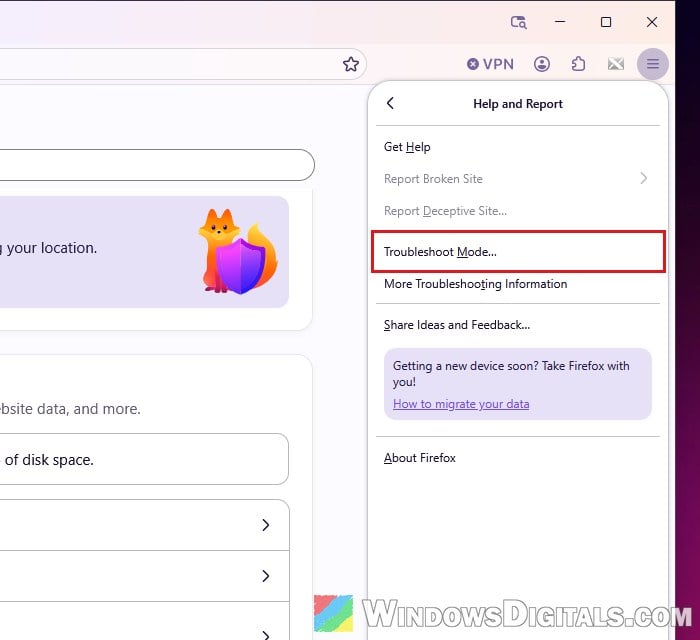
- Click the Firefox menu button and go to “Help and Report“.
- Select “Troubleshoot Mode…“.
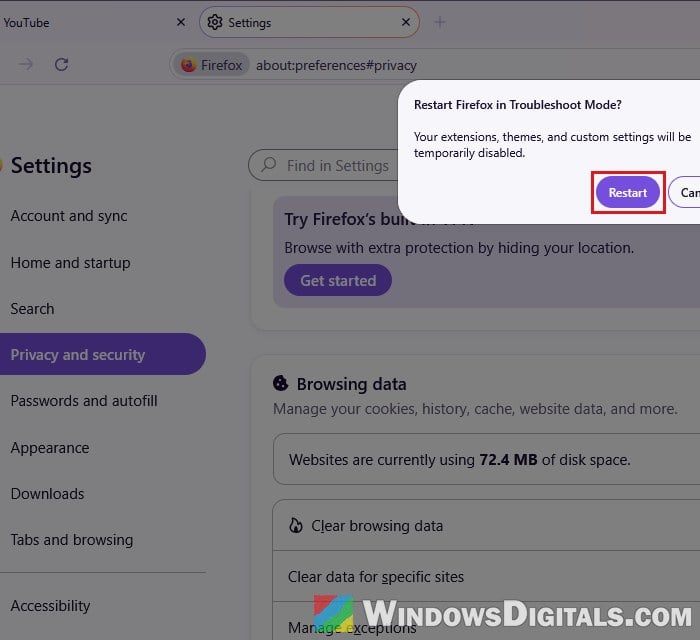
- Click “Restart“, then “Open” when Firefox asks.
- Sign in to Gmail or YouTube and leave the tab open for a while.
If Google keeps you signed in while you’re in Troubleshoot Mode, one of your add-ons is the cause. Restart Firefox normally, then turn your add-ons off in the Add-ons Manager and back on one at a time, checking Google each time, until the sign-outs come back.
Might be useful: How to Restart Firefox Browser Without Losing Tabs
Signed out only after closing Firefox?
The problem above happens while Firefox is still open. If instead you’re signed out of Google every time you close and reopen Firefox, it’s more likely a setting that deletes cookies when the browser closes. Firefox can do that for every site except the ones you’ve added as exceptions.
- Open “Settings” > “Privacy and security” and scroll down to “Browsing data“.
- See if “Clear cookies and site data every time you close Firefox” is ticked.
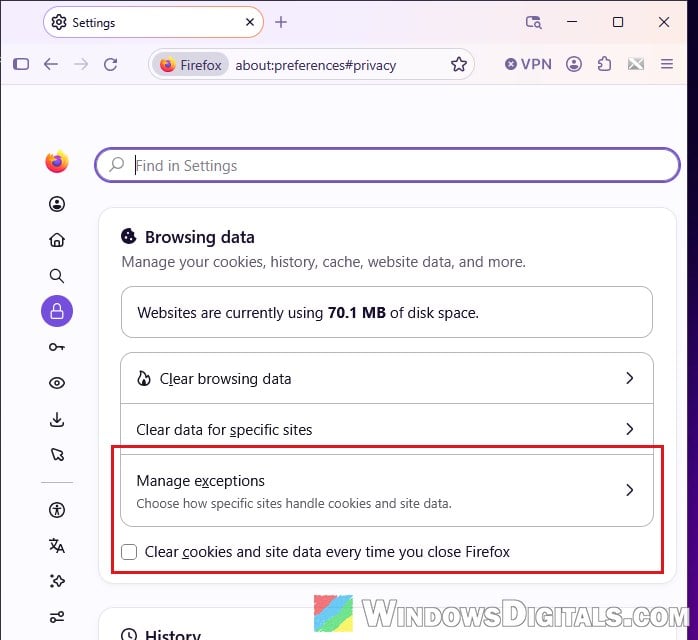
- If it is, untick it. If you’d rather keep it on, click “Manage exceptions” and add Google and YouTube as sites that are always allowed to keep their cookies.
After that, sign in to Google once more, close Firefox, and open it again to check that you’re still signed in.