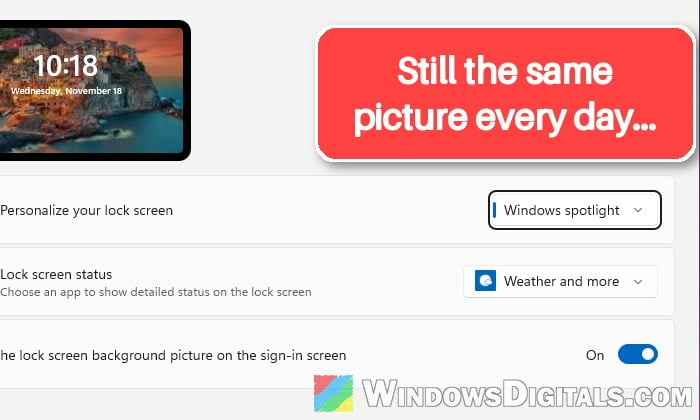
Say you’ve set your lock screen to Windows Spotlight so you get a new photo every day, but every time you lock or start your PC, you still see the default Windows picture or the same old photo. Or the option jumps back to “Picture” as soon as you close Settings. This guide will show you why Spotlight stops changing and how to bring the daily pictures back.
Also see: Windows 11/10 lock screen image location (where in the world)
Why does Windows Spotlight stop working?
Windows Spotlight downloads its pictures in the background and saves them in a hidden folder. When anything gets in the way, the lock screen falls back to the default image. Some common reasons are:
- A metered connection or Energy saver, both of which can stop the download.
- Mismatched region settings between “Country or region” and the rest of Windows.
- A broken Spotlight cache, often blamed when it stops after an update or an upgrade to 25H2 or 26H2.
- A debloat or privacy tool that turned Spotlight or the services it needs off.
- Your user profile, since Spotlight often works on a second account but not the main one.
It’s a common problem discussed on Reddit and Microsoft’s forums, and no single fix works for everyone. Microsoft is reportedly working on making Spotlight more reliable in Insider builds, but until then, go through the fixes below in order.
Switch to “Picture”, restart, then back to “Windows spotlight”
Switching away from Spotlight and back after a restart can make Windows set it up again, and it’s the quickest thing to try (if Windows spotlight isn’t in the list at all, skip to the debloat section below). Here’s how to do it:
- Open Settings and go to Personalization > Lock screen.
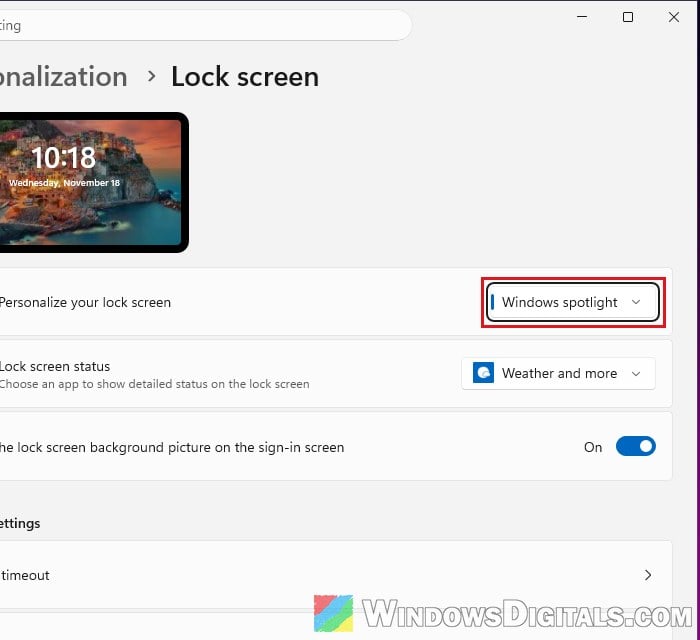
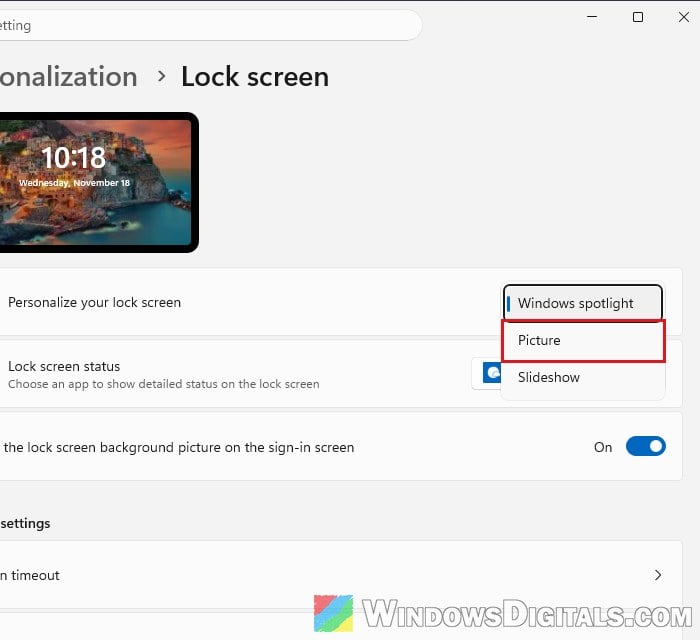
- Click the drop-down next to Personalize your lock screen and select Picture.
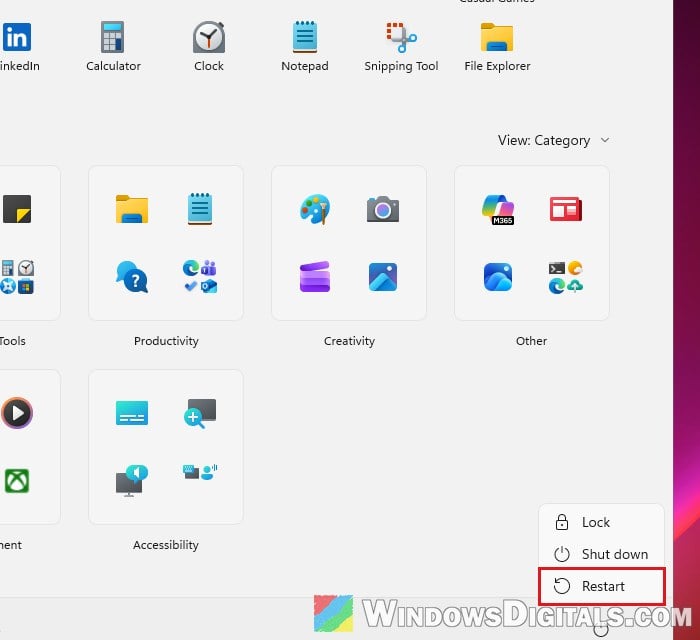
- Open Start, click the power button and select Restart (not Shut down).
- Go back to Settings > Personalization > Lock screen and select Windows spotlight again.
- If you also use Spotlight as your desktop background, do the same under Settings > Personalization > Background.
Please note that after this or any of the fixes below, Spotlight can take 24 to 48 hours to get its first new picture.
Might be useful: How to Stop Shop Ads on Windows 11 Lock Screen
Turn off metered connection and Energy saver
Windows holds back background downloads on a metered connection or with Energy saver on, so Spotlight quietly stops. Here’s what to check:
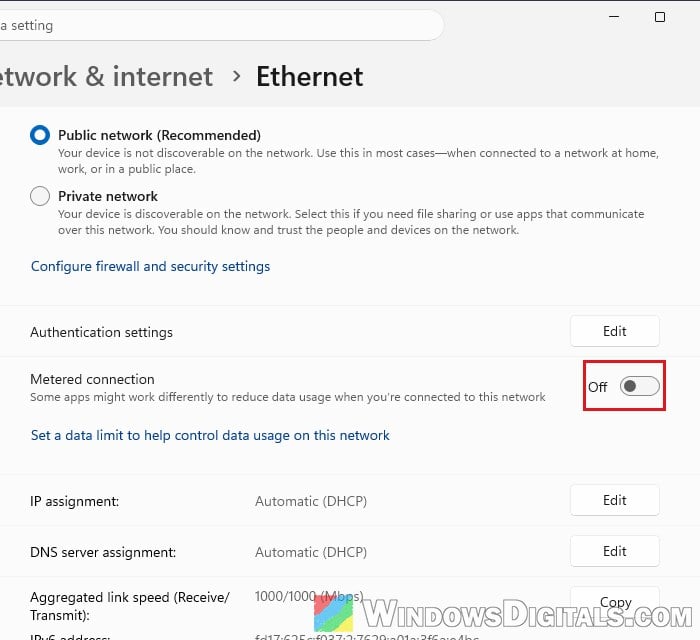
- Go to Settings > Network & internet, click Wi-Fi or Ethernet (open your network’s properties if needed), and turn off Metered connection.
- Go to Settings > System > Power (Power & battery on a laptop), click Energy saver and make sure it’s off.
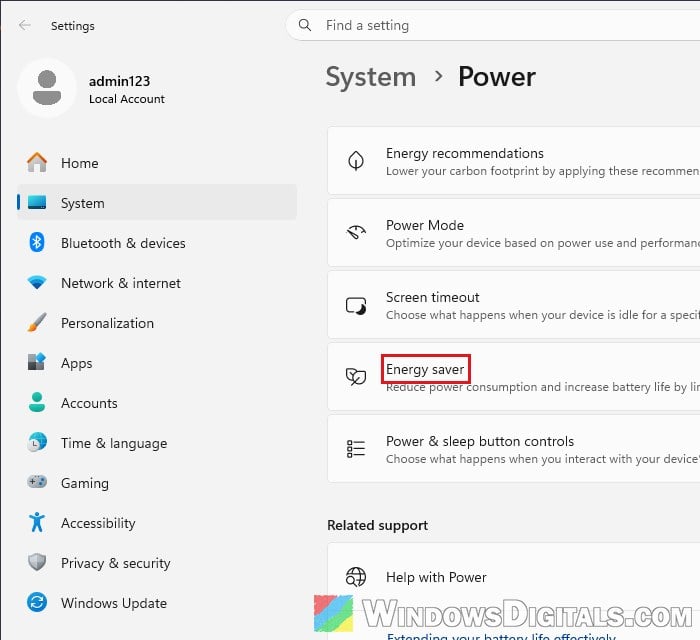
Then give it a day and see if a new picture shows up.
Make your region settings match
Spotlight can break when the region you pick in Settings doesn’t match the region Windows was set up with. Fixing that has brought Spotlight back for a few people, and setting the country to United States is worth a try too. Here’s what to do:
- Go to Settings > Time & language > Language & region.
- Compare Country or region with Device setup region below it. If they differ, set Country or region to the same one.
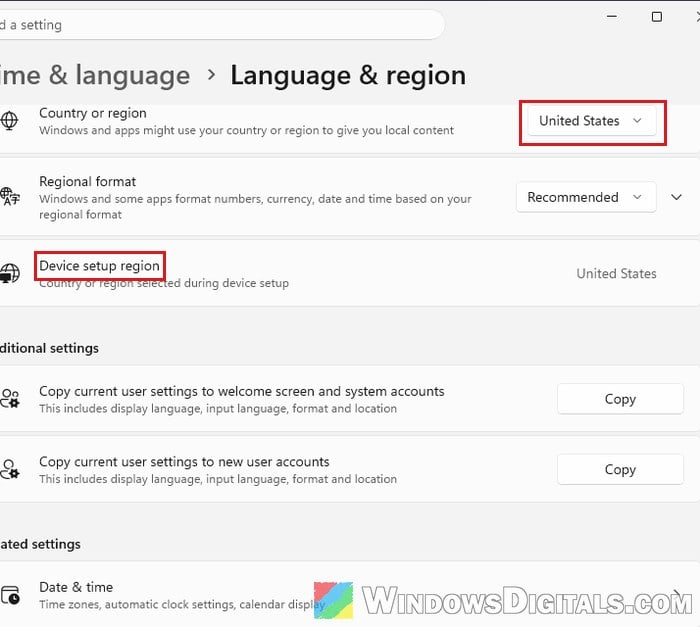
- To match the system locale too, press Win + R, type
intl.cpland press Enter. - Go to the Administrative tab and click Change system locale.
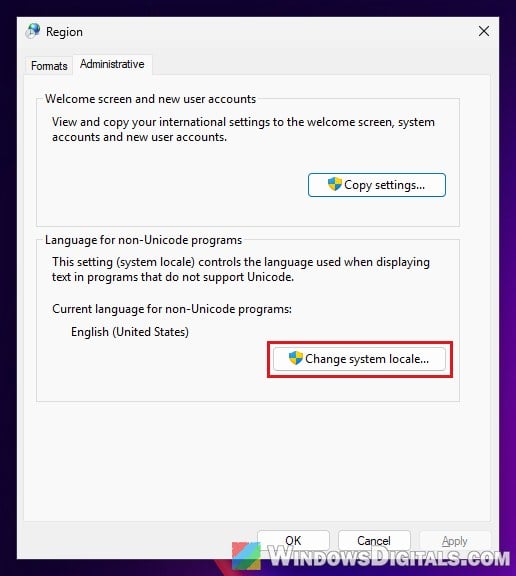
- Pick the locale for that same country (for example English (United States)), click OK, then restart when Windows asks you to.
After the restart, switch the lock screen to Picture and back to Windows spotlight as in the first fix.
Reset and re-register Windows Spotlight
If Spotlight’s pictures folder (below) is empty or it never moves on from one picture, clearing its cache and registering it again gives it a clean start. It’s the most suggested fix, though it doesn’t work for everyone. Follow the steps below:
- Set your lock screen to Picture first (see the first fix).
- Open File Explorer, copy and paste the following path to the address bar and press Enter:
%LOCALAPPDATA%\Packages\Microsoft.Windows.ContentDeliveryManager_cw5n1h2txyewy\LocalState\Assets
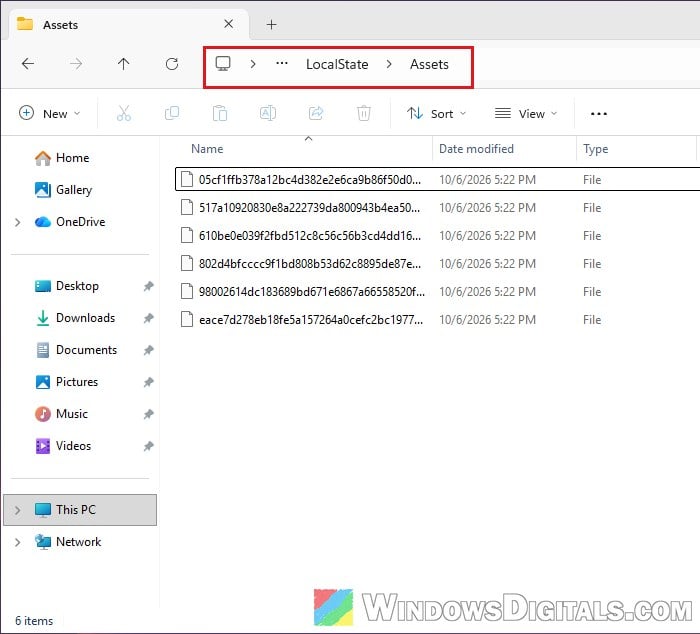
- Press Ctrl + A and delete everything in the folder.
- Do the same for this folder:
%LOCALAPPDATA%\Packages\Microsoft.Windows.ContentDeliveryManager_cw5n1h2txyewy\Settings
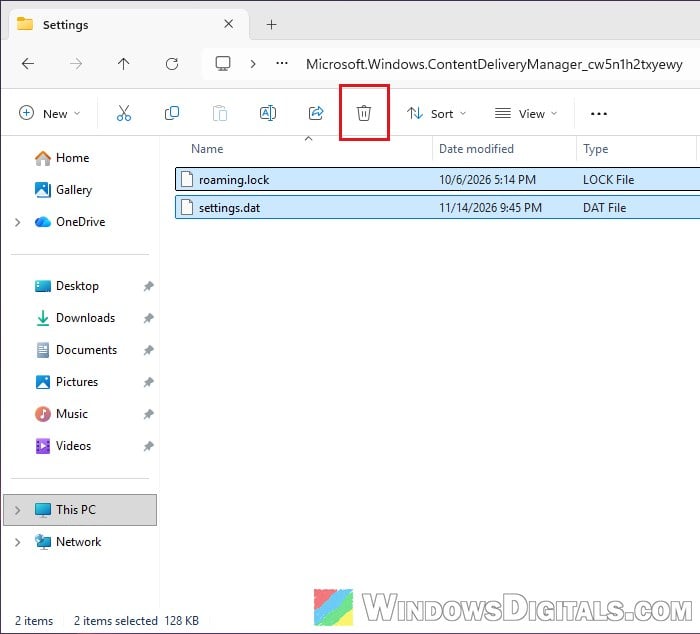
- Search for PowerShell in the Start menu, right-click it and select Run as administrator, then run the following command:
Get-AppxPackage -allusers *ContentDeliveryManager* | foreach {Add-AppxPackage "$($_.InstallLocation)\appxmanifest.xml" -DisableDevelopmentMode -register }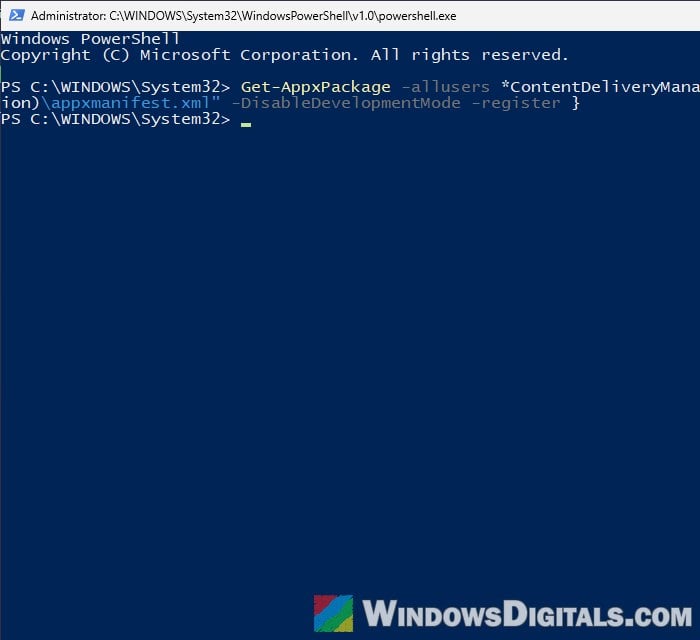
- Restart your PC, then set the lock screen back to Windows spotlight and give it a day or two.
Related guide: How to Find Current Wallpaper Location in Windows 11
Did you use a debloat or privacy tool?
If you’ve ever run a “debloat” script or tweak tool, there’s a good chance it’s the reason. Many of them turn off Spotlight’s rotation or the services it needs, or even remove Spotlight from the lock screen list, sometimes with a “Some of these settings are managed by your organization” message. The easiest way out is the tool’s own undo option for its lock screen or Spotlight tweaks. Otherwise, check the following.
Check the services Spotlight needs
Make sure these services aren’t set to Disabled: Background Intelligent Transfer Service, Windows Update, Connected User Experiences and Telemetry and Microsoft Account Sign-in Assistant. Setting a disabled one back to Automatic can bring Spotlight back right away. To check them:
- Press Win + R, type
services.mscand press Enter. - Double-click Background Intelligent Transfer Service. If Startup type says Disabled, set it to Automatic, click Apply, then Start. Automatic (Delayed Start) is normal for this one, so leave it as it is.
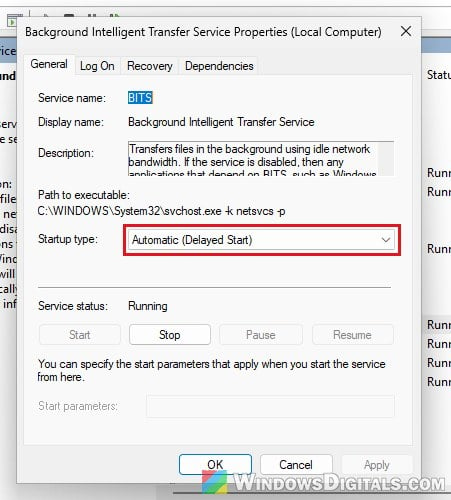
- Do the same for the other three services, then restart your PC.
Related problem: Services.msc “Startup Type” Greyed Out in Windows 11 or 10
Check the registry
Incorrectly changing the registry in Windows could lead to serious problems. Please at least create a system restore point first, and if you’re not sure what you’re doing, get someone who knows to help you instead.
- Press Win + R, type
regeditand press Enter. - Copy and paste the following path to the address bar and press Enter:
HKEY_CURRENT_USER\Software\Microsoft\Windows\CurrentVersion\ContentDeliveryManager
- Look for RotatingLockScreenEnabled. If it’s set to 0, double-click it and change it to 1.
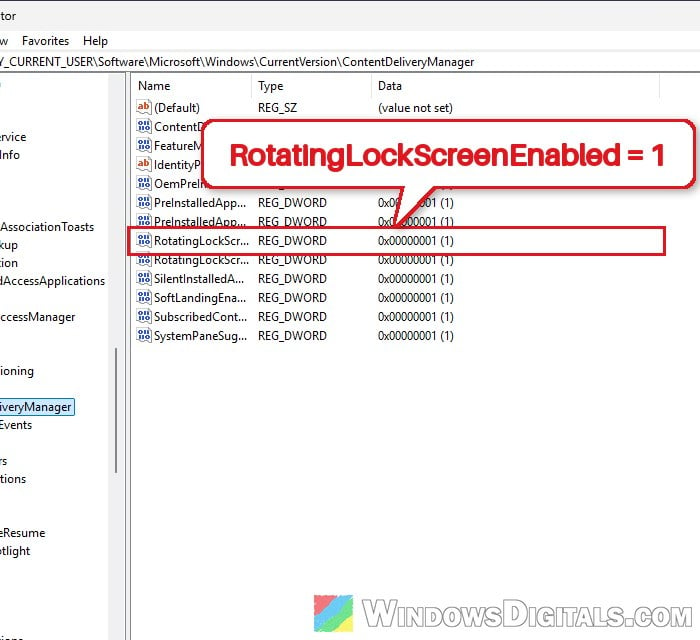
- Then check these two keys, if they exist:
HKEY_CURRENT_USER\Software\Policies\Microsoft\Windows\CloudContent
HKEY_LOCAL_MACHINE\SOFTWARE\Policies\Microsoft\Windows\CloudContent
A ConfigureWindowsSpotlight value set to 0, or a DisableWindowsSpotlightFeatures value set to 1, turns Spotlight off. These are the registry side of the “Configure Windows spotlight on lock screen” and “Turn off all Windows spotlight features” policies. Delete those values on a personal PC (not one your work or school manages), then restart.
Check if it works on another account
If none of the above helped, see whether Spotlight works on a different user account. It tells you if the problem is with Windows itself or only with your profile.
- Go to Settings > Accounts > Other Users, click Add account and add a new account (a local account is fine).
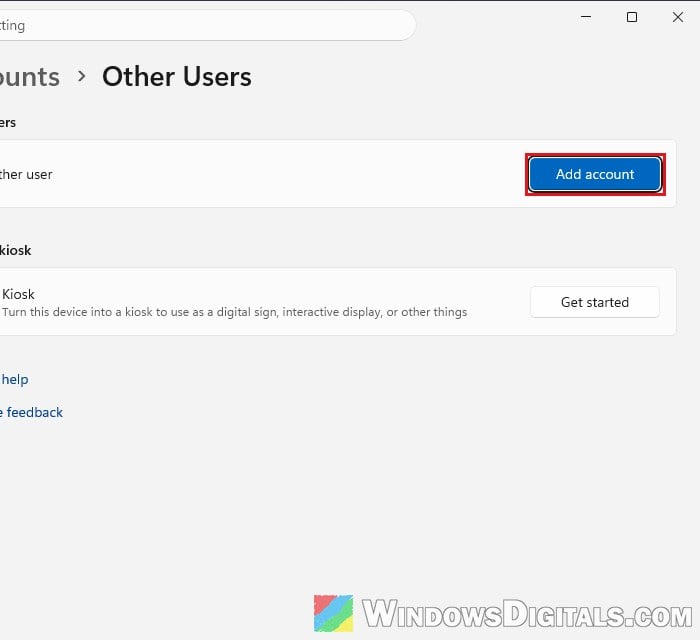
- Sign in to it, set its lock screen to Windows spotlight, and check it again over the next day or two.
If Spotlight works there, the problem is in your main profile. Moving to the new account is a lot of work for a wallpaper, so the workaround below may be the better deal.
Suggested read: Create local admin account without password in Windows 11/10
Use another app for daily pictures
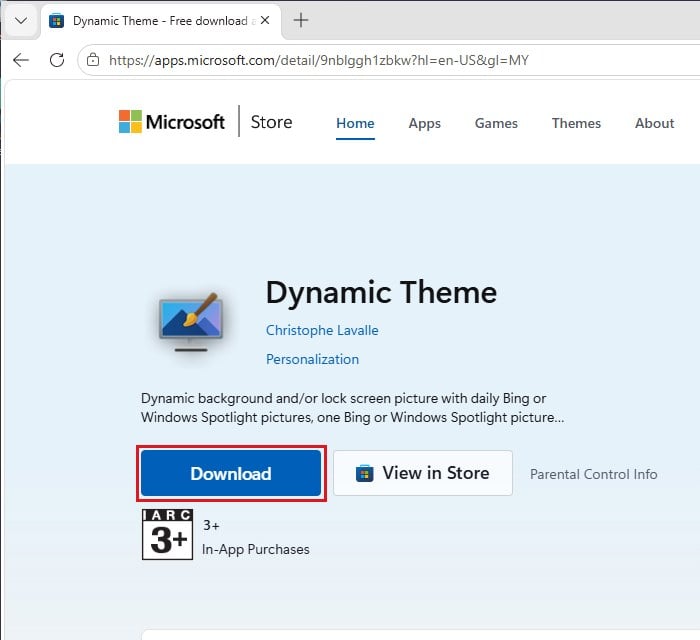
If Spotlight still won’t cooperate, use an app instead. Dynamic Theme, a third-party app in the Microsoft Store, can set a new Bing or Spotlight picture on your lock screen and desktop every day. To get it, go to https://apps.microsoft.com/detail/9nblggh1zbkw and click Download, or search for Dynamic Theme in the Microsoft Store app.